Feature Summary
Quickly insert a blank page into a document to separate content or reserve page space.
Feature Description
| Feature Dimension | Description |
|---|---|
| Membership Restriction | No membership restriction, available to all users |
| Version Restriction | No version restriction |
Operation Steps
Insert a Blank Page
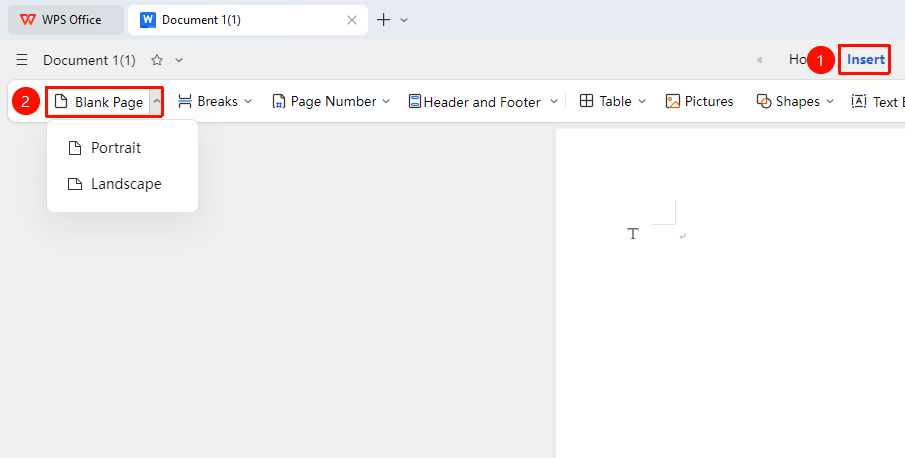
Entry Point ①
"Insert" tab → "Blank Page"
- Place the cursor at the position where you want to insert a blank page
- Click the "Insert" tab
- Click the "Blank Page" drop-down menu
- Select "Portrait" blank page or "Landscape" blank page
- The system will insert a blank page after the cursor position
Entry Point ②
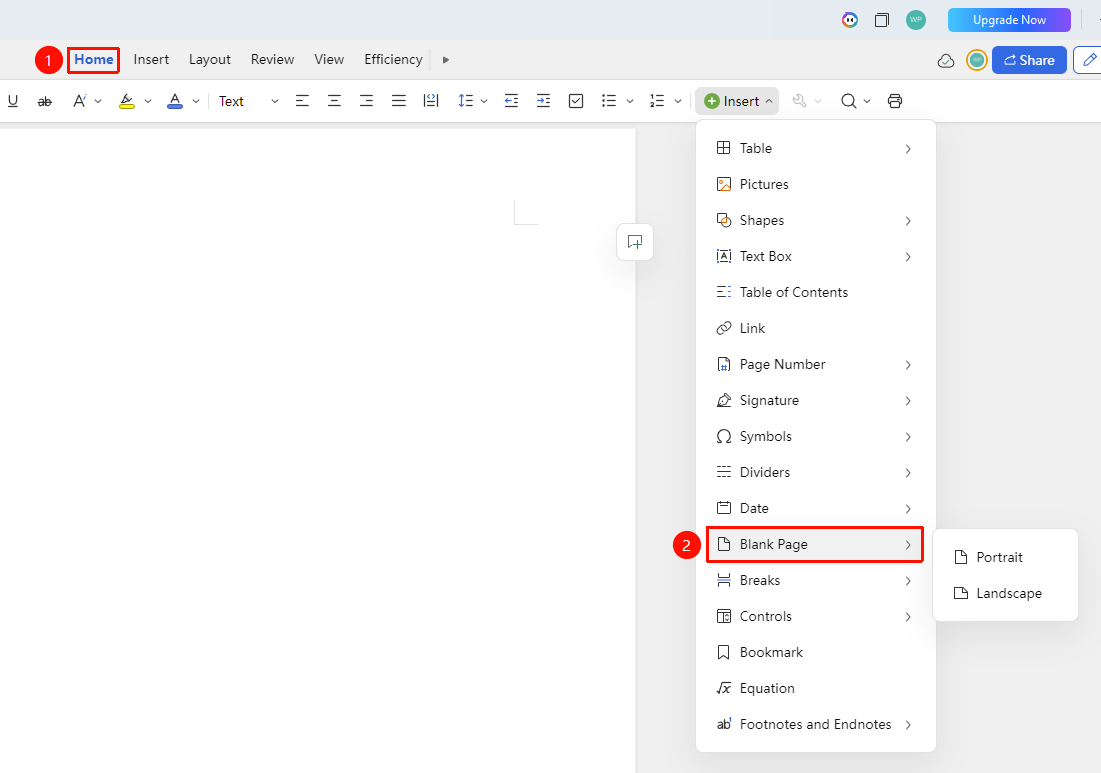
"Home" tab → "Insert" → "Blank Page"
- Place the cursor at the position where you want to insert a blank page
- In the "Home" tab, click "Insert" → "Blank Page"
- Select "Portrait" blank page or "Landscape" blank page
Entry Point ③
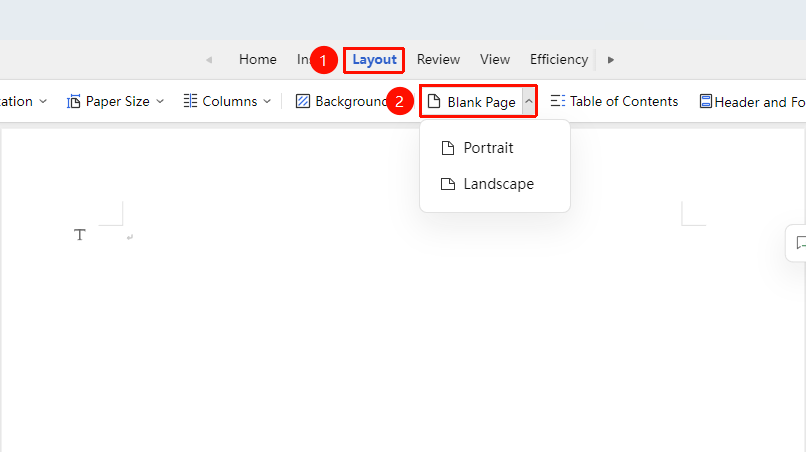
"Page" tab → "Blank Page"
- Place the cursor at the position where you want to insert a blank page
- Click the "Page" tab
- Click the "Blank Page" drop-down menu
- Select "Portrait" blank page or "Landscape" blank page
Frequently Asked Questions
Question 1: Formatting issues after inserting a blank page
- Solution: Check whether the paper size and margins in the page setup are consistent, ensuring the newly inserted page has the same format as the original document.
Question 2: Unable to insert a blank page at the specified position
- Solution: Make sure the cursor is correctly positioned at the target location, and avoid attempting insertion inside a table or text box.
Notes
- Inserting a blank page adds a new page after the cursor position
- The blank page inherits the page settings of the current page
- To delete a blank page, place the cursor on the blank page section break, double-click to select it, and press the Delete key