Feature Summary
Insert tables into documents for data organization, information comparison, and content display.
Feature Description
| Feature Dimension | Description |
|---|---|
| Membership Restriction | No membership restriction |
| Version Restriction | No version restriction |
Steps
Method 1: Insert a Table with Specified Rows and Columns
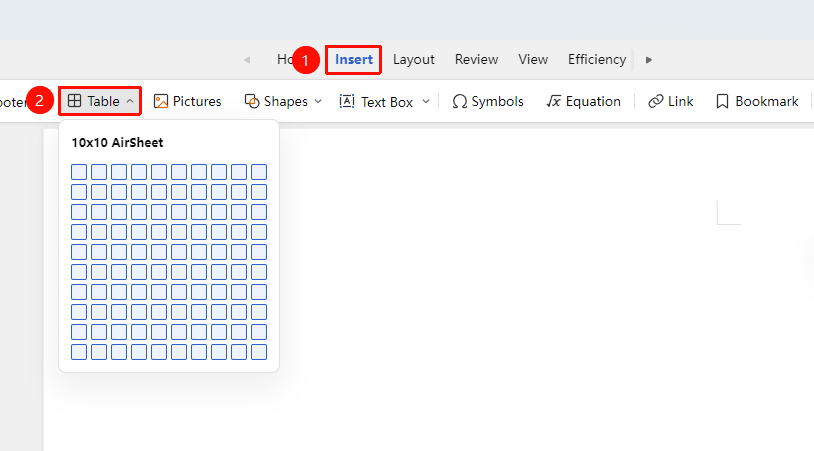
Feature Entry ①
"Insert" Tab → "Table" → "Insert Table"
- Place the cursor where you want to insert the table
- Click the "Insert" tab, then click "Table"
- In the pop-up grid, drag the mouse to select the number of rows and columns (e.g., 3×4)
- Click the left mouse button to insert the table
Feature Entry ②
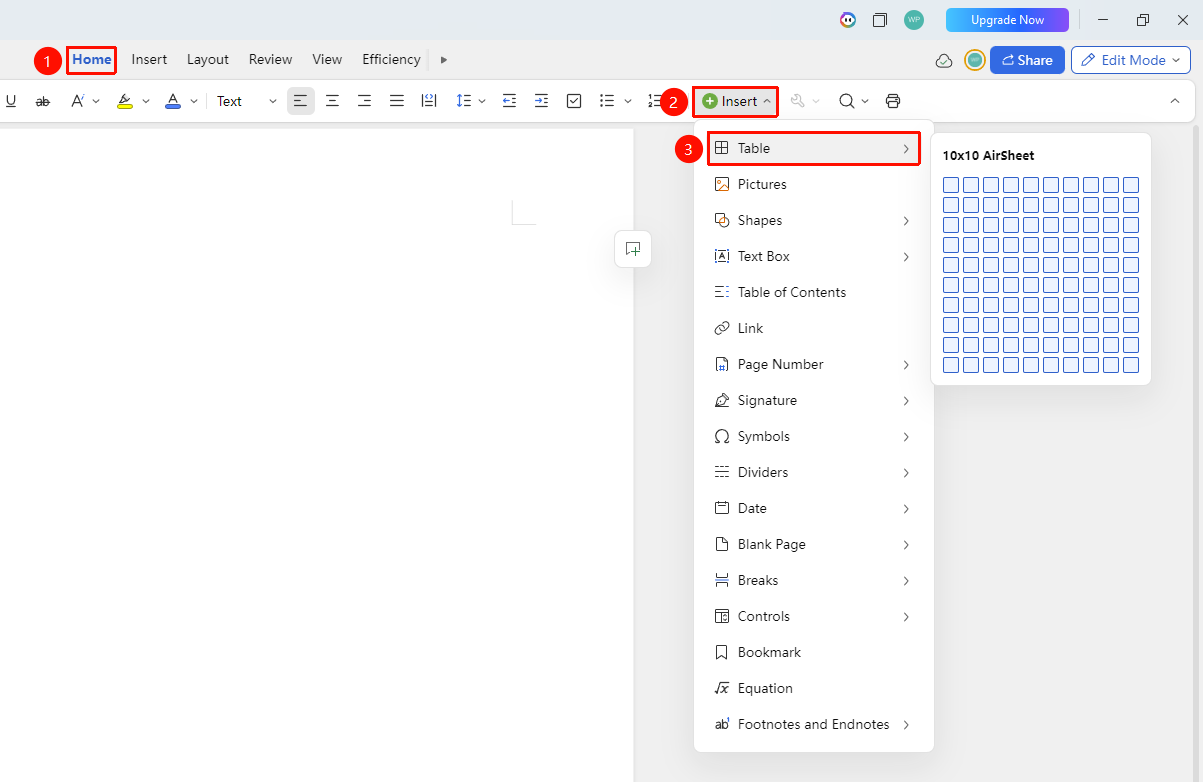
"Home" Tab → "Insert" → "Table" → "Insert Table"
- Place the cursor where you want to insert the table
- In the "Home" tab, click "Insert" → "Table" → "Insert Table"
- In the pop-up grid, drag the mouse to select the number of rows and columns (e.g., 5×4)
- Click the left mouse button to insert the table
Method 2: Copy and Paste from a Table File or Other Document
- Select the target area in the table or other file
- Press Ctrl+C to copy
- Switch to the WPS Document, and place the cursor at the target position
- Press Ctrl+V to paste, or right-click and select "Keep Source Formatting" to retain the original format
FAQ
Question 1: How to adjust row height and column width of an inserted table?
- Solution: Select the table, then drag the row or column borders to adjust; or right-click and use "Row Height" or "Column Width" for precise settings.
Question 2: How to repeat the header row when a table spans multiple pages?
- Solution: Select the header row, right-click, and choose "Repeat Header Rows".
Question 3: Maximum rows and columns for inserting a table
- Solution:
- In collaboration mode, a maximum of 10×10 table can be inserted at once. After insertion, you can select cells or the entire table to add specified rows or columns.
- Right-click a cell or the entire table → "Insert" to insert the specified number of rows or columns.
Question 4: Why do some settings of a copied table become invalid when pasted in online editing mode?
- Solution: In collaboration mode, some advanced table features may be limited.
- For complex tables, it is recommended to edit them in the WPS client and then sync to the cloud.
Notes
- In online editing mode, some advanced table features may be limited.
- For complex tables, it is recommended to edit them in the WPS client and then sync to the cloud.
- If the table contains too much content, consider displaying it across multiple pages.
- After inserting a table, double-click the table to enter the editing menu for operations such as "Delete/Add Rows or Columns", "Delete Table", and "Change Borders".