Feature Summary
Insert web links, document internal links, or email links into a document for quick navigation and information association.
Feature Description
| Feature Dimension | Description |
|---|---|
| Membership Restriction | No membership restriction |
| Version Restriction | No version restriction |
| Shortcut Key | Ctrl + K |
Operation Steps
Insert a Web Link
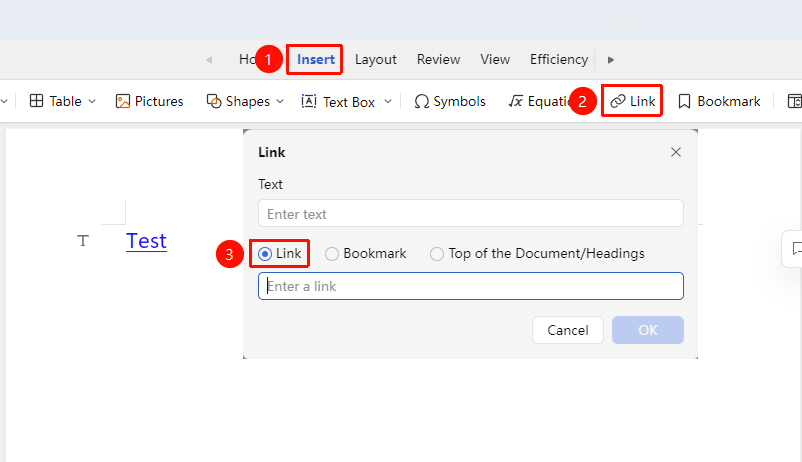
Feature Entry: "Insert" tab → "Link" or shortcut key Ctrl+K
- Click the "Insert" tab and select "Link"
- Enter the web URL in the address bar
- Enter the link name in the text input box
- Click "OK" to complete the insertion
Insert a Bookmark Link
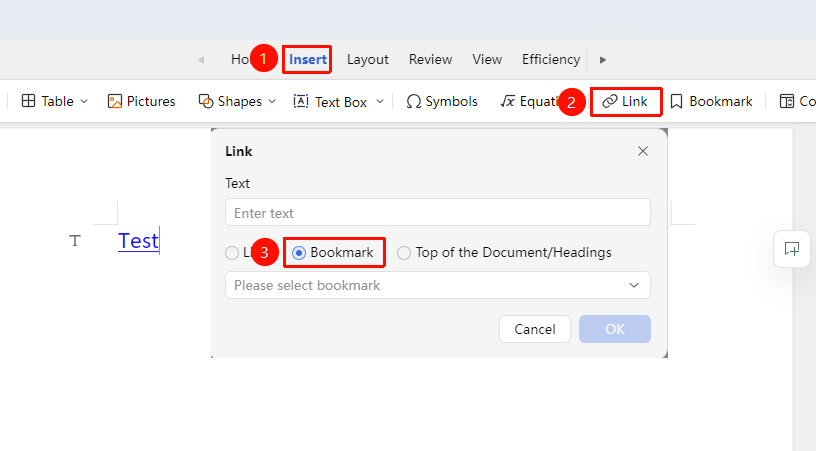
Feature Entry: "Insert" tab → "Link" → "Bookmark"
- Click the "Insert" tab and select "Link" → "Bookmark"
- Select an existing bookmark in the document
- Enter the display name in the text input box
- Click "OK" to complete the insertion
- Click the link in the document body to quickly jump
Insert a Document Top/Heading Link
Feature Entry
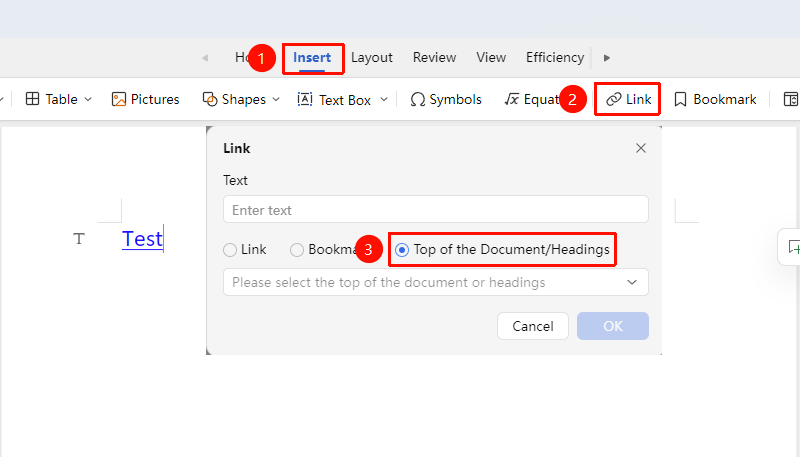
"Insert" tab → "Link" → "Document Top/Heading"
- Click the "Insert" tab and select "Link" → "Document Top/Heading"
- Select an existing heading or the document top in the document
- Enter the display name in the text input box
- Click "OK" to complete the insertion
- Click the link in the document body to quickly jump
Insert from the "Home" Tab
Feature Entry
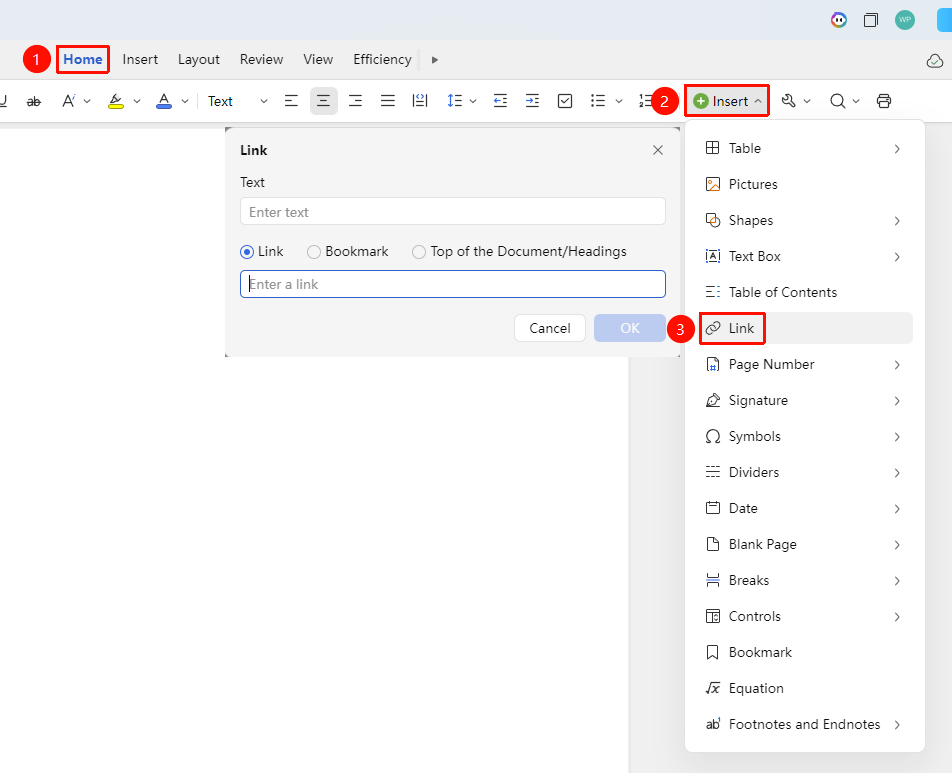
"Home" tab → "Controls"
- In the "Home" tab, click "Insert" → "Link"
- Select "Link", "Bookmark", or "Document Top/Heading" to insert
Insert from the Right-Click Menu
Feature Entry
- Right-click in the editing area where you want to insert a link
- Select "Insert Link" from the right-click menu
- Select "Link", "Bookmark", or "Document Top/Heading" to insert
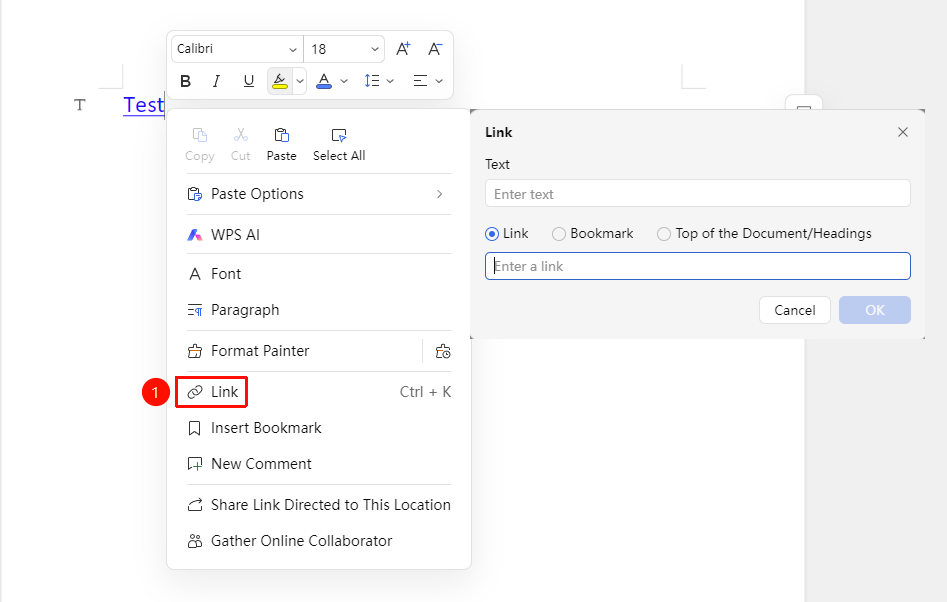
Edit or Remove a Link
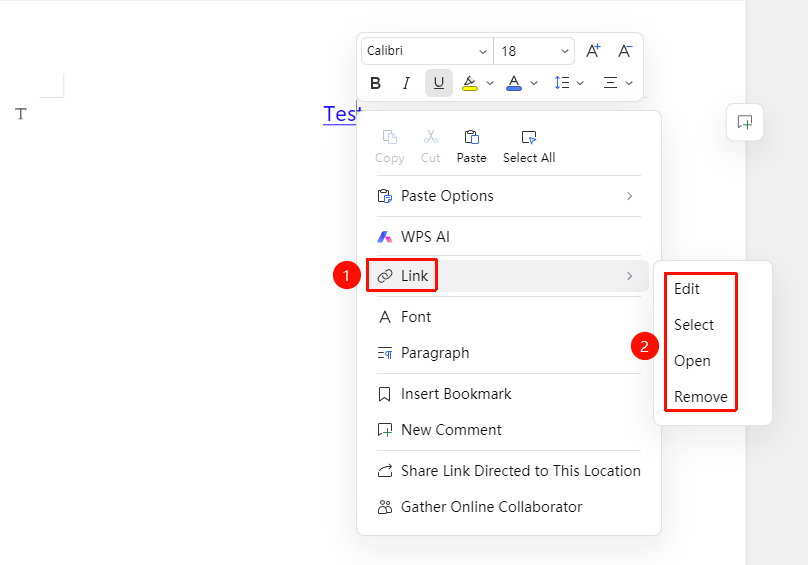
Feature Entry: Right-click the link → "Hyperlink" → "Edit Link"/"Remove Link"
- Right-click an existing link
- Select "Edit Link" to modify the link address
- Select "Remove Link" to delete the link while keeping the text
- You can also select the link and press Ctrl+K directly to edit
Frequently Asked Questions
Question 1: What if clicking a link does nothing?
- Solution: Hold down the Ctrl key and click the link; or check if the document is in protected mode.
Question 2: Why are there no bookmarks when inserting a bookmark link?
- Solution: Before inserting a bookmark link, you need to insert a bookmark at the target location first.
Question 3: What if the hyperlink still exists after removing the link and reopening the document?
- Solution:
- Go to the "Edit Link" interface and verify whether the link URL still exists; delete it if so
- If you need to keep the text content of the link, copy the text content and paste it to the desired location, then delete the original link.
Notes
- It is recommended to regularly check the validity of external links
- Bookmark links require inserting a bookmark at the target location first