Feature Summary
The text layout feature provides intelligent formatting options to quickly organize document styles, including paragraph optimization, space handling, punctuation correction, etc., making document layout more standardized and visually appealing.
Feature Description
| Feature Dimension | Description |
|---|---|
| Membership Restriction | Free to use |
| Version Restriction | No special restrictions |
Operation Steps
Using Text Layout
Feature Entry
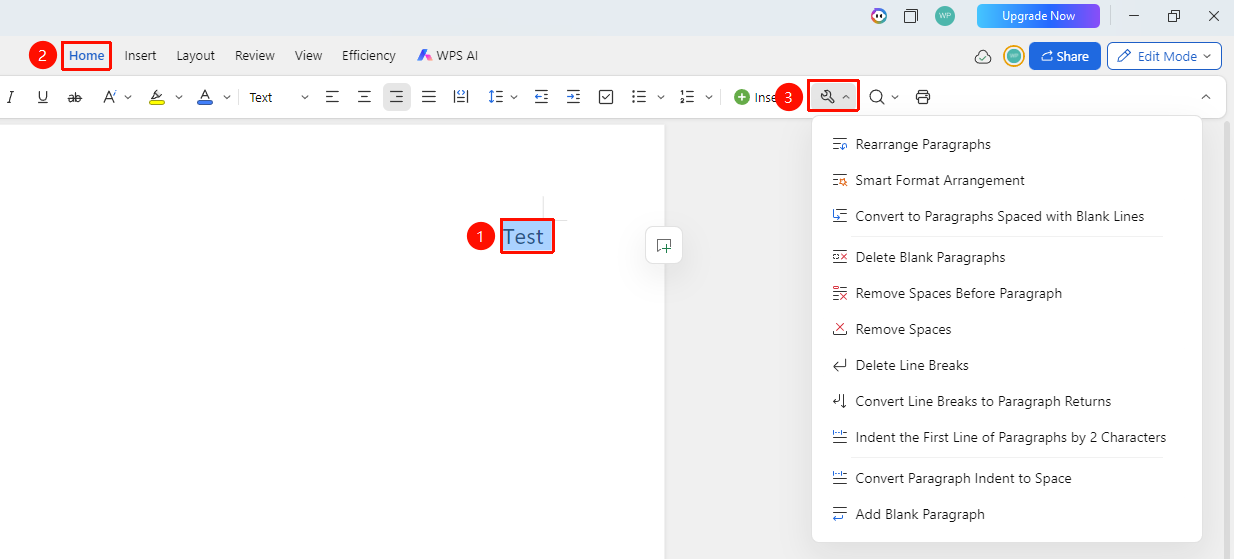
"Home" tab → "Text Layout" dropdown menu
- Open the document and click the Home tab
- Click the "Text Layout" dropdown menu
- Select a layout option
Smart Format Organizing
Feature Entry
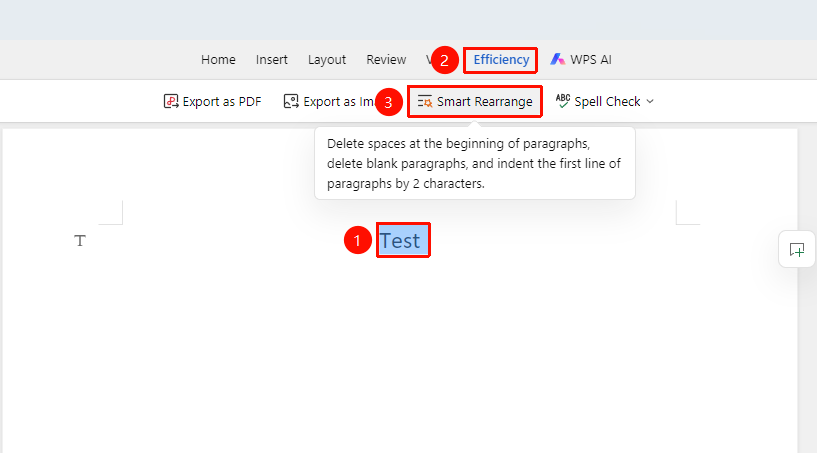
"Efficiency" tab → "Smart Format Organizing" button
- Open the document and click the Home tab
- Click the "Smart Format Organizing" button
Text Layout Feature Options Description
- Paragraph Reflow: Merge paragraphs that lack first-line indentation or have no spaces at the beginning into the previous paragraph
- Smart Format Organizing: Remove spaces at the beginning of paragraphs, delete empty paragraphs, and remove 2-character first-line indentation
- Convert to Empty Paragraph Separation Style: Set paragraph separation to empty paragraph format
- Delete Empty Paragraphs: Remove extra blank lines
- Delete Spaces at Paragraph Start: Remove spaces at the beginning of paragraphs
- Delete Spaces: Remove extra spaces
- Delete Line Breaks: Remove manual line breaks
- Convert Line Breaks to Carriage Returns: Batch convert line breaks in the document to carriage returns
- First-Line Indentation of 2 Characters: Set paragraphs to have a 2-character first-line indent
- Convert First-Line Indentation to Spaces: Convert the first-line indentation of paragraphs to spaces with one click
- Add Empty Paragraphs: Batch add blank lines between paragraphs
Frequently Asked Questions
Question 1: Will Smart Formatting change the original formatting?
- Solution: Smart Formatting mainly optimizes paragraph formatting and will not change character formatting such as fonts or colors.
Question 2: How to undo after formatting?
- Solution: Use Ctrl+Z to undo the operation, or restore the original data through version history.
Notes
- It is recommended to save the document before formatting
- Formatting large documents may take a long time
- The formatting effect can be manually fine-tuned as needed