Function Summary
The italic function can set text to italic format, suitable for scenarios such as quotations, book titles, and emphasized text, helping users achieve diverse text layout effects.
Function Description
| Function Dimension | Description |
|---|---|
| Membership Restriction | No membership restriction, available to all users |
| Version Restriction | No version restriction, ensure sufficient cloud space capacity |
Operation Steps
Setting Text Italic
Function Entry
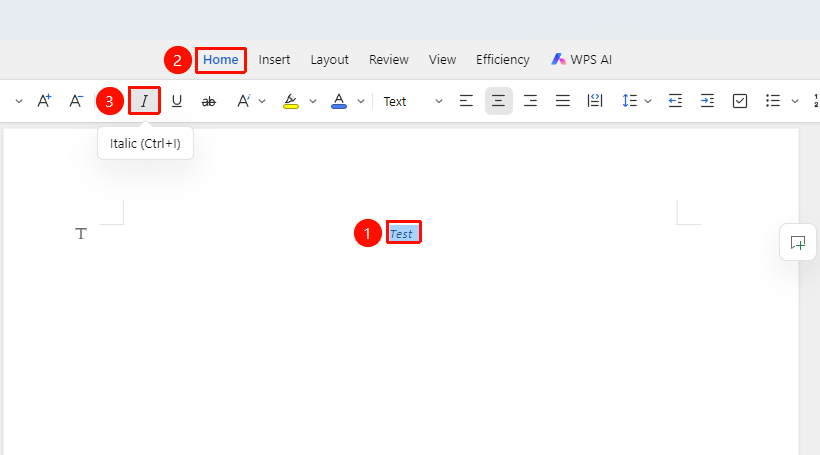
"Home" Tab → "Italic" Option
- Select the text to be italicized
- Click the Home tab
- Click the "Italic" button
- The selected text will become italic
Shortcut:
Ctrl+I
Canceling Italic
Function Entry
"Home" Tab → "Italic" Option
- Select the text that has been set to italic
- Click the "Italic" button again
- The text will revert to normal format
Setting Italic via Text Properties
Function Entry
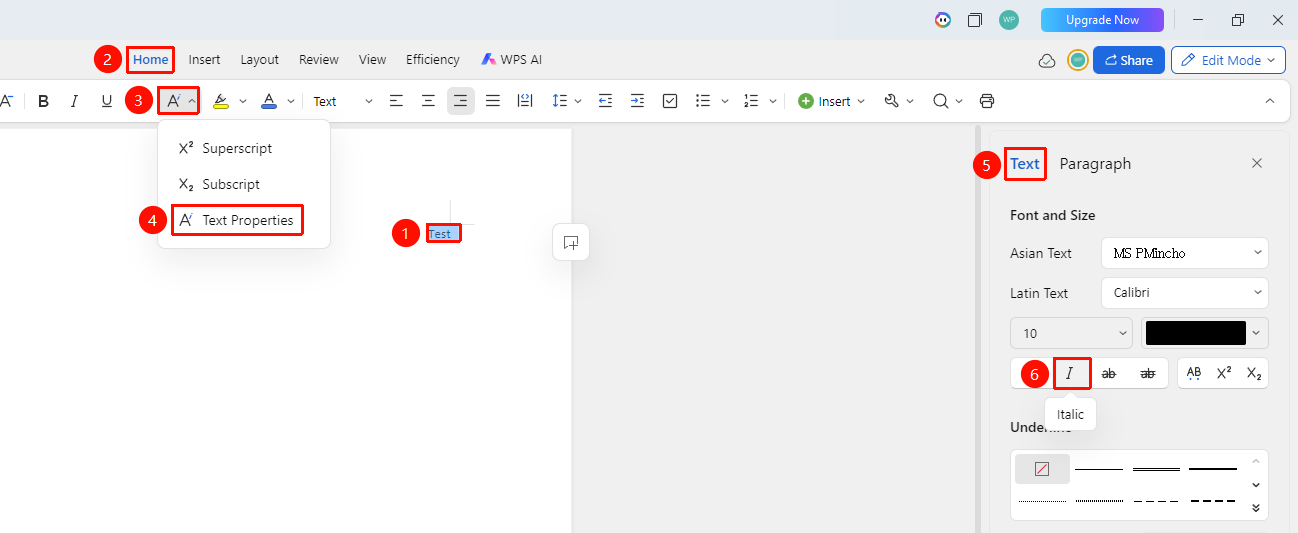
"Home" Tab → "Text Properties" Dropdown Menu → "Text Properties" Option → "Text" Tab → "Italic" Button
- Select the text to be italicized
- Click the Home tab
- Click the Text Properties dropdown menu and select the Text Properties option
- In the task pane on the right, select the Text tab, then click the "Italic" button
- The selected text will become italic
Setting Italic via Floating Toolbar
Function Entry
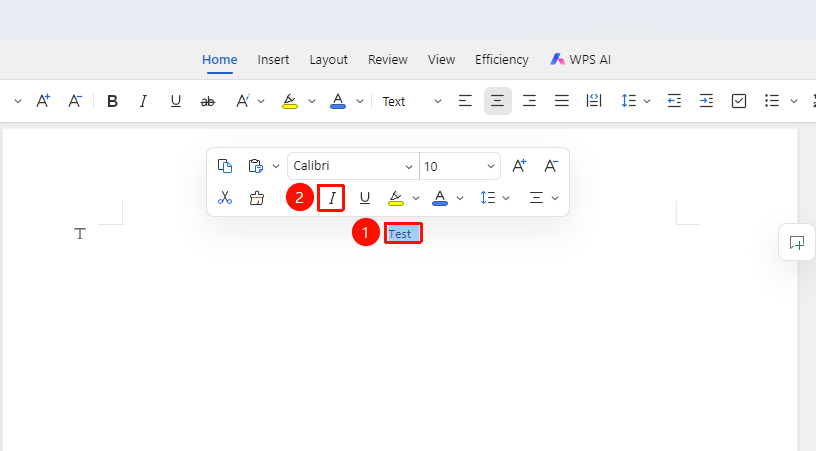
Select the text content to be italicized → "Floating Toolbar" Menu → "Italic" Option
- Select the text content to be set
- Click the "Italic" button in the Floating Toolbar
Notes
- The italic function is applicable to all fonts, but the italic effect may vary between different fonts
- Use the shortcut
Ctrl+Ito quickly toggle the italic state - The italic format will be copied and pasted along with the text