Feature Summary
The Show Collaborator Colors feature assigns a unique color identifier to each collaborator during multi-person collaboration. By distinguishing different users' editing content and cursor positions through colors, it enhances collaboration efficiency and user experience.
Feature Description
| Feature Dimension | Description |
|---|---|
| Membership Restriction | No membership restriction; available to all users |
| Version Restriction | No version restriction |
Operation Steps
Enabling Collaborator Colors
Feature Entry
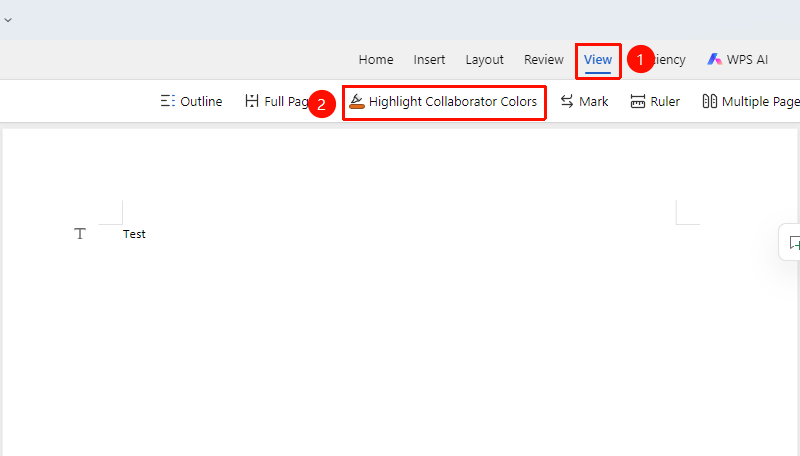
"View" tab → "Collaborator Colors" button
- Click the View tab
- Click the "Collaborator Colors" button
- Once enabled, each collaborator will be automatically assigned a unique color for distinction
Frequently Asked Questions
Question 1: Will collaborator colors affect printing?
- Solution: No. Collaborator colors are only displayed on the screen and will be automatically hidden during printing, without affecting the document's print output.
Notes
- Collaborator colors are automatically assigned to ensure each user has a unique color identifier
- Color identifiers update in real time to reflect the current online status of collaborators
- The collaborator color feature can be turned on or off at any time without affecting the document content
- Enable this feature during multi-person collaboration to easily distinguish different users' editing content