Feature Summary
The Find and Replace feature allows you to quickly locate specific content in a document and supports batch replacement. It is an efficient tool for document editing, suitable for correcting typos, standardizing terminology, adjusting formatting, and other scenarios.
Feature Description
| Feature Dimension | Description |
|---|---|
| Membership Restriction | No membership restriction; all users can use it |
| Version Restriction | No version restriction; ensure sufficient cloud storage space |
Operation Steps
Find Content
Feature Entry
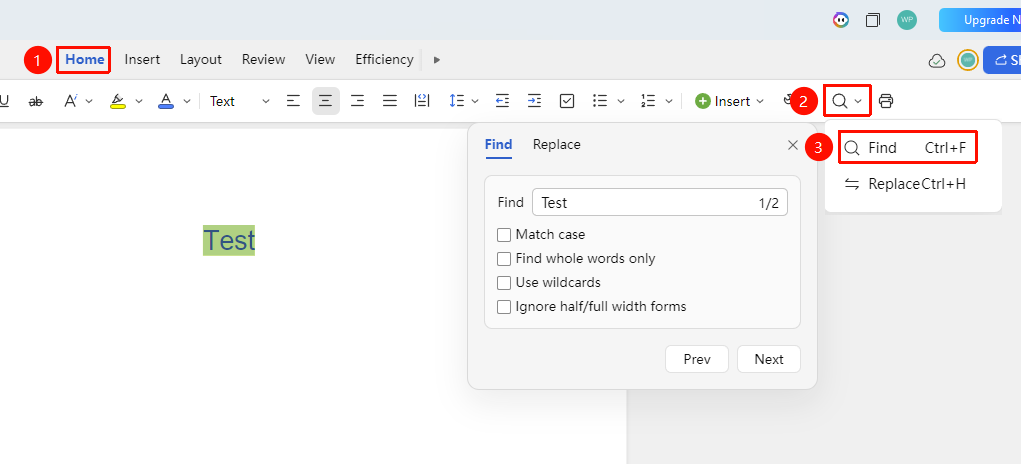
"Home" tab → "Find and Replace" dropdown menu → "Find"
- Click the "Find" button in the Home tab (or press Ctrl+F)
- Enter the content to find
- Click Previous/Next to search
- All matching items in the document will be highlighted
- Click a result to quickly jump to the corresponding location
Shortcut:
Ctrl+F
Replace Content
Feature Entry
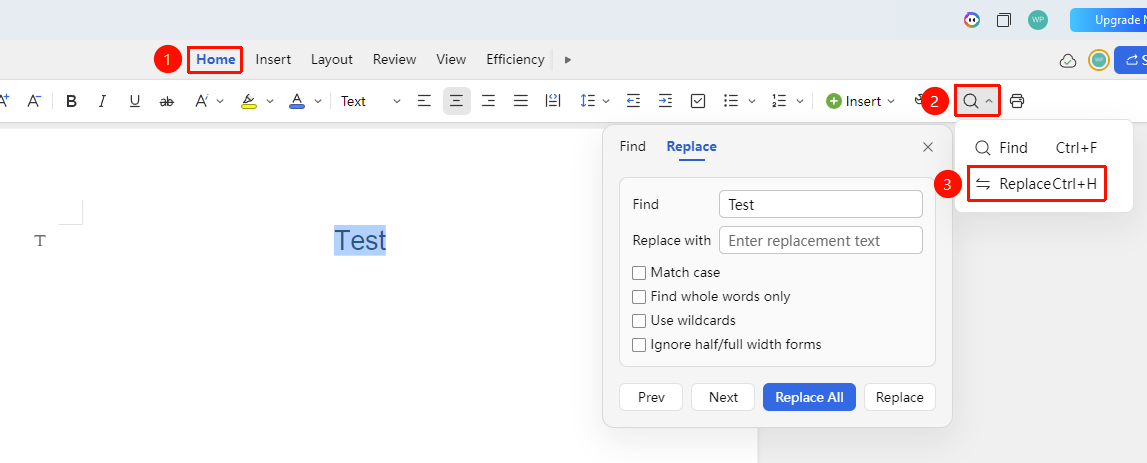
"Home" tab → "Find and Replace" dropdown menu → "Replace"
- Click the "Replace" button in the Home tab (or press Ctrl+F)
- Enter the content to find
- In the "Replace with" box, enter the replacement text
- Choose an action:
- Replace: Replace the currently selected match
- Replace All: Replace all matches at once
- Previous: Find the previous occurrence
- Next: Find the next occurrence
Shortcut:
Ctrl+H
Frequently Asked Questions
Question 1: How to batch delete blank lines?
- Solution: Use the Replace feature. Enter two paragraph marks (^p^p) in the "Find what" field and one paragraph mark (^p) in the "Replace with" field. Execute repeatedly until no matches are found.
Question 2: How to undo after replacement?
- Solution: Use Ctrl+Z to undo the replacement operation. You can undo multiple times to restore the document to its state before replacement.