Feature Summary
The ruler function is used to display the horizontal ruler of the page, facilitating precise setting of margins, indentation, tab stops, and other formats.
Feature Description
| Feature Dimension | Description |
|---|---|
| Membership Restriction | No membership restriction |
| Version Restriction | No version restriction |
Operation Steps
Show/Hide Ruler
Feature Entry
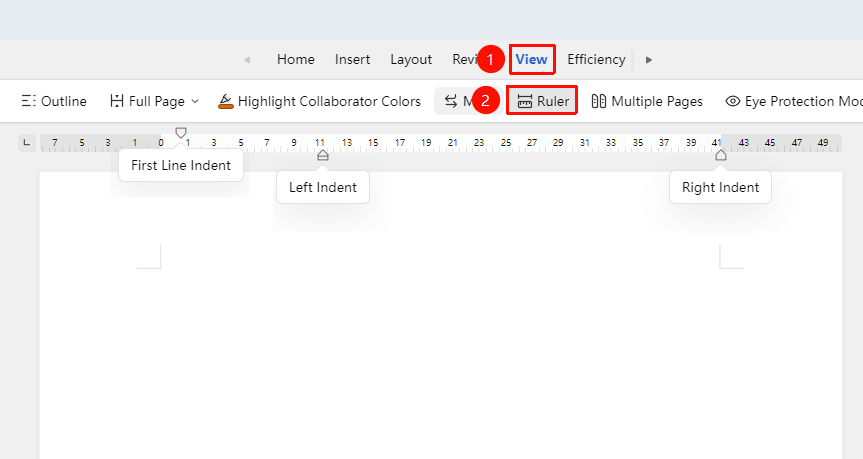
"View" Tab → "Ruler"
- Click the "Ruler" button in the "View" tab
- The ruler will be displayed above the editing area
- Click again to hide the ruler
Using the Ruler to Set Indentation
Feature Entry
Horizontal Ruler → Indentation Slider
- Select the paragraph for which you want to set indentation
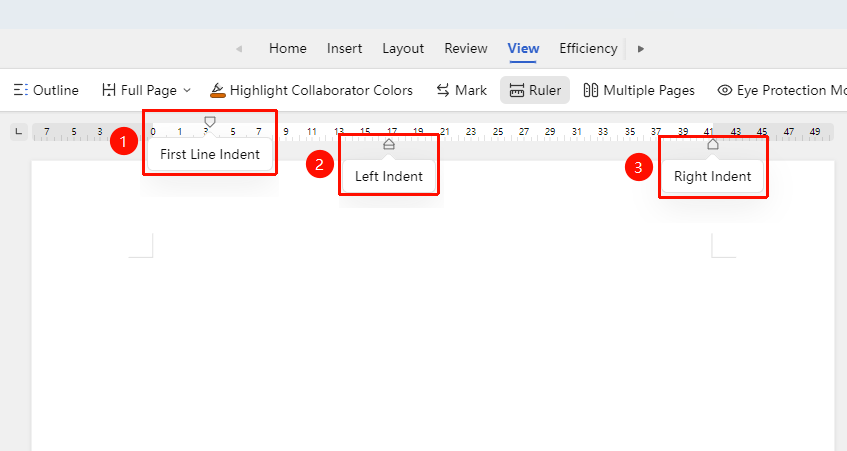
- Drag the indentation slider on the horizontal ruler:
- First-line indent: Upper triangle
- Left indent: Lower rectangle
- Right indent: Right triangle
- Release the mouse to complete the setting
Using the Ruler to Set Tab Stops
Feature Entry
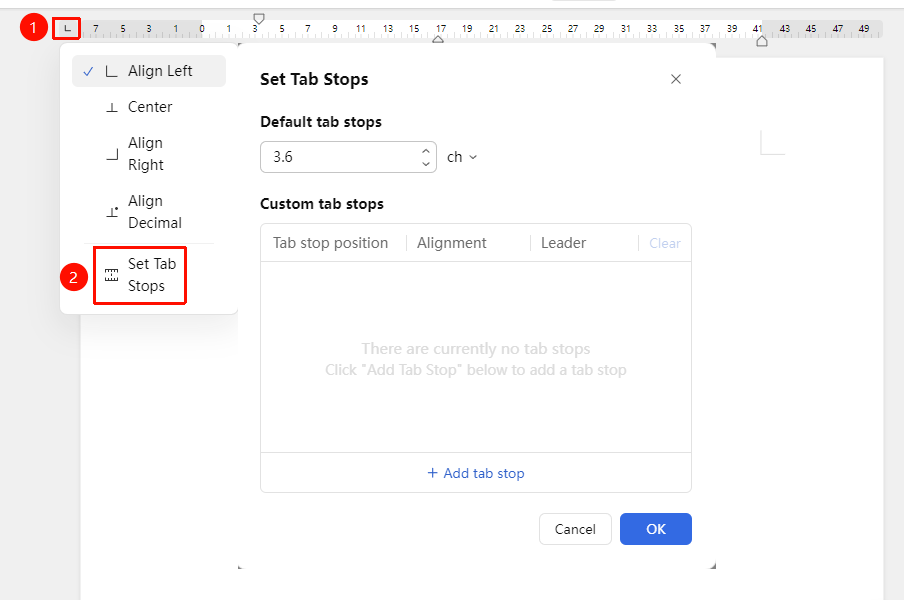
Horizontal Ruler → "Set Tab Stops"
- Click the tab stop type button on the left side of the ruler → "Set Tab Stops"
- Change the "Default Tab Stop" character or choose to add a "Custom Tab Stop"
- Click "OK" to apply
Frequently Asked Questions
Question 1: The ruler cannot be dragged
- Solution: Check if the restrict editing function is enabled; you may need to unprotect it first.
Notes
- In collaboration mode, the ruler display setting only affects the current user
- The scale on the ruler will automatically adjust based on the zoom ratio