Feature Summary
The style feature allows quick application of preset style formats and automatic generation of table of contents structures, suitable for long document formatting, report writing, thesis writing, and other scenarios.
Feature Description
| Feature Dimension | Description |
|---|---|
| Membership Restriction | No membership restriction, available to all users |
| Version Restriction | No version restriction, ensure sufficient cloud storage space |
Operation Steps
Apply Styles
Feature Entry
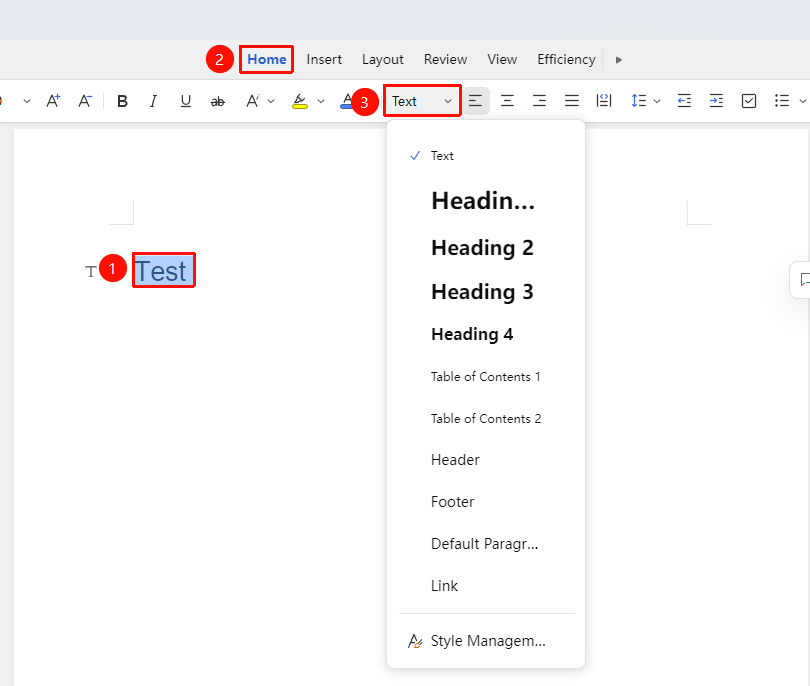
"Home" tab → "Styles" dropdown menu
- Select the text to be set as a heading
- Click the "Styles" dropdown menu in the Home tab
- Choose the corresponding heading style: Heading 1, Heading 2, Heading 3, etc.
- The text will automatically apply the preset heading format
Modify Styles
Feature Entry
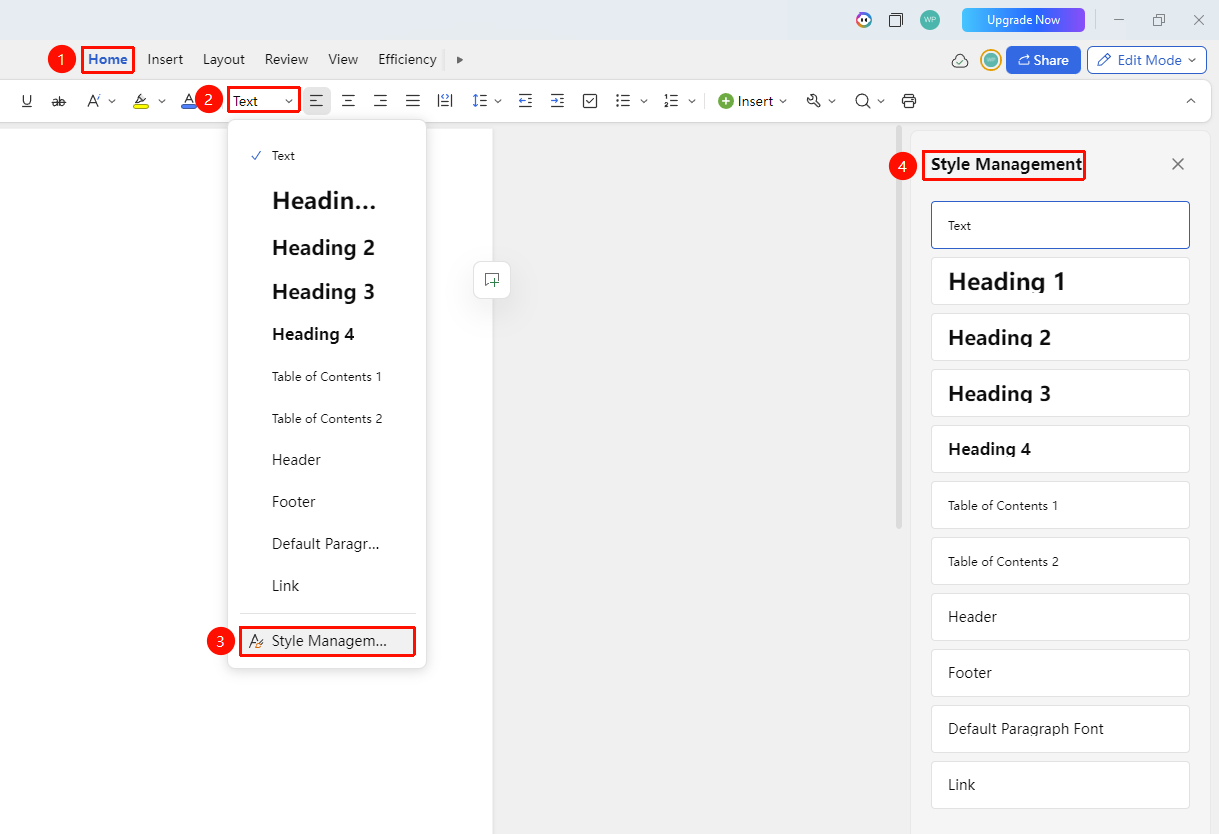
"Home" tab → "Styles" dropdown menu → "Style Manager" option → "Modify Style" button
- Click the Styles dropdown menu in the Home tab
- Select Style Manager, then click the "Style Manager" button (pencil icon)
- After modifying the style, click OK, and all content using that style will be updated automatically
Notes
- Using heading styles can automatically generate a table of contents and navigation structure