Feature Summary
The highlight feature adds a fluorescent marker background color to text, used to mark important content, key paragraphs, or text requiring attention, enhancing document readability and emphasis.
Feature Description
| Feature Dimension | Description |
|---|---|
| Membership Restriction | No membership restriction, available to all users |
| Version Restriction | No version restriction, ensure sufficient cloud storage space |
Operation Steps
Selecting a Highlight Color
Feature Entry
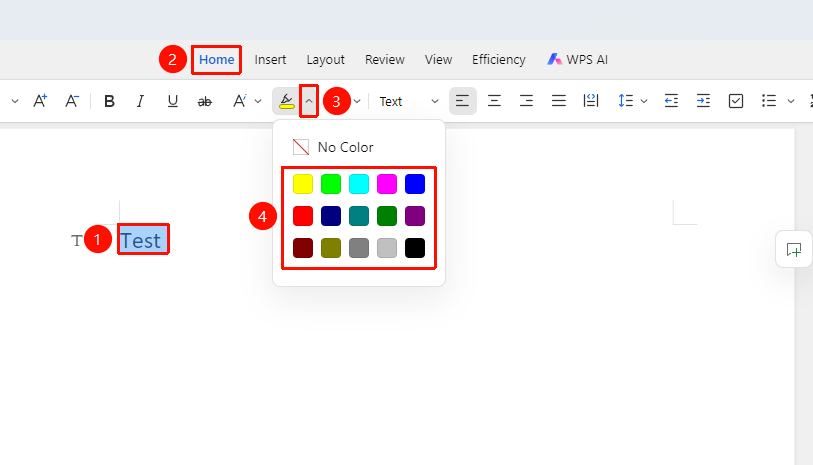
"Home" tab → Drop-down arrow next to "Highlight" option
- Click the "Drop-down arrow" next to the Highlight button
- After selecting a color, the chosen text will apply that color background
Removing Highlight
Feature Entry
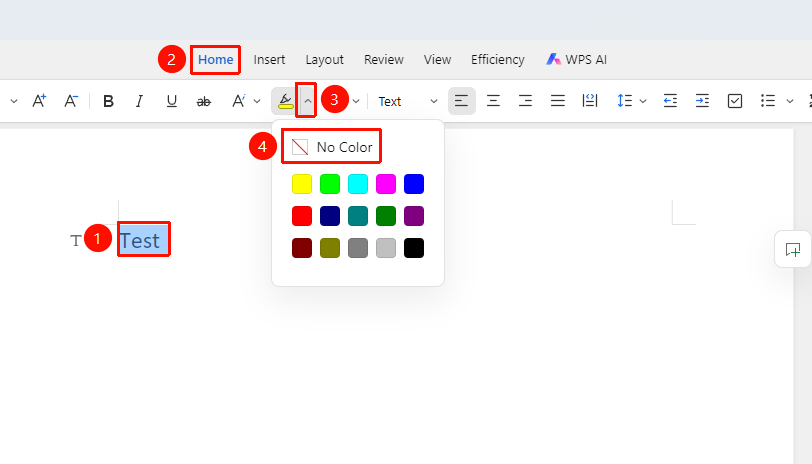
"Home" tab → Drop-down arrow next to "Highlight" option → "No Color" option
- Select the text with highlight applied
- Click the "Highlight" drop-down arrow
- Select "No Color"
- The highlight color is cleared
Setting Highlight via Floating Toolbar
Feature Entry
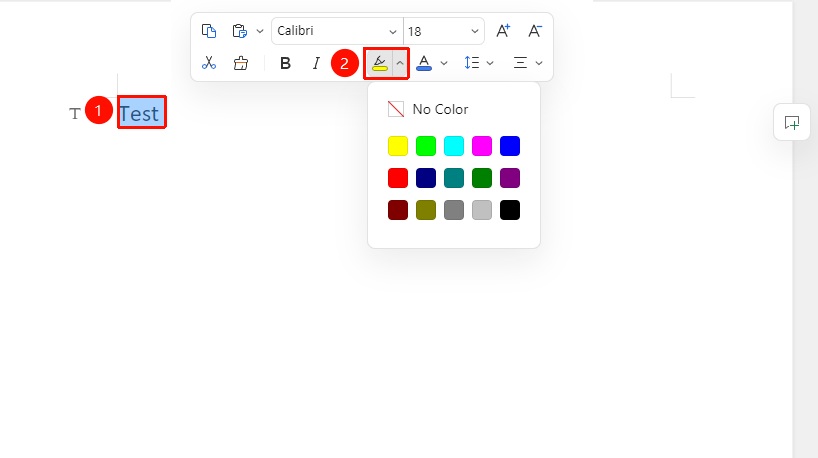
Select the text content to highlight → "Floating Toolbar" menu → "Highlight" drop-down arrow
- Select the text content to set
- In the Floating Toolbar, click the "Highlight" drop-down arrow and choose a color