Feature Summary
The paper orientation feature is used to set the printing direction of pages, including portrait and landscape modes, to accommodate the layout needs of different content.
Feature Description
| Feature Dimension | Description |
|---|---|
| Membership Restriction | No membership restriction |
| Version Restriction | No version restriction |
Operation Steps
Setting Paper Orientation
Feature Entry
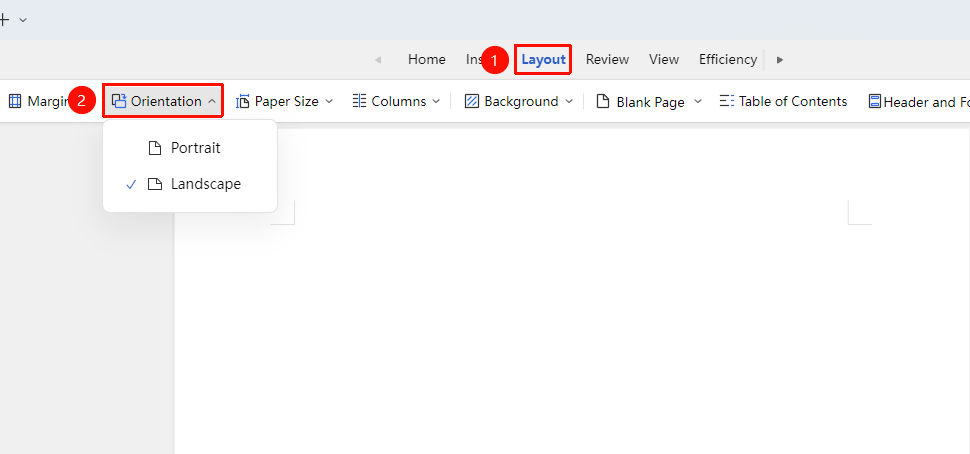
"Page" tab → "Paper Orientation"
- Click the "Page" tab
- Click the "Paper Orientation" button
- Select "Portrait" or "Landscape"
- The paper orientation will be applied to the current section or the entire document
Setting Different Orientation for Specific Pages
Feature Entry
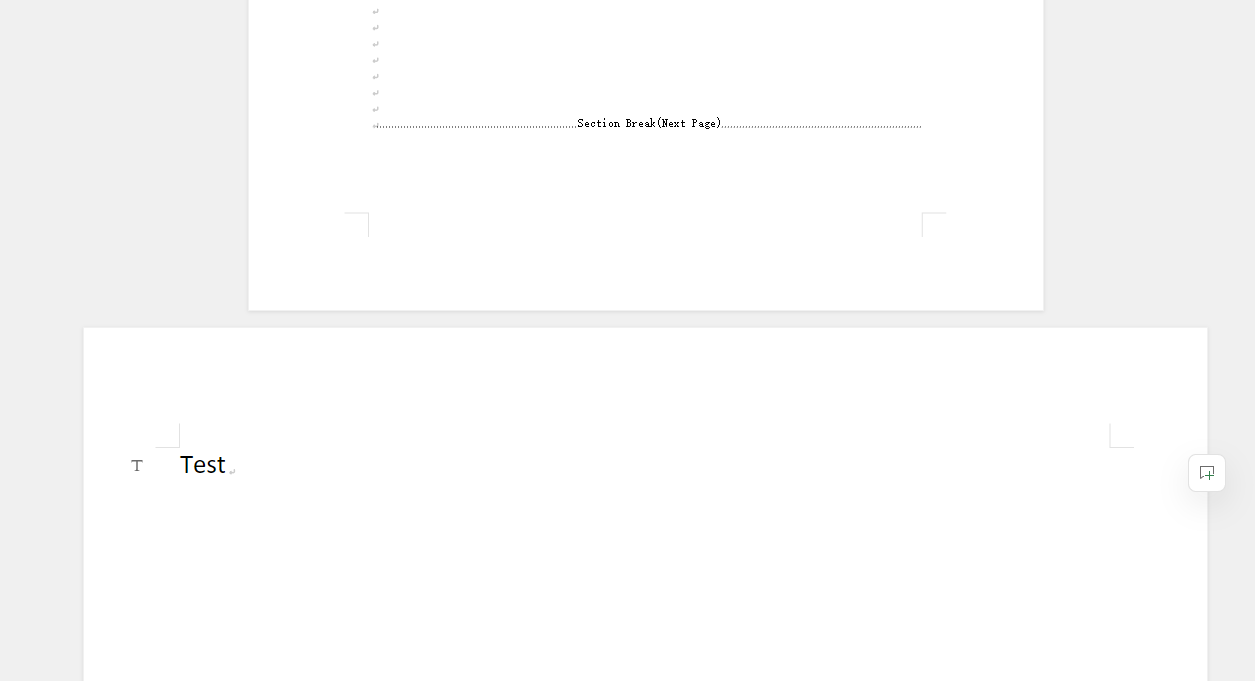
"Insert" tab → "Page Break" → "Next Page Section Break'
- Place the cursor before the page where you want to change the orientation
- Insert a "Next Page Section Break"
- Place the cursor in the new section
- Set the paper orientation to portrait or landscape
- This orientation is applied only to the current section
Frequently Asked Questions
Question 1: All pages change after setting the orientation
- Solution: Insert a section break first, then set the paper orientation in the specific section.
Question 2: Landscape pages print incompletely
- Solution: Check the margin settings. Landscape pages may require adjusted margins to fit the content.
Notes
- Portrait orientation is suitable for text-heavy documents, while landscape is suitable for tables or charts
- In collaboration mode, paper orientation settings are synced to all collaborators
- The same document can have different paper orientations (using section breaks)