Feature Summary
The numbering feature adds ordered numeric or alphabetic markers to paragraphs, automatically maintaining the numbering sequence. It is suitable for scenarios requiring sequential identification, such as step instructions and clause lists.
Feature Description
| Feature Dimension | Description |
|---|---|
| Membership Restriction | No membership restriction; all users can use it |
| Version Restriction | No version restriction; ensure sufficient cloud space capacity |
Operation Steps
Adding Numbering
Feature Entry
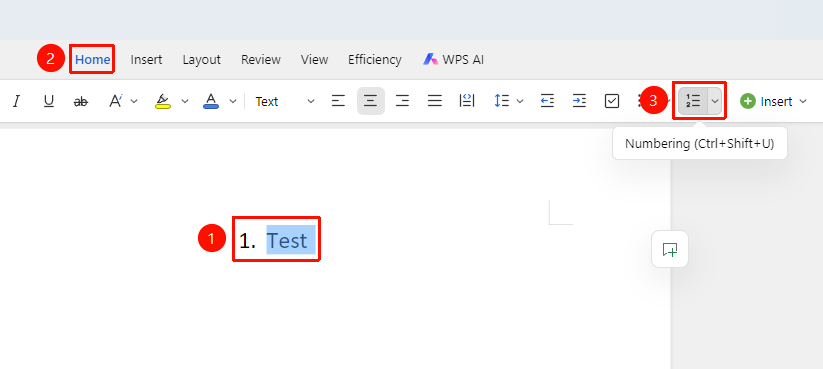
"Home" Tab → "Numbering" Button
- Select the paragraphs to which you want to add numbering
- In the Home tab, click the "Numbering" button
- The paragraphs will be added with default numeric numbering (1. 2. 3.)
- Press the Enter key, and new paragraphs will automatically continue the numbering
Selecting a Numbering Style
Feature Entry
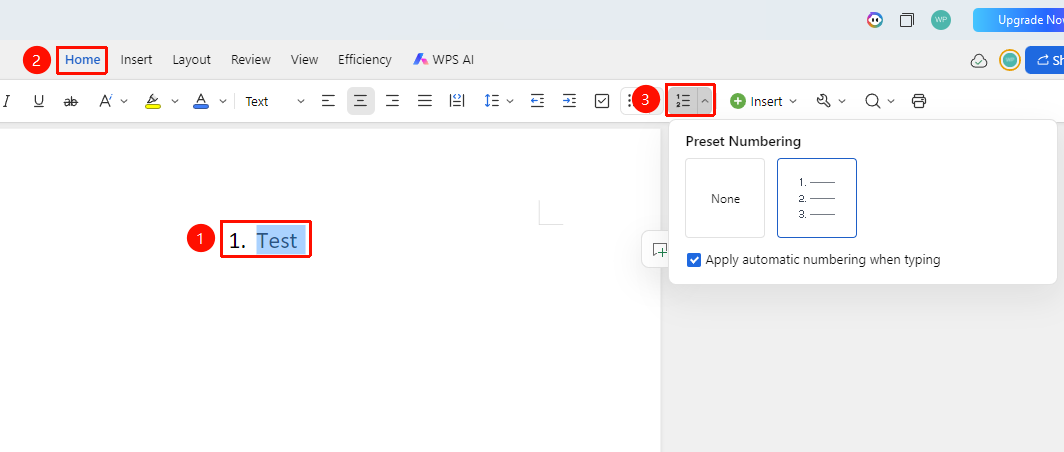
"Home" Tab → Drop-down arrow next to the "Numbering" button
- Click the "Drop-down arrow" next to the Numbering button
- Select a numbering style from the drop-down menu
- Click to apply
Continuing Numbering
Feature Entry
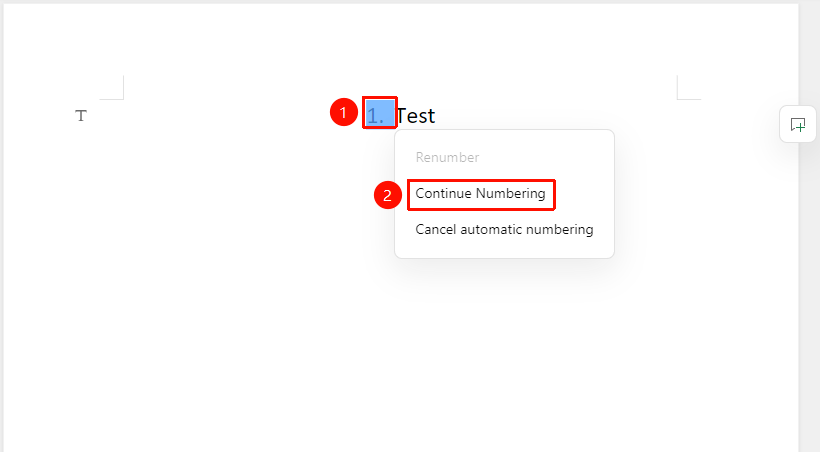
Click an existing numbering → "Continue Numbering" option
- Click the content where you want to continue numbering
- In the right-click menu, select the "Continue Numbering" option
- The numbering will continue from the previous sequence
Frequently Asked Questions
Question 1: What if the numbering is not consecutive?
- Solution: Right-click the numbering and select "Continue Numbering", or manually specify it via "Set Numbering Value".
Question 2: How to create multi-level numbering?
- Solution: Use the Tab key to increase the indentation level to create multi-level numbering.
Notes
- The numbering will automatically maintain the sequence
- After deleting a middle paragraph, the numbering will automatically reorder