Feature Summary
The Increase/Decrease Indent feature is used to adjust the distance between a paragraph and the page margins. It allows quick setting of left and right indentation for paragraphs, achieving a hierarchical layout effect in the document.
Feature Description
| Feature Dimension | Description |
|---|---|
| Membership Restriction | No membership restriction; available to all users |
| Version Restriction | No version restriction; ensure sufficient cloud storage space |
Operation Steps
Increase Indent
Feature Entry
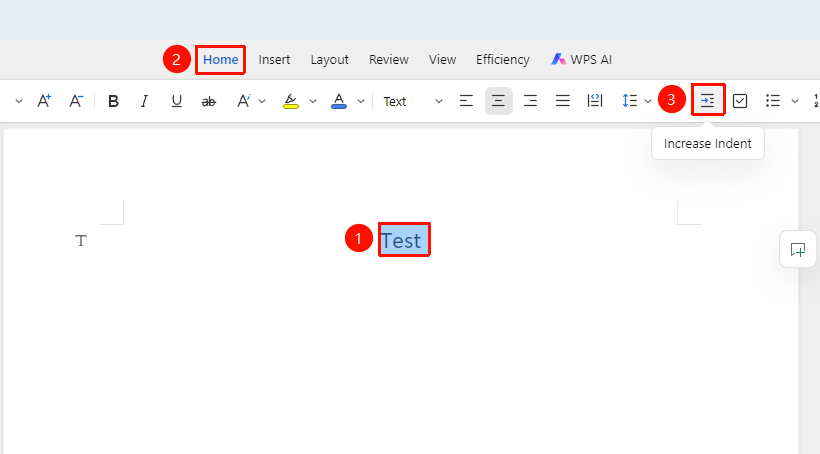
"Home" tab → "Increase Indent" button
- Select the paragraph to be set
- In the "Home" tab, click the "Increase Indent" button
- Each click moves the paragraph right by one tab stop
Decrease Indent
Feature Entry
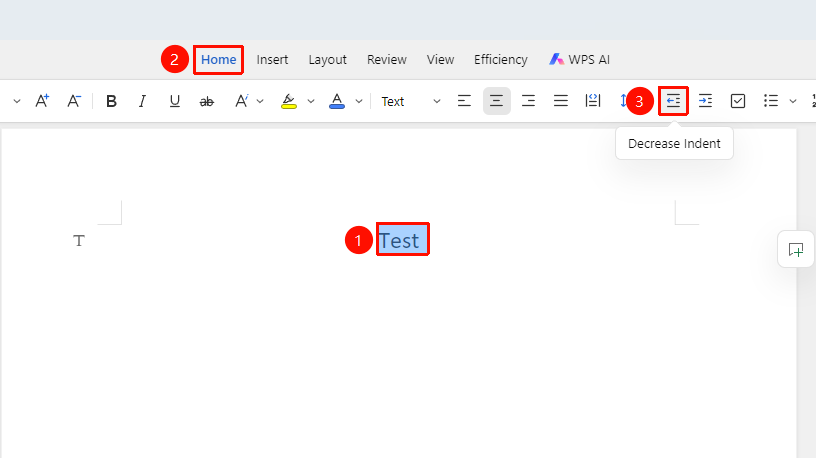
"Home" tab → "Decrease Indent" button
- Select the paragraph to be set
- In the "Home" tab, click the "Decrease Indent" button
- Each click moves the paragraph left by one tab stop
Precise Indent Setting
Feature Entry
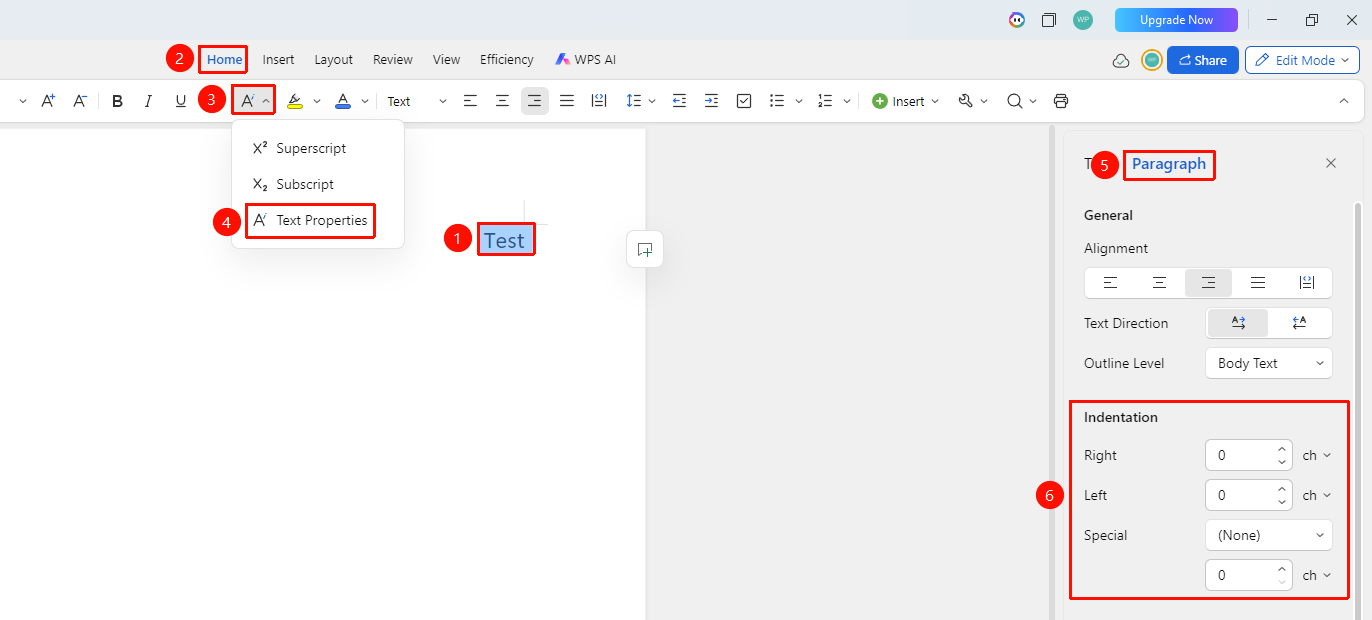
"Home" tab → "Text Properties" dropdown menu → "Text Properties" option → "Paragraph" tab → Adjust indentation
- Select the paragraph(s) to adjust indentation for
- Click the Home tab
- Click the Text Properties dropdown menu and select the Text Properties option
- In the task pane on the right, select the "Paragraph" tab
- Adjust the indentation value and indentation format (First line indent, Hanging indent)
Frequently Asked Questions
Question 1: How to set a first-line indent of 2 characters?
- Solution: Select "First line indent" as the indentation format, and enter "2 characters" as the measurement value.