Feature Summary
The background feature is used to set the background color or fill effect of the document page, making the document more visually appealing or helping to distinguish between different types of documents.
Feature Description
| Feature Dimension | Description |
|---|---|
| Membership Restriction | No membership restriction |
| Version Restriction | No version restriction |
Operation Steps
Setting a Color Background
Feature Entry
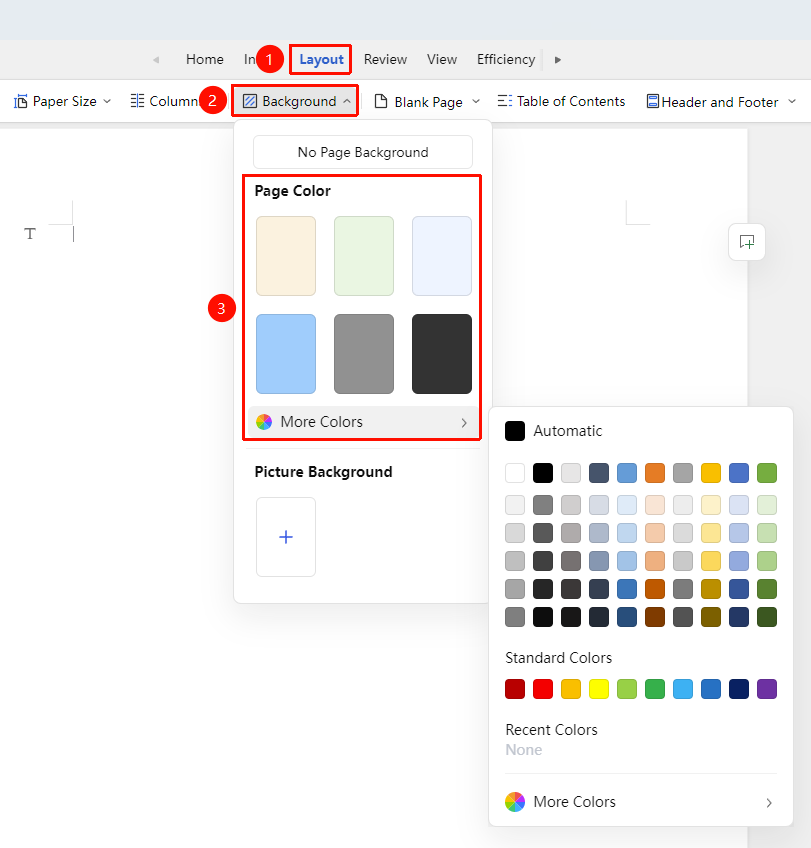
"Page" tab → "Background"
- Click the "Page" tab
- Click the "Background" button
- Select from the color background options
- Or click "More Colors" to view additional preset colors
- Click the desired color to apply the background to the entire document
Setting a Custom Color Background
Feature Entry
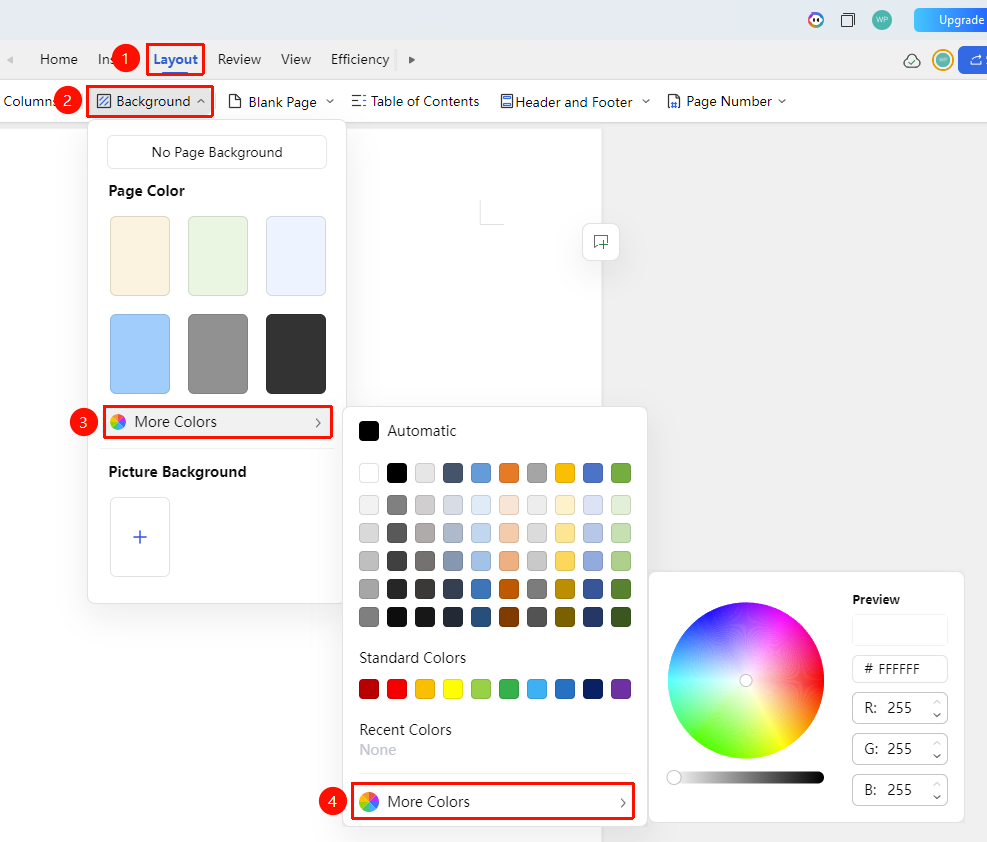
"Page" tab → "Background" → "More Colors" → "Other Colors"
- Click "Page" tab → "Background" to enter the background settings page
- On the settings page, click "More Colors" → "Other Colors" in sequence
- Adjust the color using the palette or RGB color system
- Click the document body area again, and the background color will be applied to the entire document
Setting an Image Background
Feature Entry
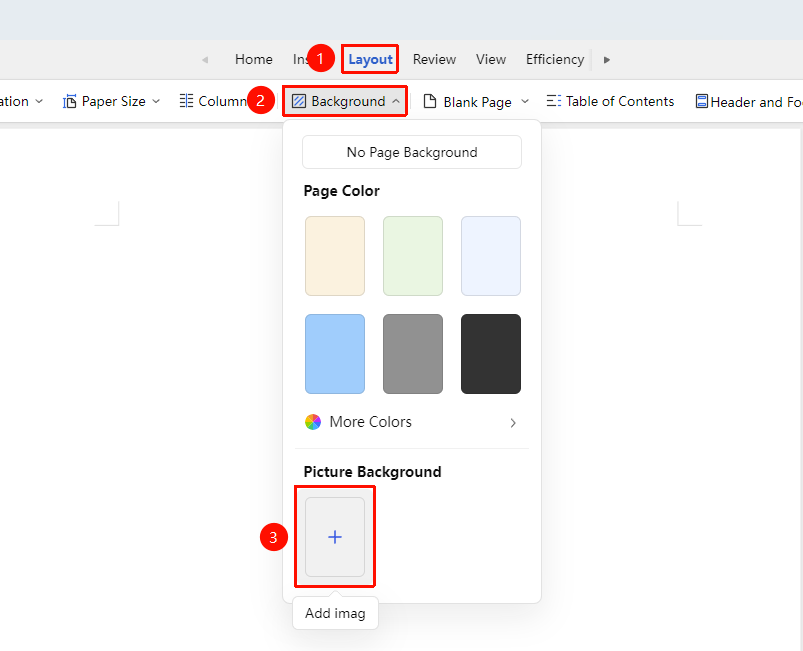
"Page" tab → "Background" → "Image Background"
- Click the "Page" tab → "Image Background"
- Select a local image in the dialog box
- The image background will be applied to the entire document
Deleting the Background
Feature Entry
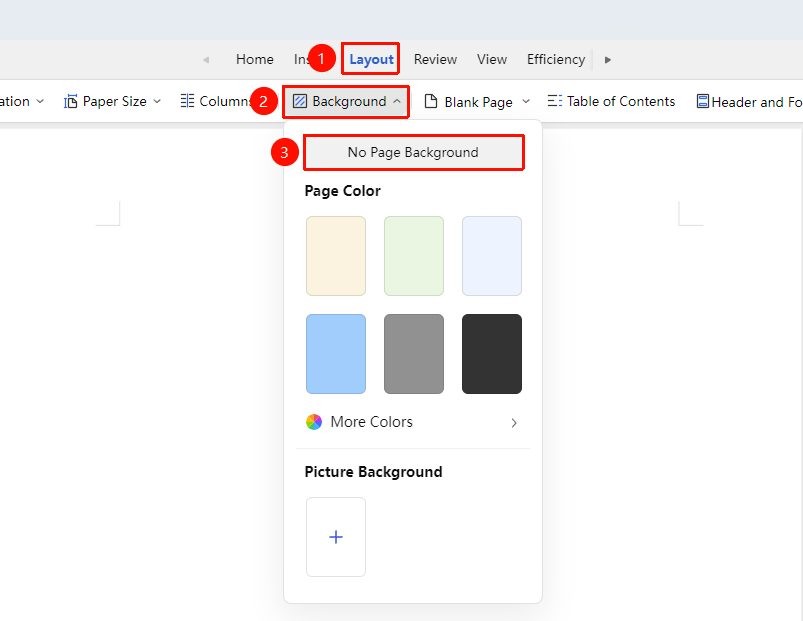
"Page" tab → "Background" → "No Page Background"
- Click the "Page" tab
- Click the "Background" button
- Select "No Page Background"
- The document background will be cleared
Frequently Asked Questions
Question 1: Background color affects text readability
- Solution: Choose a light background color or adjust the text color to ensure sufficient contrast.
Question 2: What if the image background gets cropped?
- Solution: The image background will be automatically cropped to fit the paper size selected for editing. Before using an image background, ensure the image dimensions match the paper size being used for the best effect.
Notes
- The background is applied to all pages of the entire document
- In collaboration mode, background settings are synced to all collaborators
- Dark backgrounds may increase printing costs
- The image background supports selecting local images. Before inserting, ensure the desired background image is available locally