Feature Summary
The line spacing feature is used to adjust the distance between lines within a paragraph. You can set single spacing, 1.5 spacing, fixed values, etc., to improve document readability and visual effects.
Feature Description
| Feature Dimension | Description |
|---|---|
| Membership Restriction | No membership restriction; all users can use it |
| Version Restriction | No version restriction; ensure sufficient cloud space capacity |
Operation Steps
Setting Line Spacing
Feature Entry
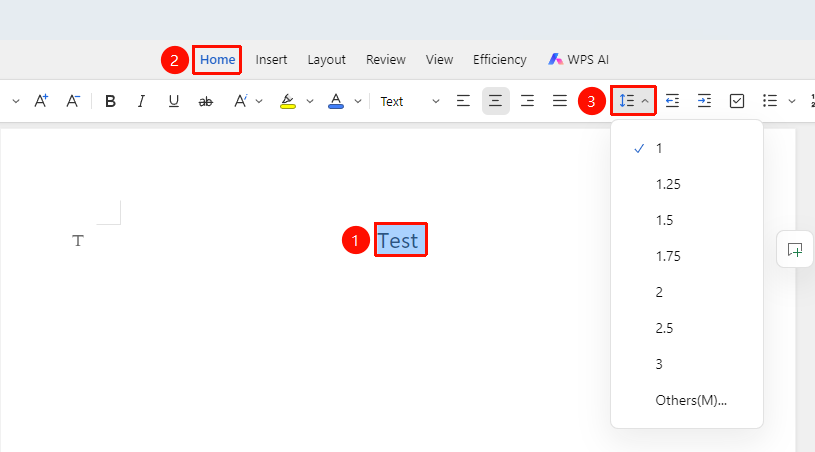
"Home" Tab → "Line Spacing" Dropdown Menu
- Select the paragraph to be set
- In the "Home" tab, click the "Line Spacing" dropdown menu
- Choose a preset line spacing
Custom Line Spacing
Feature Entry
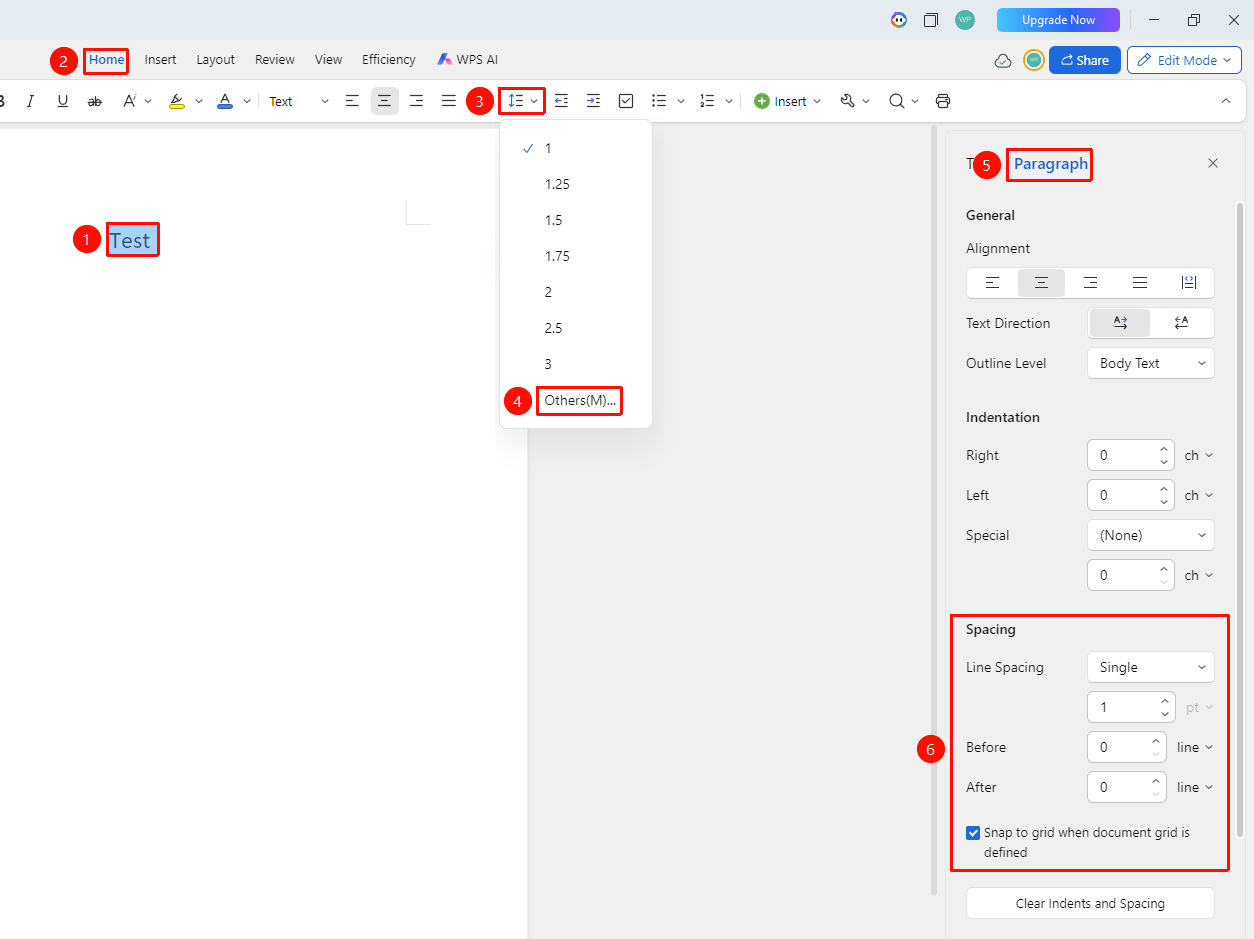
"Home" Tab → "Line Spacing" Dropdown Menu → "Other" Option
- In the "Home" tab, click the "Line Spacing" dropdown menu
- Select the "Other" option
- Set line spacing in the task pane that appears on the right
Custom Line Spacing via Text Properties
Feature Entry
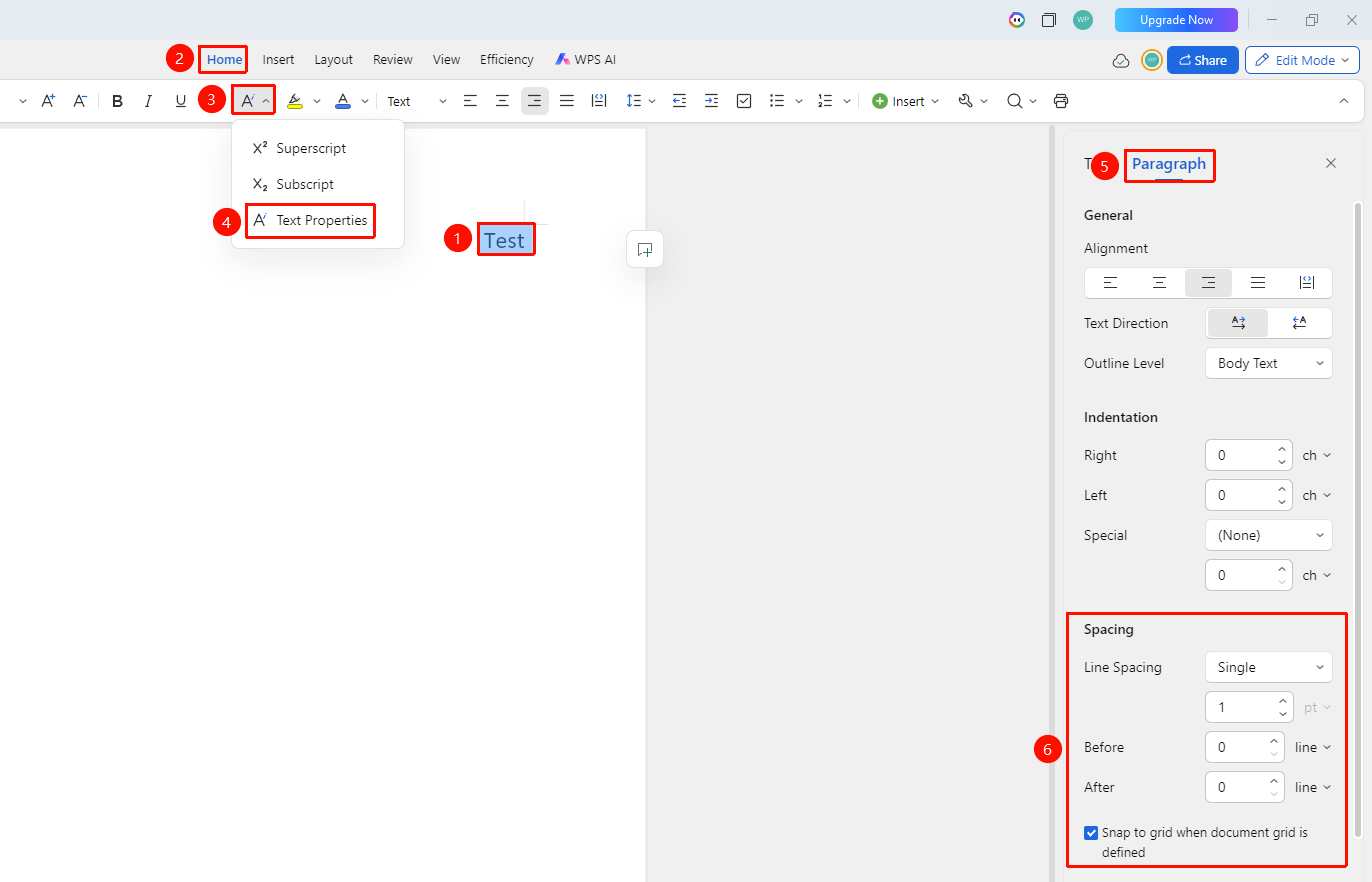
"Home" Tab → "Text Properties" Dropdown Menu → "Text Properties" Option → "Paragraph" Tab
- Select the text to be bolded
- Click the Home tab
- Click the Text Properties dropdown menu and select the Text Properties option
- In the task pane on the right, select the "Paragraph" tab
- Adjust line spacing
Setting Paragraph Spacing (Before/After)
Feature Entry
"Home" Tab → "Text Properties" Dropdown Menu → "Text Properties" Option → "Paragraph" Tab
- Select the text to be bolded
- Click the Home tab
- Click the Text Properties dropdown menu and select the Text Properties option
- In the task pane on the right, select the "Paragraph" tab
- Adjust paragraph spacing before and after
Setting Line Spacing via Floating Toolbar
Feature Entry
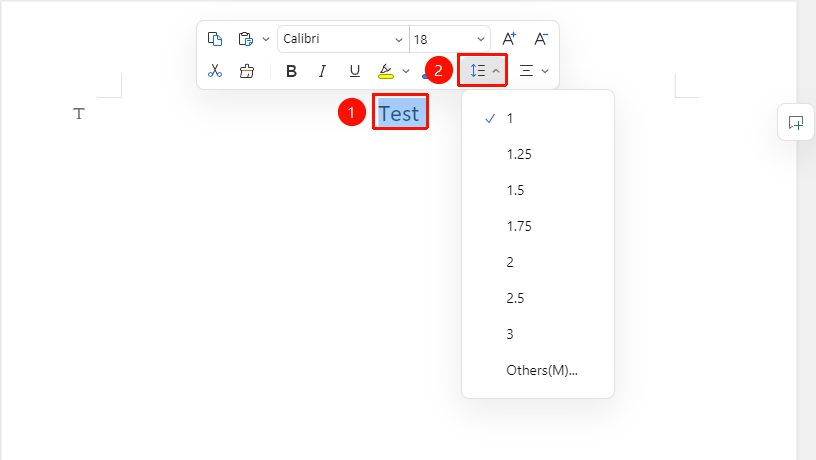
Select the text content to adjust line spacing → "Floating Toolbar" Menu → "Line Spacing" Dropdown Menu
- Select the text content to be set
- In the Floating Toolbar, click the "Line Spacing" dropdown menu
Frequently Asked Questions
Question 1: Text not fully displayed due to fixed line spacing?
- Solution: Fixed line spacing does not adjust automatically. If the text is larger, increase the fixed value, or switch to "Minimum".