Feature Summary
The comment feature is used to add annotations and discussions within a document, facilitating communication and feedback among collaborators without affecting the main content.
Feature Description
| Feature Dimension | Description |
|---|---|
| Membership Restriction | No membership restriction |
| Version Restriction | No version restriction |
| Shortcut Key | Add Comment: Ctrl + Alt + M |
Operation Steps
Adding a Comment
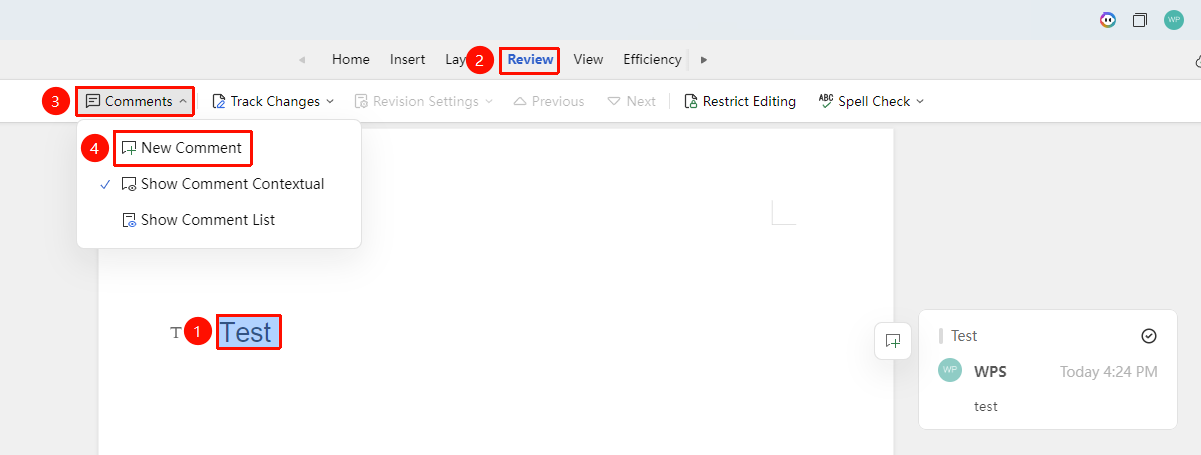
Feature Entry ①
"Review" Tab → "Comment" → "Insert Comment"
- Select the text or object you want to comment on
- Click the "Review" tab
- Click the "Comment" button
- Enter your comment in the comment box, use Shift + Enter for a line break
- Enter @ in the comment box to select the document collaborator or contact list member to notify
- Click "Send" or press Enter to submit
Feature Entry ②
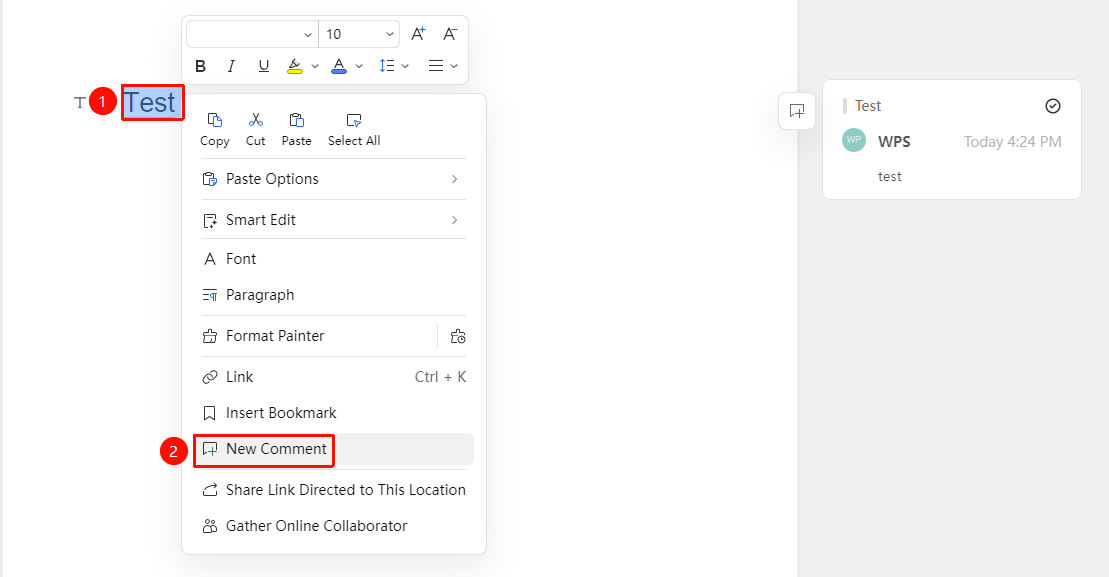
Right-click to Insert a Comment
- Select the text or object you want to comment on
- Right-click to bring up the context menu
- Select "Insert Comment" from the context menu
Feature Entry ③
Shortcut Key to Insert a Comment
- Select the text or object you want to comment on
- Use the shortcut key combination Ctrl + Alt + M to quickly add a comment
Feature Entry ④
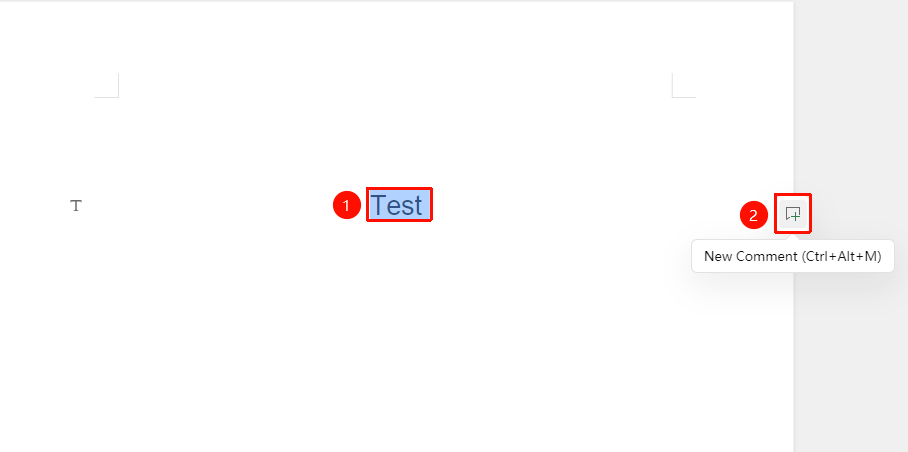
Quick Icon to Insert a Comment
- Select the text or object you want to comment on
- Find the comment icon on the right side of the editing area
- Click it to insert a comment
Replying to a Comment
Feature Entry
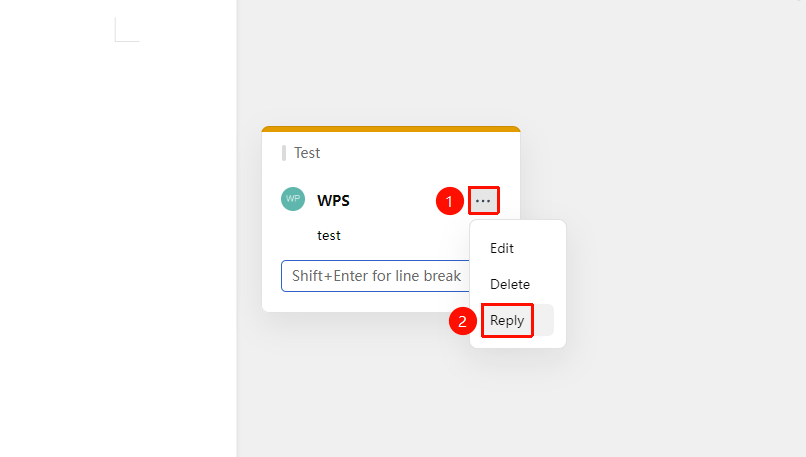
Comment Box → "Reply"
- Click the comment you want to reply to
- Click the expand menu in the comment box, then click the "Reply" button
- Enter your reply content
- Press Enter to submit the reply
Editing a Comment
Feature Entry
Comment Box → "Reply"
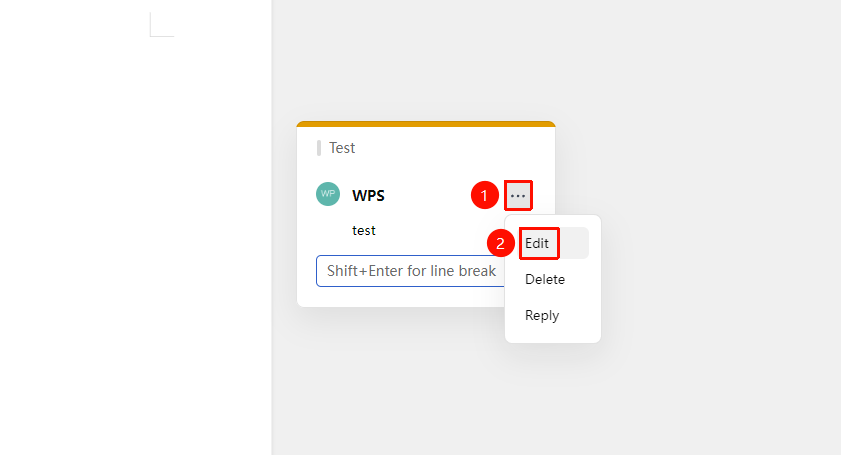
- Click the comment you want to edit
- Click the expand menu in the comment box, then click the "Edit" button
- Enter your edited content
- Press Enter to submit the reply
Resolving a Comment
Feature Entry
Comment Box → "Mark as Resolved"
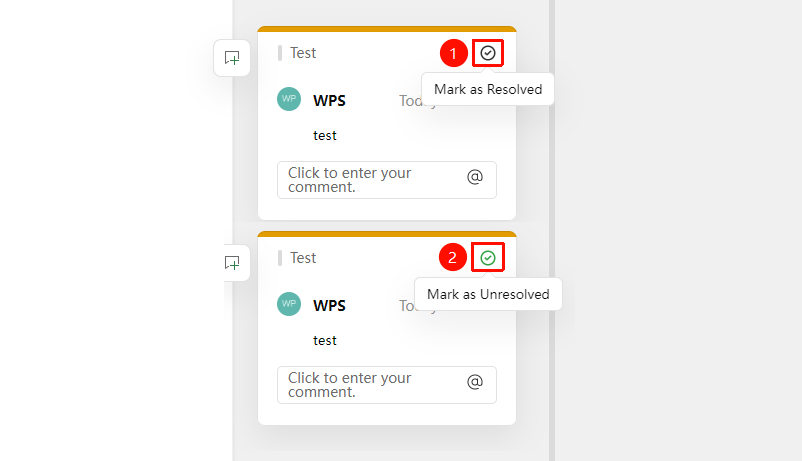
- Click the comment you want to mark
- Click the "Mark as Resolved" button in the top right corner of the comment box to mark the comment as resolved
- Click again to unmark it as resolved
Deleting a Comment
Feature Entry
Comment Box → "Delete"
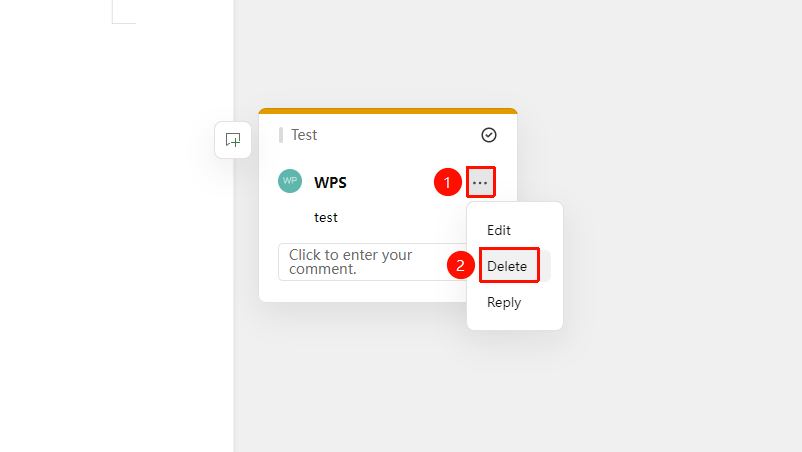
- Click the comment you want to delete
- Click the "Delete" button in the comment box
- Confirm the deletion
Showing/Hiding the Comment Box
Feature Entry
"Review" Tab → "Comment" → "Show Comment Box"
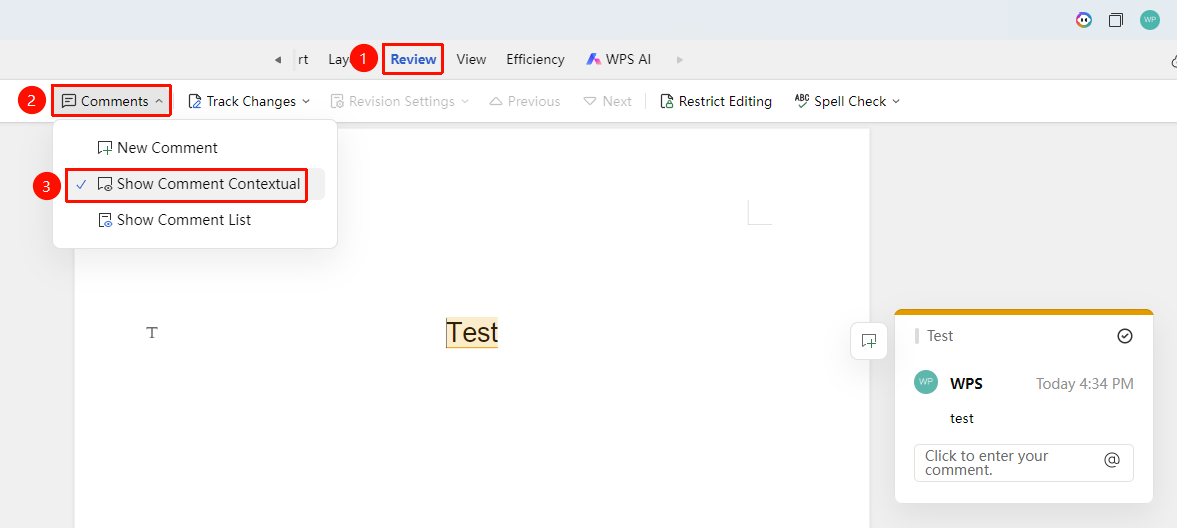
- Click the "Review" tab
- Click "Comment" → "Show Comment Box" button (shown by default) to hide the comment box on the right side of the editing area
- Click "Show Comment Box" again to re-display the comment box
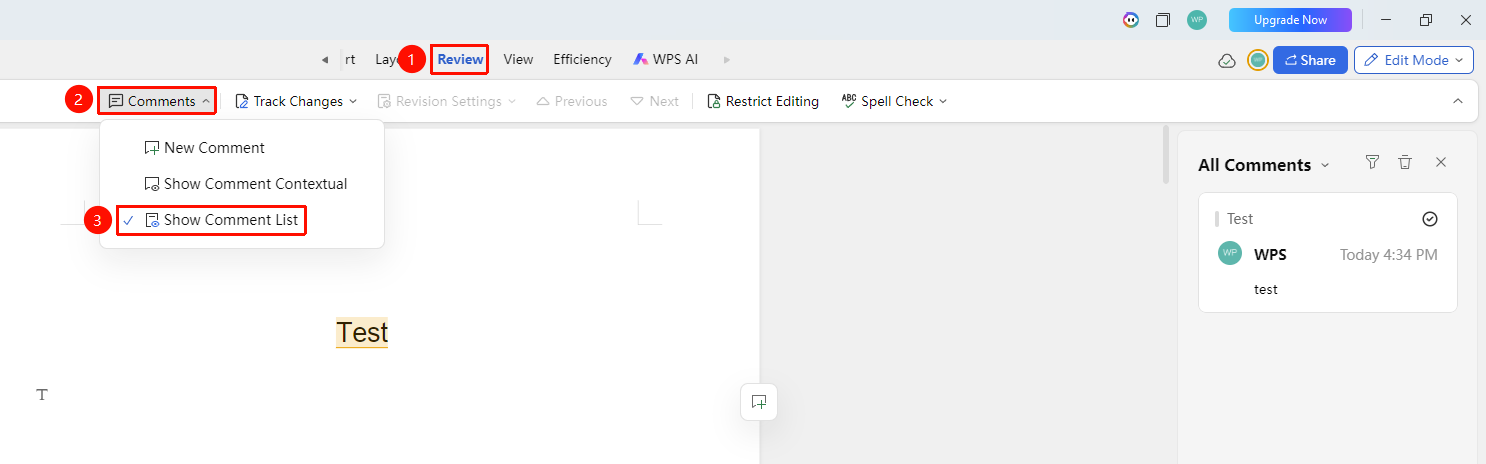
Opening the Comment Panel
Feature Entry
"Review" Tab → "Comment" → "Show Comment Panel"
- Click the "Review" tab
- Click "Comment" → "Show Comment Panel" button to open the comment panel
- By default, all document comments are displayed in the panel. You can filter by Resolved/Unresolved/Everyone/Only related to me, etc.
- You can select a comment in the panel to delete it
Frequently Asked Questions
Question 1: Cannot see comments
- Solution: Check if the "Show Comment Box" option is enabled in the "Review" tab.
Notes
- Comments display the commenter's name and time
- In collaboration mode, all collaborators can see the comments
- Comments do not affect the document's main content or formatting