Feature Summary
The continuous page view feature displays the document as a continuous flow of pages, eliminating the blank space between pages, making it suitable for reading long documents.
Feature Description
| Feature Dimension | Description |
|---|---|
| Membership Restriction | No membership restriction |
| Version Restriction | No version restriction |
Operation Steps
Switch to Continuous Page View
Feature Entry ①
"View" tab → "Continuous Page"
- Click the "View" tab
- Click the "Continuous Page" button
- The document will be displayed in continuous page mode
- There will be no blank space between pages
- Click the "Continuous Page" button again to exit continuous page mode
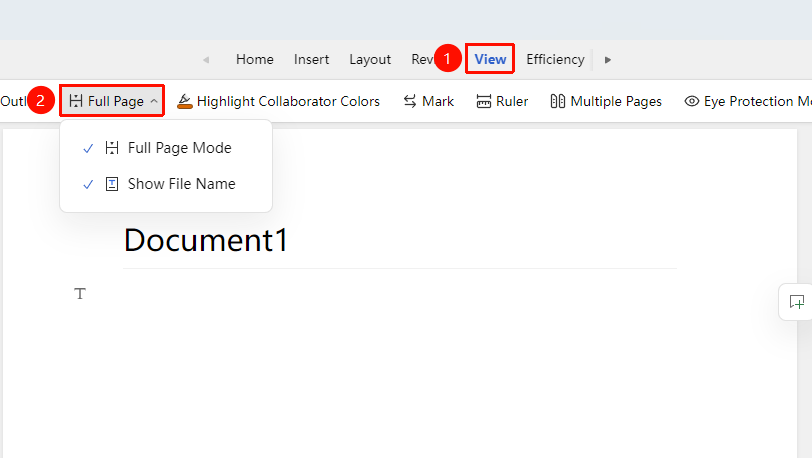
Switch to Continuous Page View
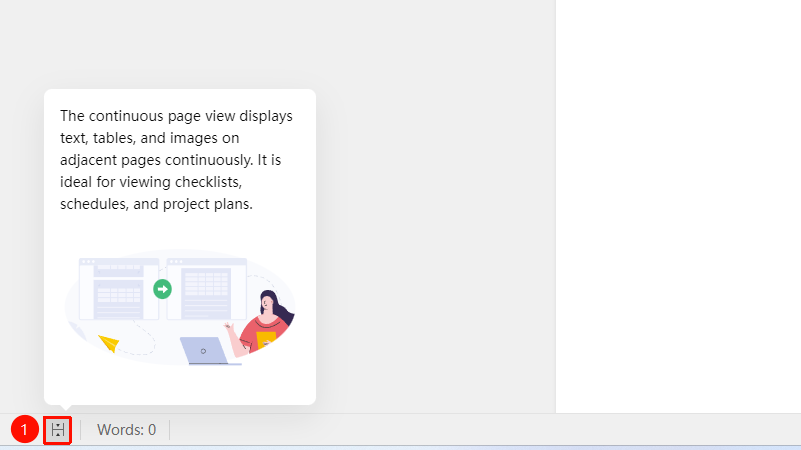
Feature Entry ②
Bottom-left of the status bar → "Continuous Page"
- Locate and click the "Continuous Page" button at the bottom-left of the status bar to enter continuous page mode
- Click it again to exit continuous page mode
Adjust Display Scale
Feature Entry
Status bar → Zoom slider
- Use the zoom slider on the status bar to adjust the display scale
- You can also click the percentage number to set it precisely
- Select a display scale suitable for reading
Frequently Asked Questions
Question 1: Cannot see page boundaries in continuous page view
- Solution: Continuous page view hides page boundaries. If you need to view them, please switch to page view.
Notes
- Continuous page view is suitable for reading and editing long documents
- In collaboration mode, view switching only affects the current user
- Continuous page view does not change the actual page break settings of the document