Feature Summary
The Restrict Editing feature is used to protect document content. It can restrict other users to editing only specific areas or to only making comments, preventing important content from being accidentally modified.
Feature Description
| Feature Dimension | Description |
|---|---|
| Membership Restriction | No membership restriction |
| Version Restriction | No version restriction |
Operation Steps
Enabling Restrict Editing
Feature Entry
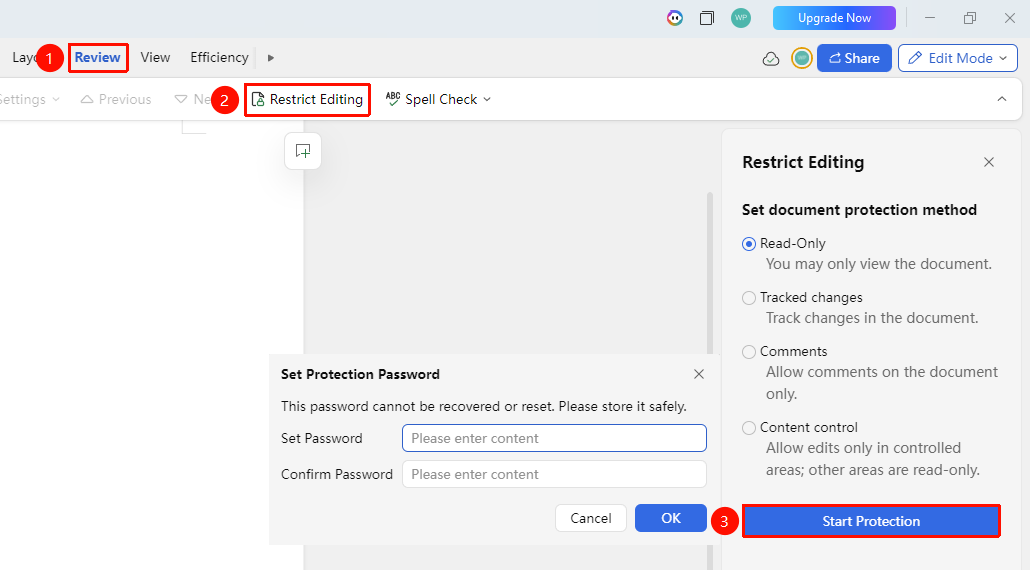
"Review" Tab → "Restrict Editing"
- Click the "Review" tab
- Click the "Restrict Editing" button
- In the right pane, check "Restrict Editing"
- Select the restriction type:
- No changes allowed (Read-only)
- Allow only revisions
- Allow only comments
- Allow only content controls to be editable
- Click "Start Protection"
- Set a protection password
Disabling Restrict Editing
Feature Entry
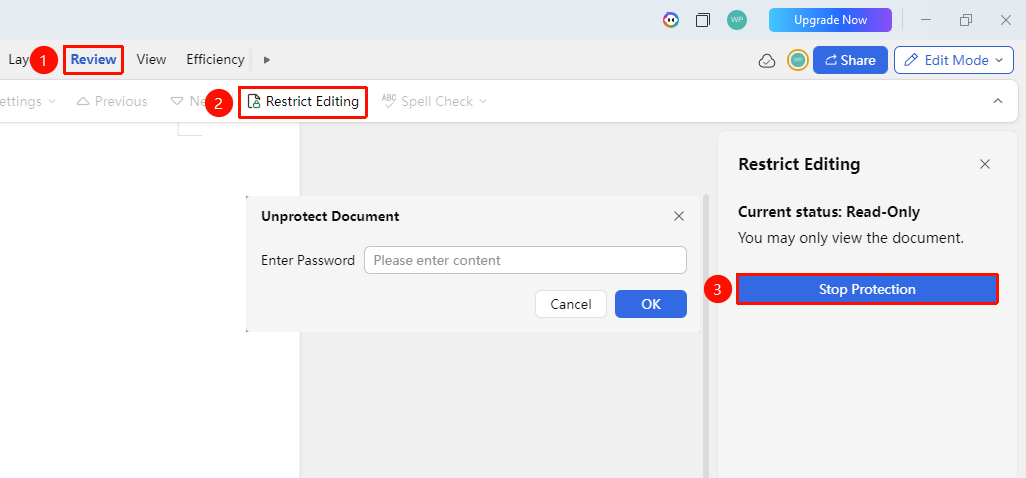
"Review" Tab → "Restrict Editing" → "Stop Protection"
- Click the "Review" tab
- Click the "Restrict Editing" button
- Click "Stop Protection"
- Enter the password
- Document protection will be removed
Frequently Asked Questions
Question 1: What if I forget the protection password?
- Solution: In collaboration mode, the document owner and document manager can remove protection. Once the password is forgotten, it cannot be recovered.
Notes
- Restrict Editing can protect the core content of the document from accidental modification
- In collaboration mode, all collaborators will be subject to the restrictions