Feature Summary
The bullet point feature adds uniform symbol markers to paragraphs, making list content clearer and more organized. It supports multiple symbol style options, enhancing document readability and aesthetics.
Feature Description
| Feature Dimension | Description |
|---|---|
| Membership Restriction | No membership restriction, available to all users |
| Version Restriction | No version restriction, ensure sufficient cloud space |
Operation Steps
Adding Bullet Points
Feature Entry
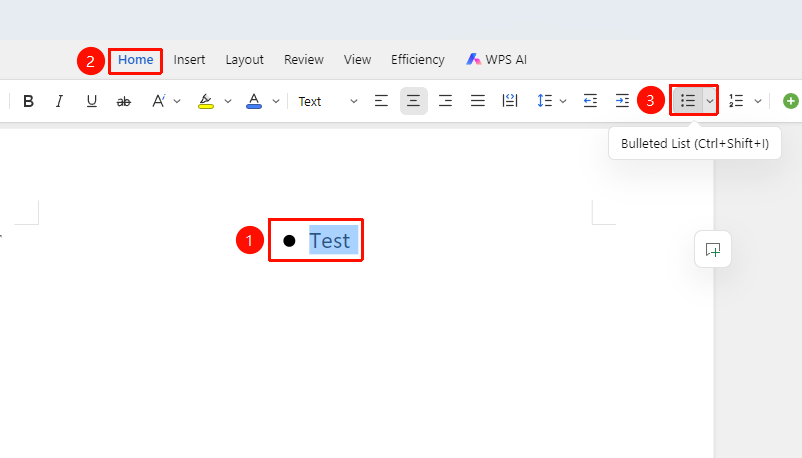
"Home" tab → "Bullet Points" button
- Select the paragraphs to which you want to add bullet points
- Click the "Bullet Points" button in the "Home" tab
- The paragraphs will have default dot symbols added
- Press Enter, and new paragraphs will automatically have symbols added
Selecting Bullet Point Styles
Feature Entry
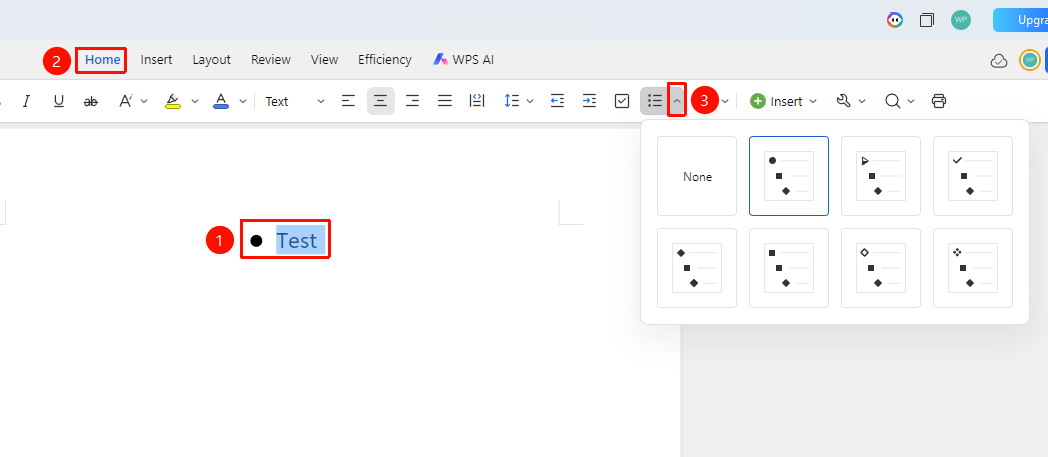
"Home" tab → Drop-down arrow next to the "Bullet Points" button
- Select the paragraphs to which you want to add bullet points
- Click the Home tab
- Click the "Drop-down arrow" next to the "Bullet Points" button
- In the drop-down menu, select the bullet point style
- Click to apply
Removing Bullet Points
Feature Entry
"Home" tab → "Bullet Points" button
- Select the paragraphs that already have bullet points
- Click the "Bullet Points" button again
- The symbols are removed, and the paragraphs become normal
Frequently Asked Questions
Question 1: Can bullet points and numbering be mixed?
- Solution: Yes. In the same document, you can use bullet points or numbering for different paragraphs.