Feature Summary
The image content control is used to create an area where images can be inserted. Users can click the control to insert an image, making it suitable for forms that require images.
Feature Description
| Feature Dimension | Description |
|---|---|
| Membership Restriction | No membership restriction |
| Version Restriction | No version restriction |
Operation Steps
Inserting an Image Content Control
Feature Entry
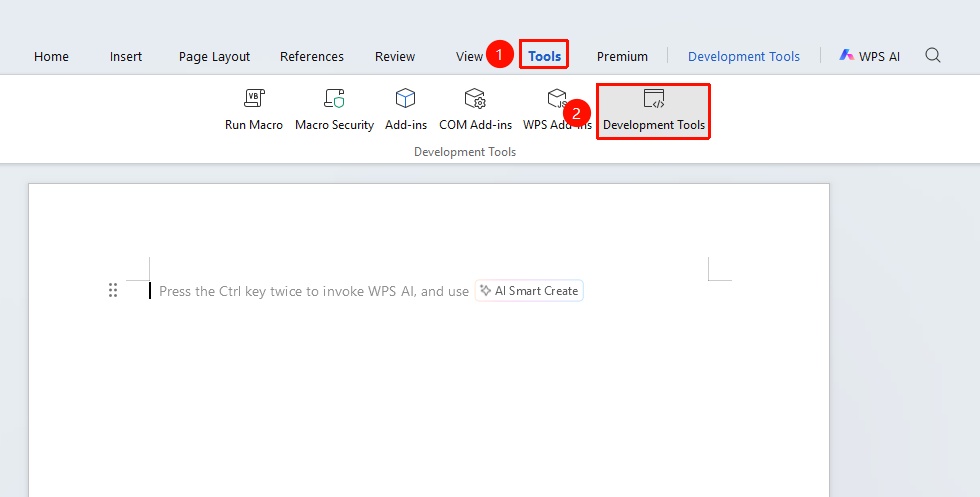
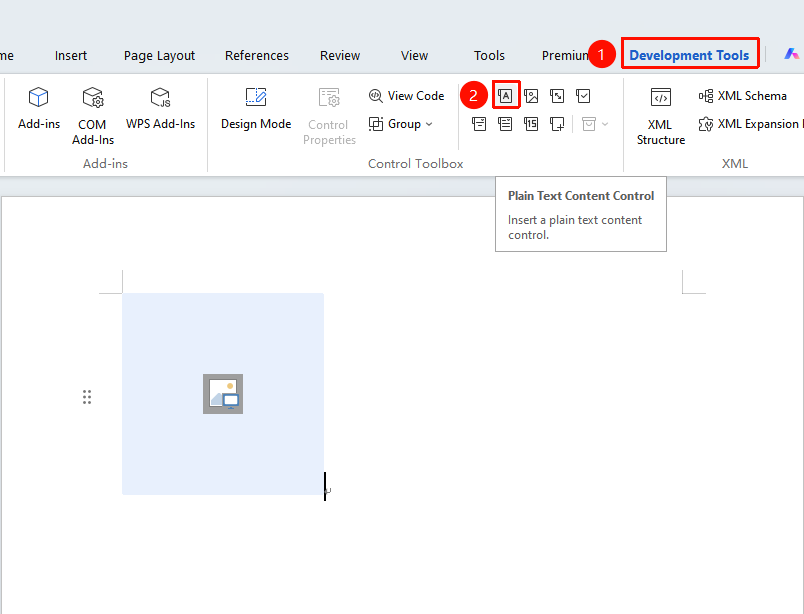
"Tools" tab → "Developer Tools" button → "Developer Tools" tab → "Image Content Control"
- Position the cursor where you want to insert the control
- Position the cursor where you want to insert the control
- Click the "Image Content Control" button
- The control will be inserted into the document
Using the Image Control
Feature Entry
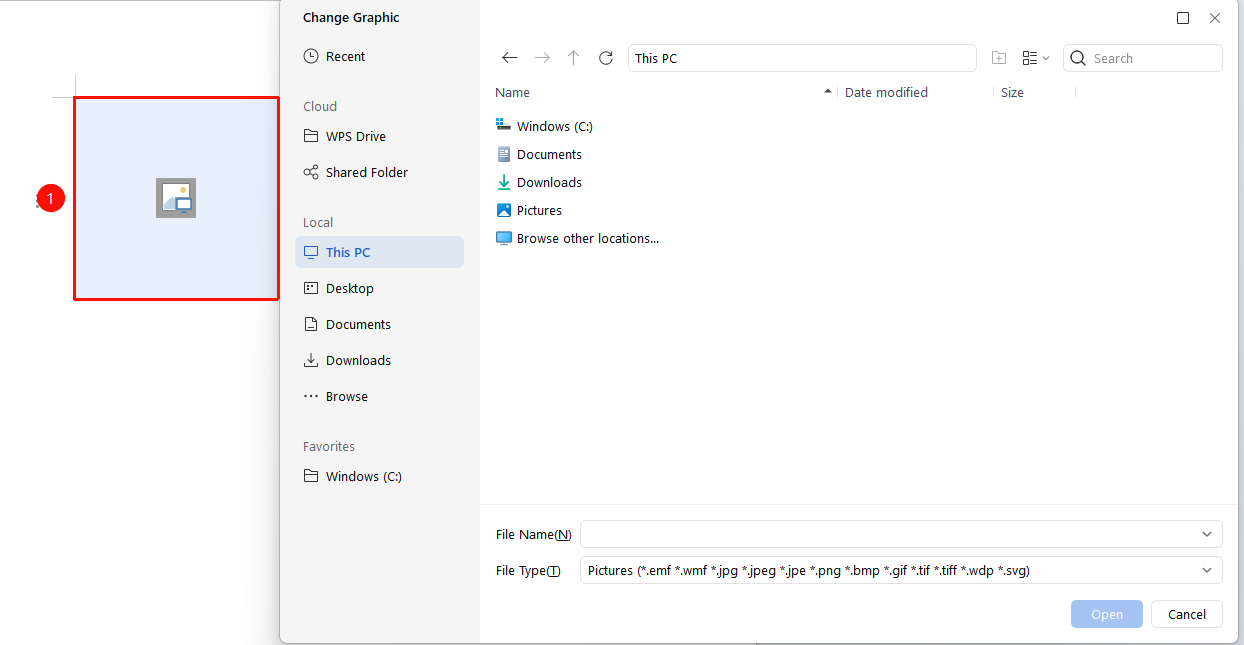
Click the image content control area
- Click the image content control area
- Select the image file to insert
- The image will be inserted into the control
Frequently Asked Questions
Q1: There is a pre-inserted image in the document that cannot be deleted?
- Solution: Enter Design Mode to check if an image control has been added, and if the control properties are set to 'Cannot be deleted'/'Cannot edit content'. Uncheck these options to delete it normally.
Q2: How to delete an image from the image control?
- Solution: Select the image and press the Delete key, or right-click and select Delete.
Notes
- The image control supports common image formats (JPG, PNG, BMP, etc.)
- It is recommended to set clear prompt text to guide users in inserting images