Feature Summary
Picture Tools is a functional module in WPS Docs used for inserting, editing, and beautifying images. It supports operations such as image cropping, resizing, text wrapping, effect settings, and compression, helping users efficiently process image content in documents.
Feature Description
| Feature Dimension | Description |
|---|---|
| Membership Restrictions | Some image editing features, AI image features, image format conversion features, and batch editing features are subject to membership restrictions |
| Version Restrictions | Basic features have no version restrictions and are supported in all versions of WPS Docs. For features such as AI images, it is recommended to install the latest version from the official website |
Operation Steps
Insert Picture
Feature Entry
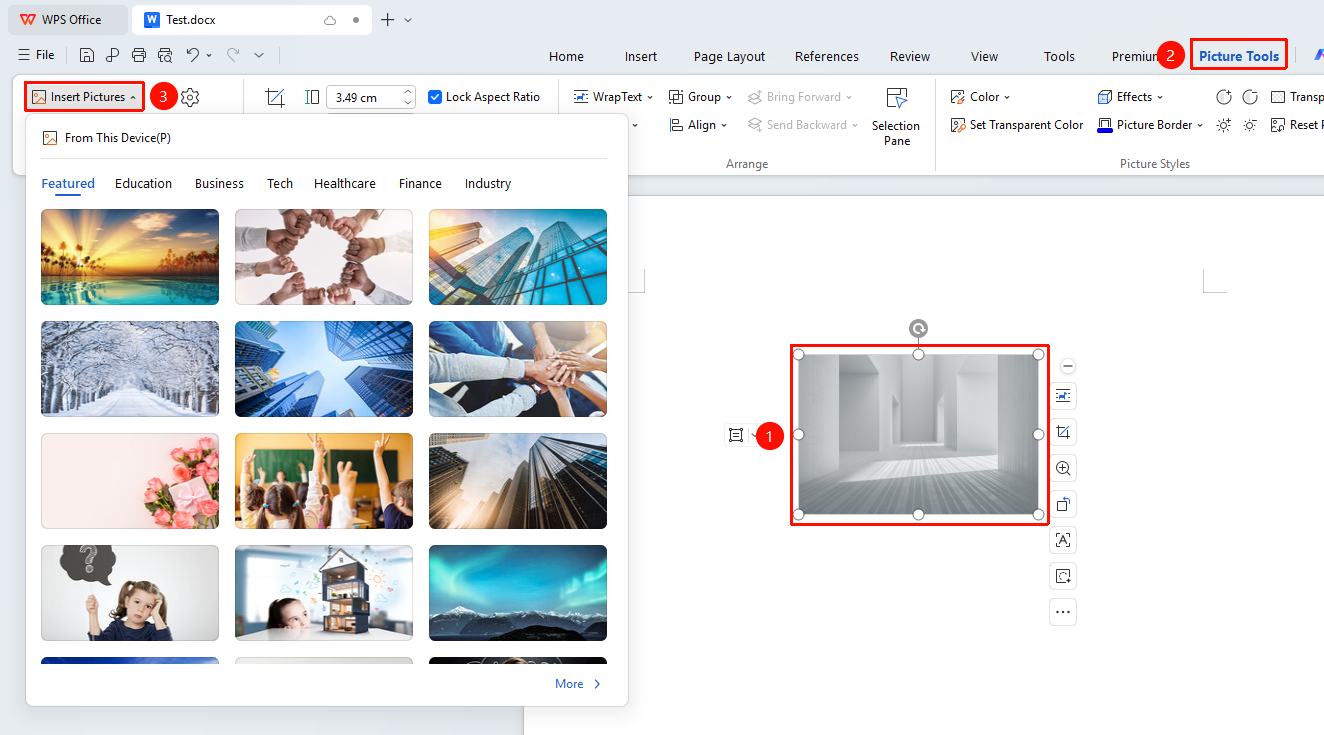
Select an inserted picture, then go to the "Picture Tools" tab → "Insert Picture" option
- Select an inserted picture, and the Picture Tools tab will automatically appear at the top
- Click the "Insert Picture" button
- Select the picture file you want to add
Change Picture
Feature Entry
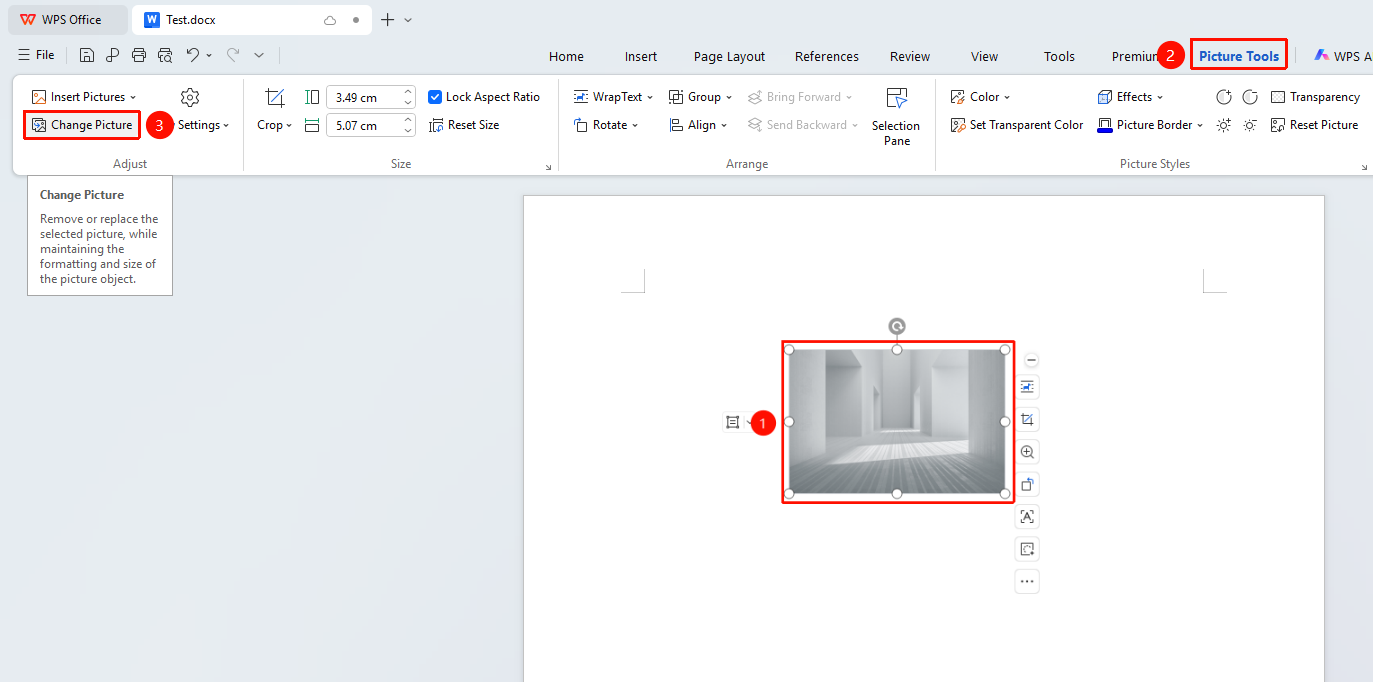
Select the picture you want to replace, then go to the "Picture Tools" tab → "Change Picture" button
- Select the picture you want to replace
- Select the Picture Tools tab
- Click the "Change Picture" button
- Select a new picture file. The new picture will replace the original picture while maintaining the same size and position
Crop Picture
Feature Entry
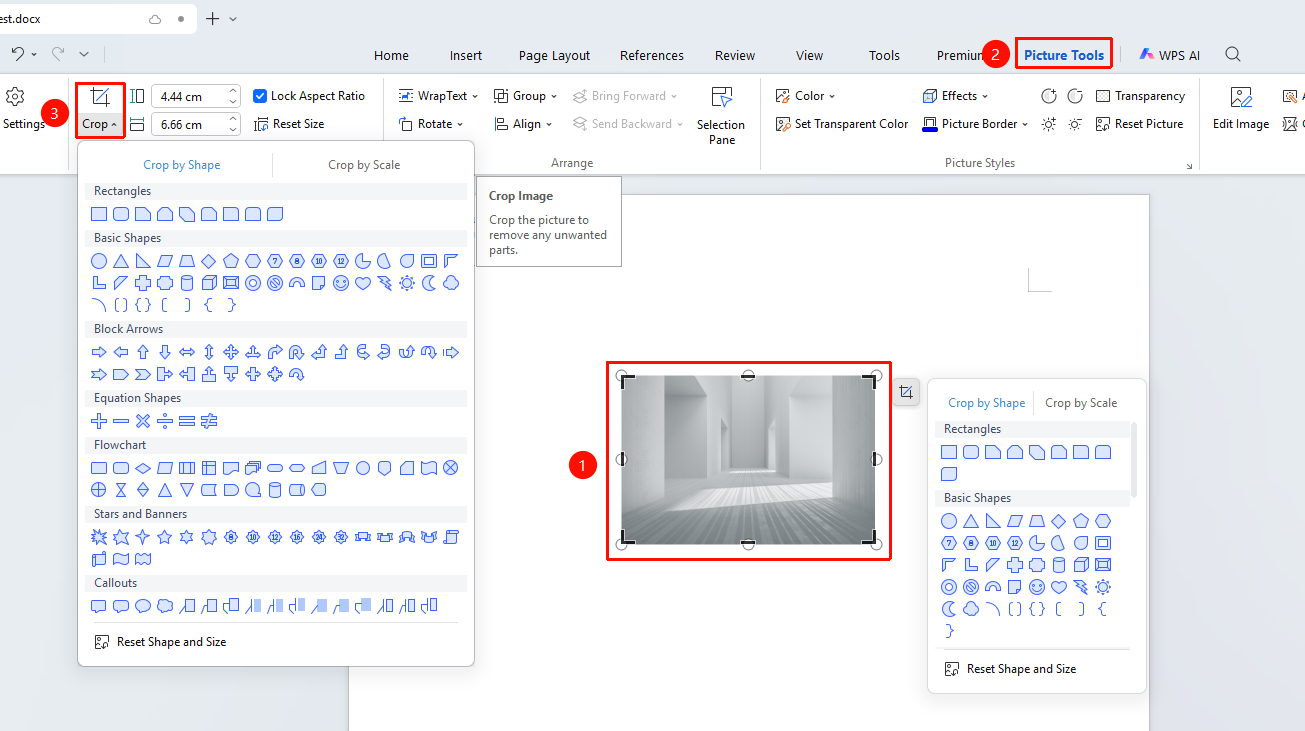
Select an inserted picture, then go to the "Picture Tools" tab → "Crop" option
- Select an inserted picture, and the Picture Tools tab will automatically appear at the top
- Click the "Crop" button, and a cropping frame will appear around the picture
- Drag the corners or edges of the cropping frame to adjust the cropping area
- Click on a blank area of the document to complete the cropping
- You can choose Crop to Shape to crop the picture into a specific shape (circle, heart, arrow, etc.)
Adjust Picture Size
Feature Entry
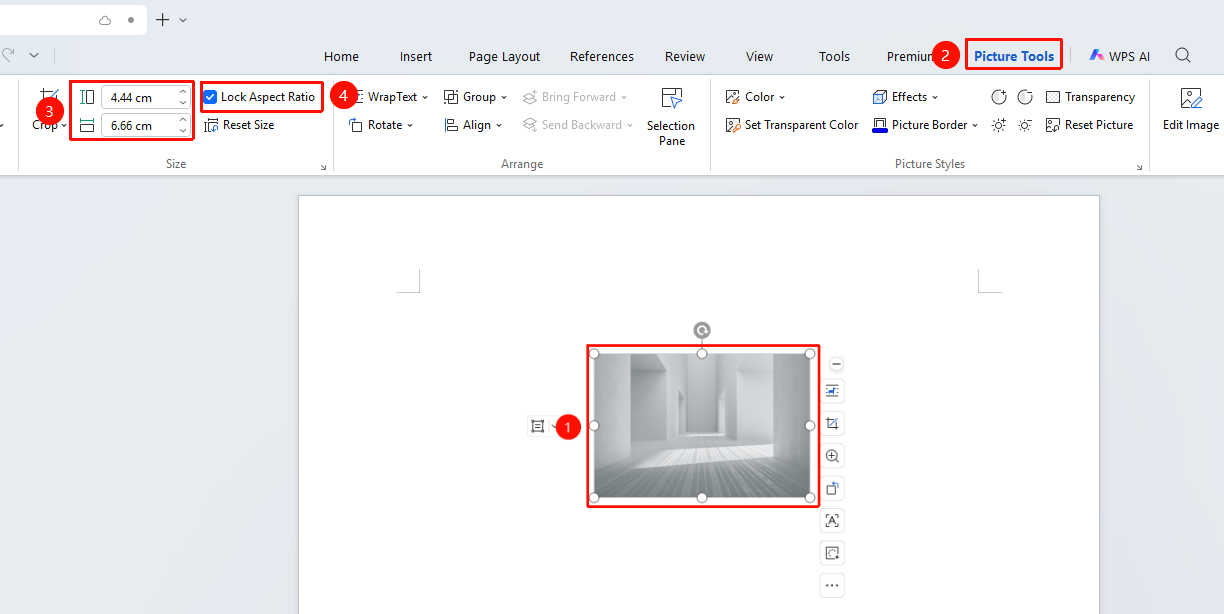
Select the picture you want to adjust, then go to the "Picture Tools" tab → "Height/Width" value boxes
- Select the picture you want to adjust
- In the Picture Tools tab, find the "Width" and "Height" value boxes and modify the height and width values
- Check Lock Aspect Ratio to keep the picture proportions unchanged and prevent distortion
- You can also manually adjust the size by dragging the control points at the four corners of the picture
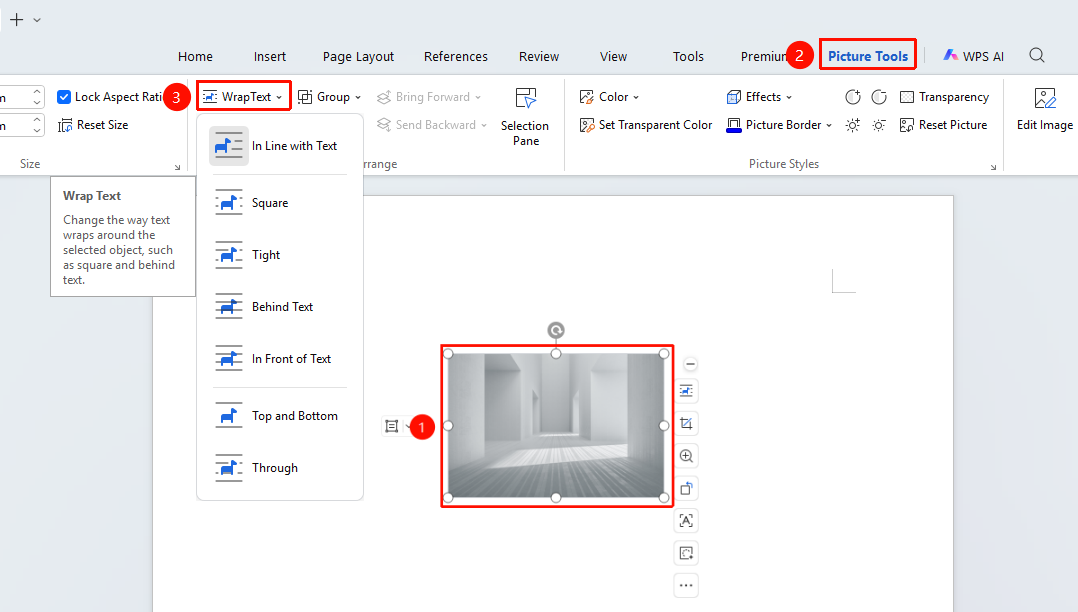
Set Text Wrapping
Feature Entry
Select the picture, then go to the "Picture Tools" tab → "Wrap Text" drop-down menu
- Select the picture and click the Picture Tools tab
- Select the "Wrap Text" drop-down menu
- Choose a wrapping style:
- In Line with Text: The picture is embedded in the text line as a character
- Square: Text wraps around all four sides of the picture
- Tight: Text closely follows the contours of the picture
- Through: Text flows through the blank areas of the picture
- Top and Bottom: Text appears only above and below the picture
- Behind Text: The picture acts as a background
- In Front of Text: The picture overlays the text
- After setting to a non-inline style, you can freely drag the picture to reposition it
Rotate Picture
Feature Entry
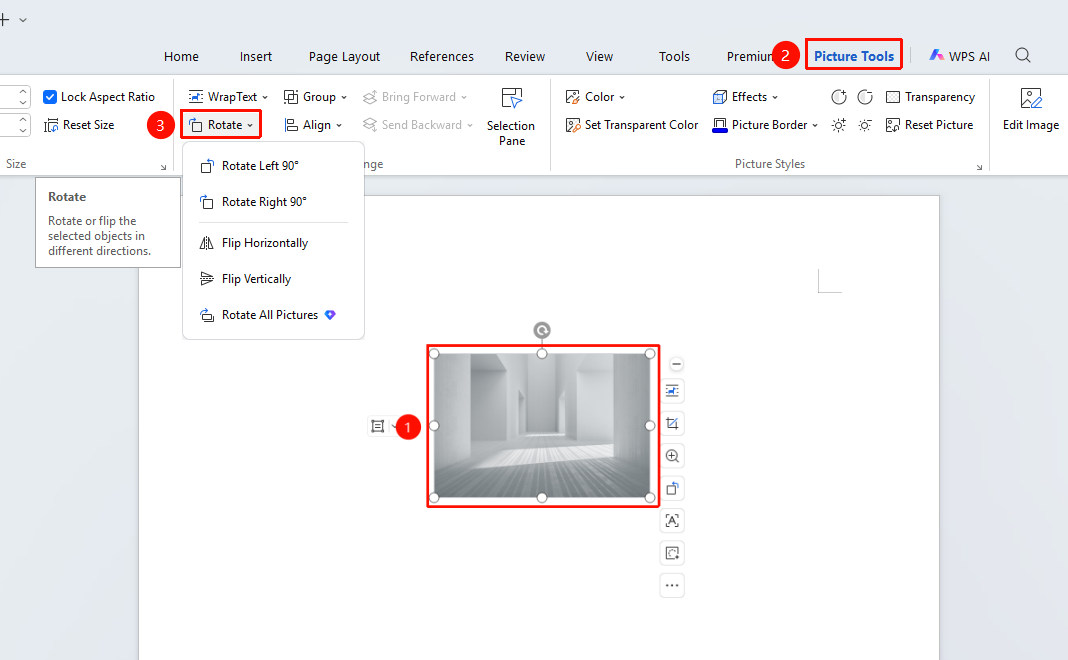
Select the picture you want to adjust, then go to the "Picture Tools" tab → "Rotate" drop-down menu
- Select the picture you want to adjust
- Select the Picture Tools tab
- Click the "Rotate" drop-down menu
- Choose a rotation method
The "Rotate All Pictures" feature requires a membership
Picture Alignment
Feature Entry
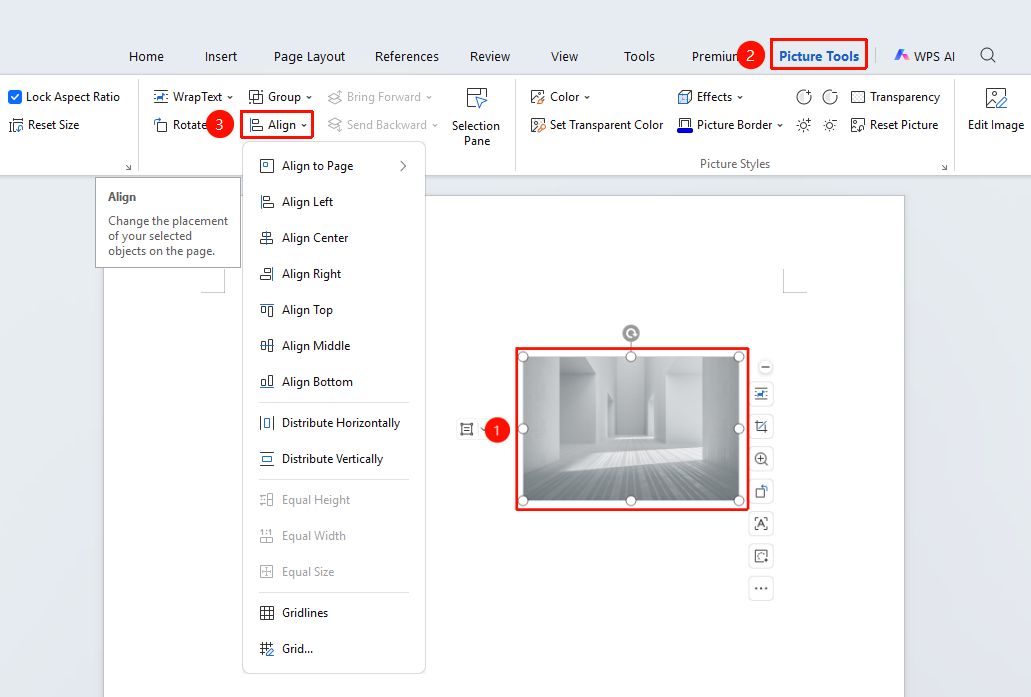
Select the picture(s) you want to align, then go to the "Picture Tools" tab → "Align" drop-down menu
- Select one or more pictures you want to align
- Select the Picture Tools tab
- Click the "Align" drop-down menu
- Choose an alignment method
Adjust Image Layer (Move Forward)
Feature Entry
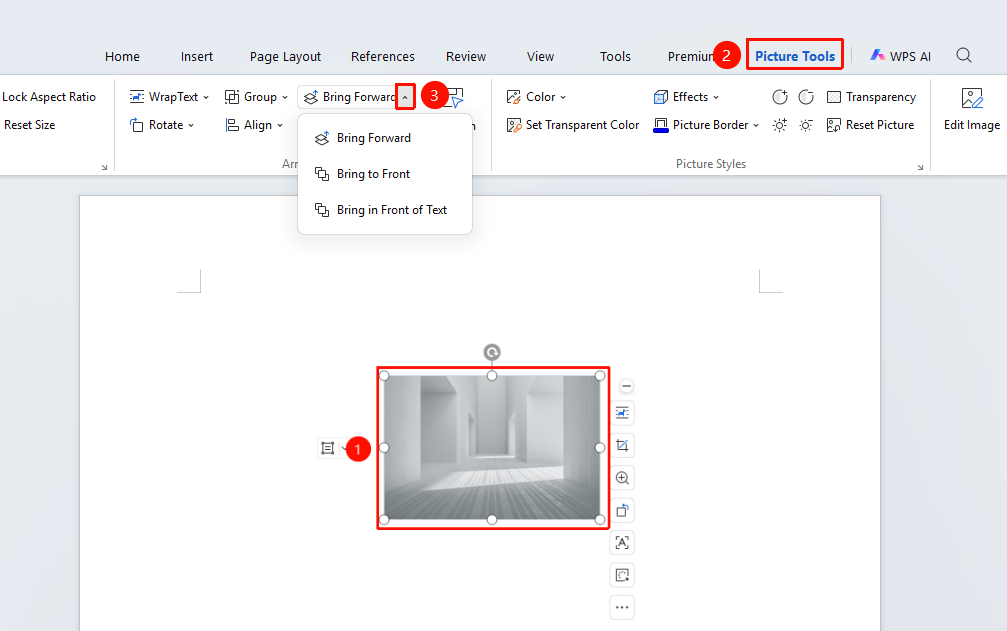
Select the image you want to reorder, then go to the "Picture Tools" tab → "Bring Forward" dropdown menu
- Select the image you want to reorder
- Select the Picture Tools tab
- Click the "Bring Forward" dropdown menu
- Choose a forward placement method
- You can select Bring to Front to quickly move it to the very front or back
Before adjusting the layer, set the image wrapping style to something other than In Line with Text
Adjust Image Layer (Move Backward)
Feature Entry
Select the image you want to reorder, then go to the "Picture Tools" tab → "Send Backward" dropdown menu
- Select the image you want to reorder
- Select the Picture Tools tab
- Click the "Send Backward" dropdown menu
- Choose a backward placement method
- You can select Send to Back to quickly move it to the very front or back
Before adjusting the layer, set the image wrapping style to something other than In Line with Text
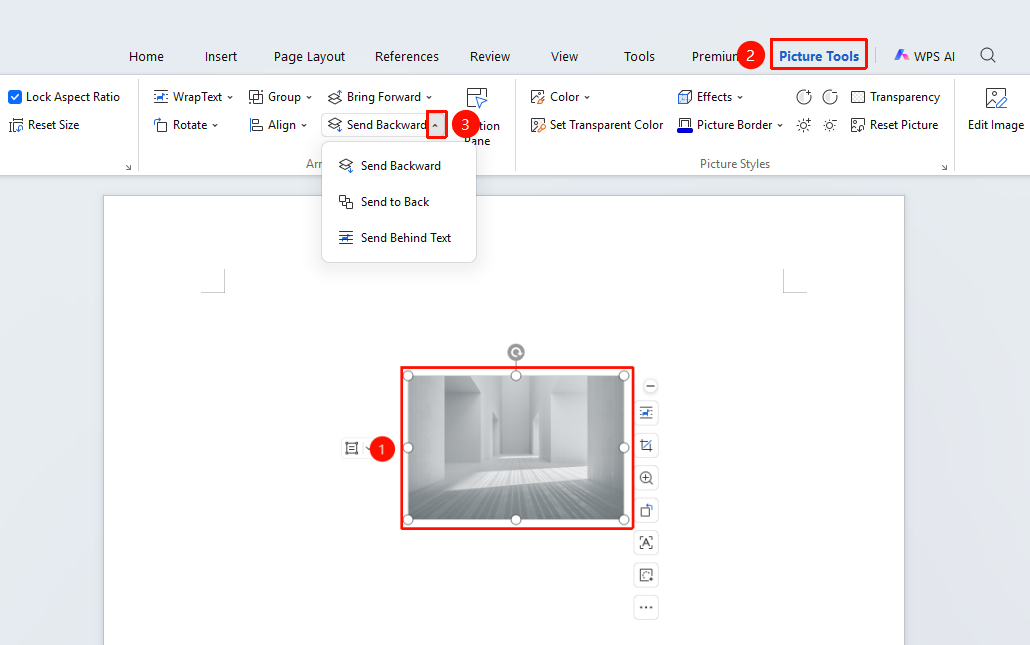
Apply Picture Effects
Feature Entry
Select the image, then go to the "Picture Tools" tab → "Picture Effects"
- Select the image and click the Picture Tools tab
- Click "Effects" to add shadows, reflections, glows, soft edges, and other effects
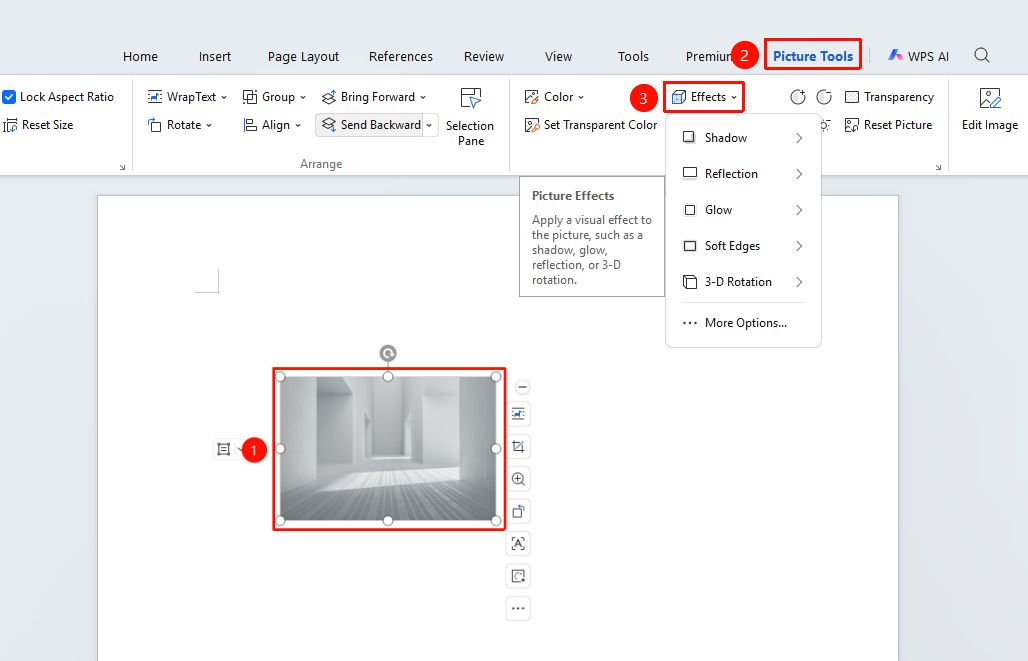
Set Picture Border
Feature Entry
Select the image, then go to the "Picture Tools" tab → "Picture Border"
- Select the image and click the Picture Tools tab
- Click "Picture Border" Choose border color and style
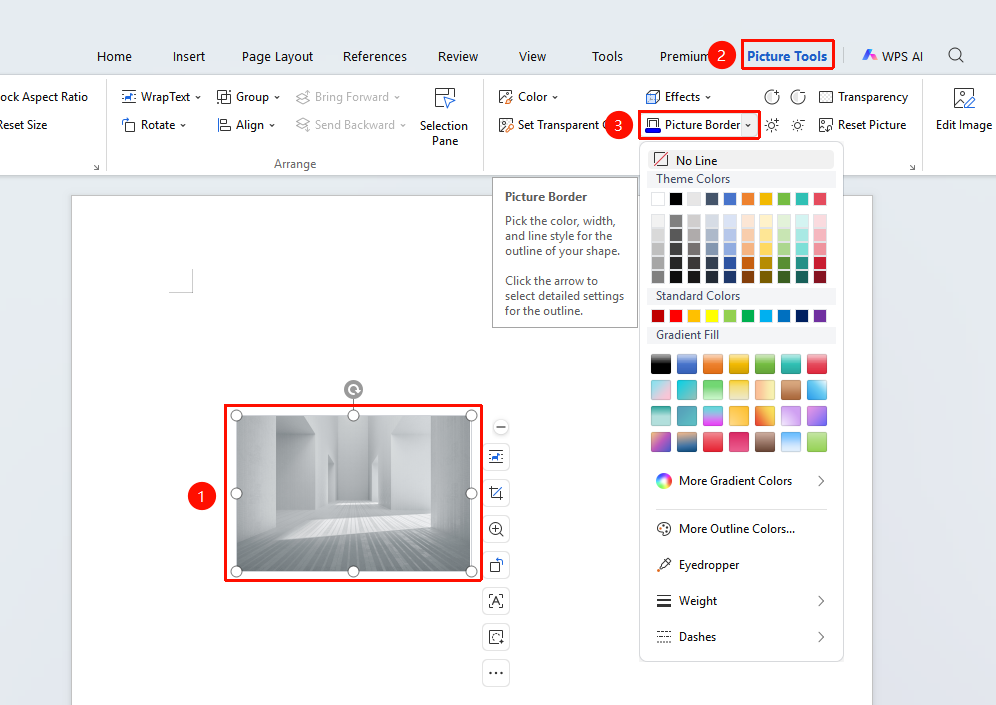
Adjust Picture Color
Feature Entry
Select the image, then go to the "Picture Tools" tab → "Color"
- Select the image and click the Picture Tools tab
- Click "Color" to adjust the picture's tone, saturation, and brightness
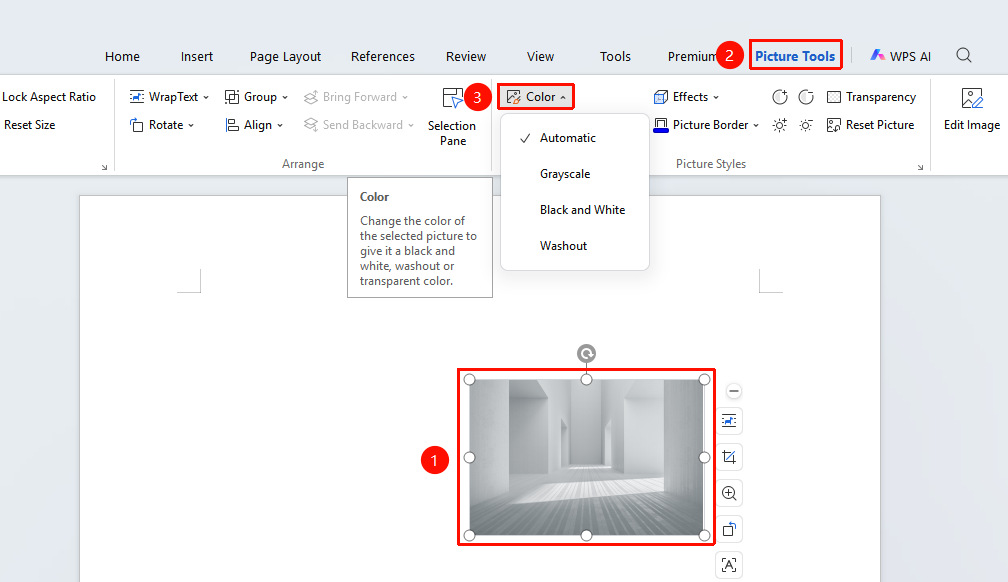
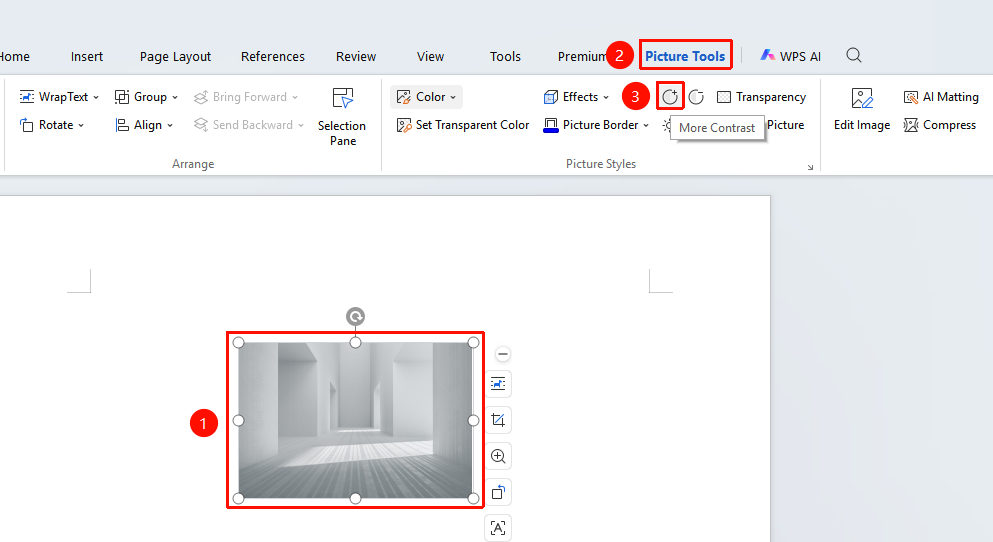
Increase Picture Contrast
Feature Entry
Select the image, then go to the "Picture Tools" tab → "More Contrast" button
- Select the image and click the Picture Tools tab
- Click the "More Contrast" button
- Increase the contrast of the picture
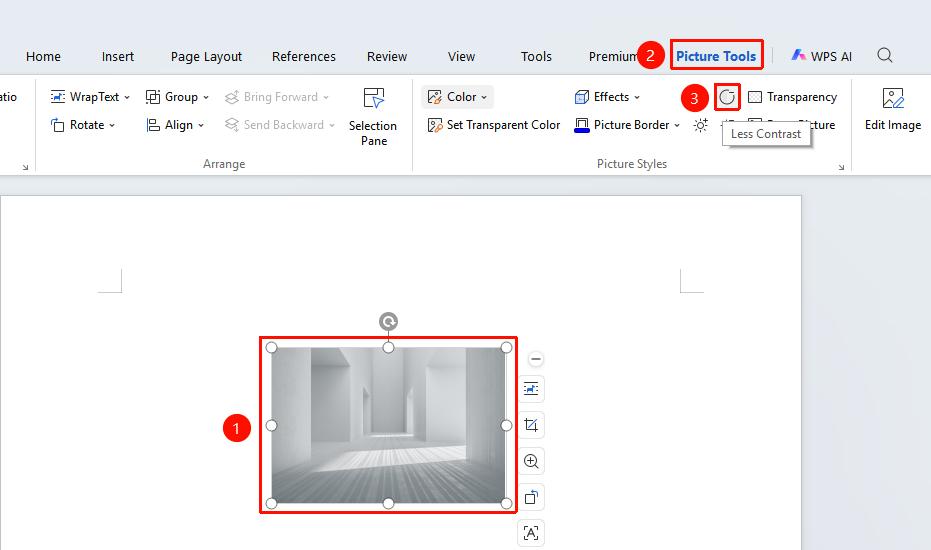
Decrease Picture Contrast
Feature Entry
Select the image, then go to the "Picture Tools" tab → "Less Contrast" button
- Select the image and click the Picture Tools tab
- Click the "Less Contrast" button
- Decrease the contrast of the picture
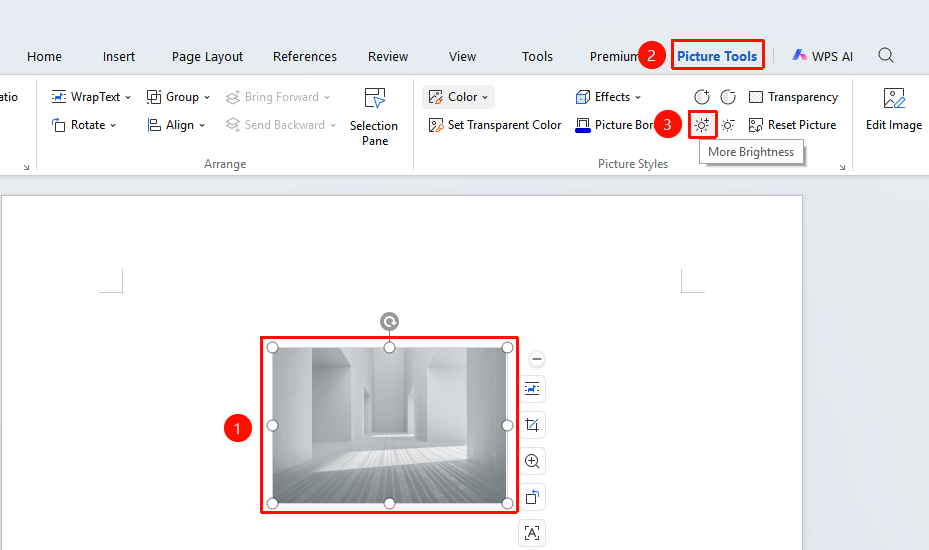
Increase Picture Brightness
Feature Entry
Select the image, then go to the "Picture Tools" tab → "More Brightness" button
- Select the image and click the Picture Tools tab
- Click the "More Brightness" button
- Increase the brightness of the picture
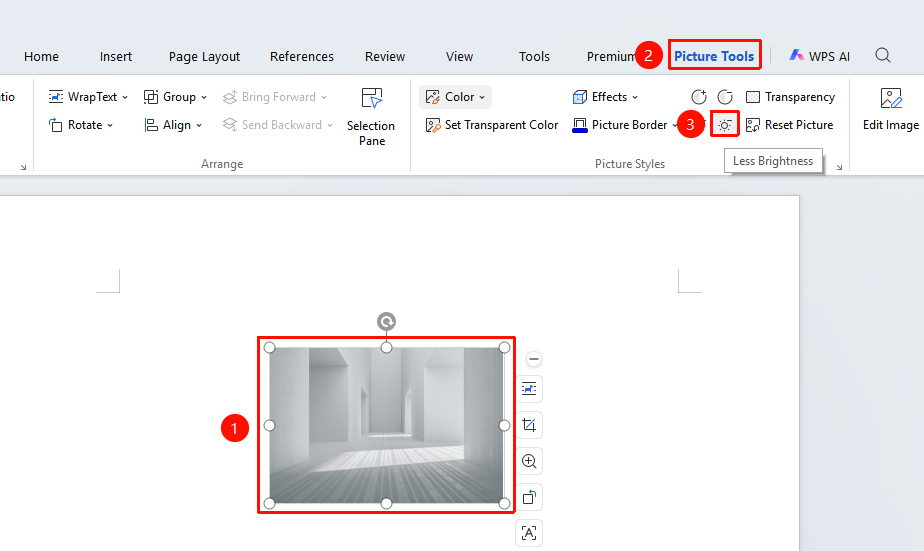
Decrease Picture Brightness
Feature Entry
Select the image, then go to the "Picture Tools" tab → "Less Brightness" button
- Select the image and click the Picture Tools tab
- Click the "Less Brightness" button
- Decrease the brightness of the picture
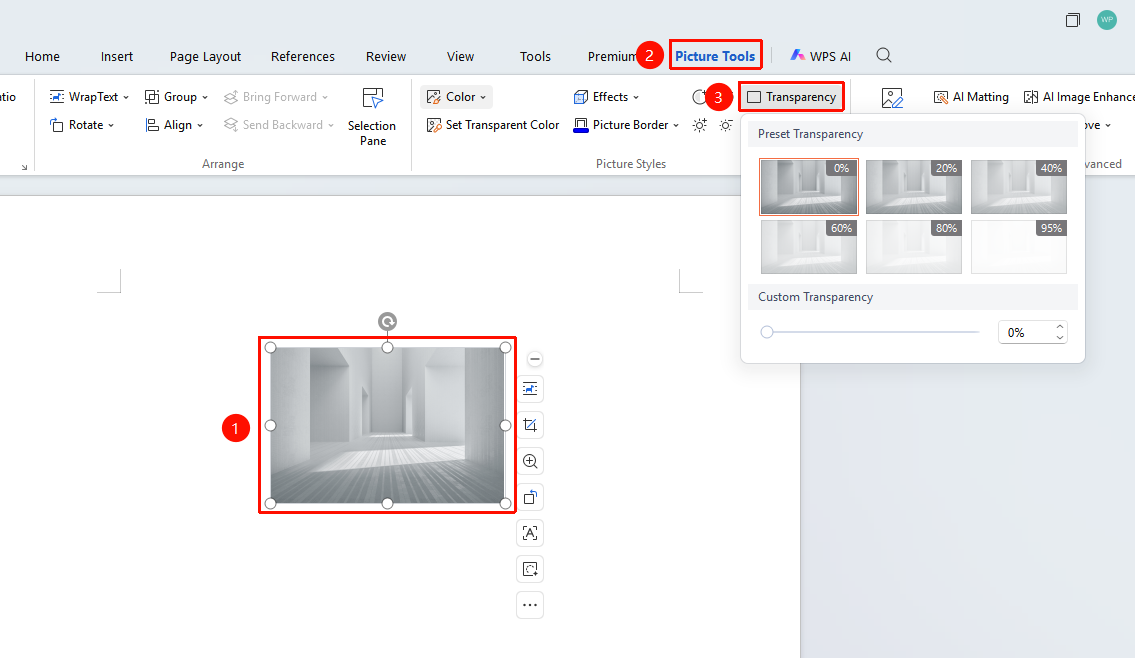
Set Picture Transparency
Feature Entry
Select the image, then go to the "Picture Tools" tab → "Transparency" button
- Select the image and click the Picture Tools tab
- Click the "Transparency" button
- Adjust the picture transparency
Reset Picture Style
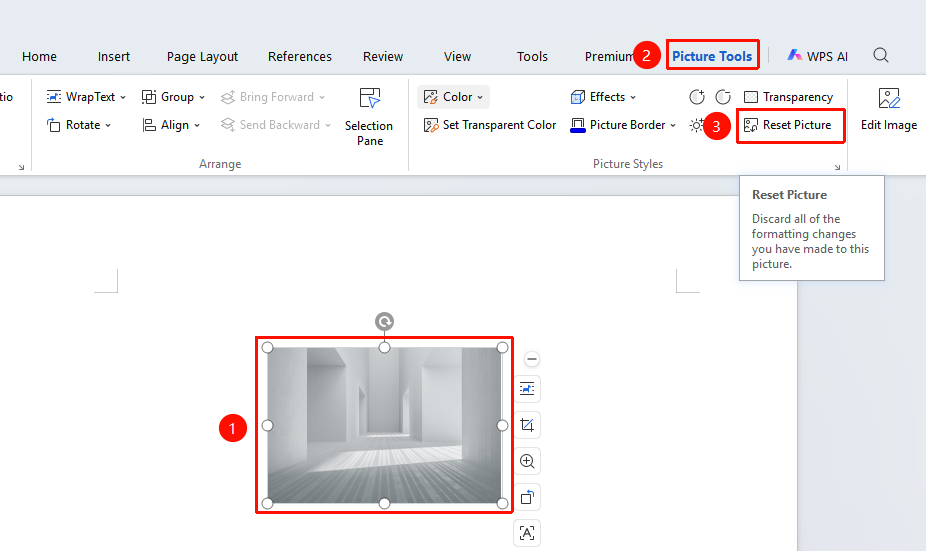
Feature Entry
Select the image, then go to the "Picture Tools" tab → "Reset Picture" button
- Select the image and click the Picture Tools tab
- Click the "Reset Picture" button to reset the picture's style
Compress Pictures
Feature Entry
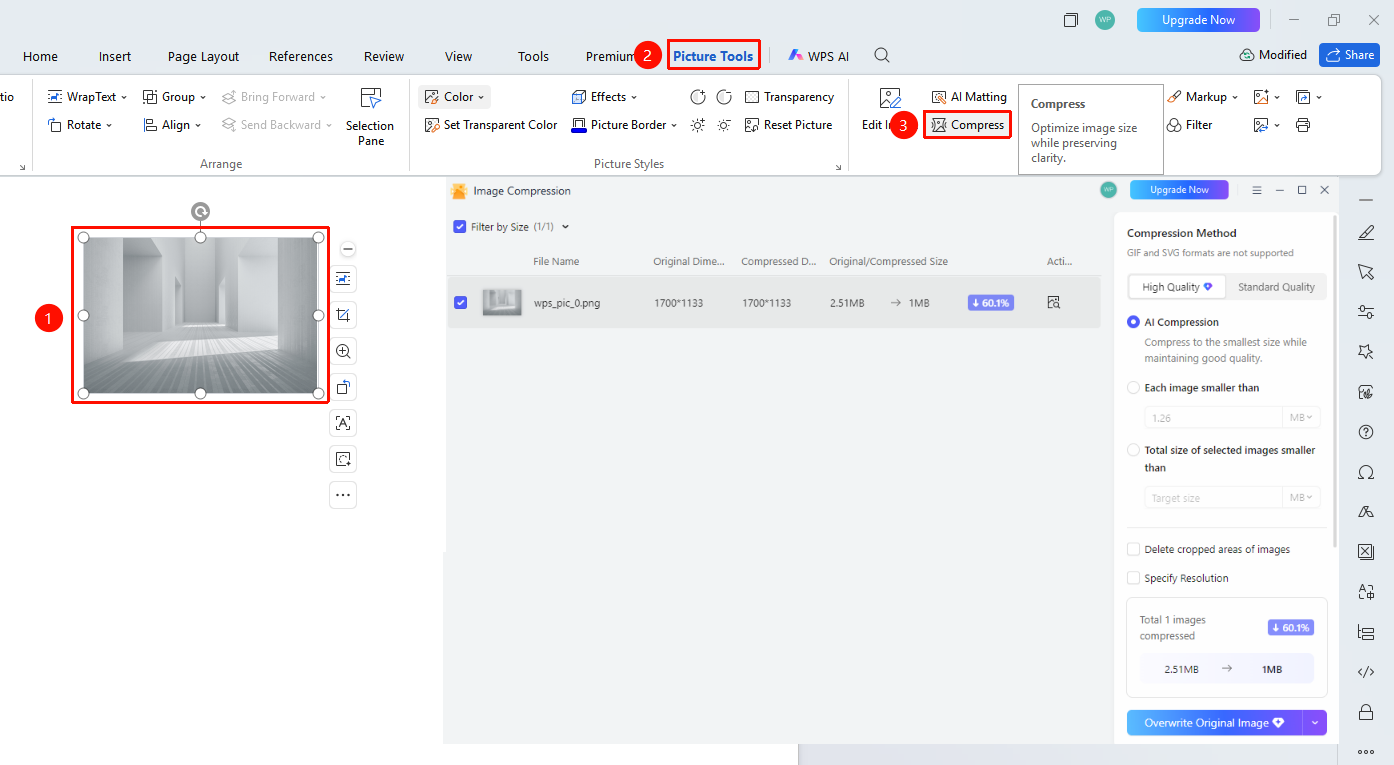
Select the image you want to compress, then go to "Picture Tools" → "Compress"
- Select the image you want to compress
- Click the "Picture Tools" → "Compress" button3. In the pop-up dialog, select the compression mode and resolution
- Check "Delete cropped areas of pictures" to further reduce file size
- To compress all images, check "All pictures in document"
Group Images
Feature Entry
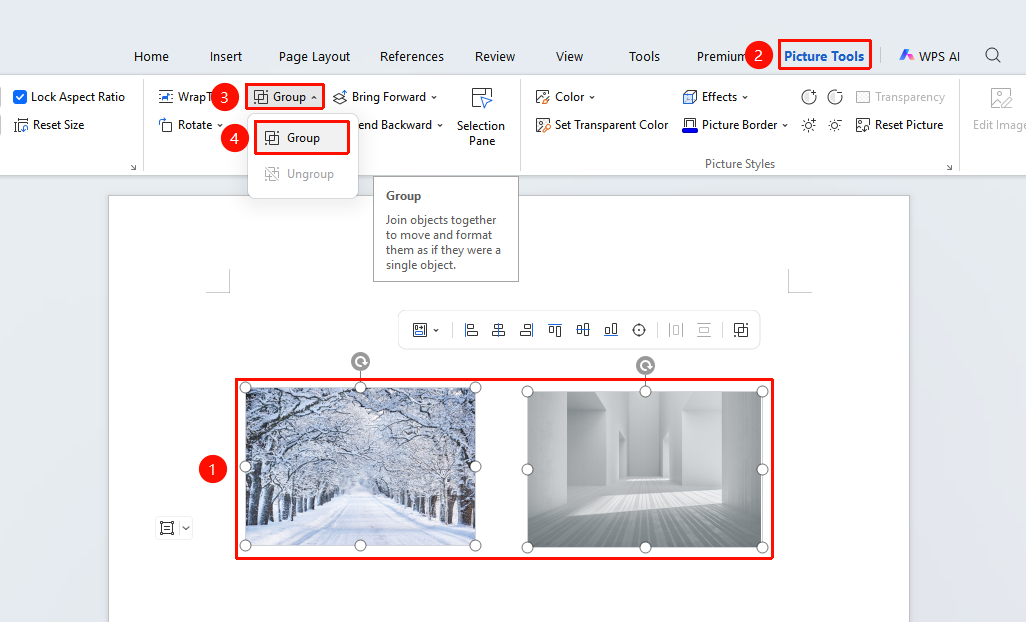
Select multiple images, "Picture Tools" tab → "Group" drop-down menu
- Select multiple images
- Click the Picture Tools tab
- Click the "Group" drop-down menu
- The multiple images will be bound as a single unit, allowing you to move and scale them together
- To ungroup, select the group and click "Ungroup"
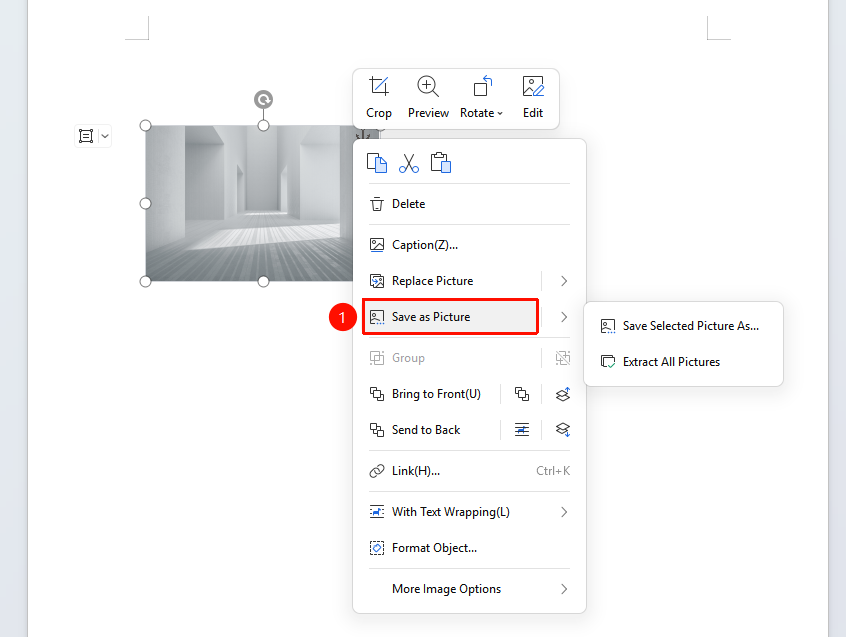
Save as Picture
Feature Entry
Select an image, right-click menu → "Save as Picture"
- Select an image and right-click on it
- Choose "Save as Picture"
- Select the save path and format (PNG, JPG, etc.)
- Click Save to export the image locally
Batch Image Processing (Membership required)
Feature Entry
Select images, "Picture Tools" tab → "Batch" drop-down menu
- Select images and choose the Picture Tools tab
- Click the "Batch" drop-down menu
- Select the batch function you need (batch export, batch compress size, etc.)
The batch image processing feature requires a membership
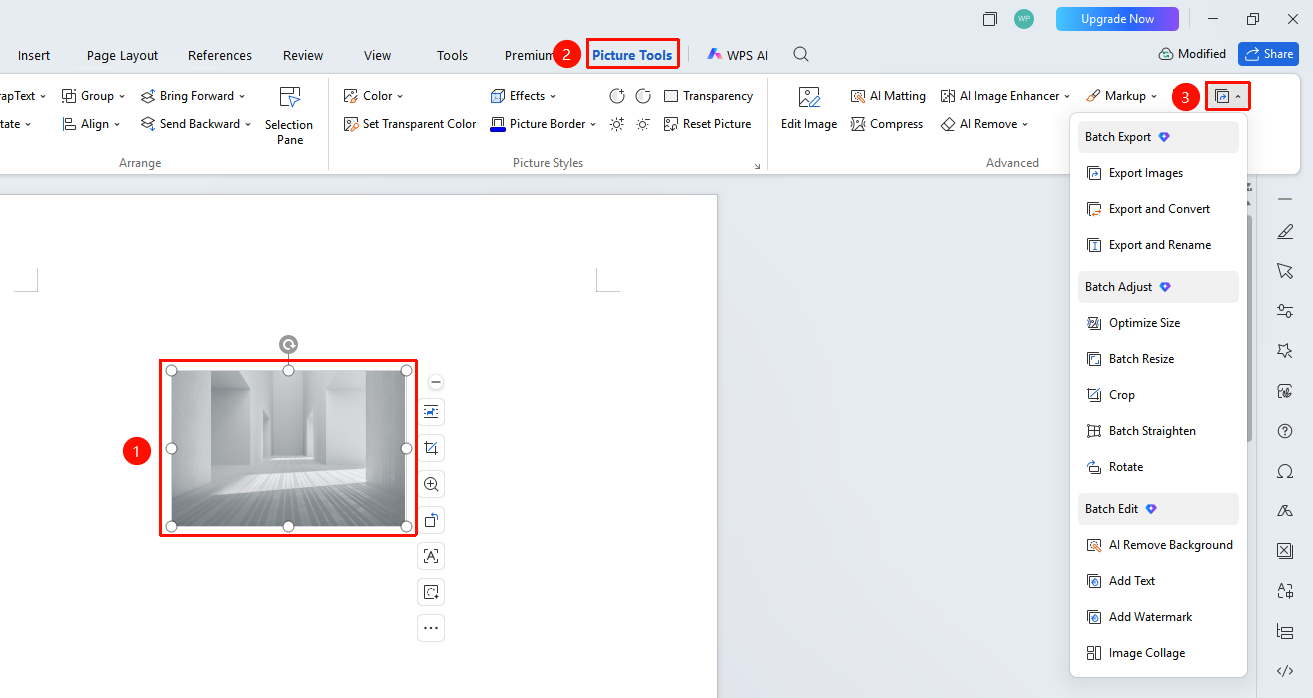
Image Printing (Some features require membership)
Feature Entry
Select images, "Picture Tools" tab → "Print image" button
- Select images and choose the Picture Tools tab
- Click the "Print image" button
- Adjust print options in the pop-up dialog window
Some feature options in the print function require a membership to use
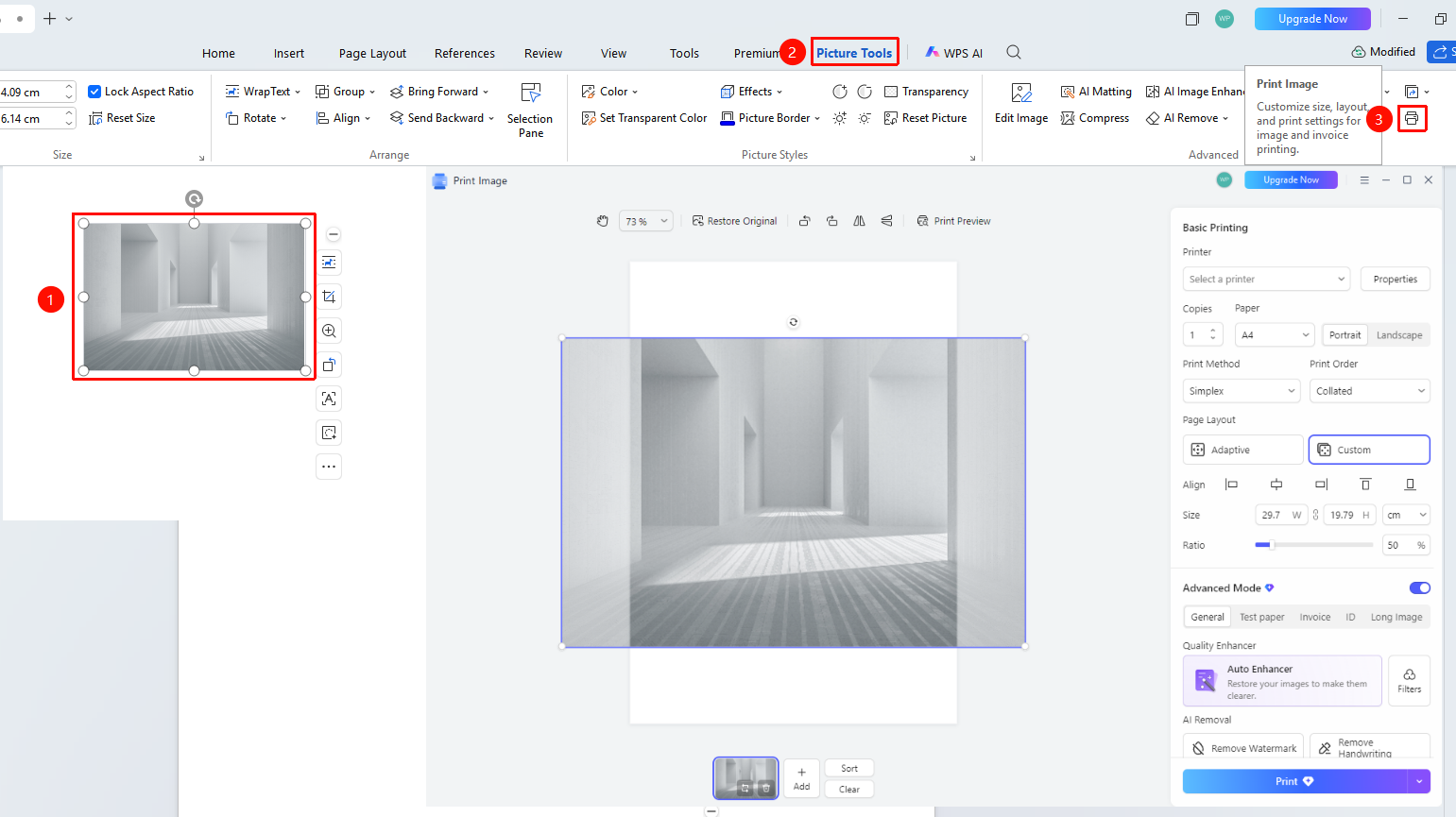
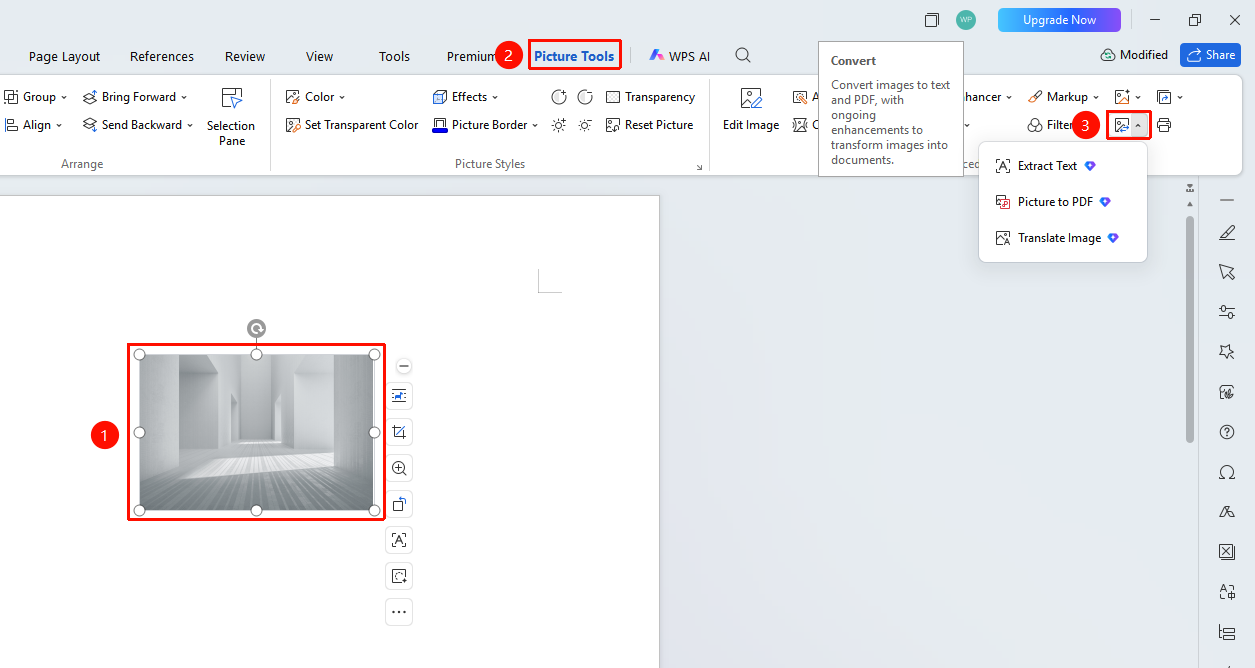
Image Conversion (Membership required)
Feature Entry
Select images, "Picture Tools" tab → "Convert" drop-down menu
- Select images and choose the Picture Tools tab
- Click the "Convert" drop-down menu
- In the pop-up dialog window, select the format you want to convert to
The image conversion feature requires a membership to use
AI Tools (Membership required)
Feature Entry
Select images, "Picture Tools" tab → "AI Tools" drop-down menu
- Select images and choose the Picture Tools tab
- Click the "AI Tools" drop-down menu
- You can choose functions such as AI Cutout, AI Removal, and AI Sharpen
The feature options in AI Tools require a membership to use
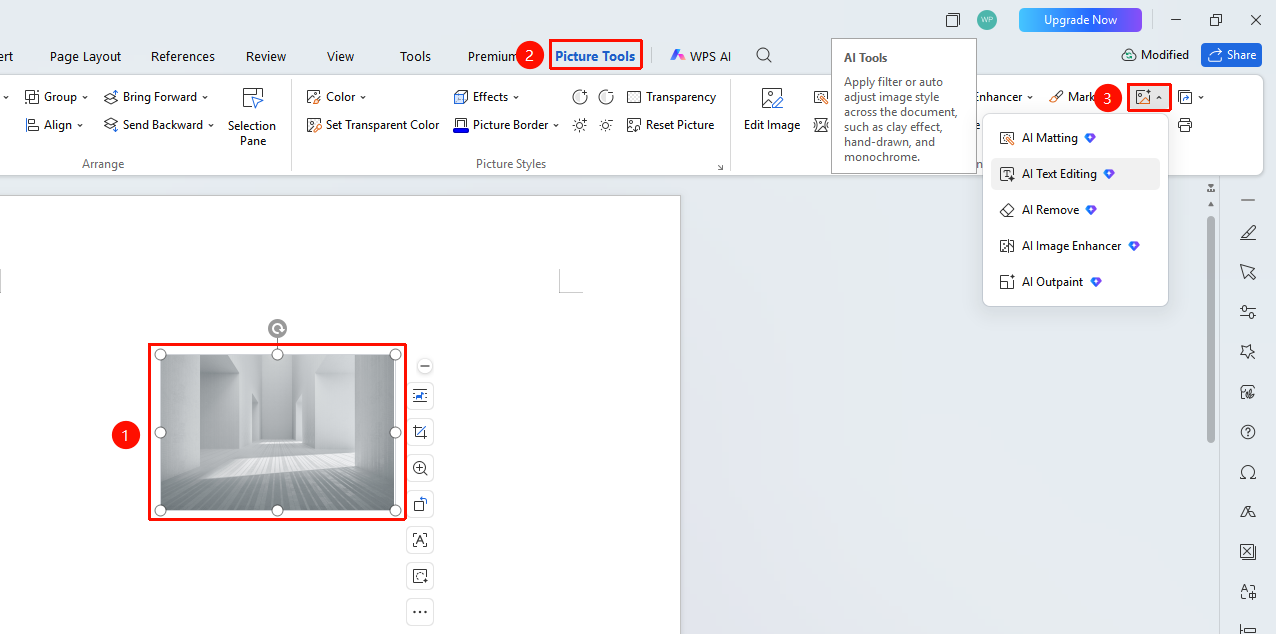
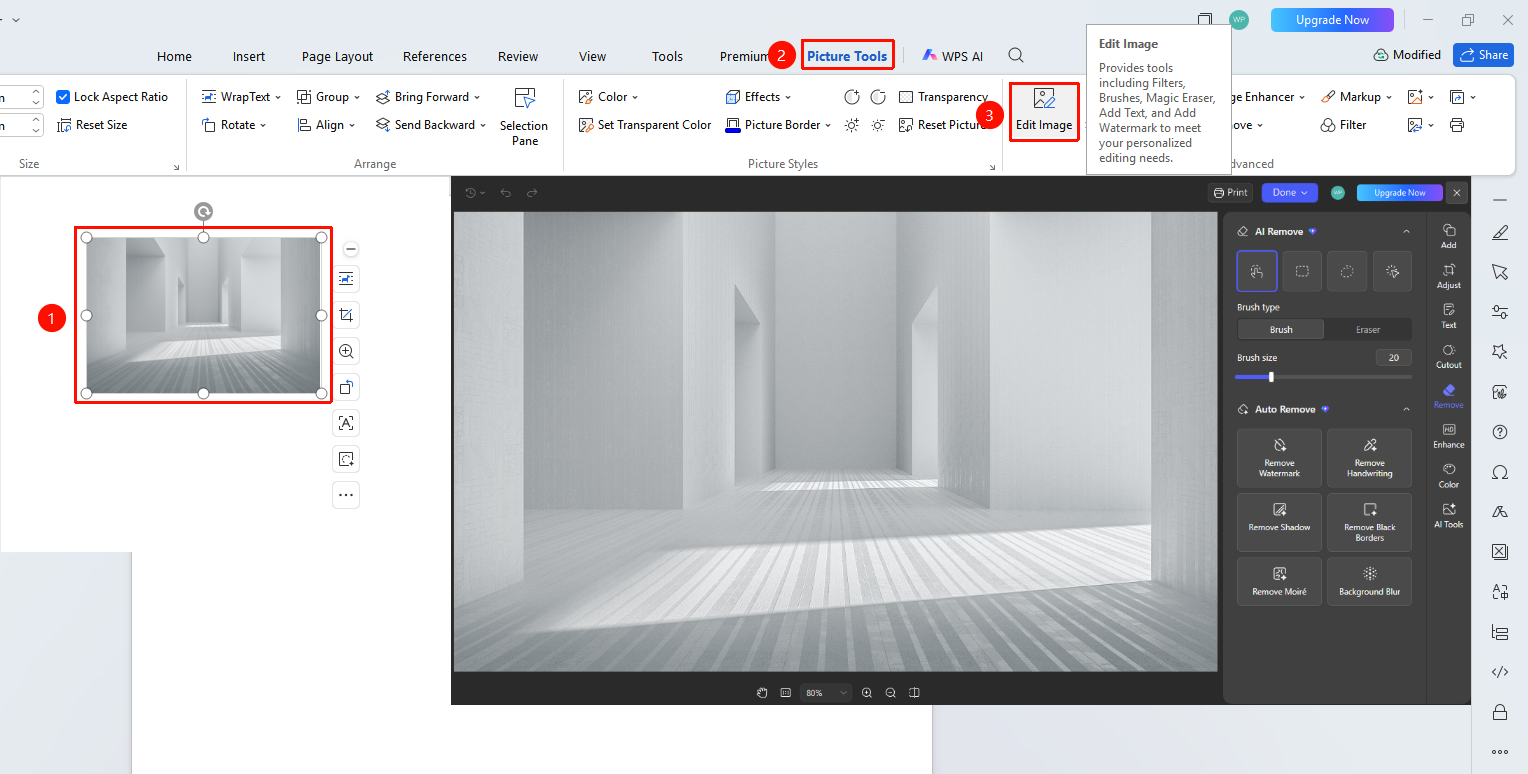
Image Editing
Feature Entry
Select images, "Picture Tools" tab → "Edit Image" drop-down menu
- Select images and choose the Picture Tools tab
- Click the "Edit Image" button
- In the pop-up window, choose the desired function
- Add Features: You can add annotations, materials, watermarks, and mosaics
- Adjust Features: You can crop, rotate, straighten, and resize images
- Text Recognition & Editing: AI text extraction, AI seamless text editing, and other functions
- Cutout Feature: AI intelligent recognition cutout
- Removal Feature: AI removal, one-click removal
- Sharpen: AI one-click sharpening, image beautification, and other functions
- Color Grading: Basic adjustments, AI filters, cartoon, and other functions
Most feature options in Image Editing require a membership to use
FAQ
Q1: What should I do if the inserted image cannot be moved?
- Solution: The image defaults to "In line with text" wrapping style, which prevents free movement. After selecting the image, click "Picture Tools" → "Wrap Text", and change it to "Square" or "In Front of Text" to move it freely.
Problem 2: What should I do if an inserted image is not fully displayed or appears as a single line?
- Solution: This is caused by a line spacing setting that is too small. Select the paragraph containing the image, click "Home" → "Paragraph", and change the line spacing to "Single" or "Exactly" with a larger value.
Problem 3: What should I do if an inserted image becomes blurry?
- Solution: Go to the "File" menu in the upper left corner → "Options" → "General & Save" tab, and check "Do not compress images in file".
Notes
- Inline images have a fixed position and cannot be moved freely; you must change the text wrapping style before adjusting their position.
- Checking "Lock aspect ratio" prevents image distortion when resizing.
- The PNG format supports transparent backgrounds, while the JPG format does not.
- When saving an image separately, choosing the PNG format preserves higher quality.
- A large number of images will increase the document file size; it is recommended to compress them appropriately.