Feature Summary
When you need to move, copy, or reorganize content in a WPS Writer document, the copy, cut, and paste features help you complete text editing efficiently and improve document processing productivity.
- Copy: Copies the selected text or object to the clipboard; the original content remains unchanged
- Cut: Moves the selected text or object to the clipboard; the original content is removed
- Paste: Inserts the clipboard content at the specified location
- Paste Special: Supports retaining or clearing source formatting as needed, allowing flexible control over paste results
Feature Description
| Feature Dimension | Description |
|---|---|
| Membership Restriction | None |
| Version Restriction | No version restriction |
| Copy Shortcut | Ctrl+C |
| Paste Shortcut | Ctrl+V |
Operation Steps
Basic Copy Operation
Feature Entry
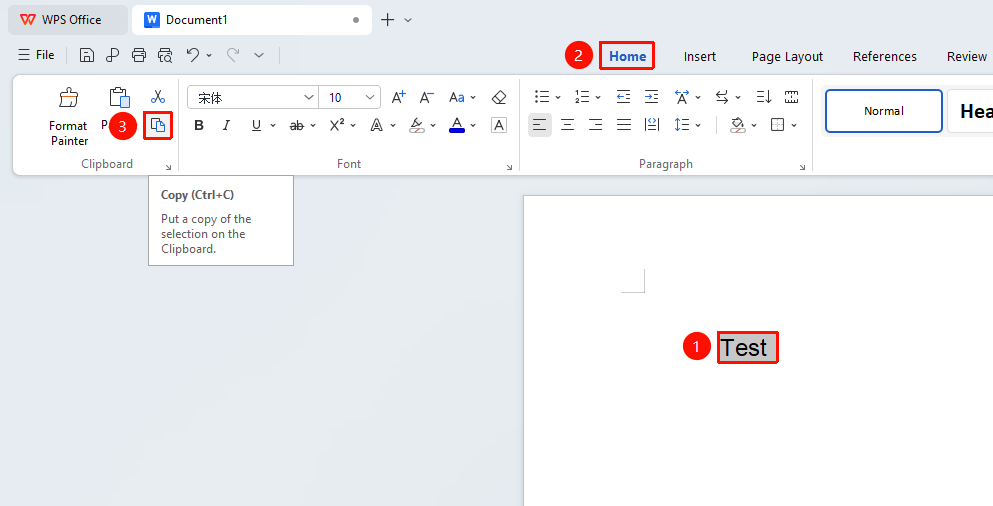
Select the text to copy, "Home" tab → "Copy" button
- Select the text to copy
- Click the Home tab
- Click the "Copy" button to copy
Basic Cut Operation
Feature Entry
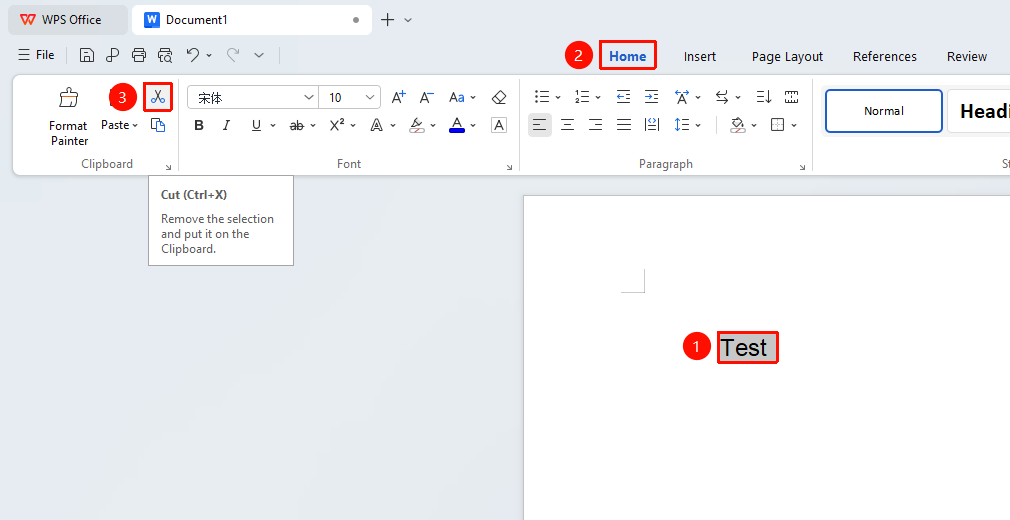
Select the text to cut, "Home" tab → "Cut" button
- Select the text to cut
- Click the Home tab on the ribbon
- Click the "Cut" button to cut
Basic Paste Operation
Feature Entry
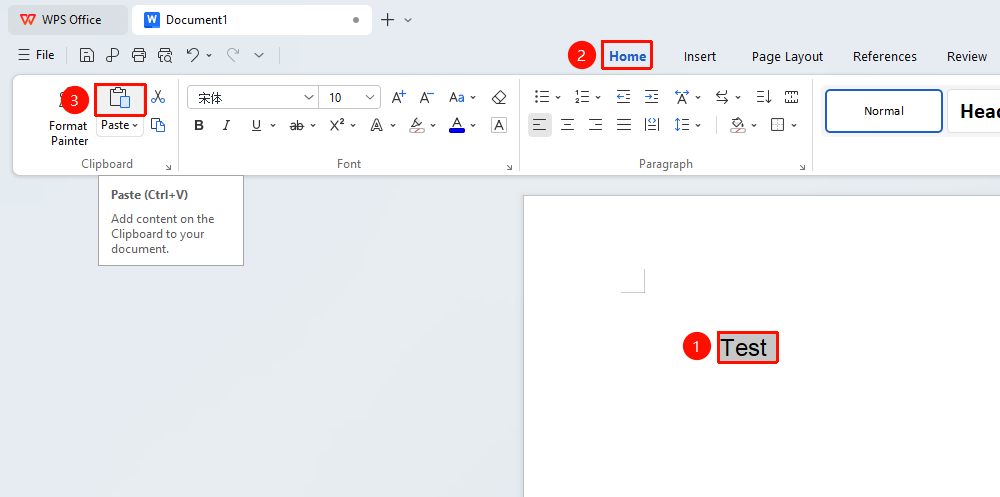
"Home" tab → "Paste" button
- Position the cursor at the target location
- Click the Home tab on the ribbon
- Click the "Paste" button to paste
More Paste Options
Feature Entry
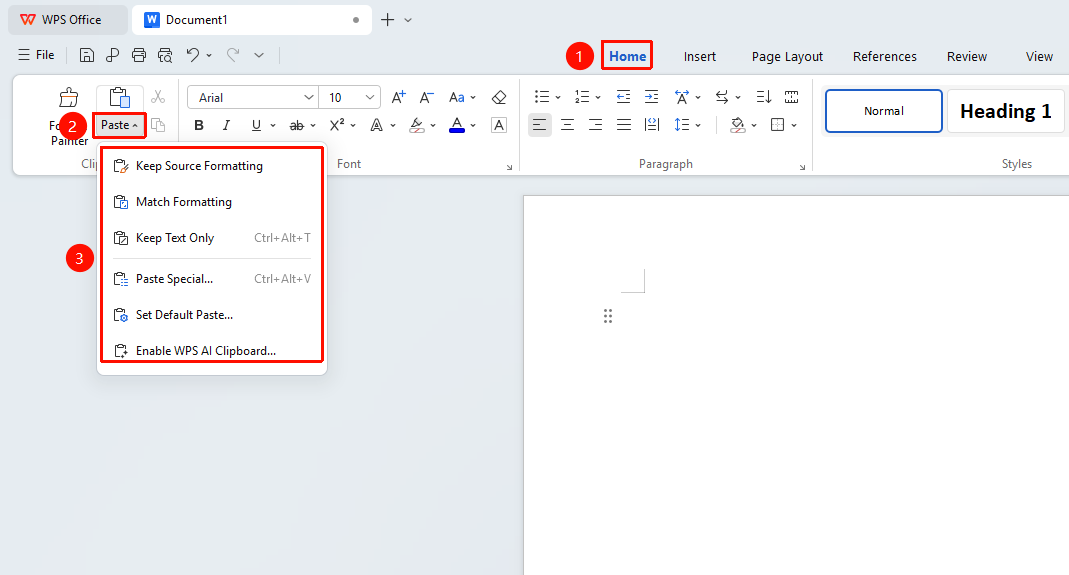
"Home" tab → Drop-down arrow to the right of the "Paste" button
- After copying content, click the Home tab at the top
- Locate and click the Paste drop-down button
- Select the desired paste option
- "Keep Source Formatting" : Paste while preserving the original formatting
- "Match Destination Formatting" : Paste content and match the formatting of the target location
- "Keep Text Only" : Paste only plain text without retaining formatting
- "Paste Special" : Open the Paste Special dialog to choose a paste format
- "Set Default Paste" : Set the default paste option
Right-Click Menu Copy
Feature Entry
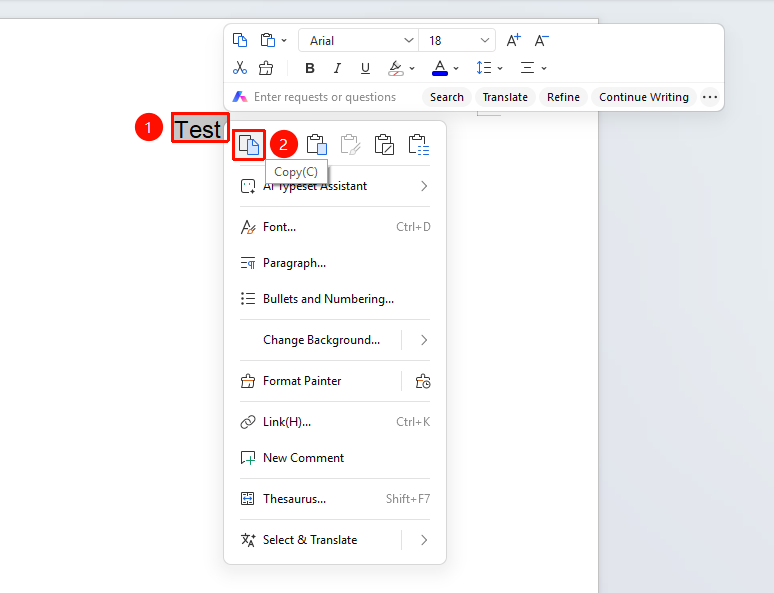
Select the text to copy, "Right-click" menu → "Copy" button
- Select the text to copy
- Right-click the selected text to open the right-click context menu
- Click the "Copy" button to copy
Right-Click Menu Cut
Feature Entry
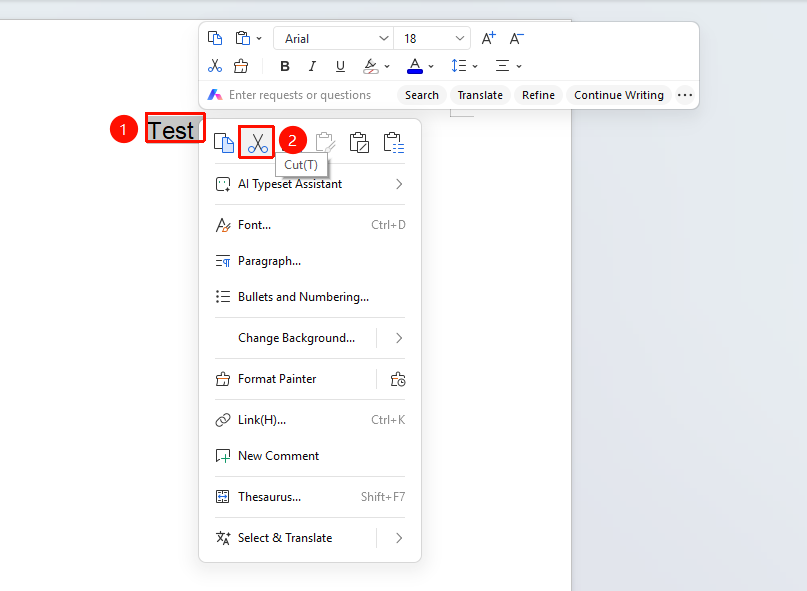
Select the text to cut, "Right-click" menu → "Cut" button
- Select the text to cut
- Right-click the selected text to open the right-click context menu
- Click the "Cut" button to cut
Right-Click Menu Paste
Feature Entry
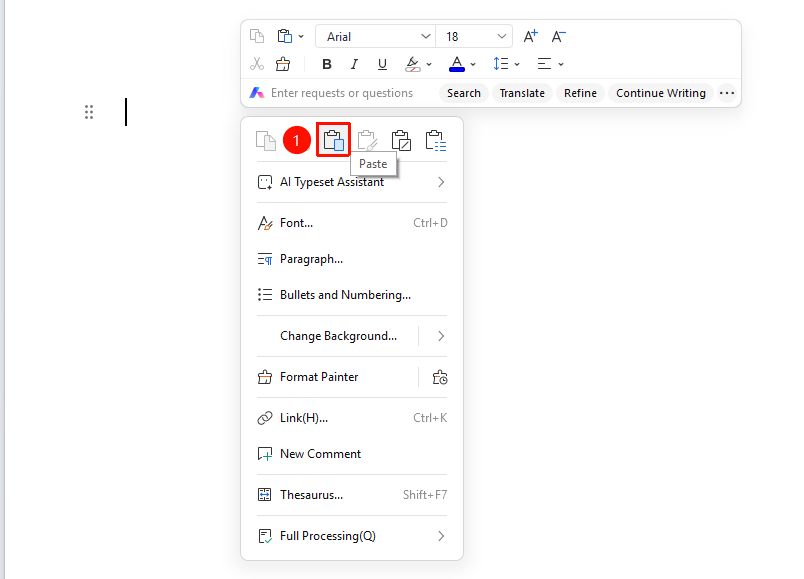
"Right-click" menu → "Paste" button
- Position the cursor at the target location
- Right-click on a blank area to open the right-click context menu
- Click the "Paste" button to paste
Right-Click Menu Paste with Formatting
Feature Entry
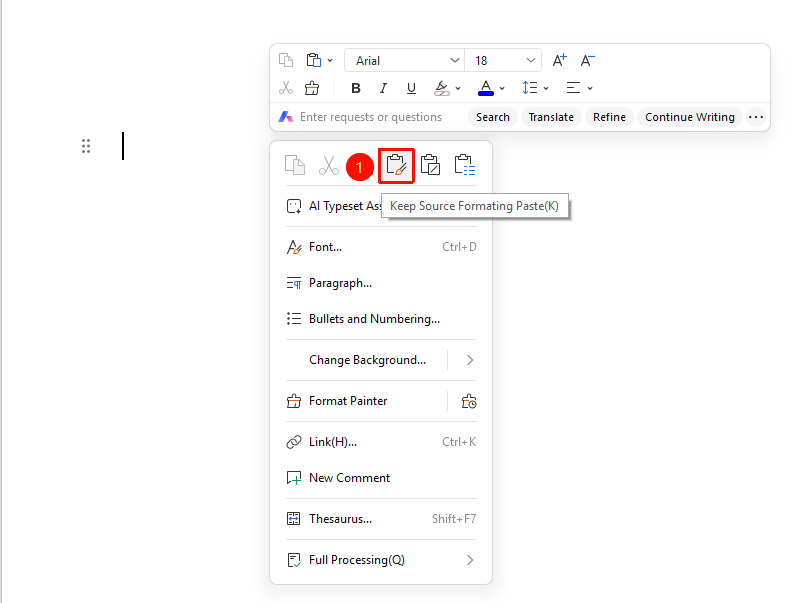
"Right-click" menu → "Paste with Formatting" button
- Position the cursor at the target location
- Right-click on a blank area to open the right-click context menu
- Click the "Paste with Formatting" button to paste
Right-Click Menu Paste Text Only
Feature Entry
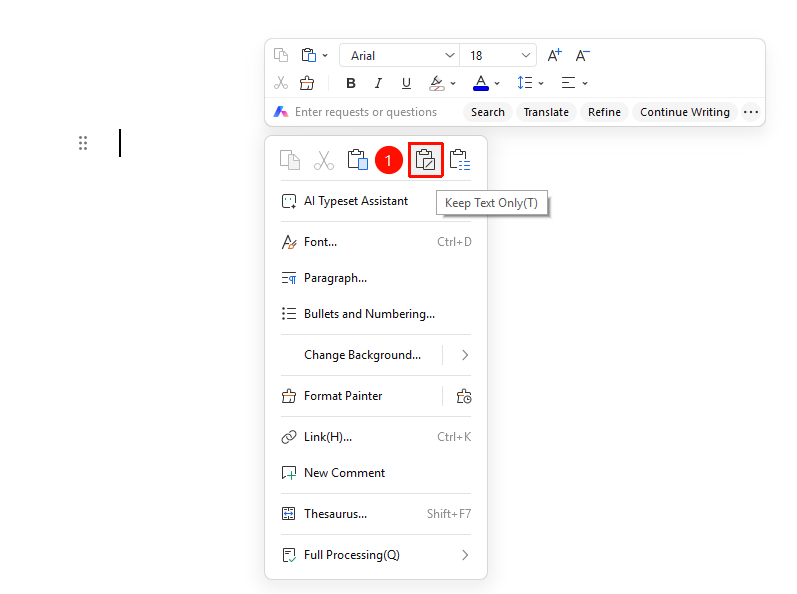
"Right-click" menu → "Paste Text Only" button
- Position the cursor at the target location
- Right-click on a blank area to open the right-click context menu list
- Click the "Paste Text Only" button to paste
Right-Click Menu Paste Special
Feature Entry
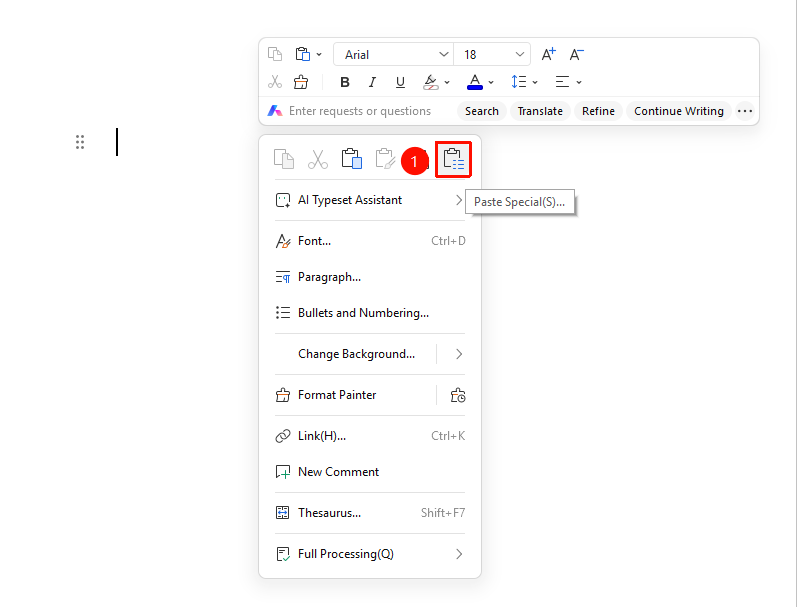
"Right-click" menu → "Paste Special" button
- Position the cursor at the target location
- Right-click on a blank area to open the right-click context menu list3. Click the 「Paste with Formatting」 button
Paste Format Description:
| Paste Method | Description |
|---|---|
| Paste with Formatting | Retains the original formatting of the copied content |
| Match Current Format | The copied content automatically matches the document format at the paste location |
| Paste Text Only | Does not retain the formatting of the copied content; pastes plain text only |
| Paste Special | Supports pasting in various forms such as WPS text data, formatted text (HTML), unformatted text, images, etc. |
Set Default Paste Format
Function Entry 1
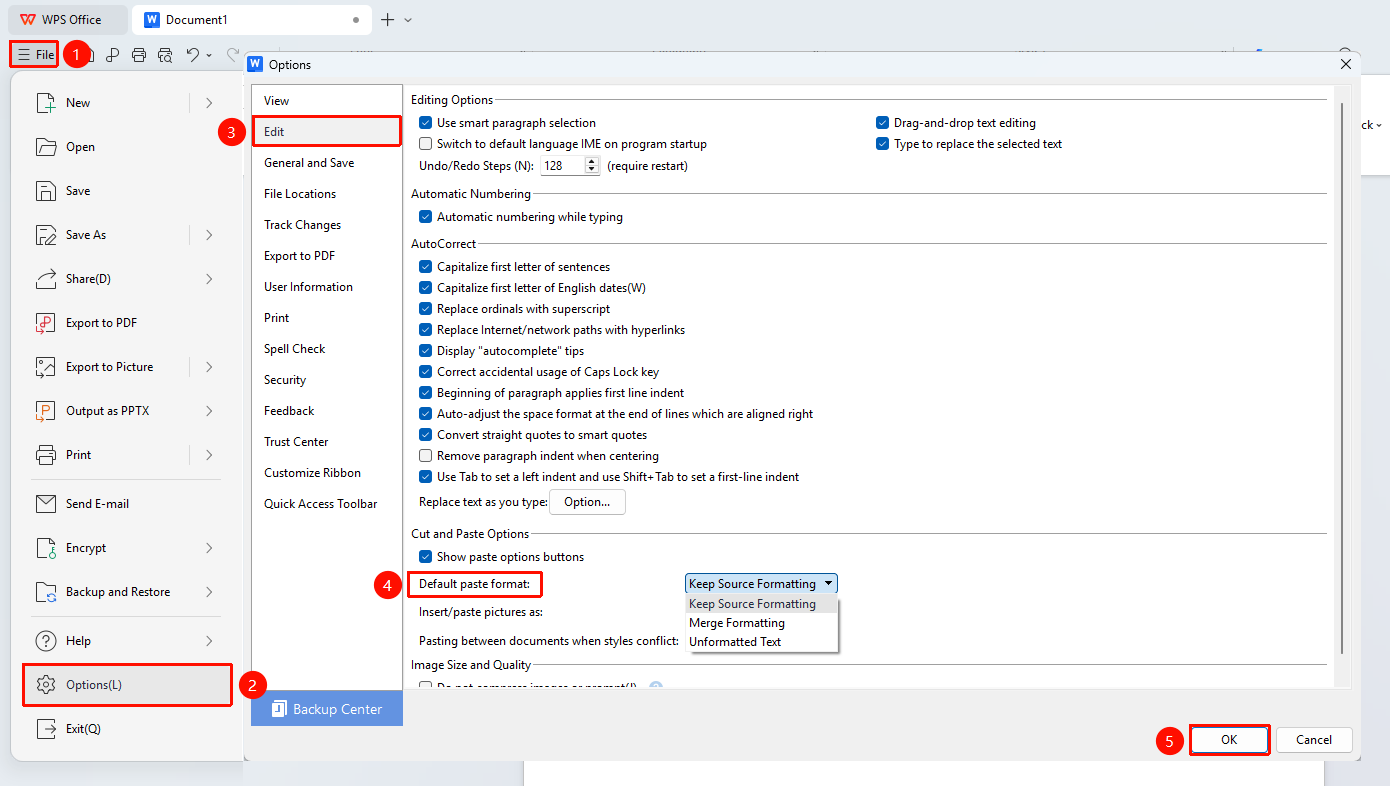
「File」menu →「Options」button →「Edit」tab →「Default Paste Format」
- Click the File menu
- select Options
- Select the Edit tab on the left
- Set 「Default Paste Format」 (Options: Keep Source Formatting, Match Current Format, Text Only)
- Click OK to save the settings
- After the settings are completed, subsequent copy and paste operations will automatically be performed according to the set format.
Feature Entry 2
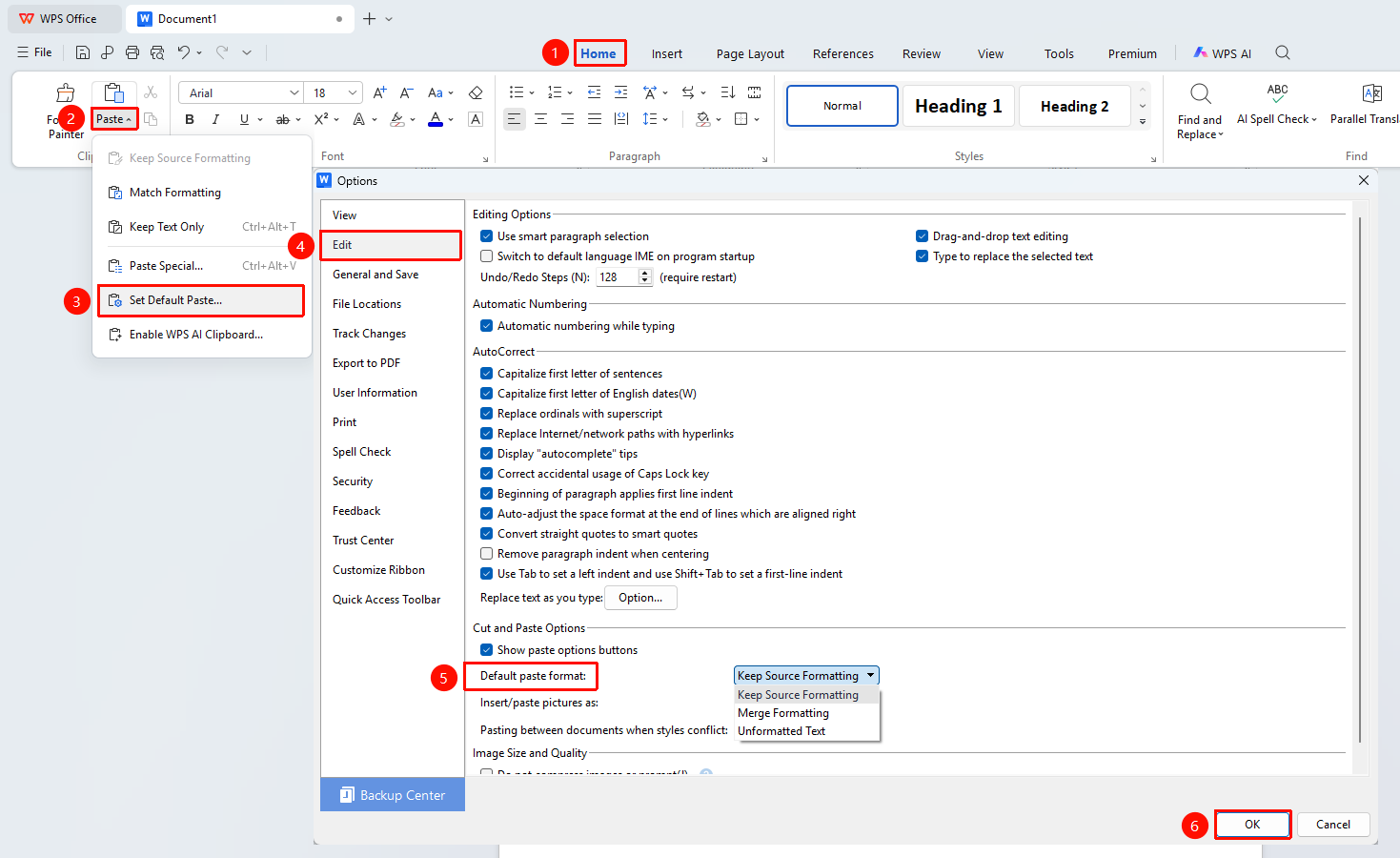
"Home" tab → "Home" tab → Drop-down arrow to the right of the "Paste" button → "Default Paste Format"
- Switch to the Home tab
- Click the drop-down arrow to the right of the Paste button to expand the menu
- Locate and click Default Paste Format to go to the settings page
- Set the "Default Paste Format" (options: Keep Source Formatting, Match Destination Formatting, Keep Text Only)
- Click OK to save the settings
FAQ
Q1: "Insufficient memory, image copy/paste abnormal" prompt appears when copying and pasting**
- Solution: This occurs when copying and pasting a large amount of content while the computer is low on memory.
- Try closing other open text documents
- Reduce the selected area for copying, especially when it includes images or video content
- Try restarting the computer