Feature Summary
The Check Box Content Control is used to create checkable boxes, suitable for creating forms that require ticking, such as surveys and task lists.
Feature Description
| Feature Dimension | Description |
|---|---|
| Membership Restriction | No membership restriction |
| Version Restriction | No version restriction |
Operation Steps
Inserting a Check Box Content Control
Feature Entry
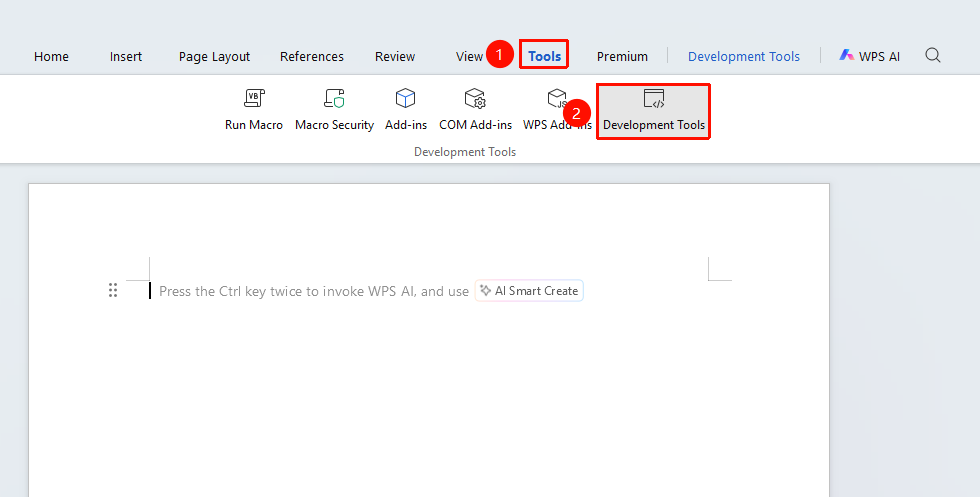
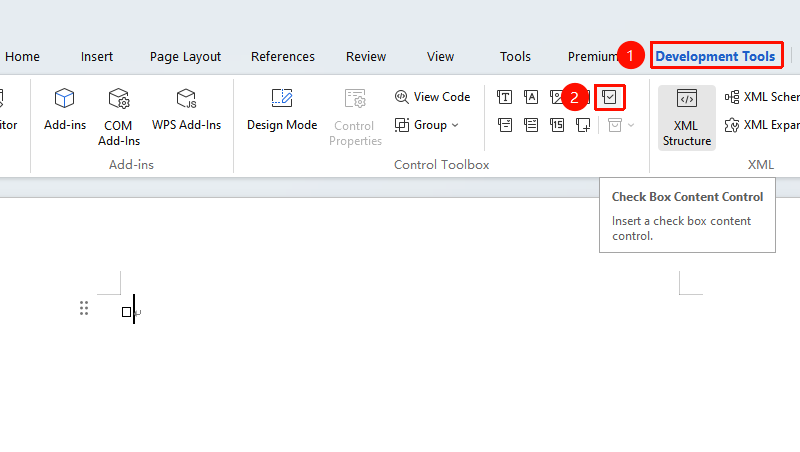
"Tools" tab → "Developer Tools" button → "Developer Tools" tab → "Check Box Content Control"
- Place the cursor at the desired insertion location
- Click the "Tools" tab at the top, locate and click the "Developer Tools" button to bring up the "Developer Tools" tab at the top
- Click the "Check Box Content Control" button
- The check box will be inserted into the document
Using the Check Box
Feature Entry
Click the check box area
- Click the check box to check or uncheck it
- The checked state will display a check mark
Frequently Asked Questions
Question 1: The check box cannot be checked?
- Solution: Ensure you have exited Design Mode. Check boxes are not operable in Design Mode.
Question 2: How to set the default state of the check box?
- Solution: In Design Mode, select the check box and set the default checked state in the control properties.
Question 3: How to change the default options inside the check box?
- Solution: In Design Mode, click "Control Properties" → "Check Box Properties" to change the "Checked Mark" and "Unchecked Mark".
Question 4: What if the required mark is not available among the default options inside the check box?
- Solution: The mark symbols inside the check box depend on the fonts installed locally. Ensure that symbol fonts such as Wingdings are installed for selection.
Notes
- The check box supports two states: checked and unchecked
- The check mark style of the check box can be set
- Suitable for creating interactive documents such as questionnaires and checklists