Feature Summary
When you need to precisely control the distance between characters in a document, adjust character scaling, or fine-tune the vertical position of characters, the character spacing feature enables refined typesetting, helping you enhance the professionalism and aesthetics of your document. Core capabilities include:
- Spacing adjustment: Widen or tighten the horizontal distance between characters
- Scaling control: Adjust character width proportionally by percentage
- Position fine-tuning: Raise or lower the vertical position of characters
- Smart kerning: Automatically optimize specific character spacing based on font size
Feature Description
| Feature Dimension | Description |
|---|---|
| Membership Restriction | No membership restriction; all users can use it for free |
| Version Restriction | No version restriction; all versions support this feature |
| Font Dialog Shortcut | Ctrl+D |
Operation Steps
Open Settings via Right-Click Menu
Feature Entry
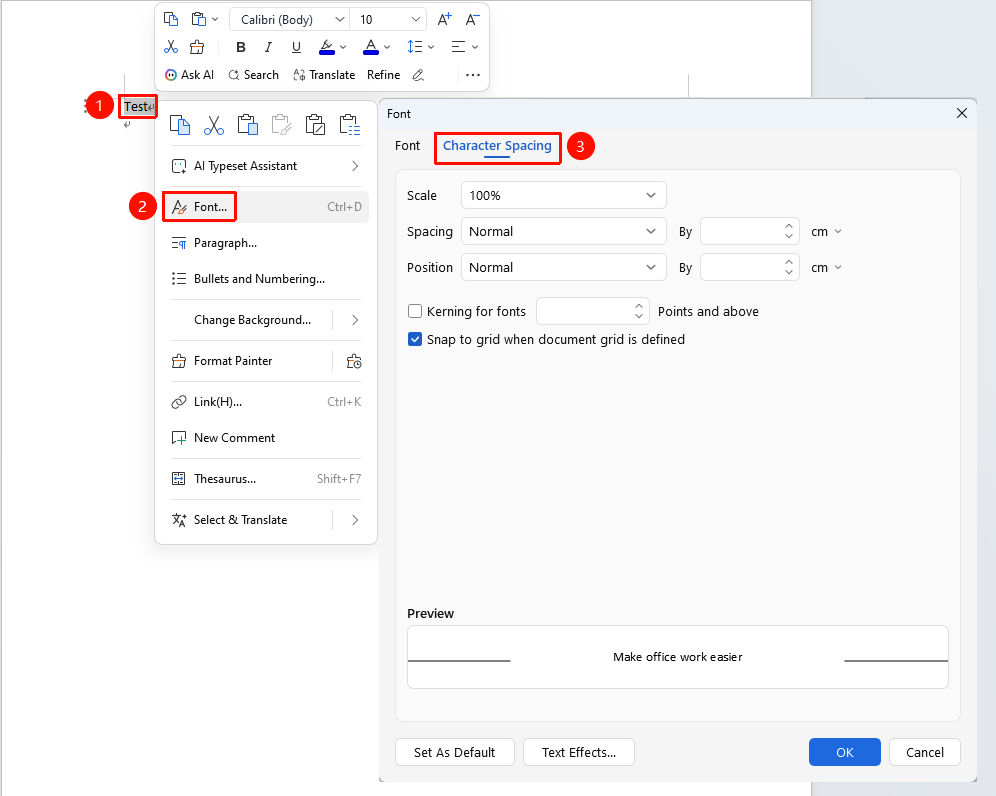
Select the text for which you want to adjust character spacing, right-click menu → Font option → Character Spacing tab
- Select the text for which you want to adjust character spacing
- Right-click and select the Font option from the pop-up menu
- In the Font dialog that appears, switch to the Character Spacing tab
Open Settings via the Ribbon
Feature Entry
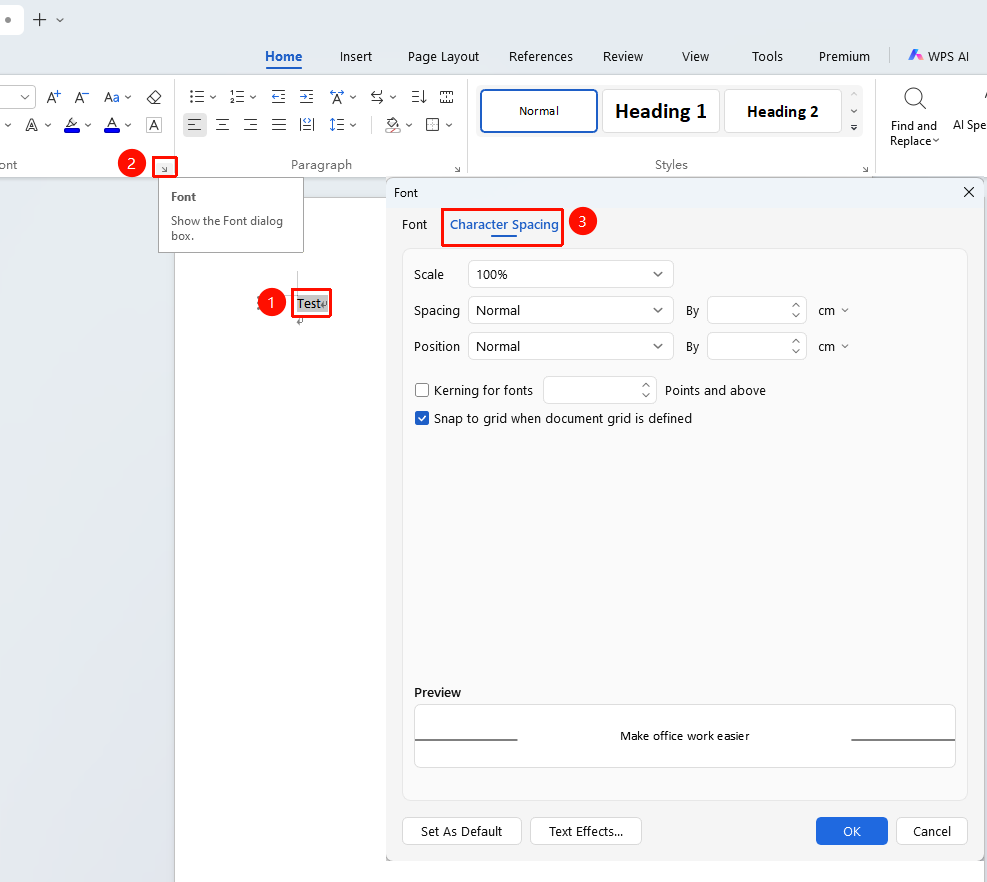
Select the text for which you want to adjust character spacing, Home tab → Arrow icon in the lower-right corner of the Font settings area → Character Spacing tab
- Select the text for which you want to adjust character spacing
- Click the Home tab on the ribbon
- Click the arrow button in the lower-right corner of the Font settings area
- In the Font dialog that appears, switch to the Character Spacing tab to configure settings
- Click the OK button to complete the settings
Parameter Description
| Parameter | Description |
|---|---|
| Scaling | Adjust character width by percentage (50%–200%) |
| Spacing - Expanded | Increase horizontal distance between characters |
| Spacing - Condensed | Decrease horizontal distance between characters |
| Position - Raised | Shift characters upward |
| Position - Lowered | Shift characters downward |
| Kerning for fonts | Automatically optimize spacing based on font size |
FAQ
Q1: No change after adjusting character spacing?
- Solution: Ensure that the text content is correctly selected before making settings. If spacing is abnormal for part of the content, it may be caused by the Distributed alignment feature. You can select the text and click Home → Paragraph → Distributed to cancel this setting.
Q2: How to restore default character spacing?
- Solution: Select the text and open the Font settings. In the Character Spacing tab, set spacing to Normal, scaling to 100%, and position to Normal, then click OK.
Q3: What to do if spacing between English and numbers is uneven?
- Solution: Check the Kerning for fonts option. The system will automatically optimize the spacing display for English and numbers based on font characteristics.
Q4: What is the difference between scaling and spacing?
- Solution: Scaling changes the width proportion of the characters themselves, making them wider or narrower; Spacing changes the distance between characters, while the character size itself remains unchanged.
Notes
- Character spacing settings only apply to selected text. If no text is selected, the settings will apply to subsequently entered content
- To uniformly set character spacing via styles: modify style properties in Style Management to batch-apply to all text using that style
- When mixing Chinese and Western text, it is recommended to check Kerning for fonts to achieve a more even spacing effect
- The unit for character spacing is points; 1 point is approximately equal to 0.35 millimeters