Feature Summary
The macro security feature is used to control macro execution permissions, prevent malicious macro code from running, and protect document and system security.
Feature Description
| Feature Dimension | Description |
|---|---|
| Membership Restriction | No membership restriction; available to all users |
| Version Restriction - VBA Macro | Windows version requires installation of the VBA plugin; Mac and mobile versions are not supported |
| Version Restriction - JS Macro | Windows and Mac versions are supported; mobile version is not supported |
Operation Steps
Setting Macro Security
Feature Entry
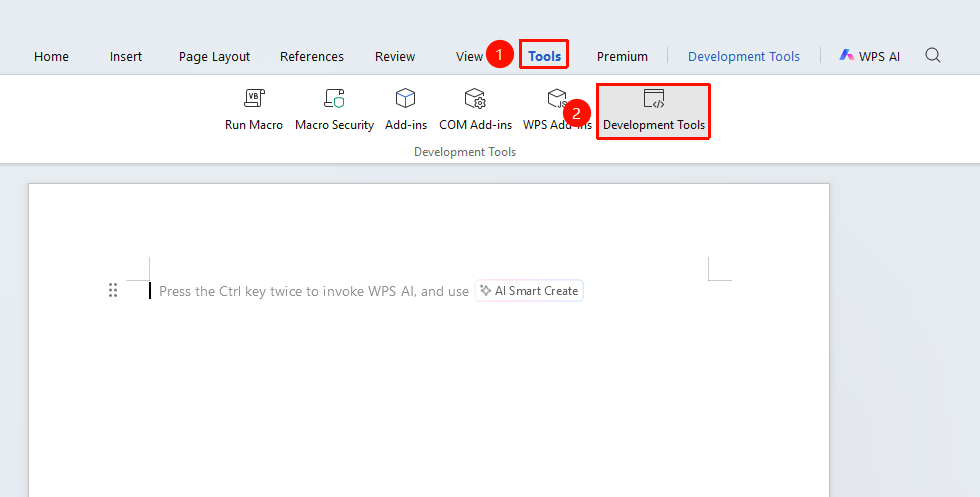
"Tools" tab → "Developer Tools" tab → "Macro Security" button
- Click the Developer Tools button in the Tools tab
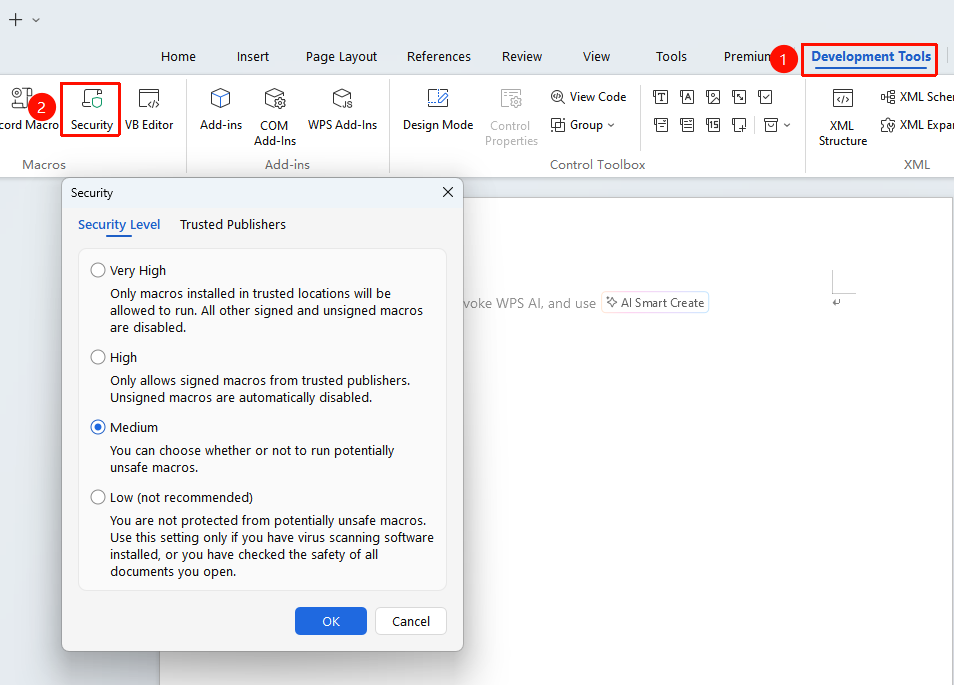
- Enter the Developer Tools tab and click the "Macro Security" button
- Select the security level in the pop-up dialog box:
- Very High: Only allow macros from trusted locations to run
- High: Disable all unsigned macros
- Medium: Prompt user for confirmation before running macros
- Low: Allow all macros to run (not recommended)
- Click OK to save the settings
Setting Trusted Locations
Feature Entry
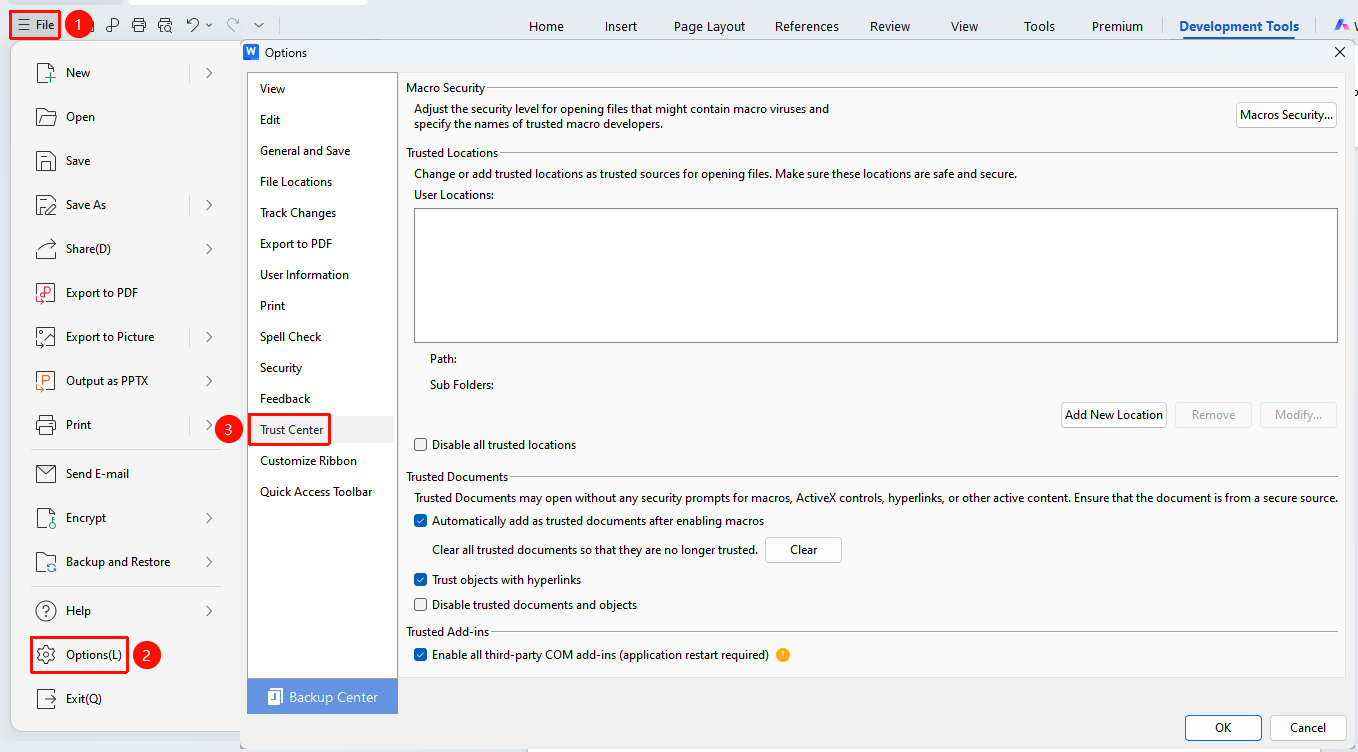
"File" menu → "Options" → "Trust Center" tab
- Open the File menu in the upper left corner
- Click Options and select the "Trust Center" tab
- Click the Add New Location button and select the folder path
- Check "Trust subfolders of this location"
- Click OK to save
Macros may pose security risks; please add trusted locations with caution
FAQ
Question 1: How to enable blocked macros
- Solution: When opening the document, click the "Enable Macros" button in the prompt bar.
Notes
- It is recommended to keep the macro security level at "High" or "Medium"
- Do not easily enable macros from unknown sources
- Macros from unknown sources may pose security risks; please add trusted locations with caution