Feature Summary
When you need to highlight key content, distinguish between different types of information, or improve the readability of your document, character shading allows you to apply a background fill—defaulting to gray, but customizable to any color of your choice—helping you quickly locate and differentiate important elements.
Core Capabilities:
- Character Shading: Quickly apply a gray background fill.
- Custom Shading Colors: Choose your own fill color.
- Batch Operations: Supports applying or removing shading in bulk.
Feature Description
| Feature Dimension | Description |
|---|---|
| Membership Restriction | No membership restriction; available to all users |
| Version Restriction | No version restriction; supported in all versions of WPS Docs |
Operation Steps
Character Shading
Feature Entry
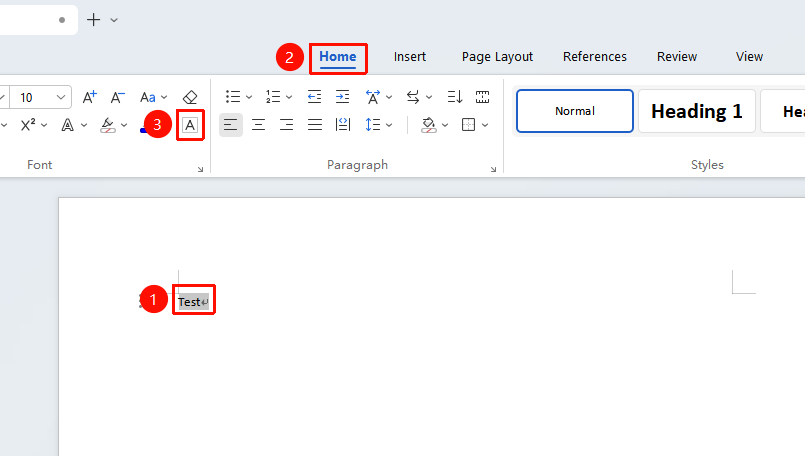
Select the text you want to shade, then go to the "Home" tab → "Character Shading" option
- Select the text you want to shade
- Click the Home tab and the "Character Shading" button
- Click the button to add gray shading to the selected text
Frequently Asked Questions
Q1: What is the difference between character shading and highlighting?
- Solution: Character shading adds a gray shading fill effect to text, suitable for formal document formatting marks; highlighting can use multiple colors, similar to a fluorescent marker effect, and is more suitable for temporary annotation and review scenarios.
Q2: Why does the font shading appear light red?
- Solution: This may be the display effect of official document domain marks. Click "File" → "Options" → "View", find the "Official document domain marks" option, select "Do not display", and click "OK" to restore normal display.
Q3: How do I remove the gray shading that appears when clicking on a table of contents?
- Solution: Click "File" → "Options" → "View", and under "Show document content", set "Field shading" to "Never".
Notes
- Character shading is gray by default. If you need other colors, please use the "Shading Color" feature
- When using the Find feature for batch highlighting, you can quickly mark all matching content in the document
- The Clear Formatting feature will simultaneously clear shading, highlighting, and other font formatting