Feature Summary
The Record New Macro feature allows you to record your actions as JS macro code and VBA macro code, automating repetitive tasks and enabling macro creation without any programming knowledge.
Feature Description
| Feature Dimension | Description |
|---|---|
| Membership Restriction | No membership restriction; available to all users |
| Version Restriction - VBA Macro | Windows version requires the VBA plugin to be installed; not supported on Mac or mobile versions |
| Version Restriction - JS Macro | Supported on Windows and Mac versions; not supported on mobile versions |
Steps
Record a Macro
Feature Entry
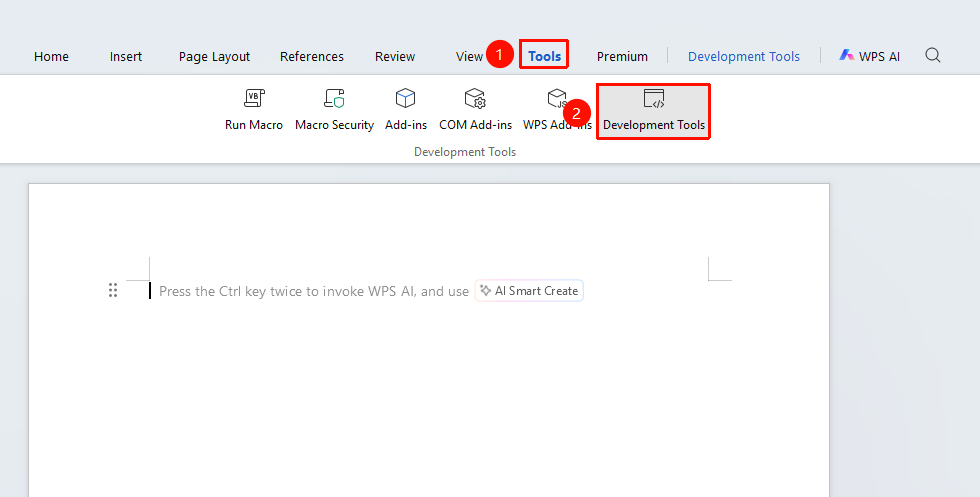
"Tools" tab → "Developer" tab → "Record New Macro" button
- Click the Developer button in the Tools tab
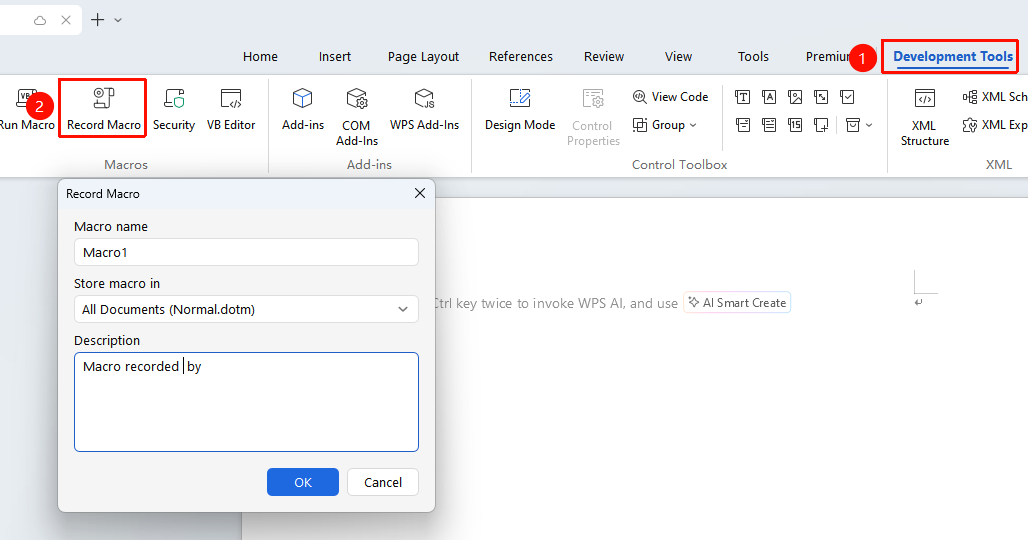
- Enter the Developer tab and click the "Record New Macro" button
- Enter a macro name in the pop-up dialog box
- Select the save location: Current Document or All Documents
- Click OK to start recording
- Perform the actions you want to record
- Click Stop Recording to finish
Macro Naming Rules:
- The macro name must begin with a letter
- It can only contain letters, numbers, and underscores
- It cannot contain spaces or special characters
FAQ
Q1: The recorded macro does not run correctly
- Solution: Check whether the actions during recording were complete. You may need to manually edit the VBA code to make adjustments.
Q2: How to edit a recorded macro
- Solution: Click "Developer" → "Run Macro", select the macro, and then click "Edit" to open the VBA Macro Editor or WPS Macro Editor.
Notes
- Avoid unnecessary actions while recording a macro
- The macro name must comply with the naming rules