Feature Summary
Line Break and Pagination are core paragraph formatting features in WPS Docs. They are used to control line-breaking behavior and pagination rules for paragraphs in a document, helping users achieve a more professional and standardized document layout while avoiding issues such as orphan lines and paragraphs breaking across pages.
Feature Description
| Feature Dimension | Description |
|---|---|
| Membership Restriction | No membership restriction |
| Version Restriction | No version restriction |
Steps
Pagination Settings
Feature Entry
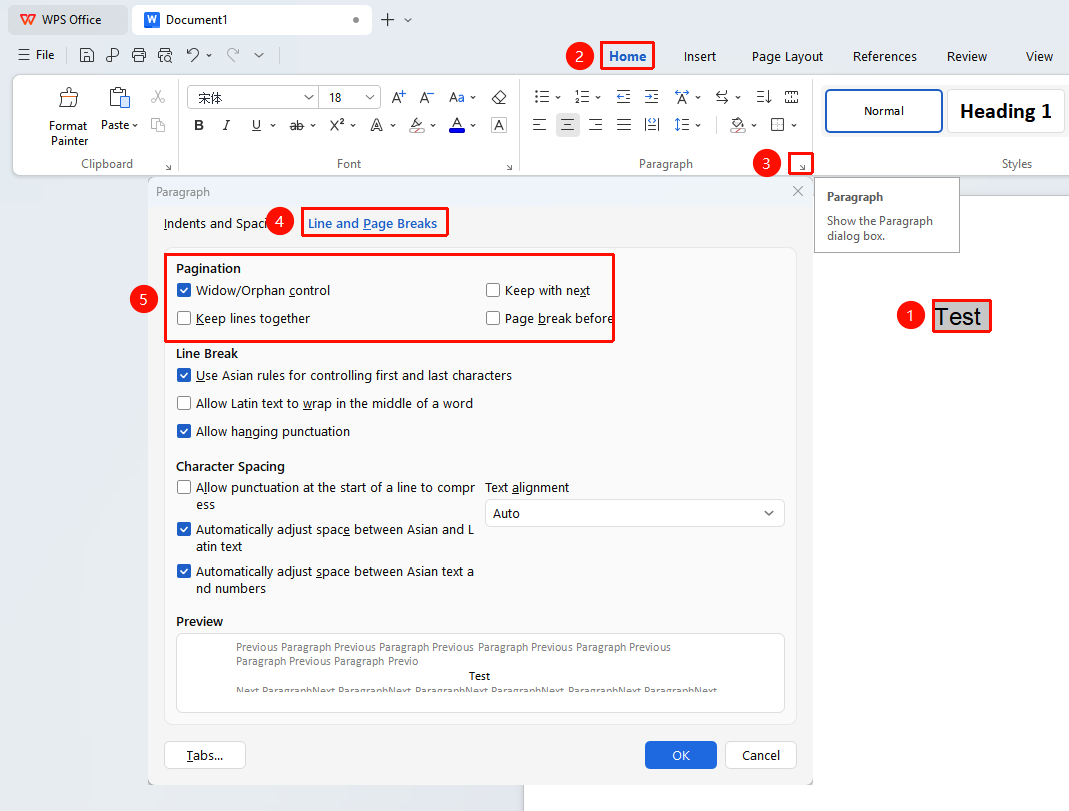
"Home" tab → Arrow icon in the lower-right corner of the "Paragraph" group → "Line and Page Breaks" tab
- Select the target paragraph(s) you want to configure (to apply settings to the entire document, press
Control + Ato select all content) - Click the Home tab in the top menu bar
- Click the arrow icon in the lower-right corner of the Paragraph group
- In the Paragraph dialog box that appears, select the Line and Page Breaks tab
- In the "Pagination" section, check the desired options based on your needs:
- Widow/Orphan control: Automatically prevents the first line of a paragraph from appearing alone at the bottom of a page, or the last line from appearing alone at the top of a page, ensuring a polished layout
- Keep with next: Keeps the current paragraph and the following paragraph on the same page; suitable for scenarios where a heading must not be separated from its body text
- Keep lines together: Ensures the entire paragraph is not split by a page break; suitable for scenarios where the paragraph content should not be interrupted
- Page break before: Automatically inserts a page break before the current paragraph, so that the paragraph starts on a new page
- Click OK to apply the settings
Line Break Settings
Feature Entry
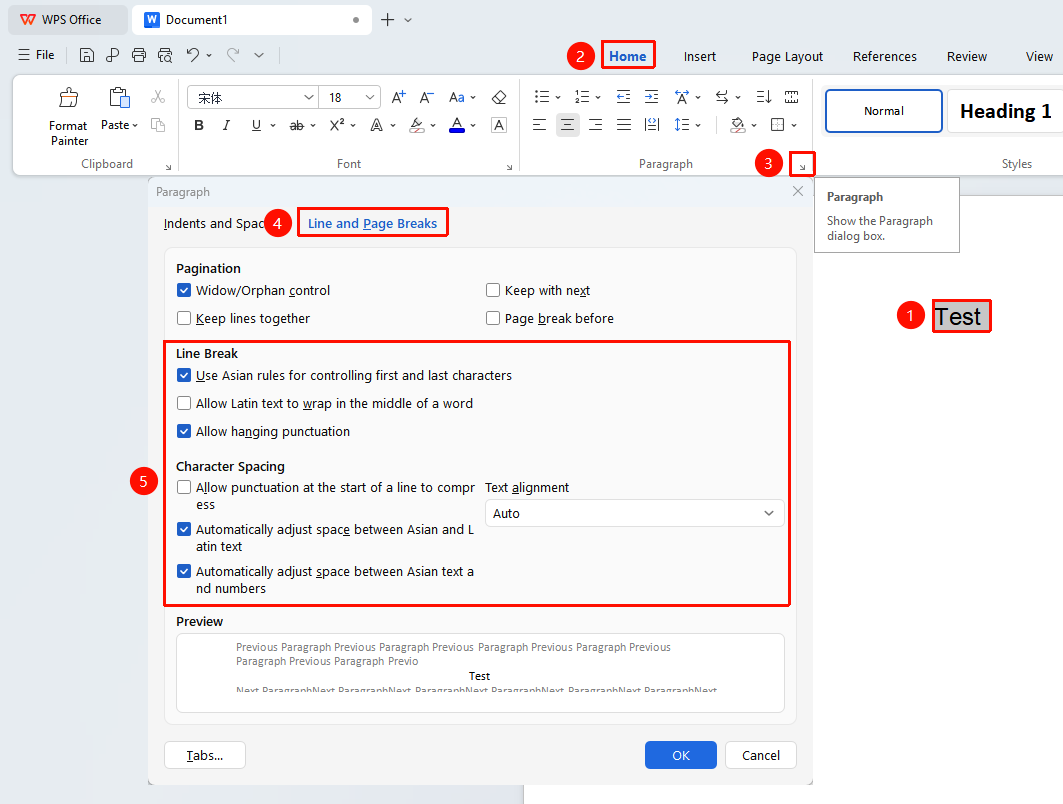
"Home" tab → "Paragraph" → "Line and Page Breaks" tab
- Select the target paragraph(s) you want to configure (to apply settings to the entire document, press
Control + Ato select all content) - Click the Home tab in the top menu bar
- Click the arrow icon in the lower-right corner of the Paragraph group
- In the Paragraph dialog box that appears, select the Line and Page Breaks tab
- In the "Line Break" section, configure the following options as needed:
- Use Chinese rules for controlling first and last characters: Follows Chinese typesetting conventions to prevent forbidden characters at the start of a line (such as periods, commas, and so on.) or at the end of a line (such as opening quotation marks, and so on.)
- Allow Latin text to wrap in the middle of a word: When checked, long English words can be broken in the middle to wrap to the next line, preventing layout overflow caused by excessively long words; when unchecked, entire English words will not be split across lines
- Allow punctuation to overflow the margin: Allows punctuation marks to extend beyond the text boundary, making line endings appear neater
- Adjust the options in the Character Spacing section as needed:
- Compress punctuation at the start of a line: Compresses the space occupied by punctuation at the start of a line for a more compact layout
- Automatically adjust spacing between Chinese and Latin text: Automatically adds appropriate spacing between Chinese and Western text to improve readability
- Automatically adjust spacing between Chinese text and numbers: Automatically adds appropriate spacing between Chinese text and numbers
- Use the Text alignment drop-down menu to select alignment options such as Auto, Top, Center, Baseline, or Bottom
- After completing the settings, click OK to apply
4. Quickly Insert Line Breaks and Page Breaks
Feature Entry
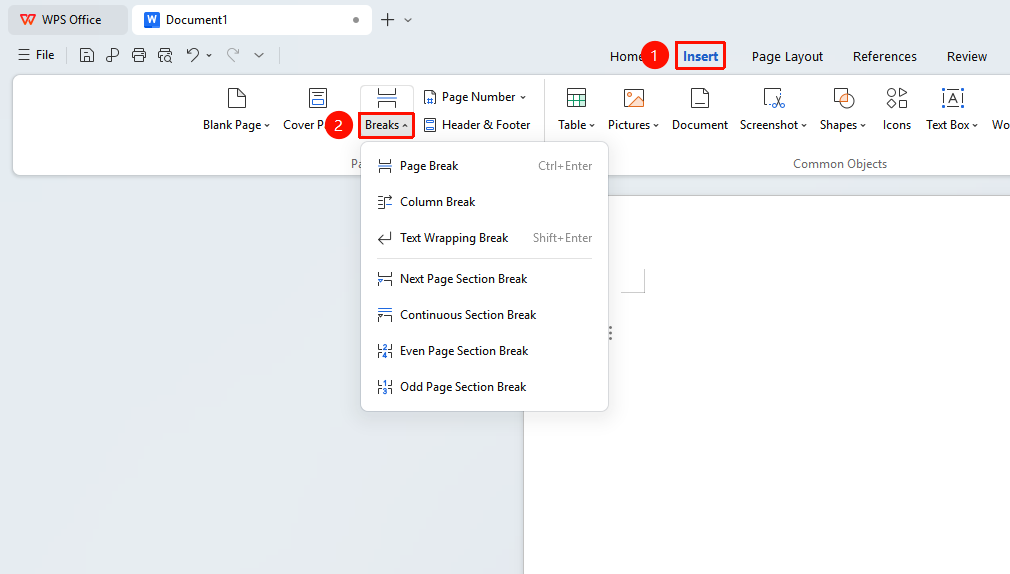
"Insert" tab → "Page Break" drop-down menu
- Place the cursor at the location where you want to insert a line break or page break
- Click the Insert tab in the top menu bar
- Click the "Page Break" drop-down menu
- In the drop-down menu, you can select:
- Page Break
- Column Break
- Line Break
- Next Page Section Break
- Continuous Section Break
- Even Page Section Break
- Odd Page Section Break
5.After insertion, you can click the Show/Hide Paragraph Marks button in the Home tab to view the positions of line breaks and page breaks
Frequently Asked Questions
Question 1: An English word is broken at the end of a line. How can I keep the whole word from being split?
- Solution: Select the relevant paragraph, click the "Home" tab → the arrow icon in the lower-right corner of the "Paragraph" group → the "Line and Page Breaks" tab, then under "Line Break" clear the "Allow Latin text to wrap in the middle of a word" check box, and click OK. After this setting, English words will wrap as a whole and will not break in the middle.
Question 2: A paragraph in the document is split across two pages by a page break. How can I keep the entire paragraph on the same page?
- Solution: Select the paragraph, click "Home" → the arrow icon in the lower-right corner of the "Paragraph" group → the "Line and Page Breaks" tab, then under "Pagination" check "Keep lines together", and click OK. The paragraph will be forced to stay on the same page and will not break across pages.
Question 3: A heading appears at the very bottom of a page while the body text starts on the next page. How can I fix this?
- Solution: Select the heading paragraph, click "Home" → the arrow icon in the lower-right corner of the "Paragraph" group → the "Line and Page Breaks" tab, then under "Pagination" check "Keep with next", and click OK. The heading will stay on the same page as the following body paragraph, preventing the heading from being separated from its content.
Question 4: The first line of a paragraph is left alone at the bottom of a page. How can I avoid this typesetting issue?
- Solution: Select the relevant paragraph, click "Home" → the arrow icon in the lower-right corner of the "Paragraph" group → the "Line and Page Breaks" tab, then under "Pagination" check "Widow/Orphan control", and click OK. The system will automatically adjust the paragraph position to prevent the first or last line from appearing alone at the top or bottom of a page.
Notes
- Line and page break settings apply only to the currently selected paragraph.
- "Page break before" is commonly used for chapter titles to ensure each chapter starts on a new page.
- For documents with mixed Chinese and English text, it is recommended to enable "Auto-adjust spacing between Asian and Latin text" and "Auto-adjust spacing between Asian text and numbers" to improve the reading experience.
- Multiple pagination options can be selected simultaneously. For example, enabling both "Keep lines together" and "Keep with next" can achieve stricter paragraph pagination control.