WPS Docs Control Properties Feature Usage Guide
Feature Summary
The Content Control Properties feature is used to set various properties of content controls, such as titles, tag content, and locking settings, making forms more standardized and user-friendly.
Feature Description
| Feature Dimension | Description |
|---|---|
| Membership Restriction | No membership restriction |
| Version Restriction | WPS versions on mobile devices are not supported |
Operation Steps
Open Content Control Properties
Feature Entry
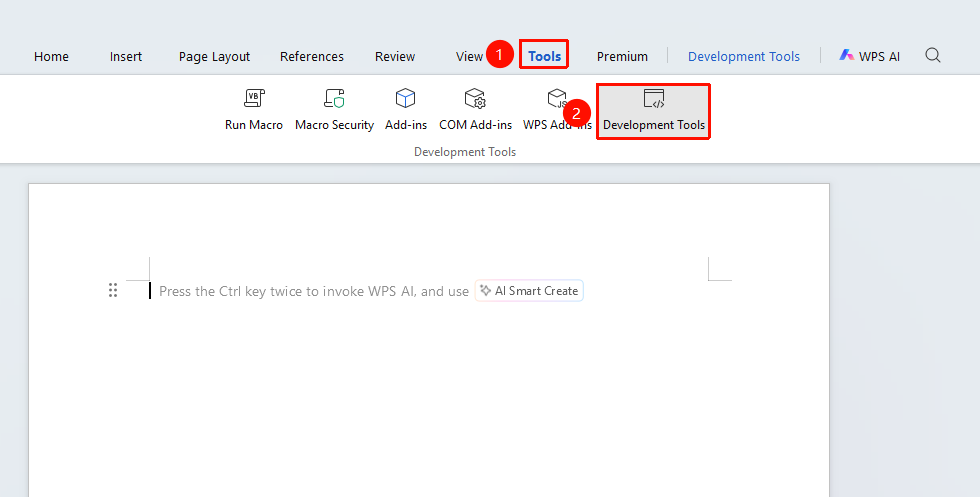
"Tools" tab → "Developer Tools" button → "Developer" tab → "Control Properties"
- Click the "Tools" tab at the top, locate and click the "Developer Tools" button to bring up the "Developer Tools" tab at the top
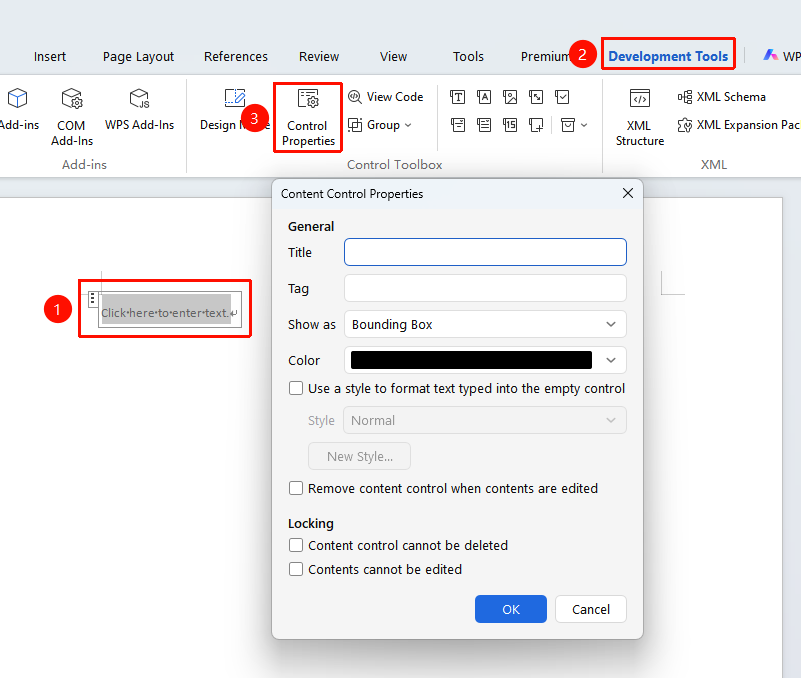
- Select the content control whose properties you want to set
- Click the "Control Properties" button
- Configure settings in the properties dialog box
Set Basic Control Properties
Feature Entry
"Developer Tools" tab → "Control Properties"
- select the control content
- Click "Control Properties" from "Developer Tools" tab
- Open the Control Properties dialog box
- Set the control title
- Set the tag content
- Set the control display color
- Choose whether to use preset styles or custom styles for typing into the control
- Set whether to lock the control content
- Click "OK" to save the settings
Frequently Asked Questions
Question 1: How to set the default value of a control?
- Solution: In the Control Properties dialog box, you can set the default content or options for the control.
Notes
- It is recommended to set clear prompt text to help users understand the purpose of the control
- You can set the locking property to prevent the control from being accidentally deleted