Feature Summary
The Insert Page Break feature allows you to force a page break in a document, causing subsequent content to start on a new page. It is commonly used for separating chapters, appendices, and similar scenarios.
Feature Description
| Feature Dimension | Description |
|---|---|
| Membership Restriction | No membership restriction; available to all users |
| Version Restriction | No version restriction; supported across all WPS client versions |
Steps
Insert a Page Break
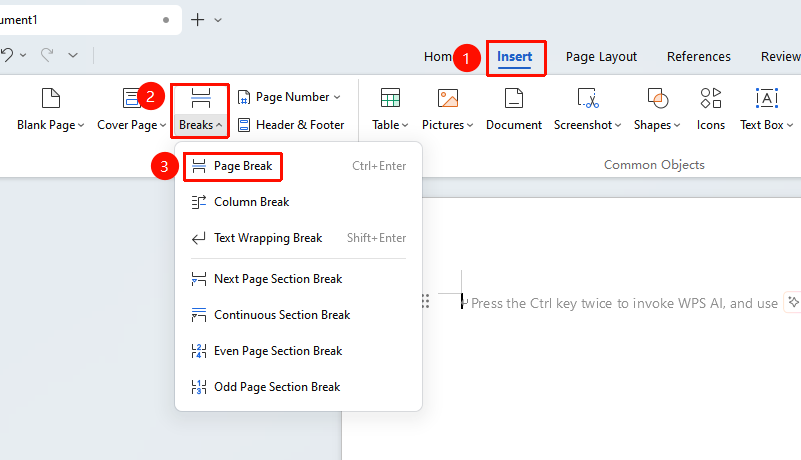
Feature Entry: "Insert" tab → "Page Break"
- Place the cursor where you want to insert the page break
- Click the "Insert" tab on the top menu bar
- Click the "Page Break" button
- The content will automatically jump to the next page
Use a Shortcut Key to Page Break
Feature Entry
- Place the cursor where you want to insert the page break
- Press the
Ctrl + Entershortcut key - A page break will be inserted at the current position
Insert a Section Break (Page Break)
Feature Entry
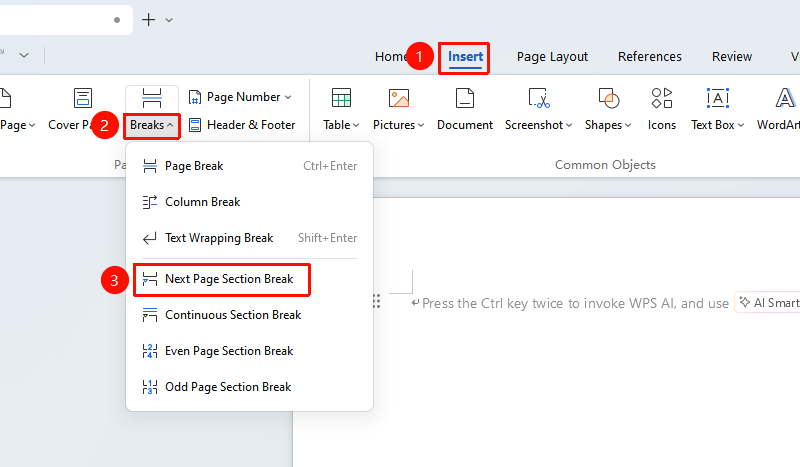
"Insert" → "Page Break" → "Next Page Section Break"
- Place the cursor where you want to insert the section break
- Click the "Insert" tab
- Click the small triangle dropdown icon to the right of "Page Break"
- Select "Next Page Section Break"
- The new section will start from the next page
Delete a Page Break
Feature Entry
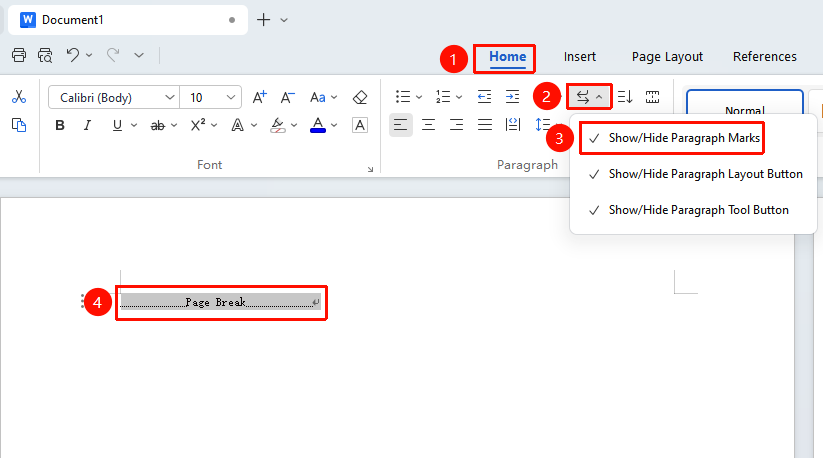
"Home" → "Show/Hide Editing Marks"
- Click the "Home" tab
- Click the "Show/Hide Editing Marks" button
- Page break marks will be displayed in the document
- Select the page break mark and press the Delete key to remove it
FAQ
Q1: A blank page appears after inserting a page break
- Solution: Check for empty paragraphs before or after the page break and delete the extra blank lines.
Q2: Unable to delete a page break
- Solution: First enable "Show/Hide Editing Marks", locate the page break mark, and then delete it.
Notes
- Page breaks and section breaks have different functions; section breaks allow independent page formatting settings
- Deleting a page break will not delete the content before or after it
- It is recommended to use the
Ctrl + Entershortcut key for quick page breaks