Feature Summary
The Insert Chart feature allows you to create data visualization charts in your document, supporting various types such as column charts, line charts, and pie charts to visually present data information.
Feature Description
| Feature Dimension | Description |
|---|---|
| Membership Restriction | Some chart templates require a membership subscription |
| Version Restriction | No version restrictions |
Operation Steps
Insert Chart
Feature Entry
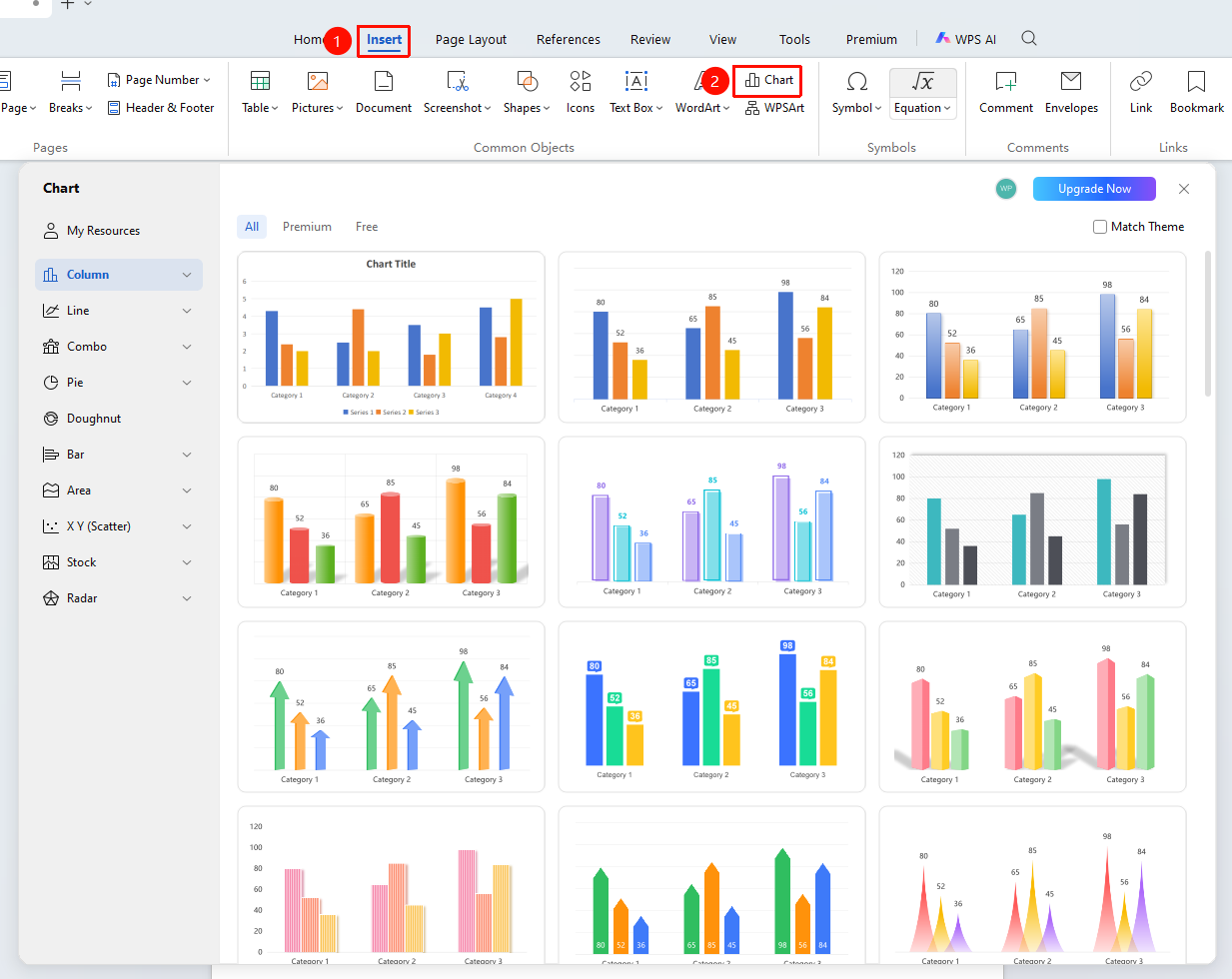
"Insert" tab → "Chart" button
- Position the cursor where you want to insert the chart
- Click the "Chart" button in the Insert tab
- Select the chart type in the pop-up chart type dialog box:
- Column Chart: Clustered, Stacked, 100% Stacked
- Line Chart: Line, Stacked, 100% Stacked
- Combo Chart: Clustered Column - Line, Clustered Column - Line on Secondary Axis, Stacked Area - Clustered Column
- Pie Chart: Pie, 3-D Pie, Pie of Pie, Bar of Pie
- Doughnut Chart
- Bar Chart: Clustered, Stacked, 100% Stacked
- Area Chart: Area, Stacked, 100% Stacked
- XY (Scatter) Chart: Scatter, Scatter with Smooth Lines, Scatter with Straight Lines, Bubble
- Stock Chart: High-Low-Close, Open-High-Low-Close, Volume-High-Low-Close, Volume-Open-High-Low-Close
- Radar Chart: Radar, Radar with Markers, Filled Radar
Edit Chart Data
Feature Entry
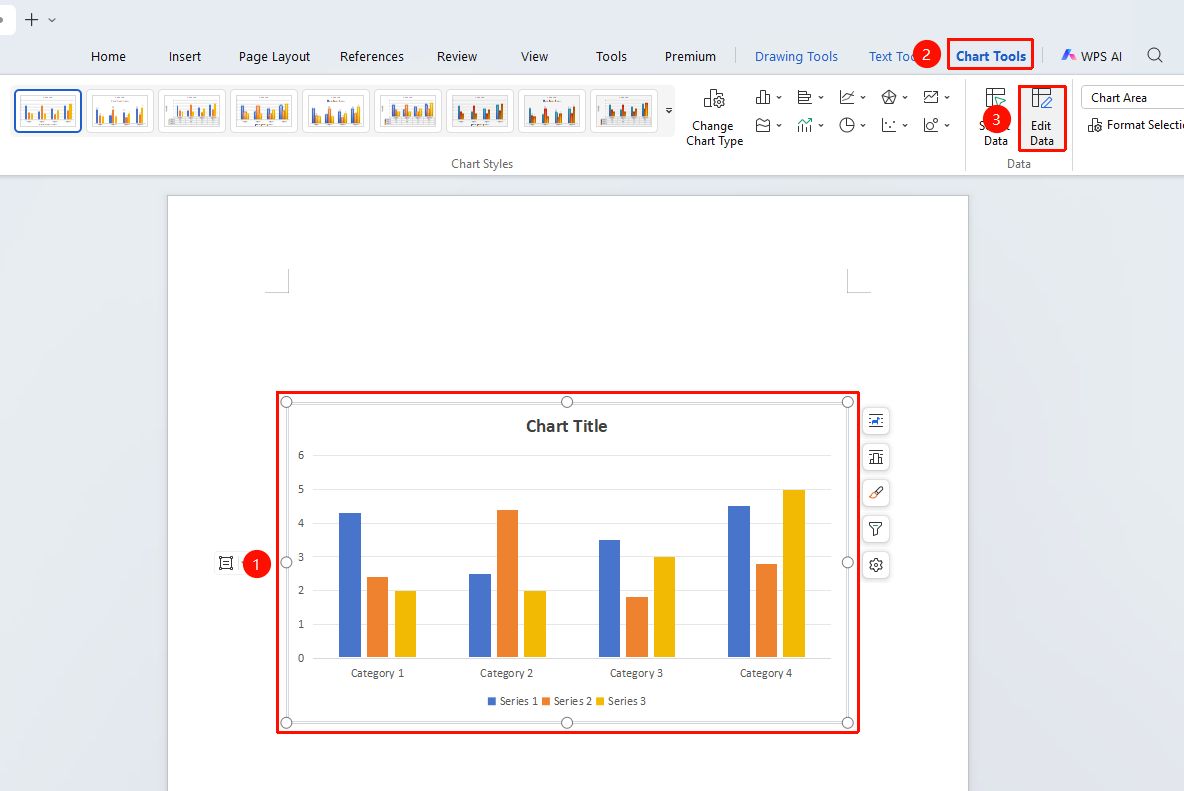
"Chart Tools" tab → "Edit Data" option
- Select the chart whose data you want to edit
- Click the Chart Tools tab
- Select the "Edit Data" option
- Edit the data in the pop-up data source table
- The chart will automatically update to reflect the changes
- Close the table to complete the modification
Edit Chart Data via Right-Click
Feature Entry
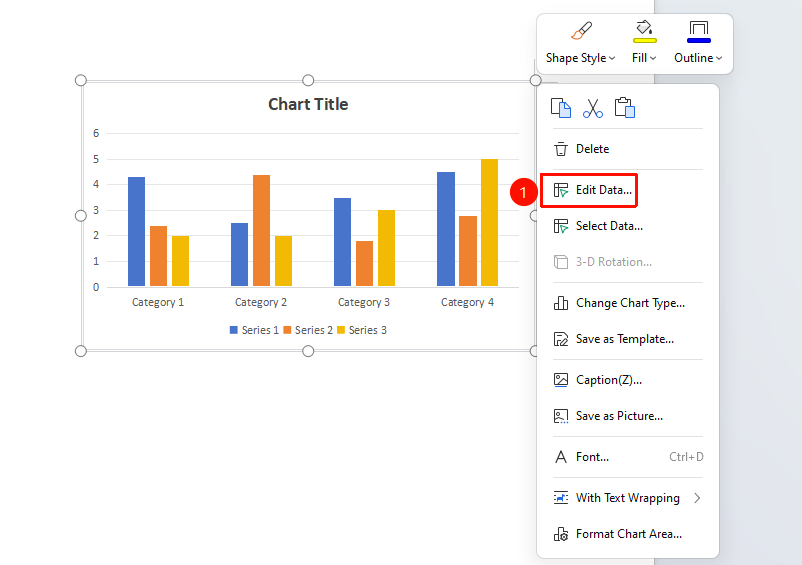
Right-click chart → "Edit Data" option
- Right-click the chart
- Select the "Edit Data" option
- Edit the data in the pop-up data source table
- The chart will automatically update to reflect the changes
- Close the table to complete the modification
Change Chart Type
Feature Entry
"Chart Tools" tab → "Change Type" option
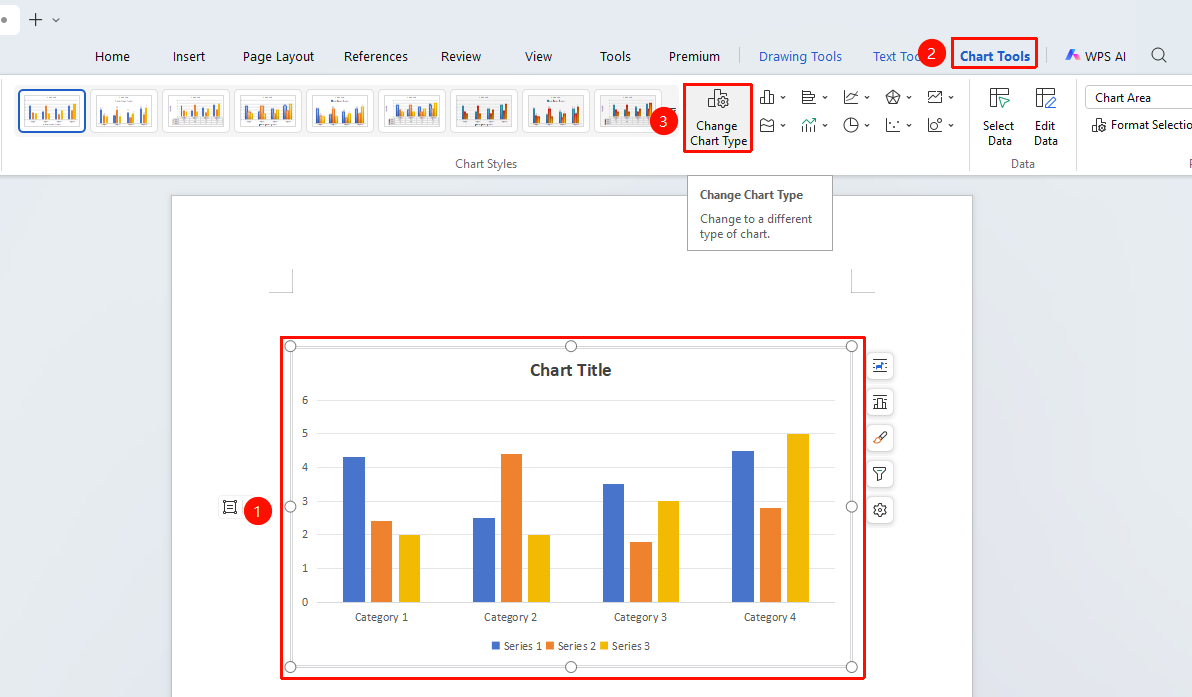
- Select the inserted chart
- Click the "Change Chart Type" button in the Chart Tools tab
- Select a new chart type and subtype
- Click OK to complete the change
Set Chart Style
Feature Entry
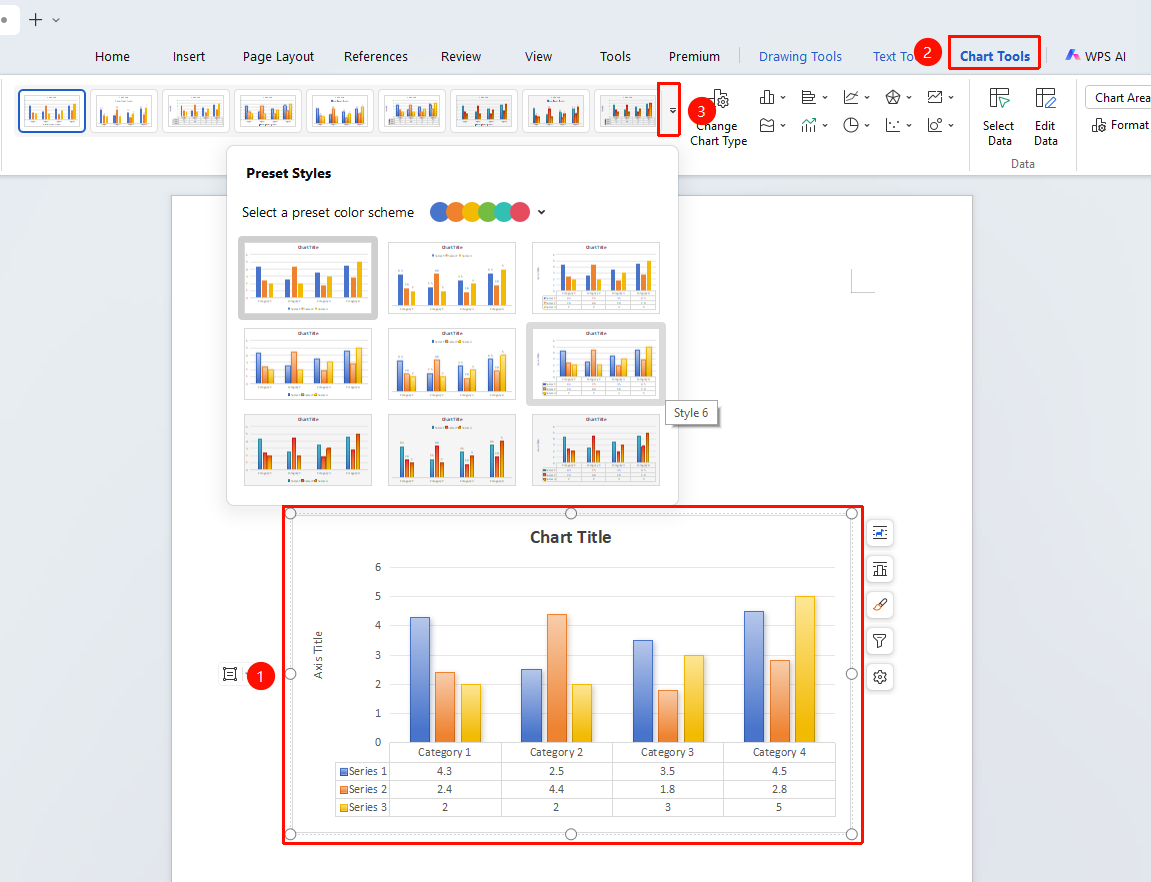
"Chart Tools" tab → "Chart Styles"
- Select the chart
- Choose a preset style from the "Chart Styles" drop-down menu in the Chart Tools tab
- You can also adjust the color scheme via the Select Preset Series Color drop-down menu