Feature Summary
The Insert Cover feature allows you to quickly add a professionally designed cover page at the beginning of your document, enhancing the overall visual appeal and professionalism.
Feature Description
| Feature Dimension | Description |
|---|---|
| Membership Restriction | Some paid cover templates require a membership to use |
| Version Restriction | No version restriction; supported across all WPS client versions |
Operation Steps
Insert Cover
Some paid cover templates require a membership to use. You can check the membership identifier on the relevant template before use.
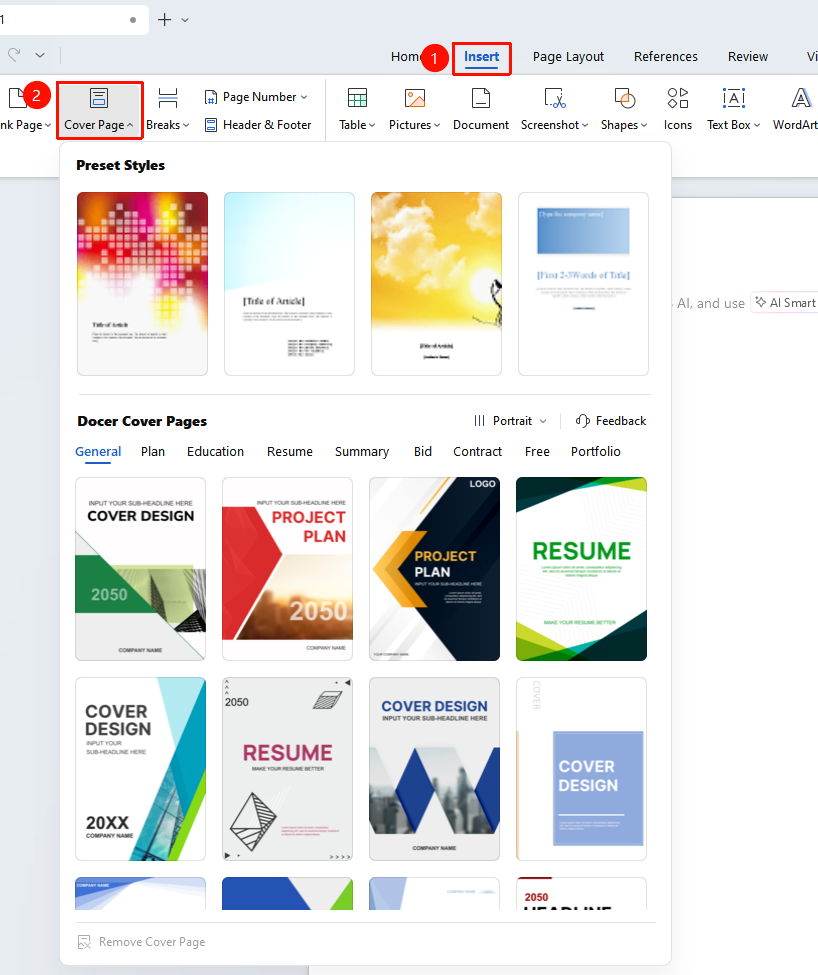
Feature Entry: "Insert" tab → "Cover"
- Open a WPS Docs document
- Click the "Insert" tab on the top menu bar
- Click the "Cover" button to open the cover library
- Select your preferred cover style from the cover library
- Click the cover template to insert it at the beginning of the document
Edit Cover Content
Feature Entry
"Cover" → "Cover Library"
- After inserting the cover, click the text box on the cover
- Enter or modify information such as title, subtitle, and author
- You can replace the image on the cover by right-clicking the image and selecting "Change Picture"
Delete Cover
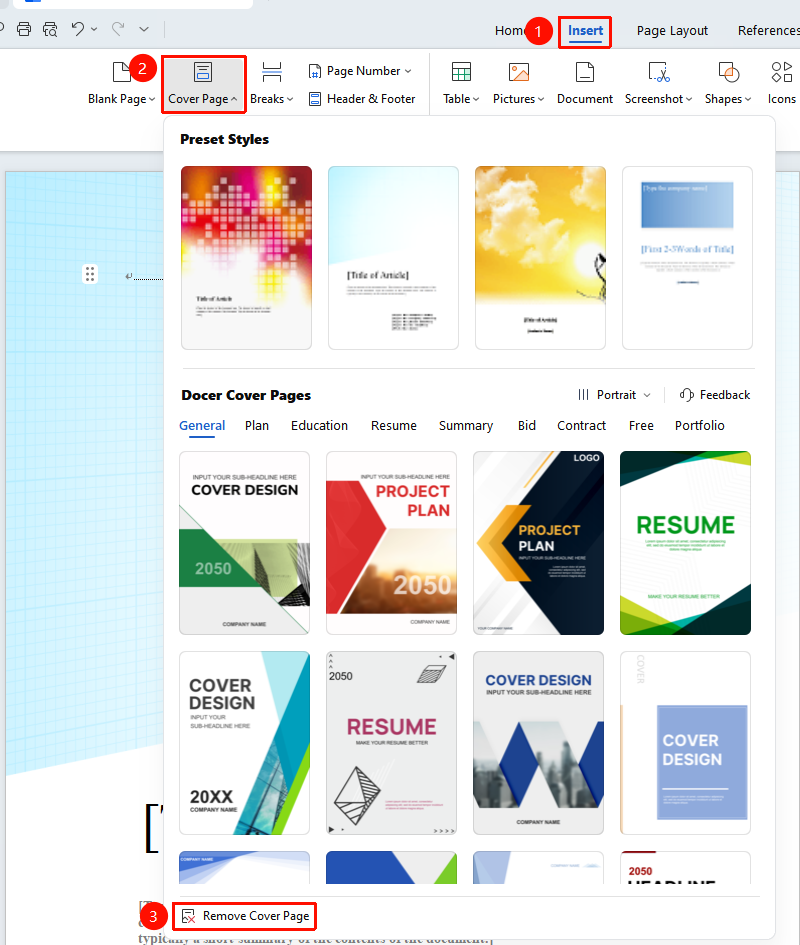
Feature Entry: "Insert" tab → "Cover" → "Delete Cover"
- Click the "Insert" tab
- Click the "Cover" button
- Select "Delete Cover Page" to remove it
Frequently Asked Questions
Q1: The inserted cover does not display completely
- Solution: Check the page setup to ensure the margins are set reasonably, or adjust the size of the cover content.
Q2: Clicking the cover template does not apply it
- Solution: Check whether the network connection is normal, as some covers require an internet connection to download.
Notes
- The cover will be automatically inserted as the first page of the document
- Deleting the cover will not affect other content in the document
- It is recommended to choose an appropriate cover style based on the document type