Feature Summary
When you need to insert various geometric shapes, arrows, flowchart elements, and other shapes into a document, the shape feature enables rich graphic drawing and editing, helping you create diagrams, flowcharts, or beautify document layouts. Core capabilities include:
- Providing a rich set of preset shapes (rectangles, circles, arrows, flowchart symbols, etc.)
- Supporting customization of shape fill, outline, and effects
- Supporting grouping, alignment, and distribution of shapes
- Supporting adding text within shapes
| Feature Dimension | Description |
|---|---|
| Membership Restriction | None, available to all users |
| Version Restriction | No version restriction |
Operation Steps
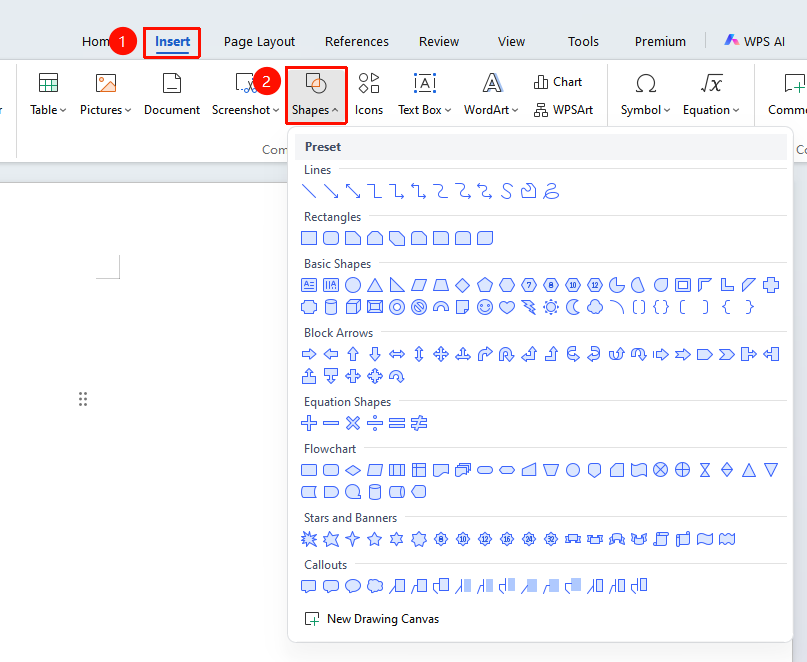
Feature entry: "Insert" tab → "Shapes"
- Click the "Insert" tab in the top menu bar
- Click the "Shapes" button to expand the shape library
- Select the desired shape from the shape categories (e.g., basic shapes, arrows, flowcharts, etc.)
- Click and hold the left mouse button in the document editing area and drag to draw the shape
- After selecting the shape, use the shape tools to set fill color, outline style, add text, etc.
Frequently Asked Questions
Question 1: How to add text inside a shape?
- Solution: After selecting the shape, directly type the text, or right-click the shape and select "Edit Text" to add and edit text within the shape.
Question 2: How to align multiple shapes?
- Solution: Hold down the Ctrl key and select multiple shapes in sequence, click the "Align" option in "Drawing Tools", and choose the desired alignment method.
Question 3: What should I do if nothing happens when clicking to insert a shape?
- Solution: There may be external interception disabling or an incomplete WPS client. Try going to "WPS Home" → "Global Settings" → "Configuration and Repair Tool" → "Detect and Repair" and wait to see if a specific error is returned and whether automatic repair is successful → "Advanced" → "Reset Repair" → "Reset Plugins", "Re-register Components", "Reset Toolbar".
Notes
- Hold down the Shift key while drawing a shape to draw proportional shapes such as perfect circles and squares.
- Multiple shapes can be merged into a single entity using the "Group" function, making it convenient to move and adjust them together.