Feature Summary
When you need to insert special characters, mathematical symbols, or other unconventional characters into a document, the Symbol feature provides a rich symbol library and convenient insertion methods to meet the special character requirements of professional documents, academic papers, and similar scenarios. Core capabilities include:
- Built-in common symbols, special characters, and emoticons, with filtering by font/subset
- Quick access to frequently used symbols via recently used
- Support for inserting Unicode characters
Feature Description
| Feature Dimension | Description |
|---|---|
| Membership Restriction | No membership restriction; available to all users |
| Version Restriction | No version restriction; supported across all WPS client versions |
Operation Steps
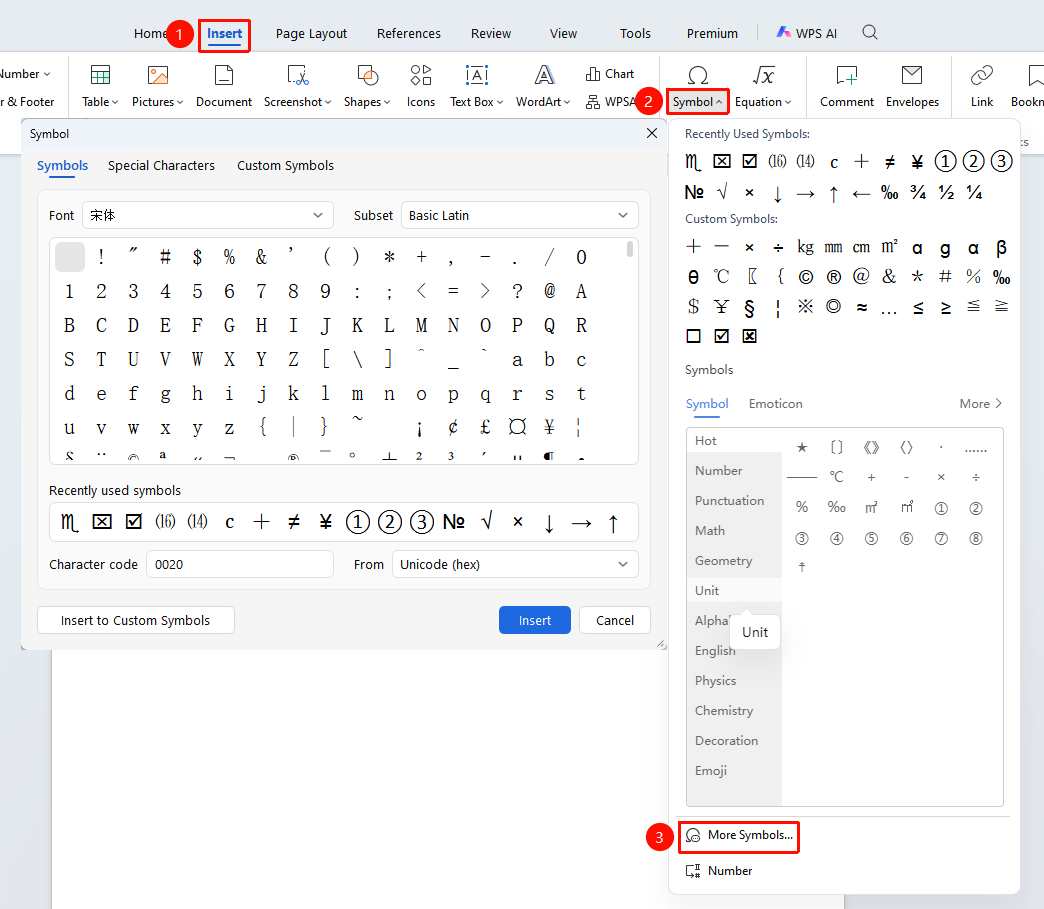
Feature entry: "Insert" tab → "Symbol" → "More Symbols"
- Position the cursor where you want to insert the symbol
- Click the "Insert" tab in the top menu bar
- Click the "Symbol" button and select a common symbol to insert directly
- For more symbols, click "More Symbols" to open the Symbol dialog box
- In the Symbol dialog box, select a symbol category (font and subset)
- After finding the desired symbol, click the "Insert" button
- After insertion is complete, click "Close" to close the dialog box
Insert via Unicode Code Conversion
Suitable for scenarios where the symbol code is known or obscure symbols need to be entered.
Steps:
- Enter the hexadecimal Unicode code of the symbol in the document (e.g., enter 2605)
- Select the entered code
- Press the Alt+X key combination, and the code will automatically convert to the corresponding symbol (2605 → ★ Black Star)
Frequently Asked Questions
Question 1: What should I do if I cannot find the symbol I need?
- Solution: Try switching between different font and subset categories in the Symbol dialog box. Some special symbols may require specific fonts to be installed in order to display.
Question 2: How can I quickly insert frequently used special symbols?
- Solution: WPS automatically records recently used symbols. Click the drop-down list of the "Symbol" button to quickly access recently used symbols.
Question 3: What should I do if symbols are lost or appear distorted after opening the document on another device?
- Solution:
- Whenever possible, choose symbols from the built-in universal character set of WPS and avoid using special characters from extended areas;
- Enable font embedding: Click "File" → "Options" → "General and Save", check "Embed fonts in the file", and then save
Notes
- Some special symbols may display differently depending on the font. It is recommended to confirm the symbol's display appearance before saving the document.
- When using special symbols, pay attention to the document encoding format to avoid garbled characters when transferring between different devices.
- Different fonts support different symbol ranges. Specialized fonts such as Symbol and Wingdings provide special symbol sets, but when used across devices, ensure that the corresponding fonts are installed on the target device.