Feature Summary
When you need to organize data, compare information, or create checklists in a document, the table feature in WPS Docs helps you quickly create structured table content, making document information clearer, more intuitive, and well-organized.
- Quick Insert: Quickly create a regular table by dragging with the mouse
- Precise Insert: Manually enter the number of rows and columns to create a table of any specification
- Free Draw: Use the pencil tool to draw irregular tables and flexibly divide cells
- External Reuse: Supports copying and pasting tables from Excel or other documents while preserving the original formatting
- Template Access: Built-in rich table templates for inserting pre-styled tables with one click
Feature Description
| Feature Dimension | Description |
|---|---|
| Membership Restrictions | The basic table insertion feature has no membership restrictions; some table styles require a membership to use |
| Version Restrictions | No version restrictions |
Operation Steps
Method 1: Quickly Insert a Regular Table
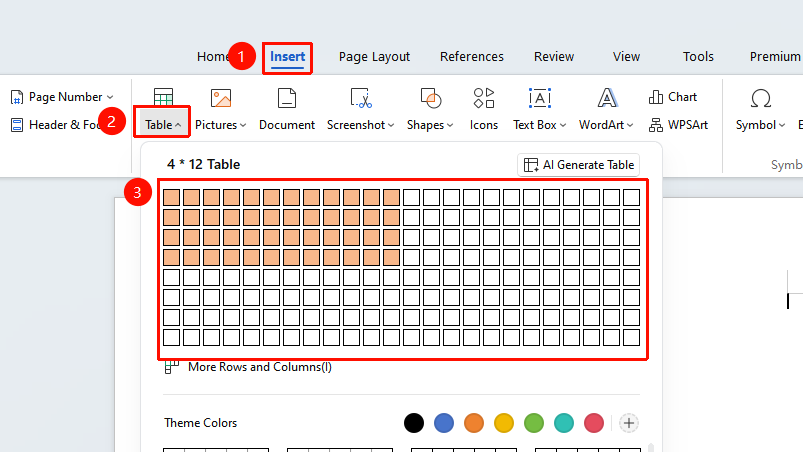
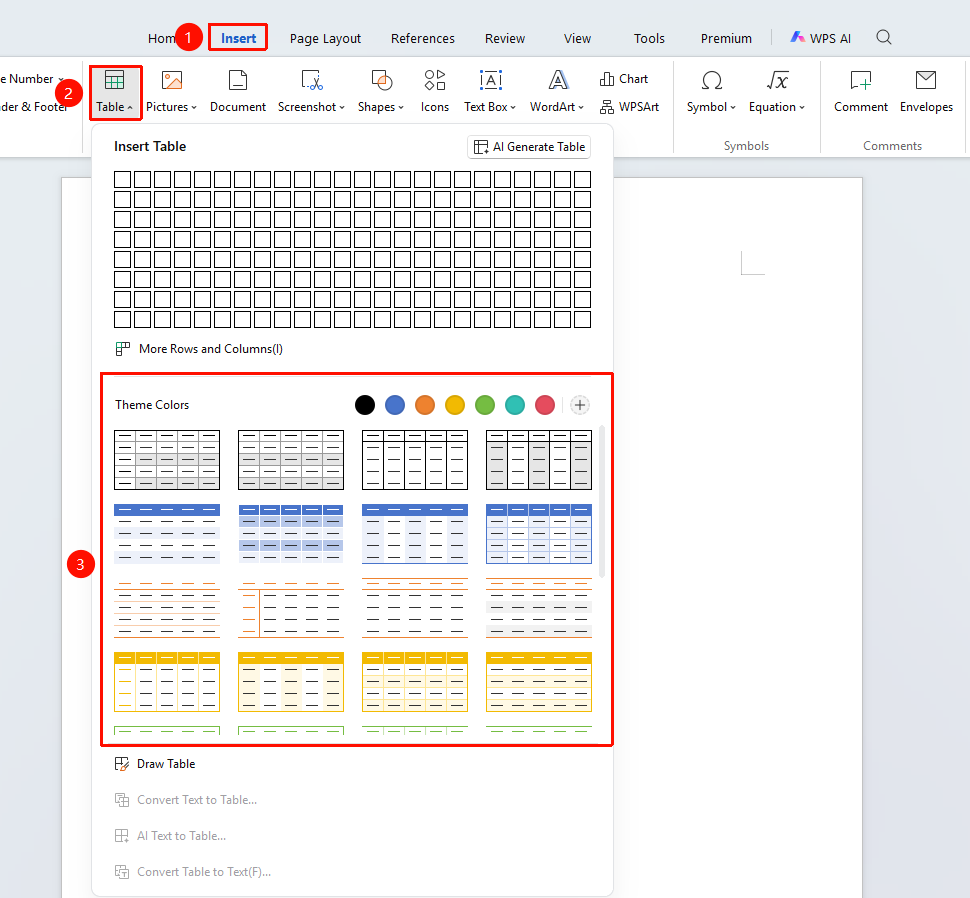
Function entry: "Insert" tab → "Table" → Drag to select the number of rows and columns
- Place the cursor at the position in the document where you want to insert the table
- Click the "Insert" tab in the top menu bar
- Click the "Table" button, drag the cursor in the pop-up grid area to select the desired number of rows and columns (up to 8×24)
- After selecting, click the left mouse button, and the table will be inserted into the document
Method 2: Insert a Table by Precisely Setting Rows and Columns
💡 This method allows you to create tables with more than 8 rows and 24 columns, unrestricted by the quick insert row/column limit.
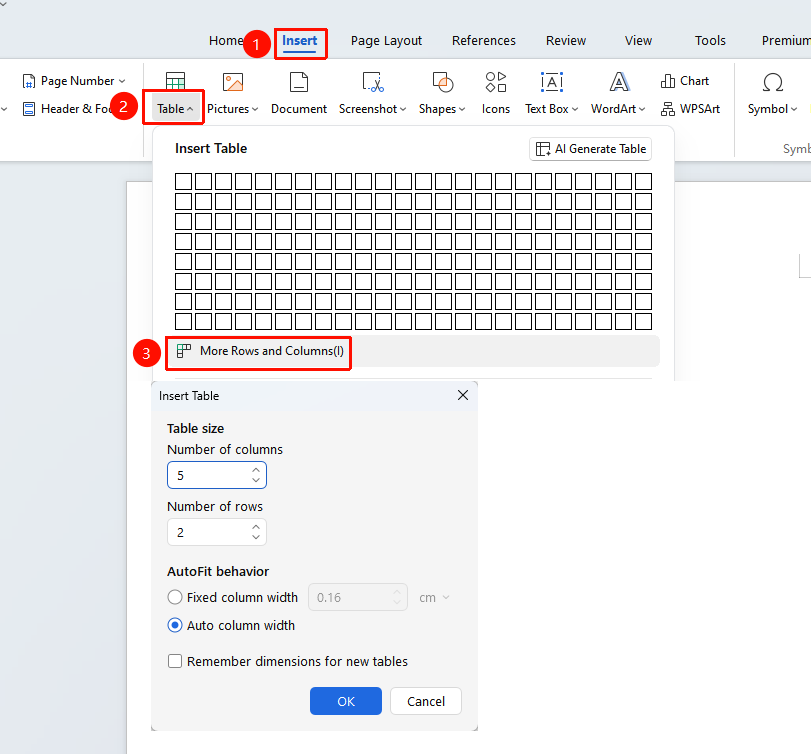
Function entry: "Insert" tab → "Table" → "More Rows and Column"
- Click the "Insert" tab in the top menu bar → "Table" → Select "More Rows and Column" from the drop-down menu
- In the pop-up dialog box, manually enter the number of columns and rows
- You can set the column width options (Fixed Column Width, AutoFit to Contents, Remember dimensions for new tables)
- Click "OK" to complete the insertion
Method 3: Freely Draw an Irregular Table
Suitable for creating complex tables with irregular layouts and special borders
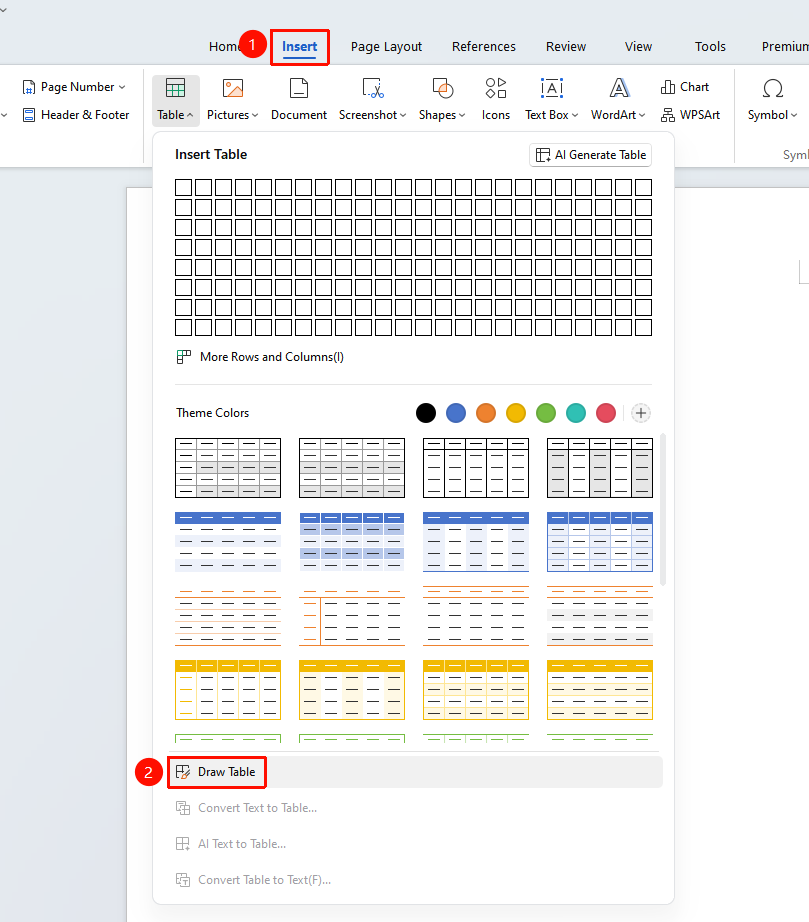
Function entry: "Insert" tab → "Table" → "Draw Table"
- Click the "Insert" tab → "Table" → Select "Draw Table"
- The mouse pointer changes to a pencil shape; first drag to draw the outer border of the table
- Drag inside the frame to draw horizontal and vertical lines to freely divide cells
- You can draw diagonal lines to create diagonal headers
- Press the ESC key or click a blank area of the document to exit drawing mode
Method 4: Convert Text to Table
Suitable for quickly recognizing and creating a table from already entered text content
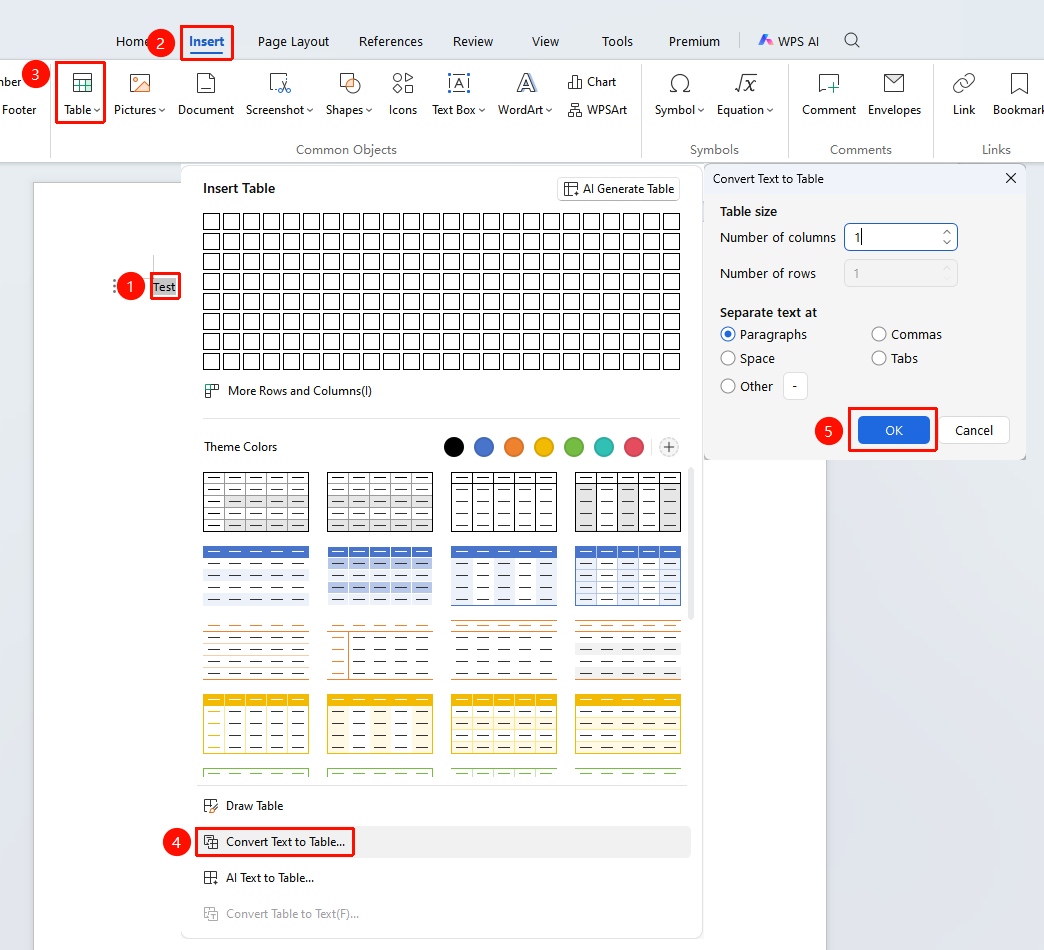
Function entry: Select the text content to convert to a table → "Insert" tab → "Table" → "Insert Table" → "Convert Text to Table"
- Use the left mouse button to select the text content you want to convert to a table
- Click the "Insert" tab → "Table" → "Insert Table" → "Convert Text to Table"
- In the pop-up window, fill in "Number of columns", "Number of rows", and "Separate text at" in order, then click OK to generate the table
Method 5: Copy and Paste from a Spreadsheet File / Other Document
- Select the target area in the spreadsheet or other file
- Press Ctrl+C to copy
- Switch to the WPS Docs document and place the cursor at the target position
- Press Ctrl+V to paste, or right-click and select "Paste Special" to preserve the original formatting
Method 6: Use Built-in Table Templates (Including Some Paid Templates)
Some templates require a membership to use. You can check the membership identifier on paid templates before use.
Function entry: "Insert" tab → "Table" → "Table Templates"
- Click the "Insert" tab → "Table" > Browse and select a preset template
- In the task pane on the right, click "Beautify Assistant" to browse categorized templates, move the cursor over the desired template, and click "Use Now"
FAQ### Question 1: What should I do if I can only select up to 8 rows when inserting a table and cannot select more rows?
- Solution: Click the "Insert" tab on the menu bar → "Table" → "Insert Table", and in the pop-up window, enter the desired number of rows and columns manually. This is not limited by the row and column count available through drag selection.
Notes
- Format compatibility: When copying a table from an external spreadsheet file, it is recommended to use "Paste Special" to preserve the original formatting and data.