Feature Summary
When you need to make text in your document more prominent and visually appealing, the text effects feature provides a rich set of visual effects to help you create more attractive documents.
Core Capabilities:
- Shadow Effect: Adds a three-dimensional shadow to text, enhancing the sense of depth
- Reflection Effect: Adds a mirrored reflection to text, elevating the design aesthetic
- Glow Effect: Adds a halo effect to text, highlighting key content
- 3D Rotation: Adds a perspective rotation effect to text, increasing the three-dimensional feel
Feature Description
| Feature Dimension | Description |
|---|---|
| Membership Restriction | No membership restriction; available to all users |
| Version Restriction | No version restriction; this feature is supported in all versions of WPS Docs |
Operation Steps
Setting Text Effects via the Ribbon
Feature Entry
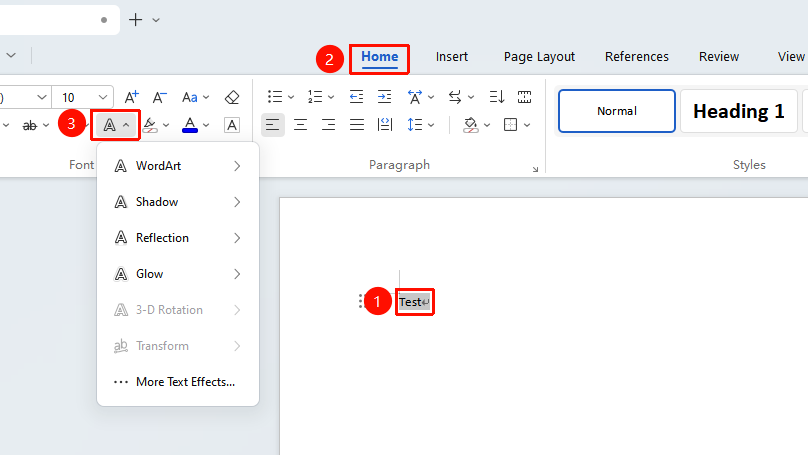
"Home" tab → "Text Effects" dropdown arrow
- Select the text to which you want to add text effects
- Click the Home tab on the ribbon
- Click the "Text Effects" dropdown arrow
- Choose any text effect from the list
Setting via the Task Pane
Feature Entry
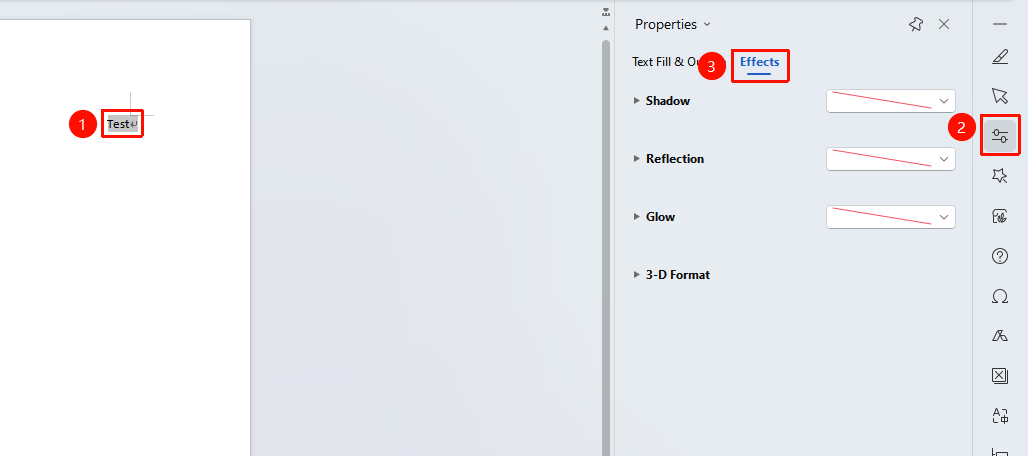
Select the text to which you want to add effects, "Task Pane" → "Properties" button → "Effects" tab
- Select the text to which you want to add text effects
- Click the Properties option in the Task Pane
- In the pop-up window, switch to the "Effects" tab
Setting via the Right-Click Menu
Feature Entry
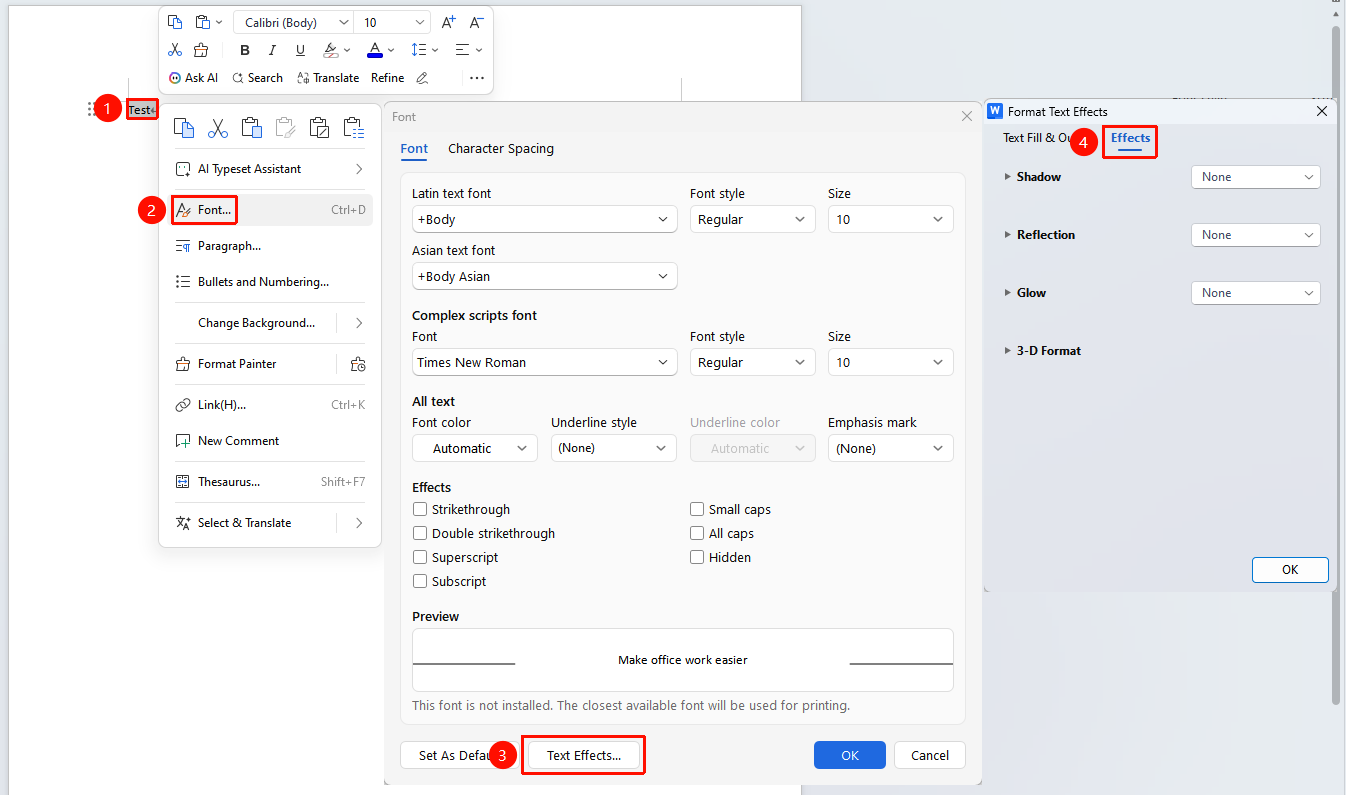
"Right-click" menu → "Font" option → "Text Effects" option → "Effects" tab
- Select the text to which you want to add text effects
- Click the right mouse button and select the Font option from the right-click menu
- In the pop-up Font dialog box, click the Text Effects button
- Switch to the "Effects" tab
- Check the desired effect options
- Click the OK button to apply the effects
Frequently Asked Questions
Question 1: Text effects display abnormally or appear jagged after setting
- Solution: This may be a font issue. It is recommended to switch to a system default font (such as Microsoft YaHei) and try again. It may also be caused by display scaling; try adjusting the display scale.
Question 2: How to apply multiple text effects simultaneously
- Solution: Multiple effects can be applied simultaneously (for example: Shadow + Glow). Simply click different effects in sequence to set them; the effects will be displayed in combination.
Question 3: How to remove text effects that have been set
- Solution: Select the text, click "Text Effects", and choose "No Effect" to clear all effects.
Notes
- Font Compatibility: Some special fonts may not support all text effects. It is recommended to use common fonts.
- Version Compatibility: When a document using effects specific to a higher version is opened in a lower version, the effects may not display correctly.
- Print Effect: Certain glow and transparency effects may not be obvious when printed in black and white. Color printing is recommended.