Feature Summary
The Text Fill feature allows you to apply rich fill effects to text, including solid color fill, gradient fill, and picture/texture fill, providing more diverse visual effects for text in your documents and enhancing document aesthetics.
Feature Description
| Feature Dimension | Description |
|---|---|
| Membership Restriction | Solid color fill is free to use; some advanced gradient fill and picture/texture fill effects require a membership |
| Version Restriction | WPS Office 2019 and later versions |
Operation Steps
Setting Text Fill via the Ribbon
Feature Entry
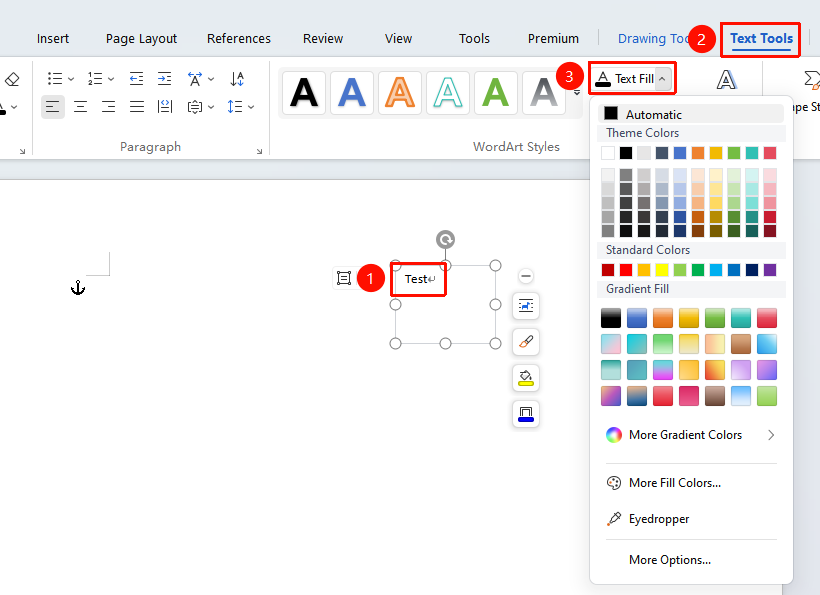
Select the text within a text box, then go to the "Text Tools" tab → "Text Fill" button
- Open a WPS Docs document and select the target text within the text box that you want to fill
- Click the Text Tools tab that appears in the top menu bar
- Locate and click the "Text Fill" button
- In the pop-up color panel, select the desired color
- Click to complete the text fill
📝 Tip: You can also click "More Fill Colors" at the bottom of the color panel to customize a precise color value.
Setting Text Fill via the Task Pane
Feature Entry
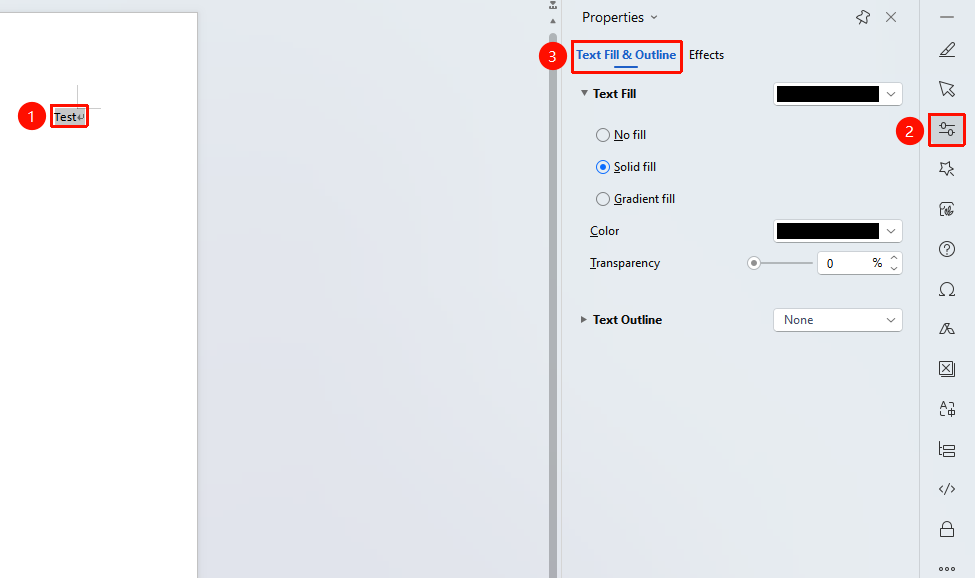
Select the text you want to fill, then go to "Task Pane" → "Properties" button → "Fill & Outline" tab → "Text Fill" option
- Open a WPS Docs document and select the text you want to fill
- Click the Properties button in the Task Pane
- In the Fill & Outline tab, locate and click the "Text Fill" option
- Select the desired color
- Click to complete the text fill
Setting via the Right-Click Font Menu
Feature Entry
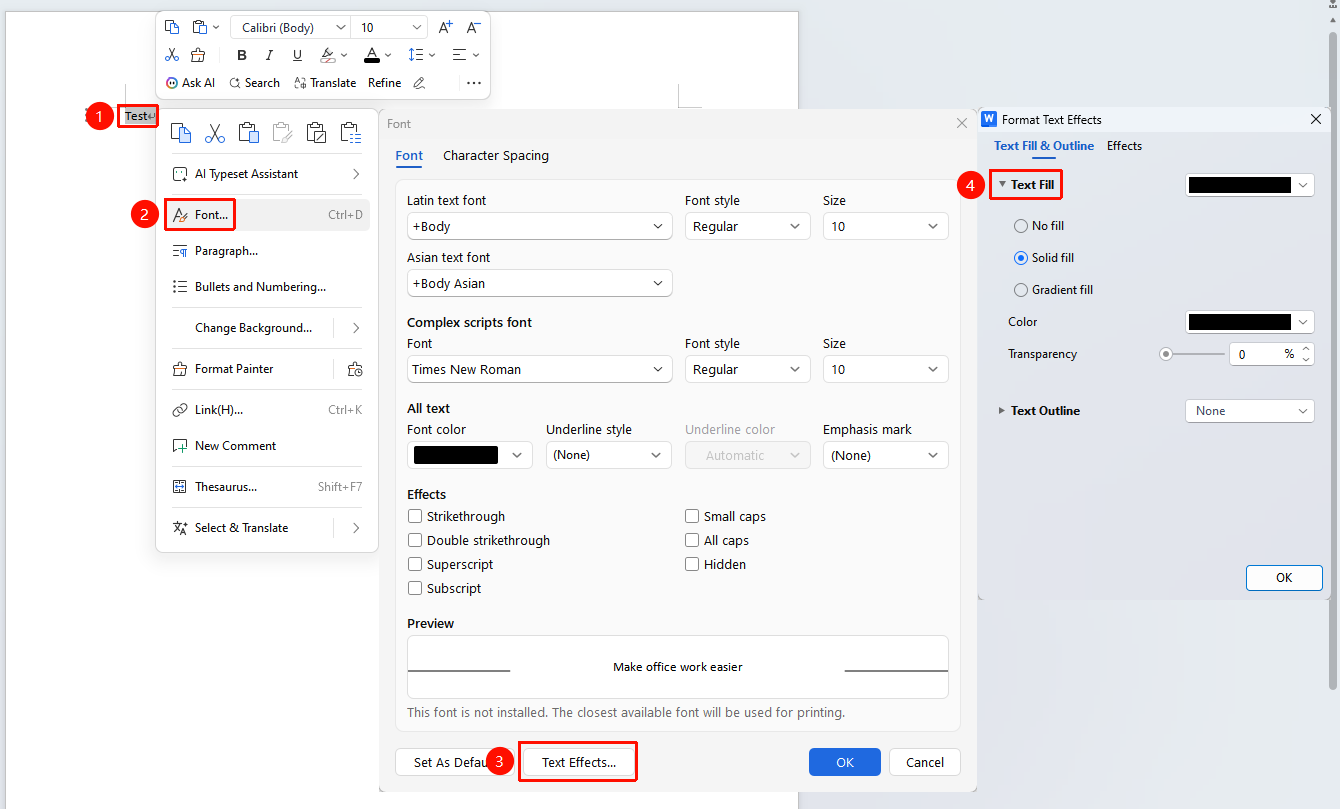
Select the text you want to fill, then "Right-Click" menu → "Font" button → "Text Effects" option → "Fill & Outline" tab
- Select the text you want to format
- Right-click and select the Font option
- In the Font dialog box that appears, click Text Effects
- In the Fill & Outline tab, open the "Text Fill" option
- Select a color
- Click OK to complete the setting
Frequently Asked Questions
Q1: What is the difference between Text Fill and Font Color?
- Solution: Font Color can only set a solid color; the Text Fill feature is more powerful and supports gradient fill effects.
Q2: What should I do if the text becomes illegible after applying Text Fill?
- Solution: You can simultaneously set the "Text Outline" to a contrasting color (such as white or black) to enhance text readability.
Q3: How do I remove a Text Fill effect?
- Solution: After selecting the text, click "Text Fill" → "No Fill" to remove it.
Notes
- The "Text Tools" tab will only appear after you select text within a text box
- When printing, ensure the printer supports color printing; otherwise, the fill effect will be output in grayscale
- Text Fill and Character Shading are different features: Shading is a color block behind the text, while Fill is the coloring of the text itself