Guide to Using the Document Parts Feature in WPS Docs
Feature Summary
The Document Parts feature provides quick insertion tools for dates, fields, AutoText, code blocks, and more, helping users automatically insert dynamic content into documents and improve editing efficiency.
Feature Description
| Feature Dimension | Description |
|---|---|
| Membership Restrictions | No membership restrictions; all users can use this feature |
| Version Restrictions | No version restrictions; supported across all WPS client versions |
Operation Steps
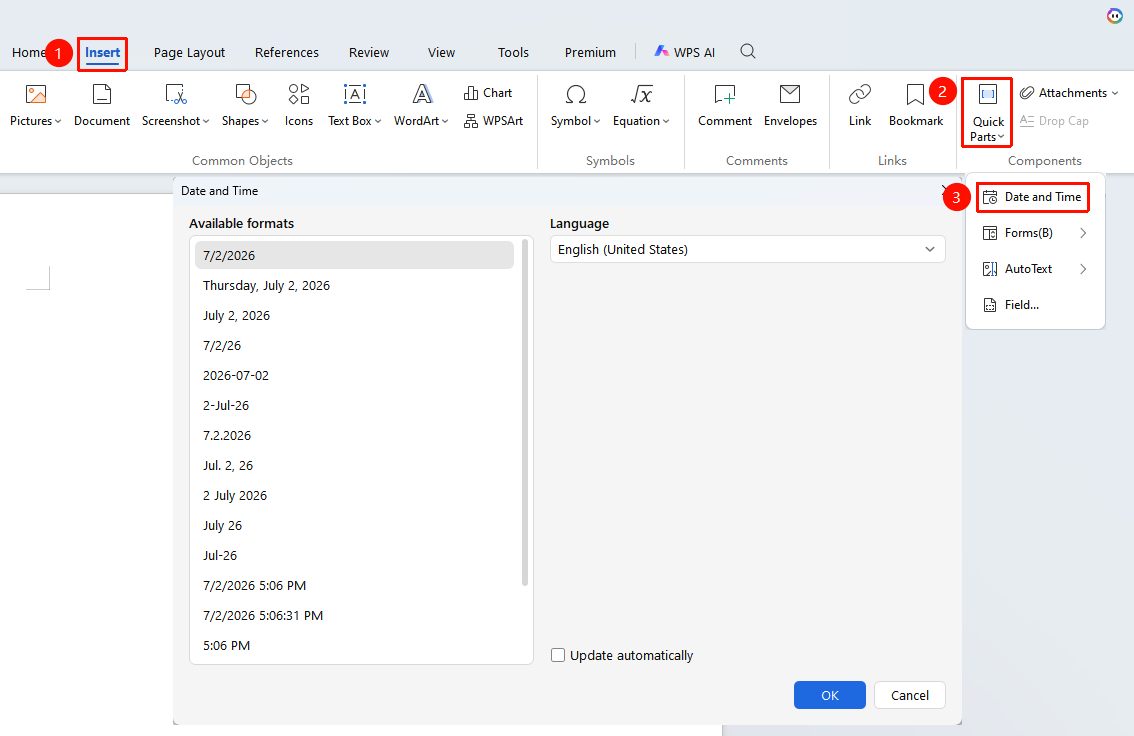
Insert Date
Feature Entry
"Insert" tab → "Document Parts" drop-down menu → "Date" button
- Place the cursor where you want to insert the date
- Click the Insert tab on the top menu bar
- Click the Document Parts drop-down menu
- Click the "Date" button
- Select the date format and language in the pop-up dialog
- Click "OK" to complete the insertion
Check "Update automatically": The date will update automatically with the system time
Insert Field
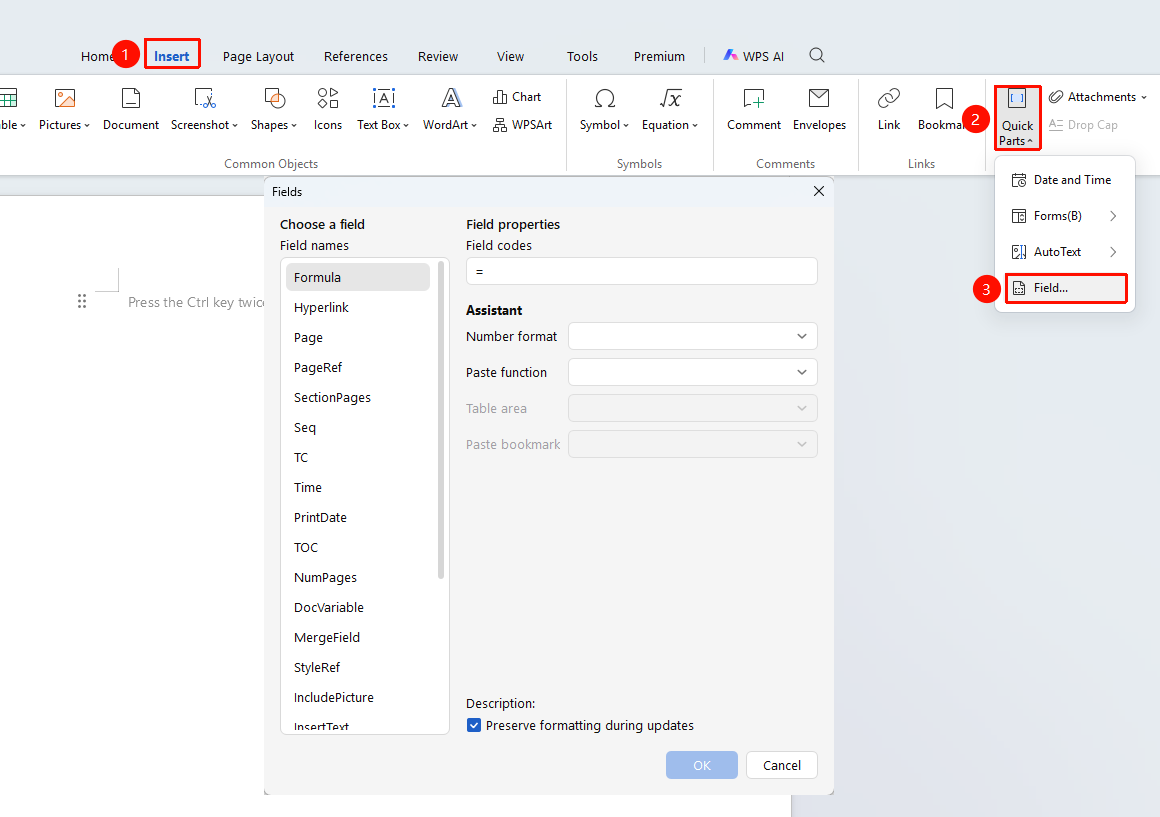
Feature Entry
"Insert" tab → "Document Parts" drop-down menu → "Field" button
- Click the Insert tab on the top menu bar
- Click the Document Parts drop-down menu
- Click the "Field" button
- Select the desired field type
- Set the relevant parameters
- Click "OK"
Insert a From
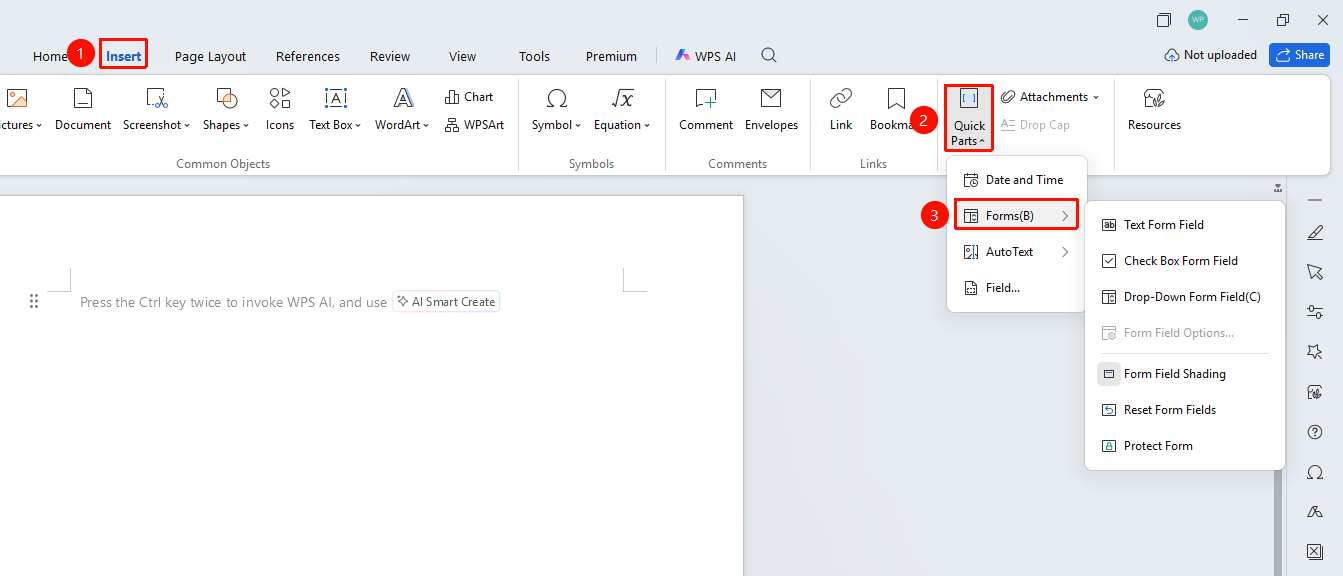
Feature Entry
"Insert" tab → "Document Parts" drop-down menu → "From" button
- Click the Insert tab on the top menu bar
- Click the Document Parts drop-down menu
- Click the "From" button
- Select the desired form type
- Set the relevant parameters
- Click to insert
Use AutoText
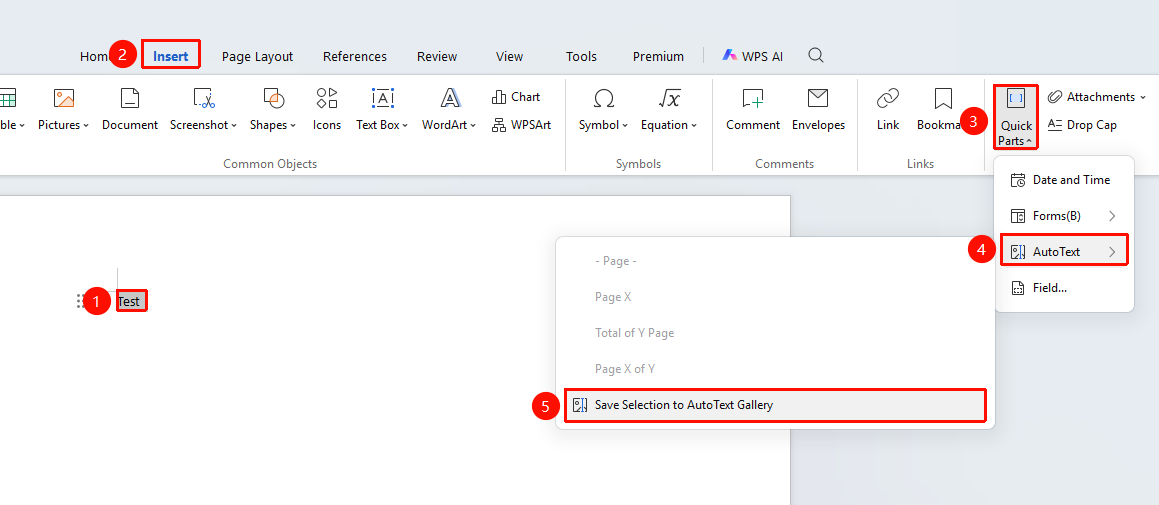
Feature Entry
"Insert" tab → "Document Parts" drop-down menu → "AutoText" button
- Select the text content you want to save
- Click the Insert tab on the top menu bar
- Click the Document Parts drop-down menu
- Click the "AutoText" button
- Select the "Save Selection to AutoText Gallery" button
- Name and save the AutoText entry
Frequently Asked Questions
Question 1: The table of contents has turned into a string of code
- Solution: This is the field code display mode. Click "File" → "Options" → "View", and uncheck "Field codes".
Question 2: A gray background appears when the table of contents is selected
- Solution: Click "File" → "Options" → "View" → "Field shading", and select "Never".
Notes
- Field codes function like formulas and will automatically calculate and update based on document content
- Form features mostly require VBA support; please ensure the local VBA environment is complete
- After unlinking a field, the content will become static text and will no longer update automatically
- Content saved in AutoText can be shared and used across different documents