Feature Summary
The Date Picker content control is used to create a date selection area. Users can select a date through a calendar control, ensuring a uniform date format.
Feature Description
| Feature Dimension | Description |
|---|---|
| Membership Restriction | No membership restriction |
| Version Restriction | No version restriction |
Operation Steps
Insert Date Picker Content Control
Feature Entry
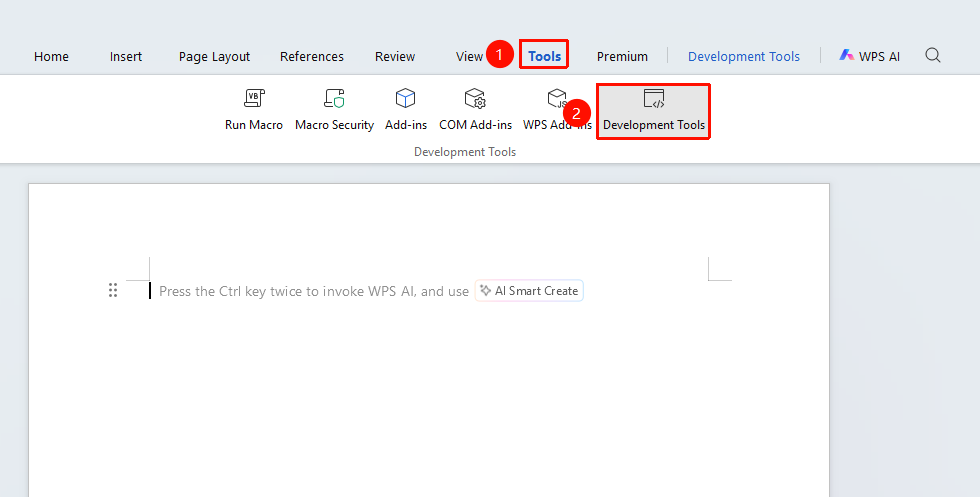
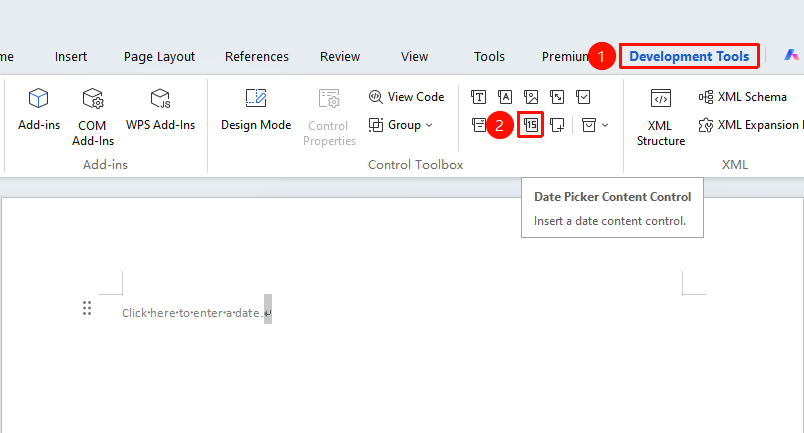
"Tools" tab → "Developer Tools" button → "Developer Tools" tab → "Date Picker Content Control"
- Ensure you have entered Design Mode
- Place the cursor at the desired insertion position
- Click the "Date Picker Content Control" button
- The control will be inserted into the document
Set Date Format
Feature Entry
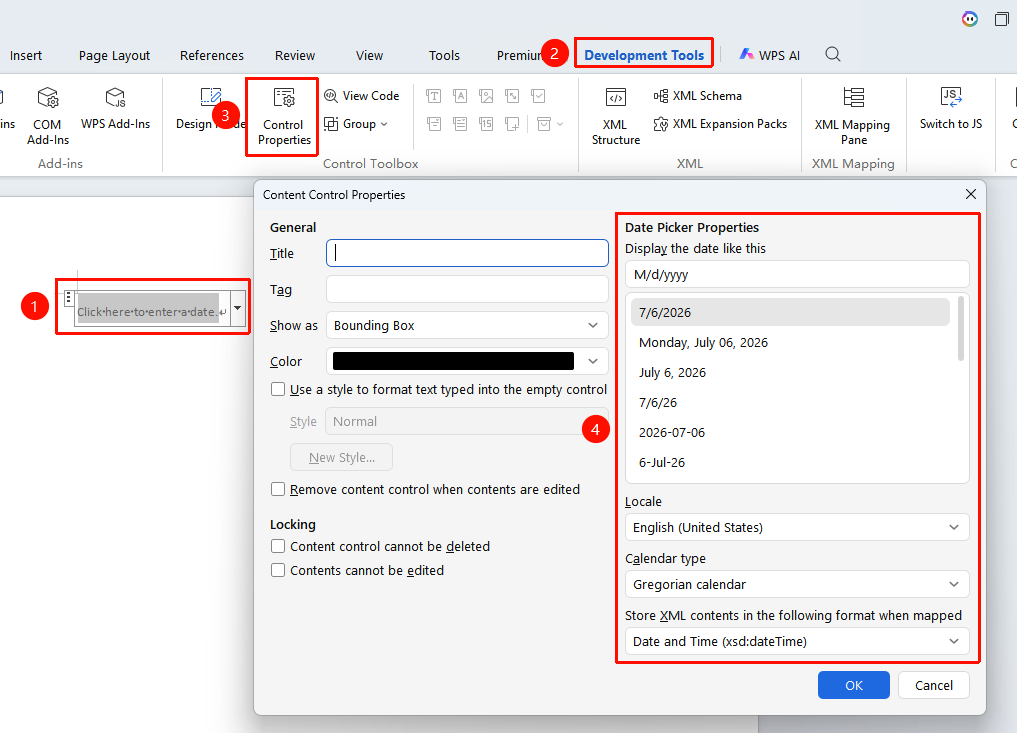
"Developer Tools" tab → "Control Properties"
- Select the Date Picker content control
- Click the "Control Properties" button from "Developer Tools" tab
- Select the date display format (e.g., yyyy/MM/dd)
- Set properties such as the default date
Use Date Picker
Feature Entry
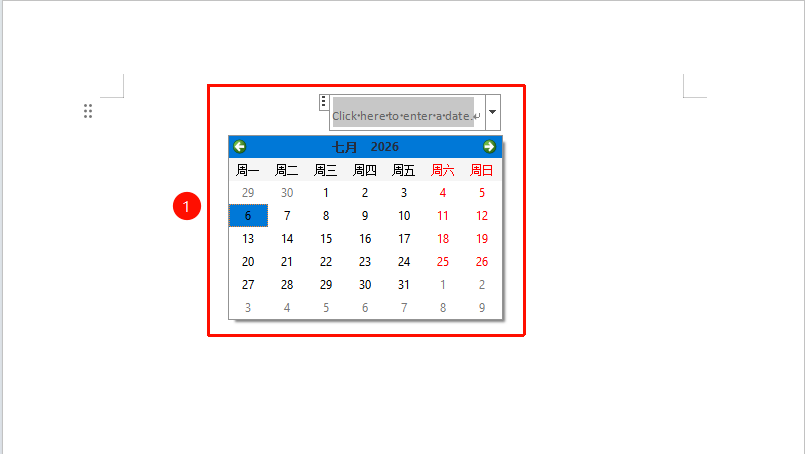
Click the Date Picker area
- Click the Date Picker control
- Select a date in the pop-up calendar
- The date will be automatically filled into the control
Frequently Asked Questions
Q1: The date format does not meet requirements?
- Solution: Select or customize the date display format in the control properties.
Q2: How to set a date range limit?
- Solution: Manually setting a date range for this control is currently not supported.
Notes
- The Date Picker supports multiple date formats
- Default date and date range can be set
- Suitable for forms requiring standardized date input