Feature Summary
The Building Block Gallery content control is used to create a drop-down list of preset content, allowing users to select and insert content from predefined building blocks.
Feature Description
| Feature Dimension | Description |
|---|---|
| Membership Restriction | No membership restriction |
| Version Restriction | No version restriction |
Operation Steps
Insert Building Block Gallery Content Control
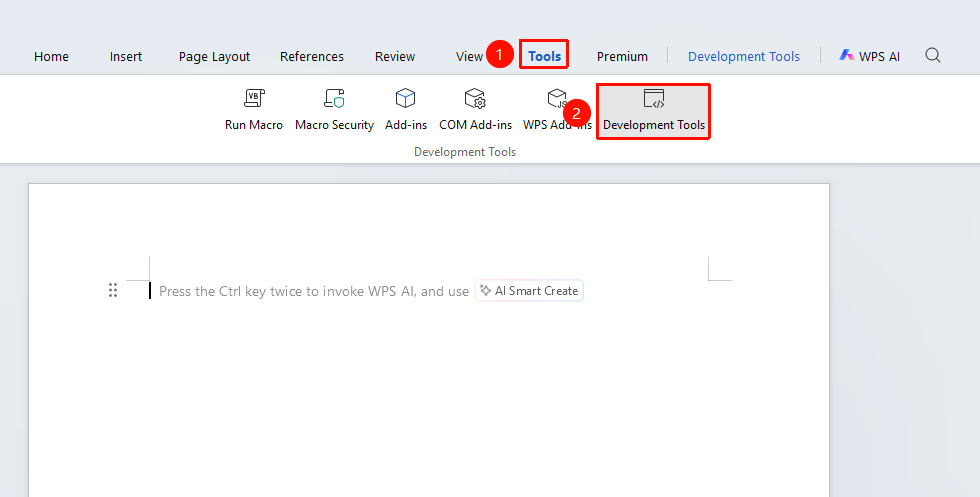
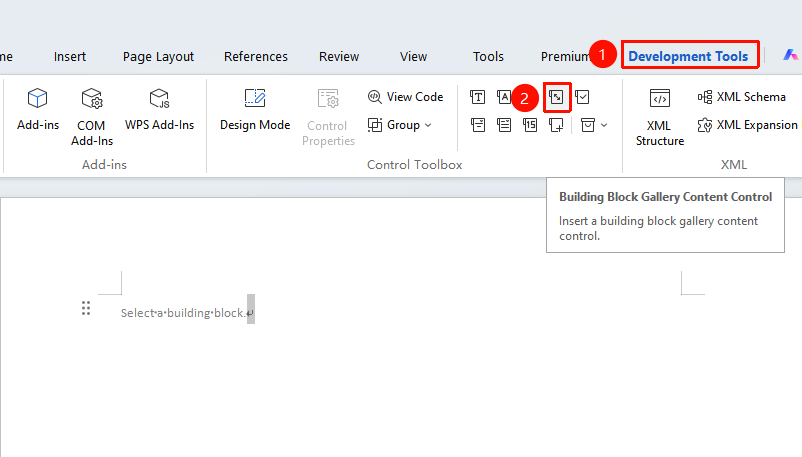
Feature Entry: "Tools" tab → "Developer Tools" button → "Developer" tab → "Building Block Gallery Content Control"
- Position the cursor where you want to insert the control
- Click the "Tools" tab at the top, locate and click the "Developer Tools" button to bring up the "Developer Tools" tab at the top
- Click the "Building Block Gallery Content Control" button
- The control will be inserted into the document
Configure Building Block Gallery
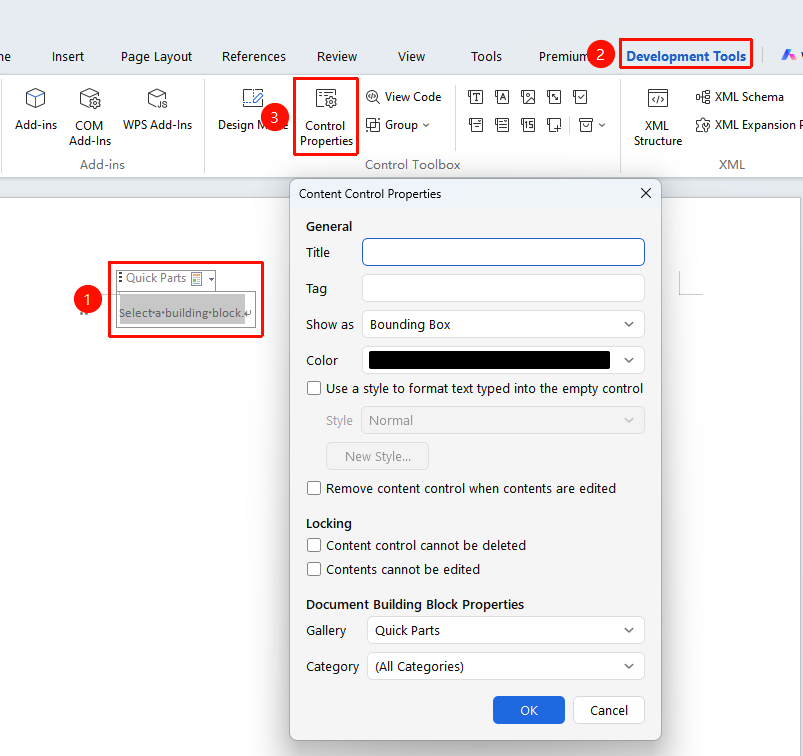
Feature Entry: "Developer Toolsr" tab → "Control Properties"
- Select the Building Block Gallery content control
- Click the "Control Properties" button from "Developer Tools" tab
- Select the building block gallery to use
- Set other properties for the control
Frequently Asked Questions
Q1: The building block gallery list is empty?
- Solution: You need to create a building block gallery and add content before it can be used in the control.
Q2: How to add building blocks? (Needs testing)
- Solution: Select the content you want to save, then use "Insert" → "Document Parts" → "Save Selection to Document Part Gallery".
Notes
- Building block galleries can store frequently used document snippets
- Suitable for scenarios requiring repeated use of standardized content
- Building block galleries can be shared across documents