Feature Summary
The Find, Replace, and Locate feature is a core tool in WPS Docs for quickly locating, batch modifying, and navigating document content. It supports various efficient operations such as text search, format replacement, wildcard matching, and quick jumping.
Feature Description
| Feature Dimension | Description |
|---|---|
| Membership Restriction | No membership restriction; available to all users |
| Version Restriction | No version restriction; supported in all versions of WPS Docs |
Operation Steps
Find Function
Function Entry
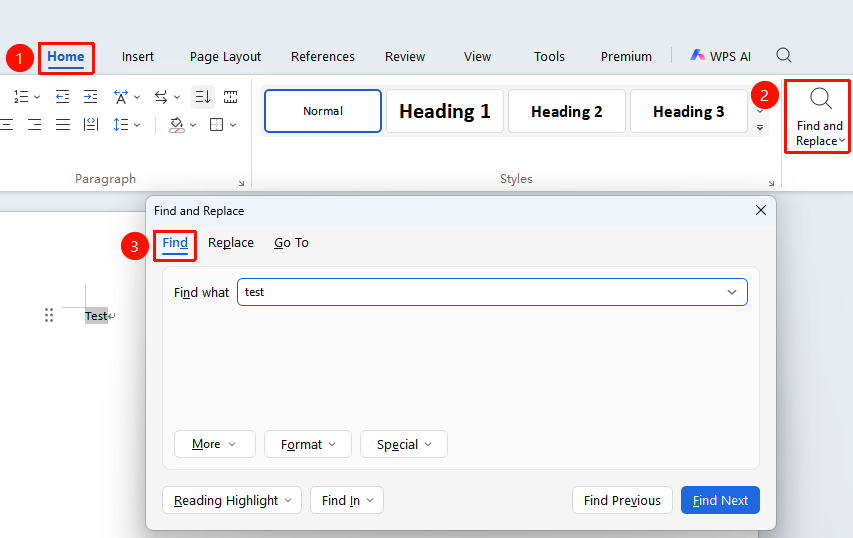
"Home" tab → "Find and Replace" option → "Find" tab
- Click the Home tab
- Select the Find and Replace button
- In the pop-up window, click the "Find" tab
- Enter the keyword to search for in the Find what input box
- Click Find Next to locate matching content one by one
- Click Highlight All to batch highlight all matching items
Find function shortcut:
Ctrl+F
Replace Function
Function Entry
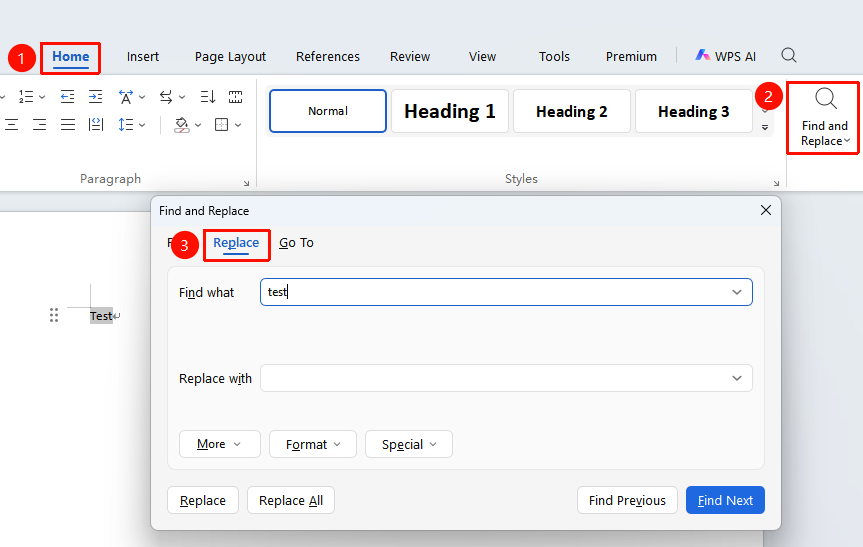
"Home" tab → "Find and Replace" option → "Replace" tab
- Click the Home tab
- Select the Find and Replace button
- In the pop-up window, click the "Replace" tab
- Enter the original text to be modified in the Find what input box
- Enter the target new text in the Replace with input box
- Click Replace to confirm one by one, or click Replace All to batch modify
Replace function shortcut:
Ctrl+H
Advanced Replace - Format Replacement
Function Entry
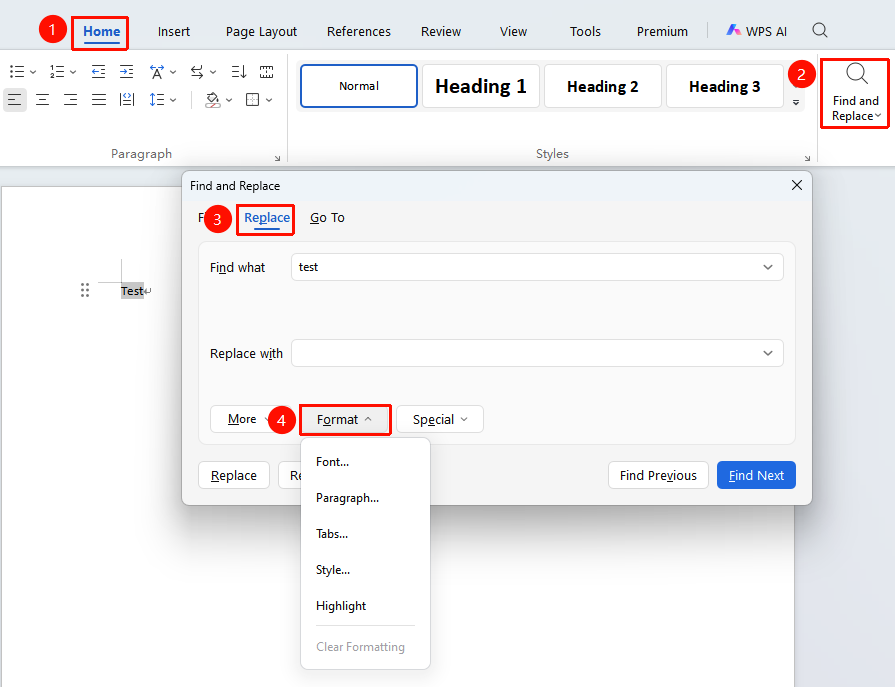
"Home" tab → "Find and Replace" option → "Replace" tab → "Format" option
- Click the Home tab
- Select the Find and Replace button
- In the pop-up window, click the Replace tab
- Place the cursor in the Find what input box, click the "Format" option to set the original format
- Place the cursor in the Replace with input box, click the "Format" option to set the target format
- Click Replace to confirm one by one, or click Replace All to batch modify
Wildcard Find
Function Entry
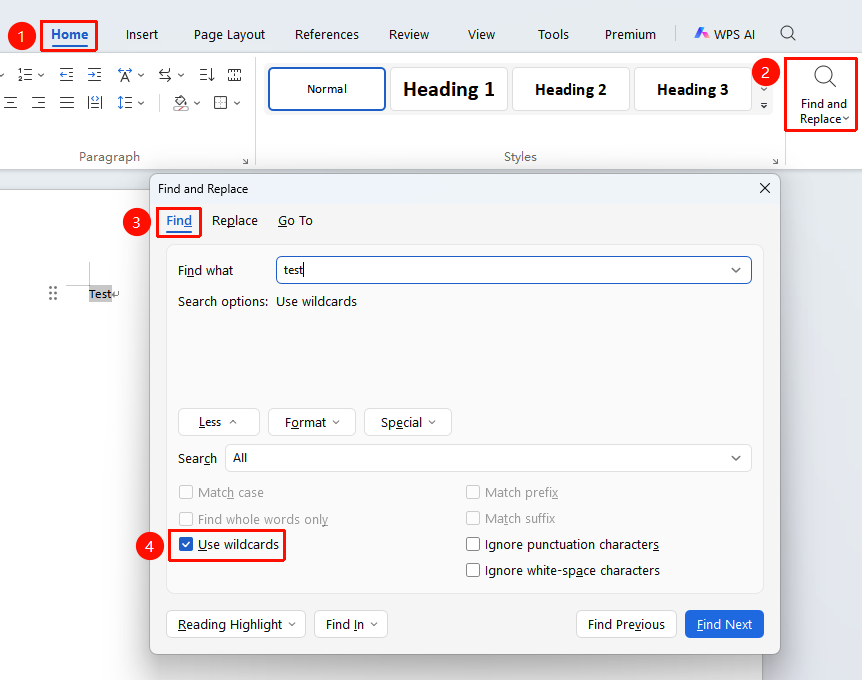
"Home" tab → "Find and Replace" option → "Find" tab → "Special" option
- Click the Home tab
- Select the Find and Replace button
- In the pop-up window, click the Find tab
- Click to expand the Advanced Search tab
- Check the "Use wildcards" checkbox
Common wildcards:
*matches any number of characters,?matches a single character,^#matches digits
- Place the cursor in the Find what input box, click "Special" to select wildcards
- Click Find Next to search
Wildcard Replace
Function Entry
"Home" tab → "Find and Replace" option → "Replace" tab → "Special" option
- Click the Home tab
- Select the Find and Replace button
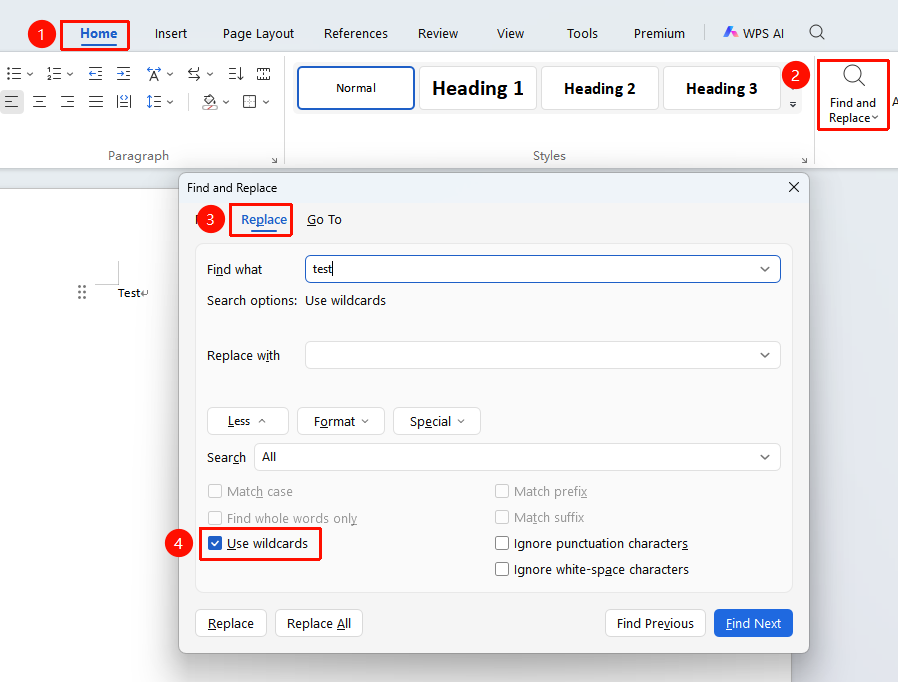
- In the pop-up window, click the Replace tab
- Click to expand the Advanced Search tab
- Check the "Use wildcards" checkbox
Common wildcards:
*matches any number of characters,?matches a single character,^#matches digits
- Place the cursor in the Find what input box, click "Special" to select wildcards
- Place the cursor in the Replace with input box, enter the target content to replace with
- Click Replace to confirm one by one, or click Replace All to batch modify
Go To Function
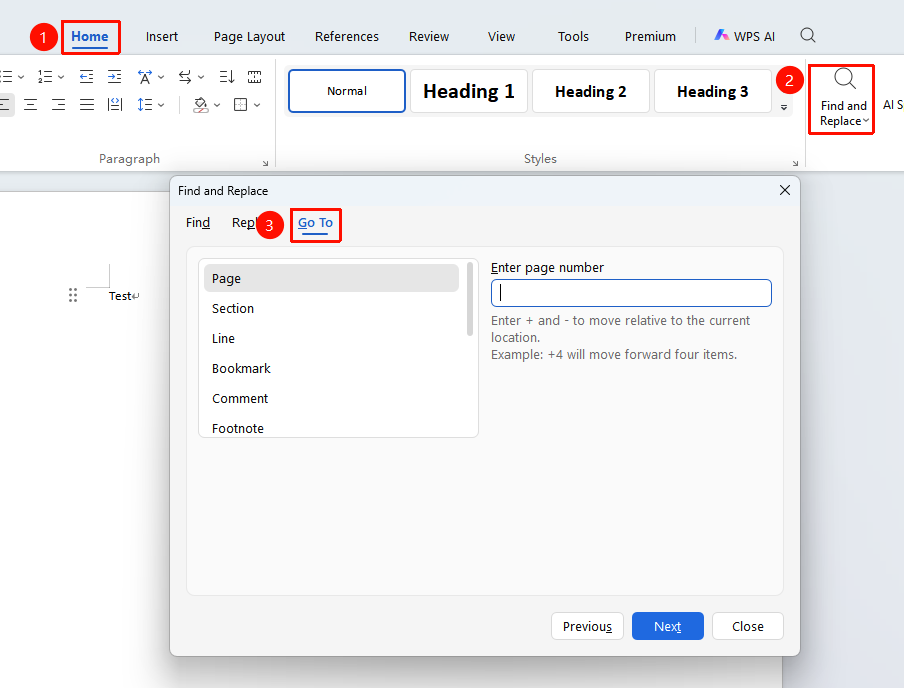
Function Entry"Home" tab → "Find & Replace" option → "Go To" tab
- Click the Home tab
- Select the Find & Replace button
- In the pop-up window, click the "Go To" tab
- In the "Go to what" list, select: Page, Section, Line, Footnote, Comment, Graphic, etc.
- Enter the corresponding number (e.g., page number)
- Click the Next button to jump to the specified location
Go To function shortcut:
Ctrl+G
Frequently Asked Questions
Q1: Formatting becomes messy after Find & Replace
- Solution: Before using the Replace function, click "Find Next" first to confirm the match and avoid incorrect replacements. For large documents, it is recommended to back up the original file first.
Q2: How to batch delete carriage returns
- Solution: Enter
^p(paragraph mark) in "Find what", leave "Replace with" empty, and click "Replace All" to batch delete carriage returns.
Q3: The document contains relevant text, but the search result is blank
- Solution: When "Match case" / "Match width" is checked during search, pay attention to whether the text entered in the search box is full-width or half-width.