Feature Summary
The style feature provides preset formatting combinations (including font, font size, color, paragraph formatting, etc.) that can be quickly applied to document content, enabling unified layout and efficient format management. It also supports custom styles and automatic table of contents generation.
Feature Description
| Feature Dimension | Description |
|---|---|
| Membership Restriction | No membership restriction; available to all users |
| Version Restriction | No version restriction on Windows; the MAC version does not support saving this document as a new style set |
Operation Steps
Applying a Style
Feature Entry
"Home" tab → "Styles" group
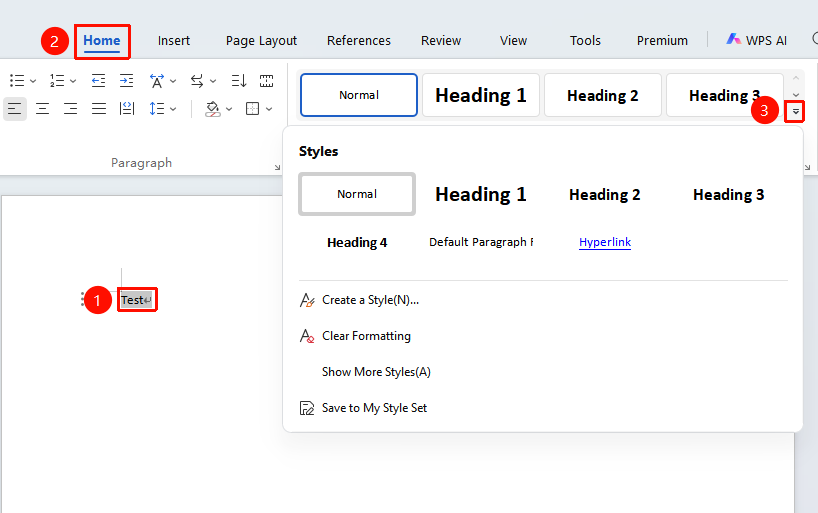
- Select the text content to which you want to apply a style
- Click the Home tab on the ribbon
- In the "Styles" group, select a preset style (such as "Heading 1", "Heading 2", "Normal", etc.)
- Click to apply the selected style to the text
Modifying a Style
Feature Entry
"Home" tab → "Styles" group → Right-click menu "Modify Style" option
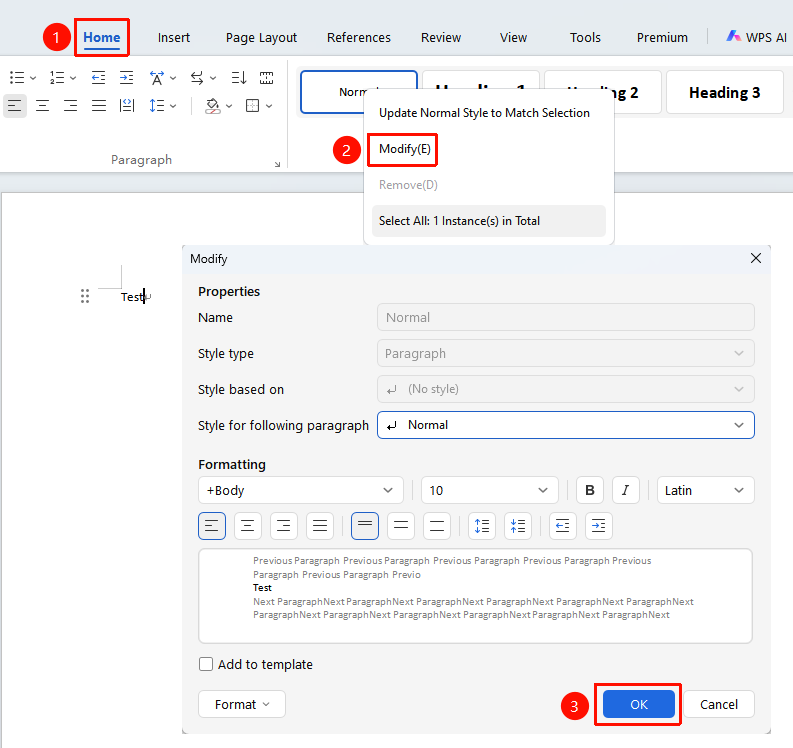
- Right-click the style you want to modify in the style gallery to open the right-click menu list
- Select the "Modify Style" option
- You can set font, paragraph, border, and other formatting separately
- After completing the settings, click OK to save
Creating a New Style from the Ribbon
Feature Entry
"Home" tab → "Styles" group → "Arrow" icon in the lower right corner → "New Style" option
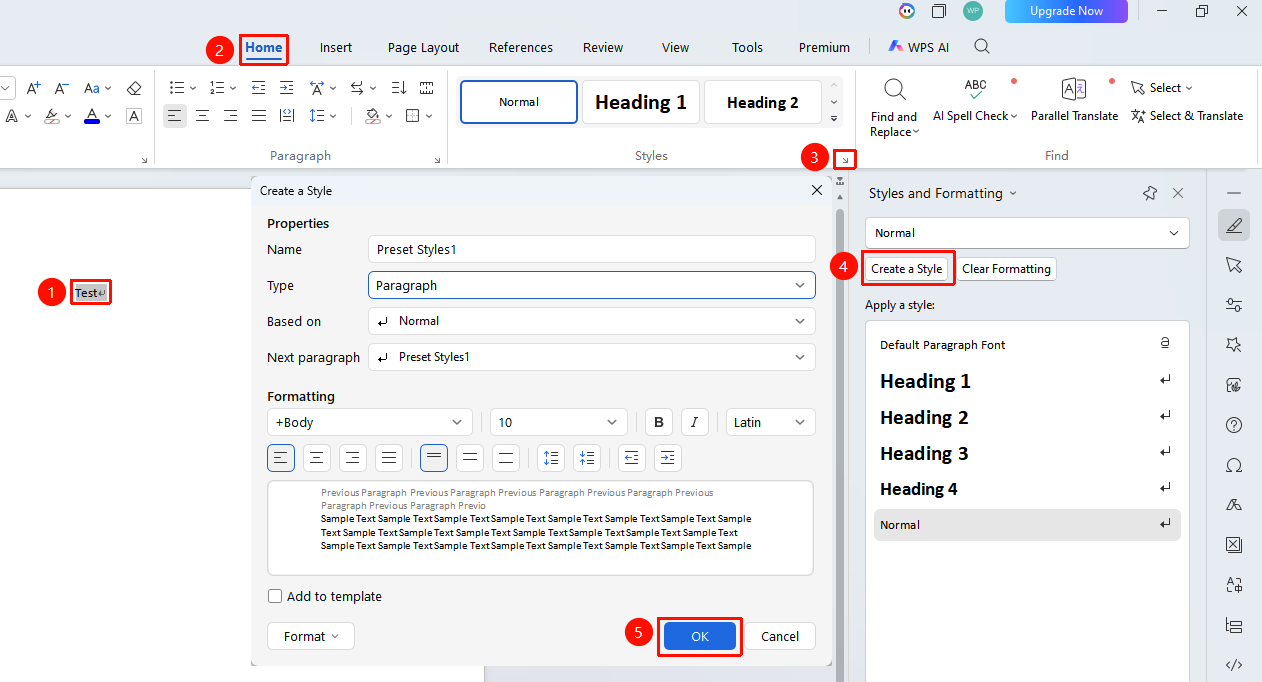
- Format a section of text
- Select that text
- Click the arrow icon in the lower right corner of the Styles group
- Select the "New Style" option
- Configure the style settings
| Feature Option | Operation Description |
|---|---|
| Name | Enter the style name |
| Style Type | Select the style type as Paragraph or Character |
| Style Based On | Set the style to be created based on another style (e.g., Normal, Heading, etc.), or based on no style |
| Style for Following Paragraph | Set the default style to be used for the next paragraph when this style is applied |
| Format | Adjust text formatting such as font and font size |
- Click OK to complete the creation
Modifying a Style in the Task Pane
Feature Entry
Right-side "Task Pane" → "Styles and Formatting" option → Right-click the style to be modified, click the "Modify Style" option
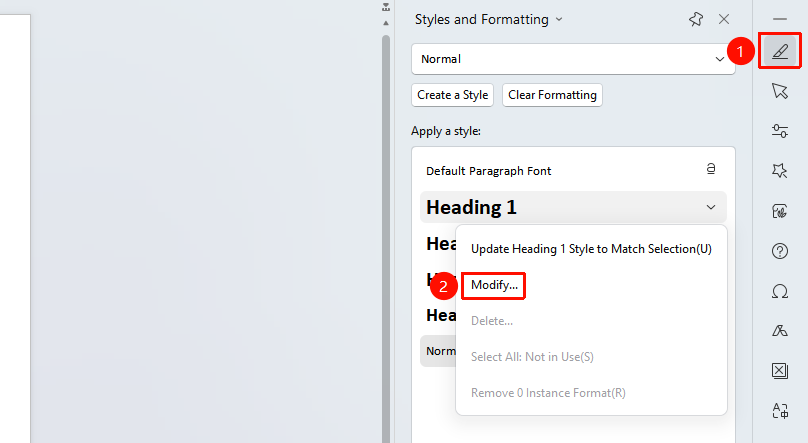
- Click the Styles and Formatting option in the Task Pane
- Right-click the style you want to modify in the styles list to open the right-click menu list
- Select the "Modify Style" option
- You can set font, paragraph, border, and other formatting separately
- After completing the settings, click OK to save
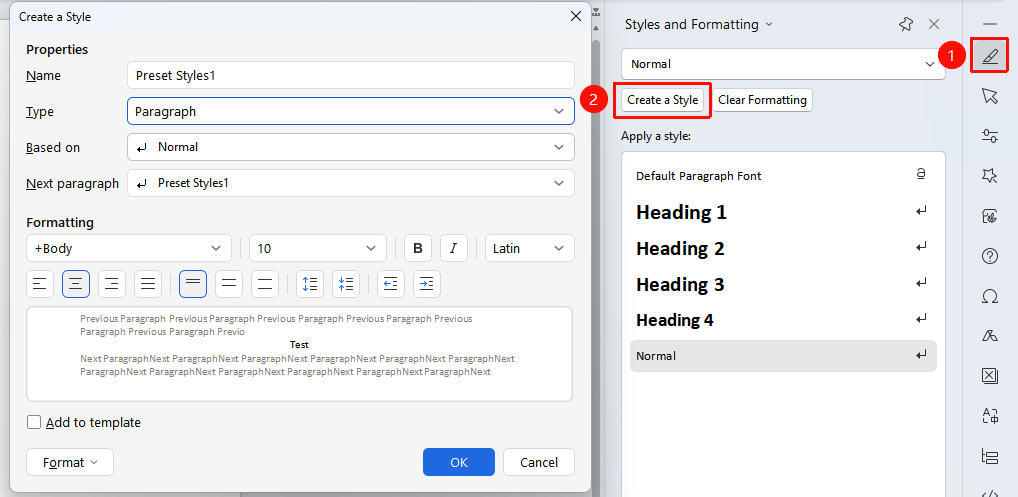
Creating a New Style in the Task Pane
Feature Entry
Right-side "Task Pane" → "Styles and Formatting" option → "New Style" option
- Click the Styles and Formatting option in the Task Pane
- Select the "New Style" option.
FAQ
Q1: After modifying a style, will the content to which the style has been applied change?
- Solution: Yes. After modifying a style, all content in the document to which that style has been applied will automatically update to the new formatting settings, enabling batch modification.
Q2: After modifying a style, can I prevent the text content with that style applied from updating automatically?
- Solution: WPS does not yet support this feature. Currently, after modifying a style, the text content using that style will update automatically.
Q3: How do I save a custom style to a template?- Solution: In the "Modify Style" or "Create New Style" dialog box, check the "Save to template" option to save the style into the Normal template for use in other documents.
Notes
- Heading styles form the basis for automatically generating a table of contents; it is recommended to apply heading styles correctly according to their hierarchy.
- When modifying a style, the based-on style will inherit properties from its parent style, and custom properties of the current style will not be overwritten.