Feature Summary
When editing a document, if you need to quickly apply the formatting of one section of text to another location, the Format Painter helps you copy and paste formatting with a single click, eliminating the tedious task of setting each format individually and significantly improving layout efficiency.
- One-click copy of formatting attributes for objects such as text, paragraphs, and cells
- Supports single use and continuous multiple uses (double-click the Format Painter)
Feature Description
| Feature Dimension | Description |
|---|---|
| Membership Restrictions | No membership restrictions; available to all users |
| Version Restrictions | No version restrictions; supported across all WPS client versions |
Usage Instructions
Feature Entry Points
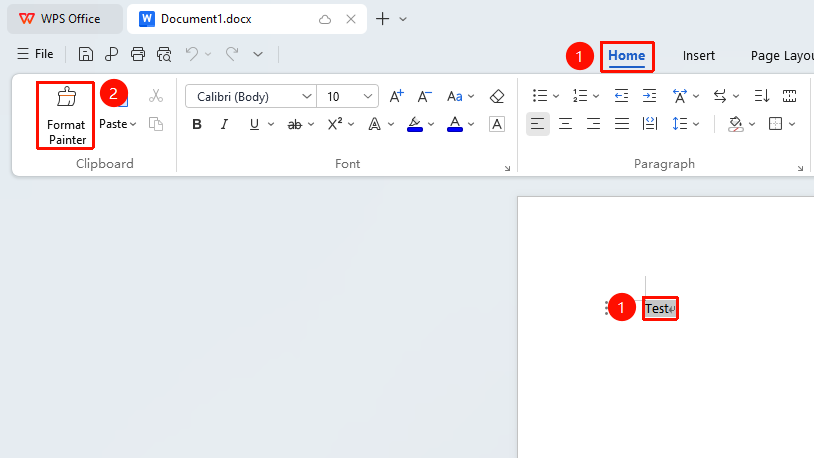
Click the "Home" tab → "Clipboard" group → "Format Painter"
Operation Method
- Select the text or paragraph with the formatting already set
- Click the "Format Painter" button in the "Home" tab on the toolbar; a paintbrush icon will appear next to the mouse cursor
- Use the paintbrush icon to select (or drag-select) the target text, and the formatting will be copied over
- Continuous use: Double-click the "Format Painter" button to keep the Format Painter active and apply it to multiple locations; press Esc to exit
Tip: You can also quickly use it by selecting content and then clicking the paintbrush icon in the floating toolbar that pops up.
Frequently Asked Questions
Question 1: How do I open the Clipboard panel?
- Solution: Click the "Home" tab > click the small arrow icon in the bottom right corner of the Format Painter button to open the Clipboard panel.
Question 2: Some characters in the document cannot be formatted using the Format Painter
- Solution:
- Check if the document was converted from another format, which may have caused conversion deviations; the characters might not be valid.
- Use the "Find and Replace" feature to batch replace them with valid characters, then use the Format Painter.
Notes
- The Format Painter copies formatting (font, font size, color, alignment, borders, shading, etc.), not the content itself
- Single-click Format Painter = use once and exit automatically; double-click Format Painter = continuous use, press Esc to exit
- If the Format Painter behaves abnormally (blank icon, cannot use continuously), prioritize troubleshooting third-party plugin conflicts