WPS Docs Rich Text Content Control Feature Usage Guide
Feature Summary
The Rich Text Content Control is used to create editable text areas, supports setting format restrictions, and is suitable for forms and template documents.
Feature Description
| Feature Dimension | Description |
|---|---|
| Membership Restriction | No membership restriction |
| Version Restriction | No version restriction |
Operation Steps
Insert Rich Text Content Control
Feature Entry
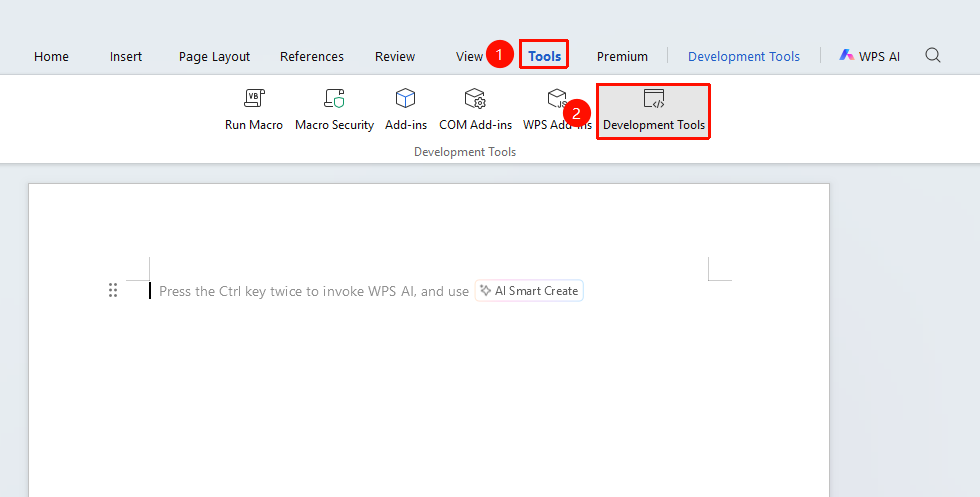
"Tools" tab → "Developer Tools" button → "Developer Tools" tab → "Rich Text Content Control"
- Place the cursor at the desired insertion location
- Click the "Tools" tab at the top, locate and click the "Developer Tools" button to bring up the "Developer Tools" tab at the top
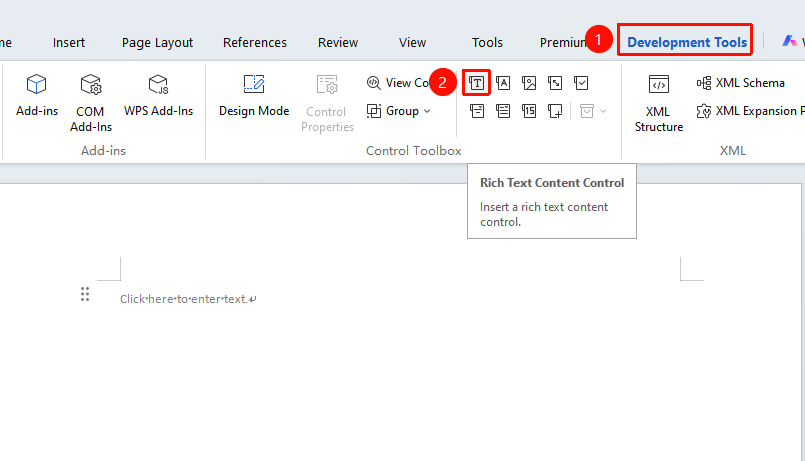
- Click the "Rich Text Content Control" button
- The control will be inserted into the document
Set Control Properties
Feature Entry
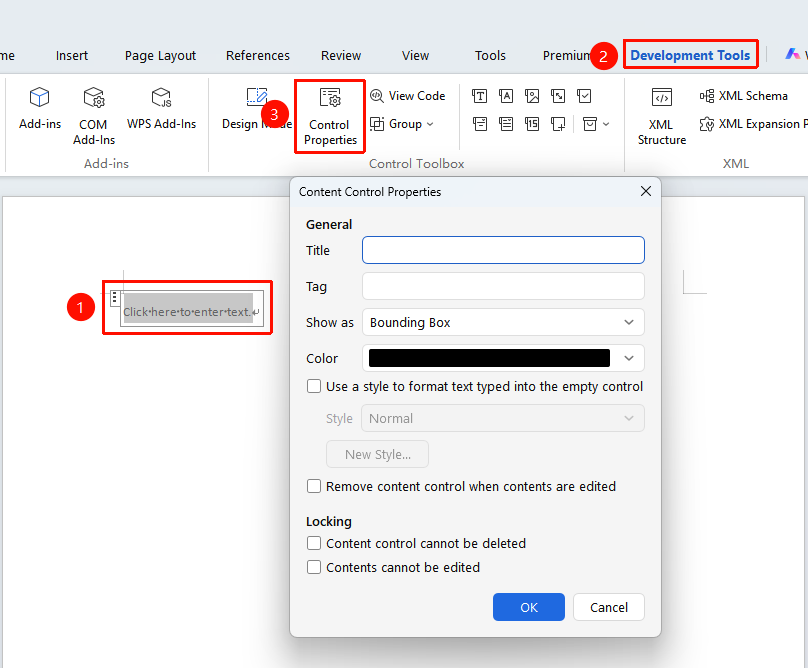
"Developer Tools" tab → "Control Properties"
- Select the Rich Text Content Control
- Click the "Control Properties" button from "Developer Tools" tab
- Set properties such as Title and Placeholder Text
- You can set whether to remove the control after content is edited
- You can set whether to allow the use of the Enter key
FAQ
Q1: What is the difference between a Rich Text control and a Plain Text control?
- Solution: Rich Text controls support rich text formatting (such as inserting images, shapes, etc.), while Plain Text controls only support plain text.
Q2: How to set the default format for a Plain Text control?
- Solution: Open "Control Properties", check "Use a style to format text typed into the empty control", select a preset style or custom style, and click OK.
Notes
- Rich Text controls support users entering formatted text
- The default content of the control can be set
- It is recommended to set clear placeholder text to guide user input