Feature Summary
The Clear All Formatting feature can quickly remove all formatting applied to text, including fonts, colors, and paragraphs, restoring the text to the document's default style. It is suitable for unifying document formatting or cleaning up formatting from externally copied content.
Feature Description
| Feature Dimension | Description |
|---|---|
| Membership Restriction | No membership restriction; available to all users |
| Version Restriction | No version restriction |
Operation Steps
Clear Formatting Option in the Ribbon
Feature Entry
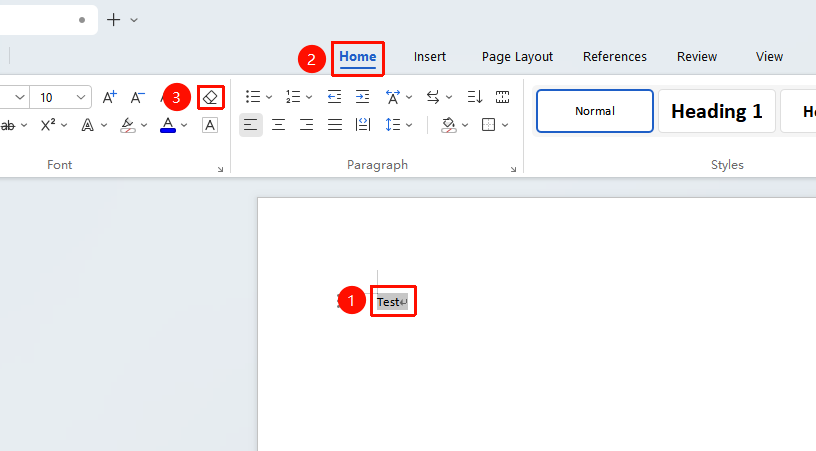
"Home" tab → "Clear All Formatting" option
- Select the text content whose formatting you want to clear (to select all text, press
Ctrl+A) - Click the Home tab in the top menu bar
- Locate the "Clear All Formatting" button with the eraser icon
- Click this button to clear all font, color, paragraph, and other formatting in one click, restoring the document's default style
Clear Formatting in Styles
Feature Entry
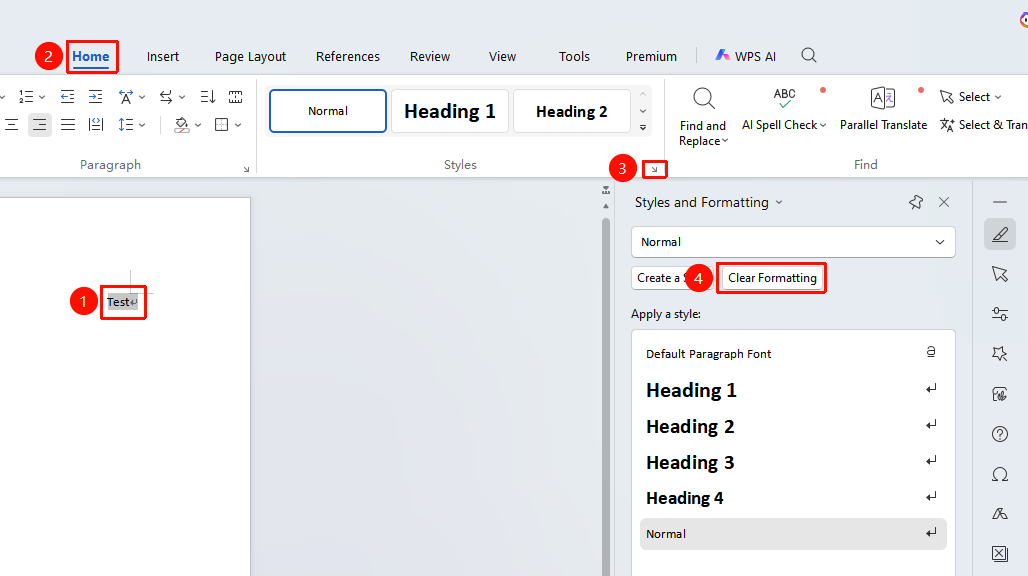
"Home" tab → "Styles" area → "Arrow" icon in the lower right corner → "Clear All Formatting" option
- Select the text content whose formatting you want to clear (to select all text, press
Ctrl+A) - Click the Home tab in the top menu bar
- Click the arrow icon in the lower right corner of the Styles area
- Select the "Clear All Formatting" option.
- Click to complete the clearing process.
Clear Formatting in the Task Pane
Feature Entry
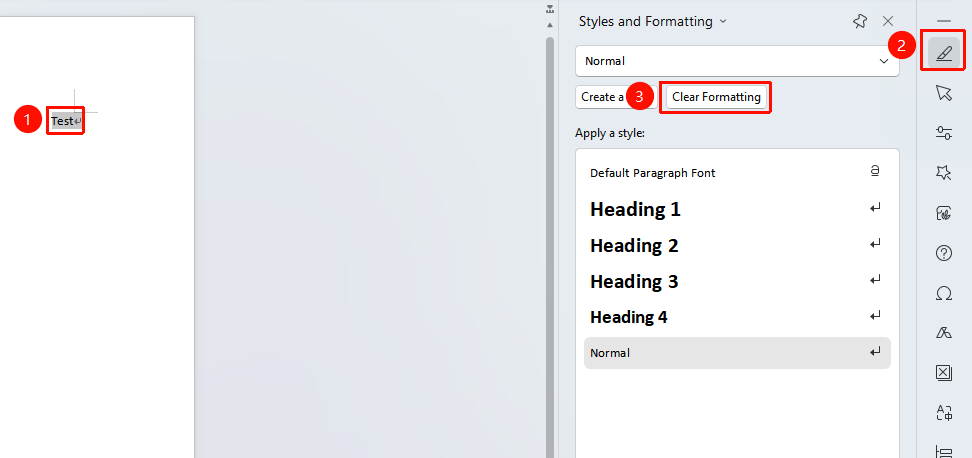
Right-side "Task Pane" → "Styles and Formatting" option → "Clear All Formatting" option
- Select the text content whose formatting you want to clear (to select all text, press
Ctrl+A) - Click the Styles and Formatting option in the Task Pane
- Select the "Clear All Formatting" option.
- Click to complete the clearing process.
Frequently Asked Questions
Q1: What style does the text revert to after clearing formatting?
- Solution: After clearing formatting, the text will revert to the document's default style (usually SimSun/DengXian, small four-point font size, black, single line spacing, left-aligned). If the document has a custom default style set, it will revert to that default style.
Q2: How to handle messy formatting when copying content from a webpage?
- Solution: It is recommended to use the 'Keep Text Only' paste method. After copying the content, right-click at the target location and select 'Keep Text Only', or use the shortcut
Ctrl+Alt+Vand select 'Unformatted Text' to paste, which can prevent formatting chaos at the source.
Q3: Will images and tables be affected after clearing formatting?
- Solution: The Clear All Formatting feature mainly targets text formatting. Images and tables themselves will not be deleted, but the text formatting within tables will be cleared, and settings such as image wrapping style may revert to default values.
Notes
- For text that uses styles, clearing formatting will detach it from the original style, turning it into plain text formatting
- Batch clearing of specific formatting (such as all bold or all red font) can be achieved through the 'Find and Replace' feature