Feature Summary
The blank page feature is used to insert new blank pages into a document, while also providing methods to remove unwanted blank pages, helping you manage the document's page structure.
Feature Description
| Feature Dimension | Description |
|---|---|
| Membership Restrictions | No membership restrictions; available to all users |
| Version Restrictions | No version restrictions; supported across all WPS client versions |
Operation Steps
I. Insert a Blank Page
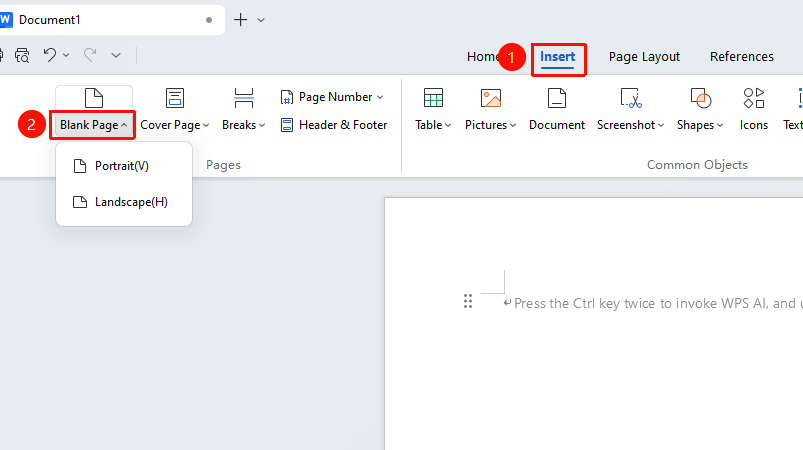
Feature entry: "Insert" tab → "Attachment"
- Place the cursor where you want to insert a blank page
- Click the "Insert" tab in the top menu bar
- Click the "Blank Page" button
- Select the blank page orientation:
- Portrait: Insert a portrait-oriented blank page
- Landscape: Insert a landscape-oriented blank page
II. Delete a Blank Page
Method 1: Delete Editing Marks
- Move the cursor to the blank page
- Select the paragraph marks, page breaks, or section breaks on the blank page
- Press Backspace or Delete to remove them
Tip: If editing marks are not displayed, click "Home" → "Show/Hide Editing Marks"
Method 2: Use Find and Replace
- Press
Ctrl + Hto open the Find and Replace dialog - Click "Special" → select "Paragraph Mark"
- Enter the content to replace with, then click "Replace All"
Method 3: Adjust Paragraph Line Spacing (for blank pages caused by tables)
- Place the cursor on the blank page
- Right-click and select "Paragraph"
- Set line spacing to "Exactly" and set the value to "1 pt"
III. Batch Delete
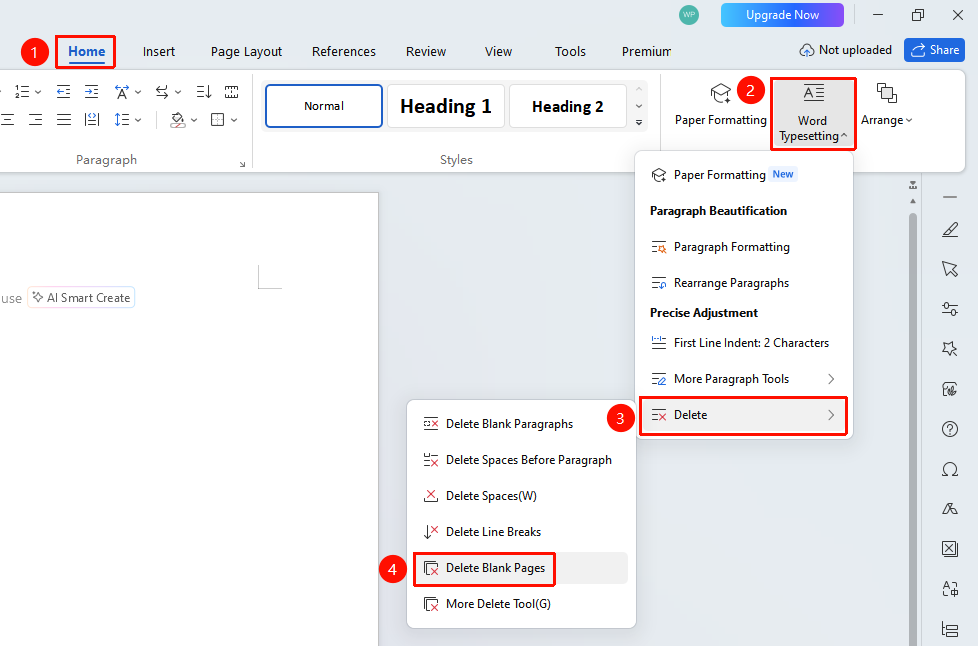
Feature entry: "Home" → "Layout" → "Delete" → "Delete Empty Paragraphs" / "Delete Blank Pages"
- Select the paragraphs you want to process
- Click the "Home" tab → "Layout" → "Delete" → "Delete Empty Paragraphs" / "Delete Blank Pages"
Frequently Asked Questions
Q1: Unable to delete a blank page
- Solution: Check if the page contains page breaks or section breaks; these marks need to be deleted first.
Q2: How to optimize a document with many blank pages
- Solution: If your document has many blank pages, please click "File" → "Options" → "General & Save" in the top-left corner, check "Split page breaks and paragraph marks" under "Compatibility options", then save and reopen the document. After this operation, the carriage returns after page breaks will be removed, leaving only an extra line break on the next line, but no blank pages will be generated.
Q3: Formatting becomes disordered after deleting a blank page
- Solution: This may be caused by section breaks. Before deleting a section break, check whether the page settings are affected.
Related Questions
Notes
- Deleting a section break may affect the formatting of preceding and following pages
- When a table extends to the bottom of a page, it may generate blank paragraphs that cannot be deleted directly
- It is recommended to enable the display of editing marks to facilitate viewing and deleting hidden formatting marks
- The Find and Replace and batch delete features can be used to process multiple blank pages at once