Feature Summary
The plain text content control is used to create an area that accepts only plain text input, without supporting formatting. It is suitable for forms that require a uniform format.
Feature Description
| Feature Dimension | Description |
|---|---|
| Membership Restrictions | No membership restrictions |
| Version Restrictions | No version restrictions |
Operation Steps
Inserting a Plain Text Content Control
Feature Entry
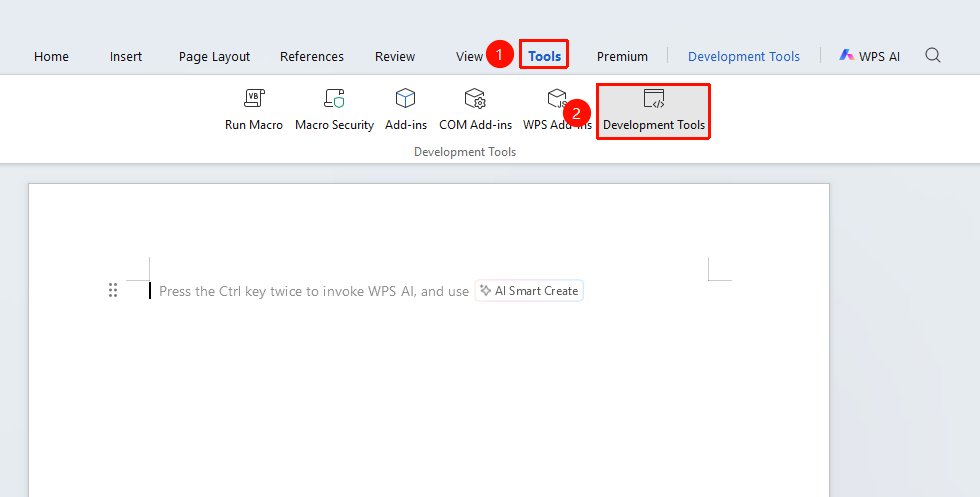
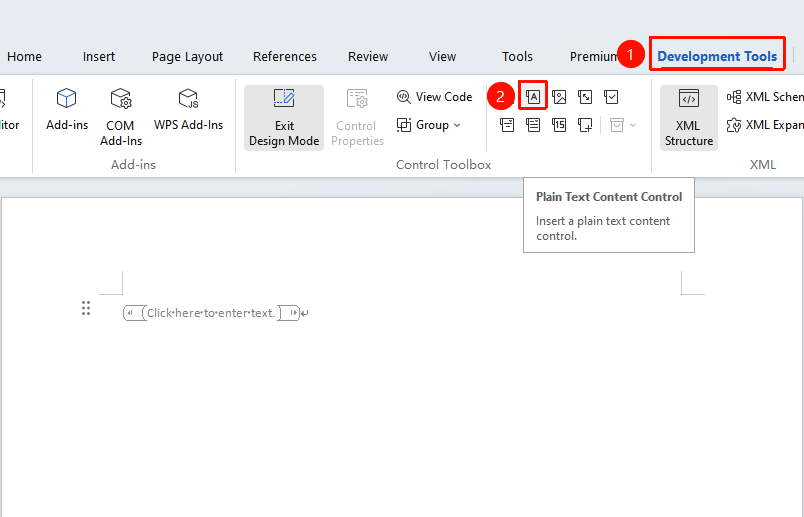
"Tools" tab → "Developer Tools" button → "Developer Tools" tab → "Plain Text Content Control"
- Place the cursor where you want to insert the control
- Click the "Tools" tab at the top, locate and click the "Developer Tools" button to bring up the "Developer Tools" tab at the top
- Click the "Plain Text Content Control" button
- The control will be inserted into the document
Setting Control Properties
Feature Entry
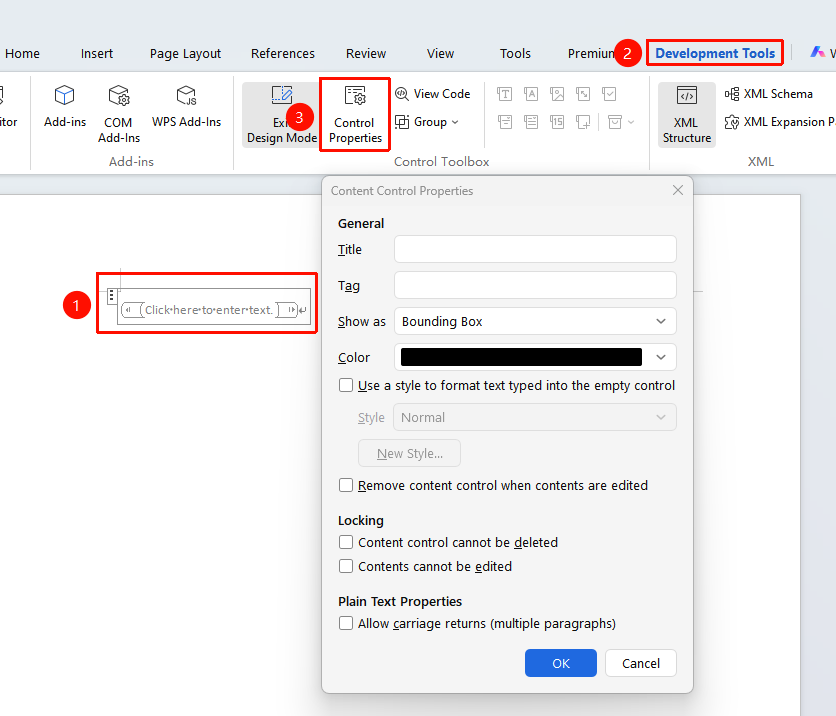
"Developer Tools" tab → "Control Properties"
- Select the plain text content control
- Click the "Control Properties" button from "Developer Tools" tab
- Set properties such as title and placeholder text
- You can set whether the control is deleted after its content is edited
- You can set whether the Enter key is allowed
Frequently Asked Questions
Question 1: After entering text in a plain text control, I cannot insert images or other content?
- Solution: This is a characteristic of the plain text control. If you need to insert additional images or shapes, please use a rich text content control.
Question 2: How do I set the default format for a plain text control?
- Solution: Open "Control Properties", check "Use a style to format text typed into the empty control", select a preset style or create a custom style, and click OK.
Notes
- The plain text control automatically removes any formatting applied by the user
- It is suitable for scenarios requiring a uniform text format
- You can set placeholder text for the control to guide user input