Feature Summary
The grouping feature is used to combine multiple content controls or ActiveX controls into a single entity, facilitating unified management and operation. It is suitable for creating complex forms and interactive documents.
Feature Description
| Feature Dimension | Description |
|---|---|
| Membership Restriction | No membership restriction |
| Version Restriction | No version restriction |
Operation Steps
Grouping Content Controls
Feature Entry
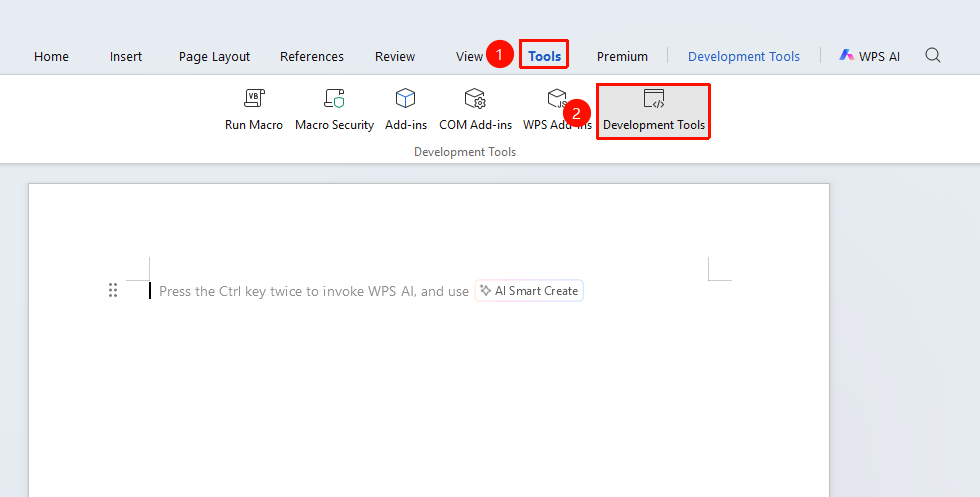
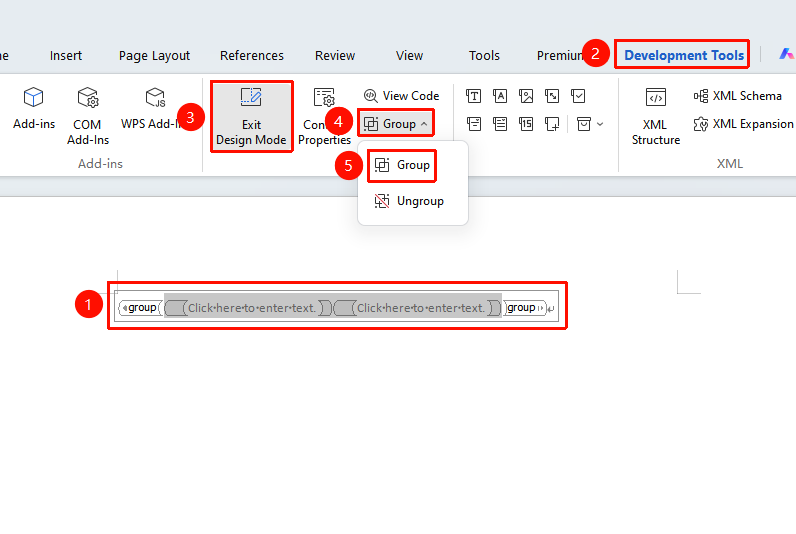
"Tools" tab → "Developer Tools" button →"Developer Tools" tab → "Group"
- Click the "Tools" tab at the top, locate and click the "Developer Tools" button to bring up the "Developer Tools" tab at the top
- Hold down the Ctrl key and select multiple content controls in sequence, or use the mouse to drag a selection box
- Click the "Group" button in the "Developer Tools" tab
- The selected controls will be combined into a single entity
Ungrouping
Feature Entry
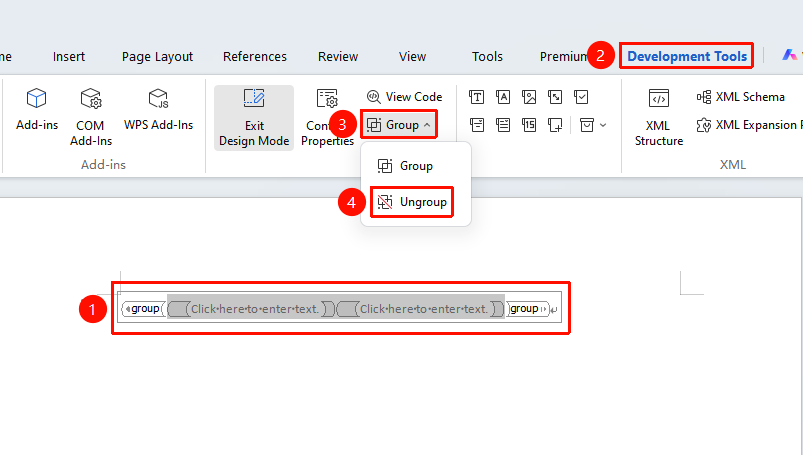
"Developer Tools" tab → "Design Mode" → "Group" → "Ungroup"
- Select the grouped control set
- Click the "Design Mode" button in the "Developer Tools" tab,Enter Design Mode
- Select the grouped control set
- Click the "Ungroup" button
- The controls will revert to their independent states
FAQ
Q1: Unable to group controls?
- Solution: Ensure you have entered Design Mode.
Q2: Control positions become disordered after grouping?
- Solution: Ungroup, readjust the positions of each control, and then group them again.
Notes
- The grouping feature is only available in Design Mode
- Grouped controls can be moved and resized uniformly
- It is recommended to group related controls together for easier management
- Grouped controls can be nested