Feature Summary
The Drawing Tools are a functional module in WPS Docs used for creating and editing graphic objects such as shapes, lines, and arrows. It supports freehand drawing, style beautification, graphic grouping, and arrangement, helping users add visual elements to their documents.
Feature Description
| Feature Dimension | Description |
|---|---|
| Membership Restriction | No membership restriction; available to all users |
| Version Restriction | No version restriction; supported in all versions of WPS Docs |
Operation Steps
Modify Shape Fill Color
Feature Entry
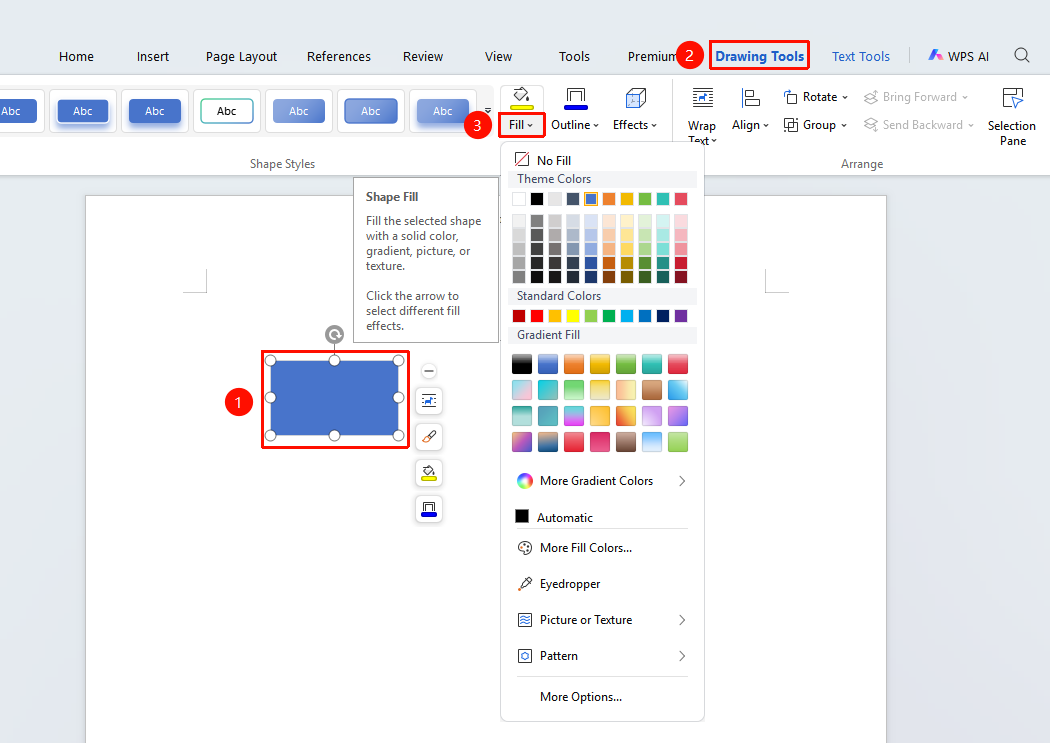
Select any shape/text box, click the "Drawing Tools" tab → "Shape Fill" option
- Select an inserted shape or text box; the Drawing Tools tab will automatically appear at the top
- Click the drop-down arrow below the "Shape Fill" option to modify the interior color of the graphic
Modify Shape Outline
Feature Entry
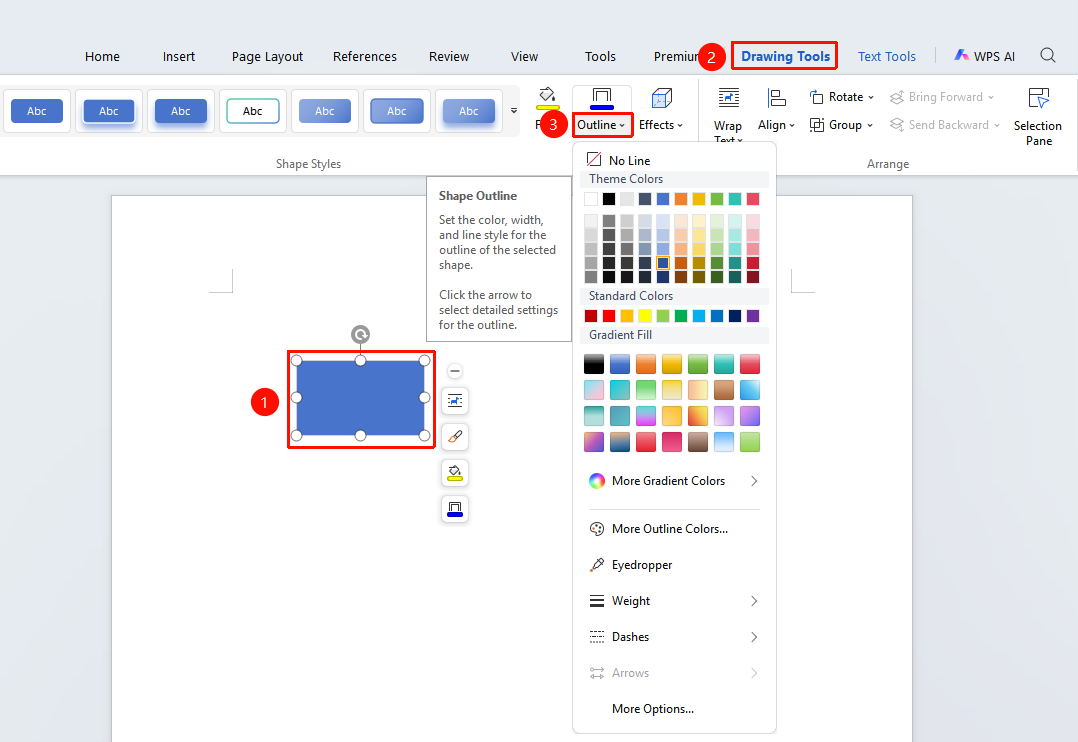
Select any shape/text box, click the "Drawing Tools" tab → "Shape Outline" option
- Select an inserted shape or text box; the Drawing Tools tab will automatically appear at the top
- Click the drop-down arrow below the "Shape Outline" option to modify the border color, weight, and dashed style
Modify Shape Effects
Feature Entry
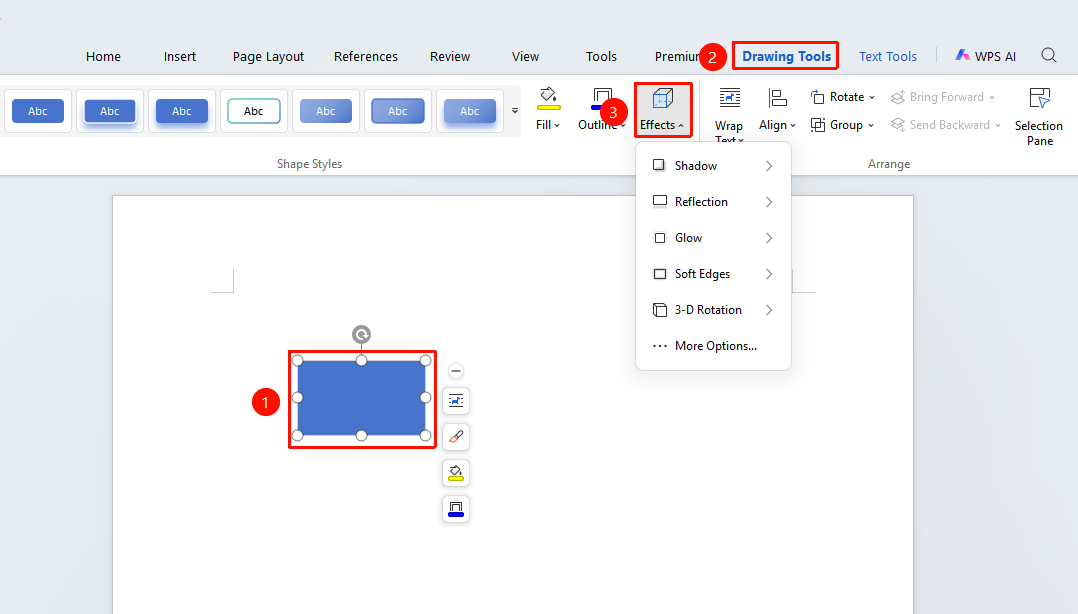
Select the shape or text box you want to edit, click the "Drawing Tools" tab → "Shape Effects" drop-down menu
- Select an inserted shape or text box; the Drawing Tools tab will automatically appear at the top
- Click the "Shape Effects" drop-down menu to add effects such as shadow, glow, and 3-D rotation
Edit Shape Points
Feature Entry
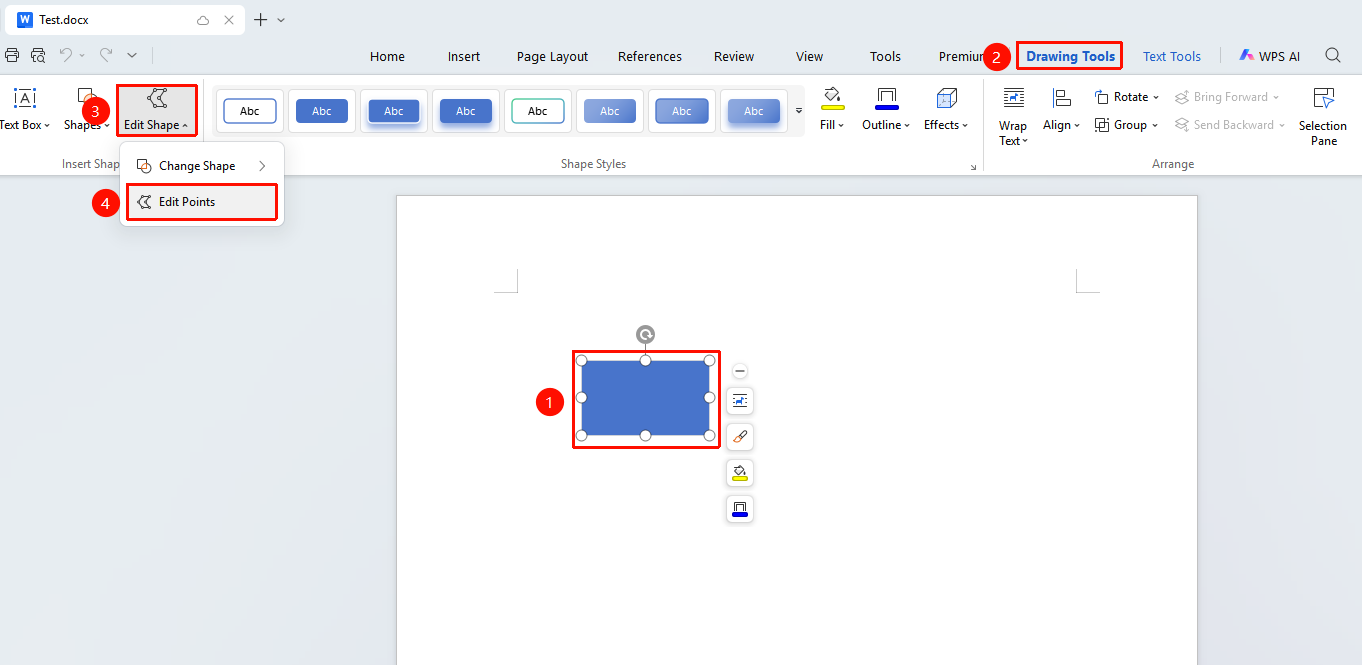
Select the shape you want to edit, "Drawing Tools" tab → "Edit Shape" drop-down menu → "Edit Points" button
- Select the shape you want to edit
- Click the "Drawing Tools" tab, then click the "Edit Shape" drop-down menu
- Click the "Edit Points" option in the drop-down menu
- Drag the vertices on the shape to adjust its outline
- After finishing editing, click anywhere in the document to exit Edit Points
Group Multiple Shapes
Feature Entry
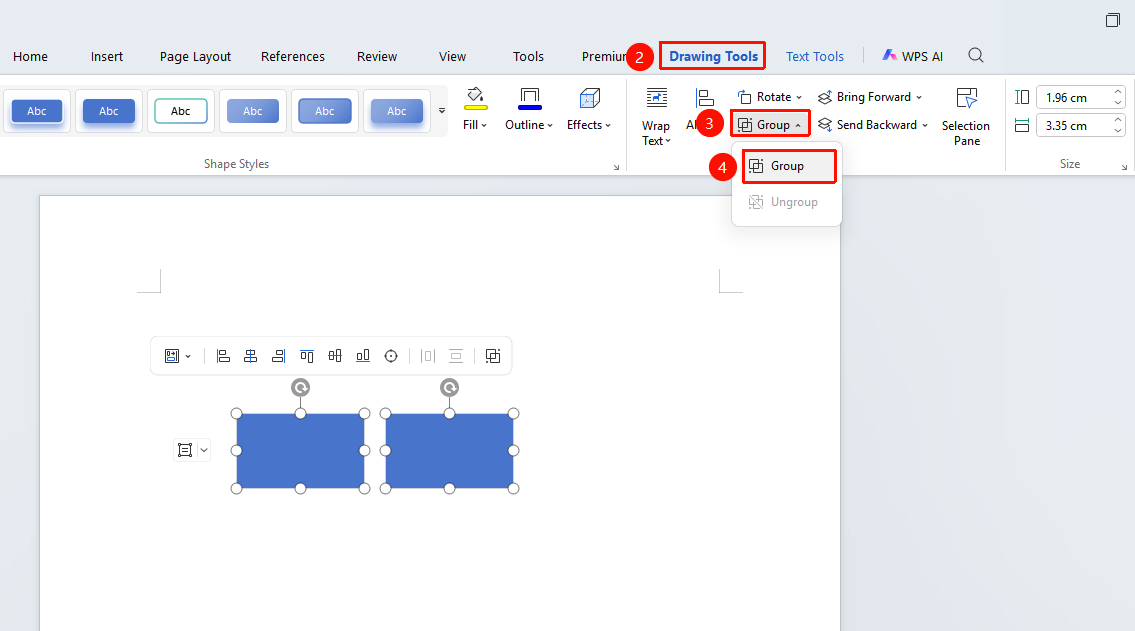
Select the shapes you want to group, "Drawing Tools" tab → "Group" button
- Click to select multiple shapes you want to group one by one
- Click the "Group" button in the Drawing Tools tab
- The multiple shapes will be bound into a single whole, which can be moved and resized as a unit
Ungroup
Feature Entry
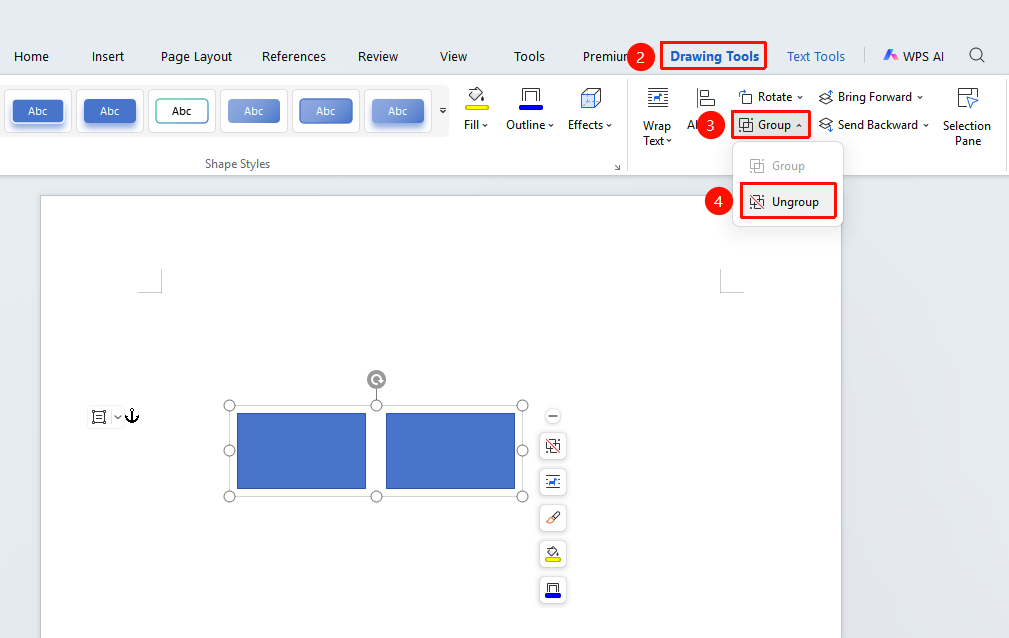
Select the grouped shapes you want to ungroup, "Drawing Tools" tab → "Ungroup" button
- Select the grouped shape set
- Click the "Ungroup" button in the Drawing Tools tab
- The shape group will be split into independent individual shapes
Align Shapes
Feature Entry
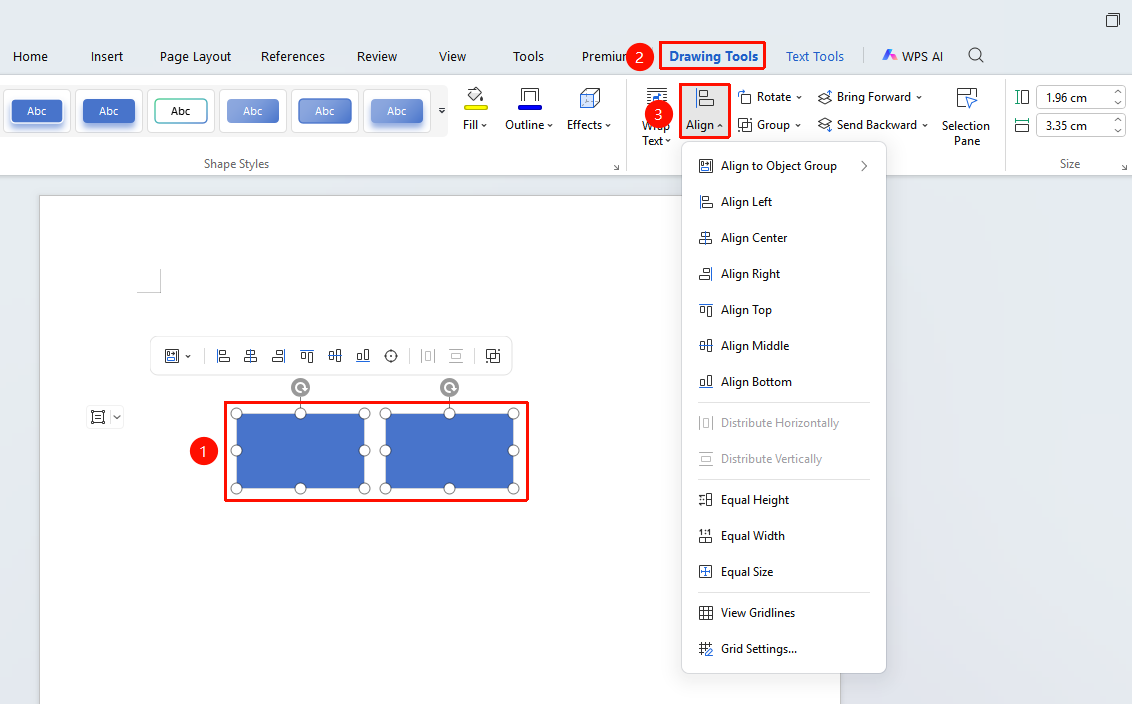
Select the shapes or text boxes you want to align, "Drawing Tools" tab → "Align" drop-down menu
- Select multiple shapes or text boxes you want to align
- Click the Drawing Tools tab
- Click the "Align" drop-down menu
- Choose an alignment method: Align Left, Align Center, Align Right, Align Top, Align Middle, Align Bottom
- You can choose Distribute Horizontally or Distribute Vertically to arrange shapes evenly
Adjust Shape Layer Order (Bring Forward)
Feature Entry
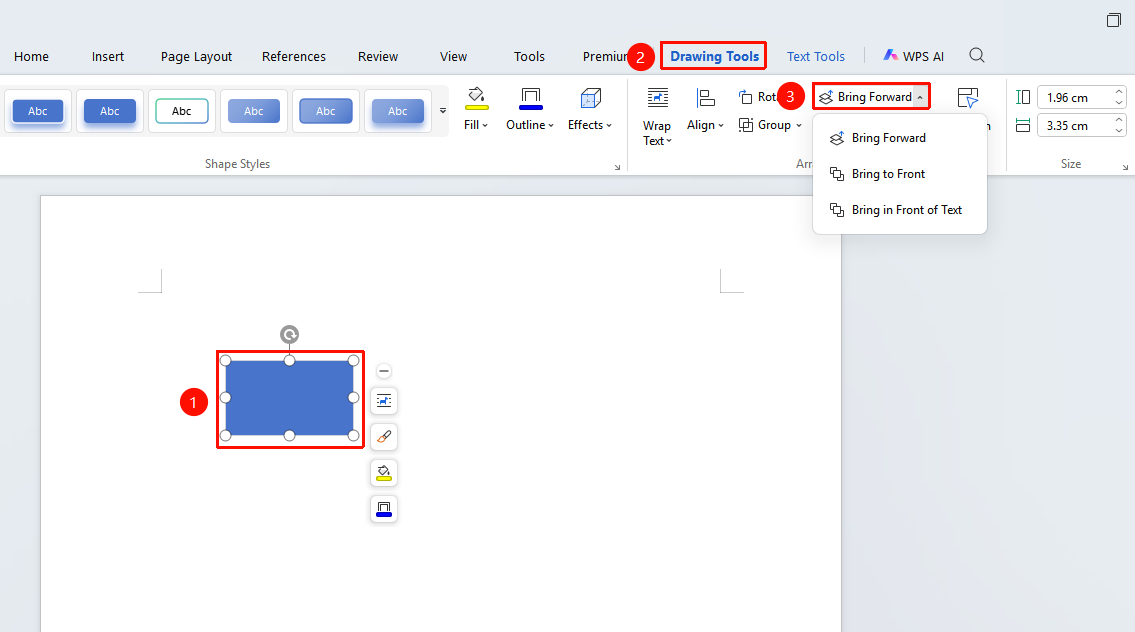
Select the shape whose layer order you want to adjust, "Drawing Tools" tab → "Bring Forward" button
- Select the shape whose layer order you want to adjust
- Click the Drawing Tools tab
- Click the "Bring Forward" button to move the shape's layer forward
- You can choose Bring to Front to quickly adjust it to the very front or back
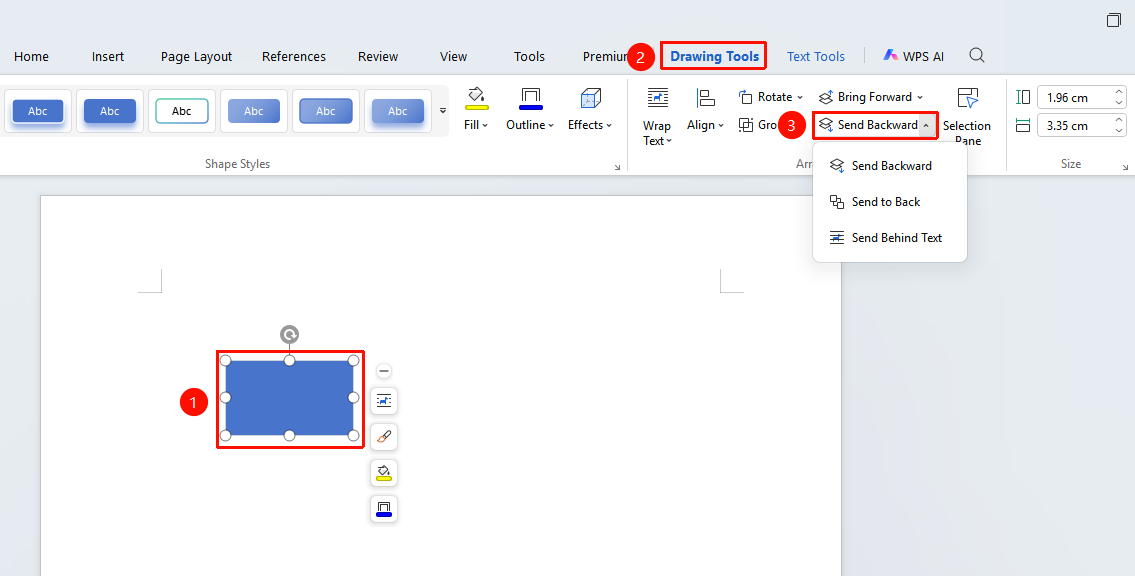
Adjust Shape Layer Order (Send Backward)
Feature EntrySelect the shape whose layer order you want to adjust, then go to the "Drawing Tools" tab → "Send Backward" button
- Select the shape whose layer order you want to adjust
- Click the Drawing Tools tab
- Click the "Send Backward" button to move the shape forward in the layer order
- You can choose Send to Back to quickly move it to the very front or very back
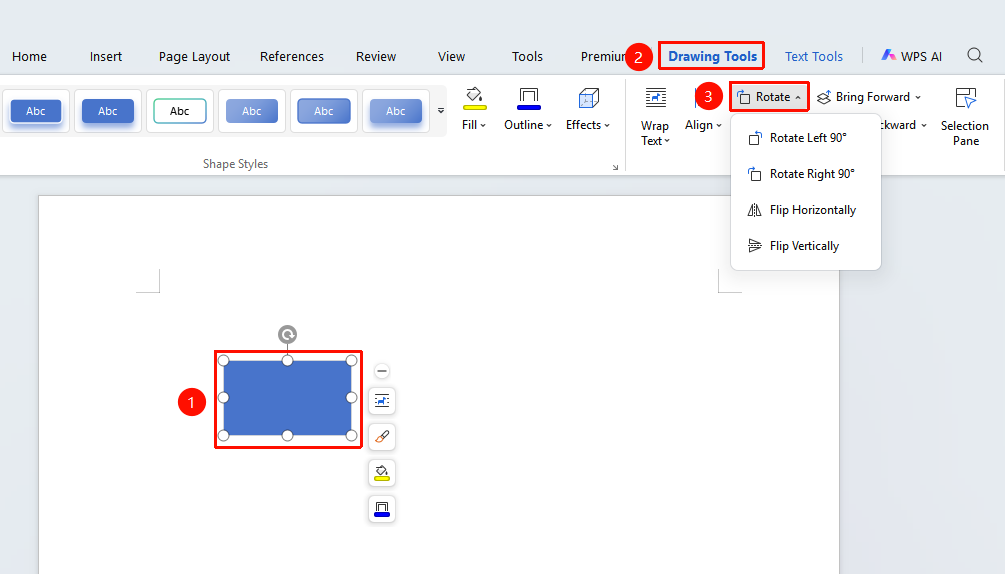
Rotate a Shape
Feature Entry
Select the shape you want to rotate, then go to the "Drawing Tools" tab → "Rotate" drop-down menu
- Select the shape you want to rotate
- Click the Drawing Tools tab
- Click the "Rotate" drop-down menu
- Choose a preset angle: Rotate Right 90°, Rotate Left 90°, Flip Vertical, Flip Horizontal
FAQ
Q1: What should I do if a drawn shape cannot be moved?
- Solution: Check the text wrapping style of the shape. Right-click the shape, select "More Layout Options", and change the wrapping style to "In Front of Text" or "Behind Text" to move it freely.
Q3: What should I do if the Merge Shapes button is grayed out?
- Solution: Make sure you have selected two or more shapes that overlap. If the button is still grayed out, go to "File" → "Options" → "View", uncheck "Disable hardware graphics acceleration", restart WPS, and try again.
Notes
- Hold down the Shift key while drawing to maintain the shape's proportions (e.g., perfect circle, square, horizontal line)
- Hold down the Shift key to select multiple shapes simultaneously for batch operations
- After grouping shapes, double-click to enter edit mode and modify one of the shapes individually