Feature Summary
The AutoCorrect feature automatically corrects common spelling mistakes and capitalization errors, and supports custom replacement rules to improve document input efficiency.
Feature Description
| Feature Dimension | Description |
|---|---|
| Membership Restriction | No membership restriction |
| Version Restriction | No version restriction |
Operation Steps
AutoCorrect Settings
Feature Entry
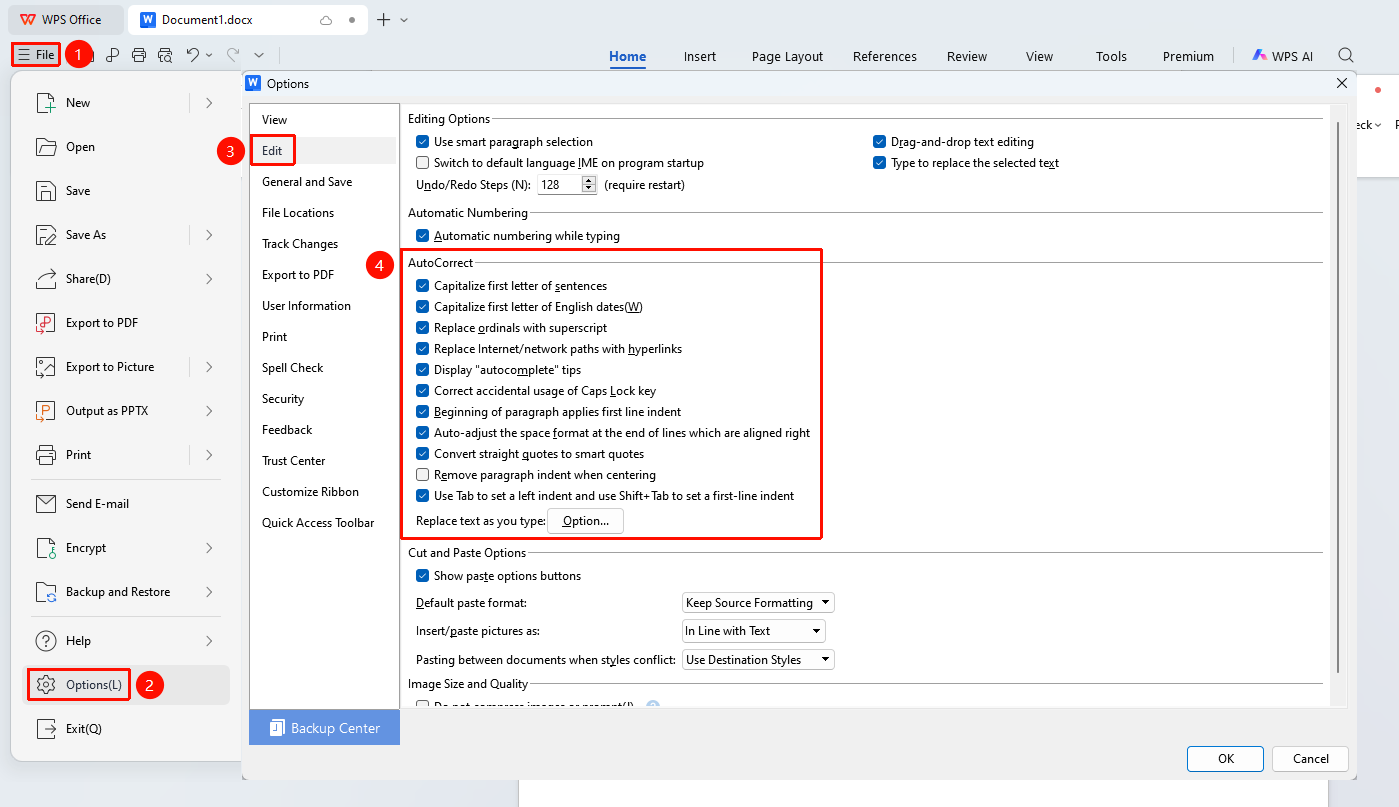
"File" menu → "Options" button → "Edit" tab → "AutoCorrect"
- Click the File tab and select Options
- In the pop-up window, select the "Edit" tab
- In the AutoCorrect area, you can check the following options:
- Automatically correct sentence initial capitalization while typing
- Capitalize first letter of English dates
- Replace ordinals (1st) with superscript
- Replace Internet or network paths with hyperlinks
- Show "AutoComplete" suggestions
- Correct accidental usage of Caps &Lock key
- Use first-line indent for spaces at the beginning of a paragraph
- Automatically adjust trailing space format for right-aligned paragraphs
- Replace straight quotation marks with smart quotation marks
- Automatically remove paragraph indent when center aligning
- Use Tab, Shift+Tab to set left indent and first-line indent
- Click OK to complete the settings
Frequently Asked Questions
Question 1: How to disable a specific AutoCorrect
- Solution: In "File" menu → "Options" button → "Edit" tab → "AutoCorrect", uncheck the corresponding AutoCorrect option.
Notes
- AutoCorrect rules apply to all documents